 TabTasker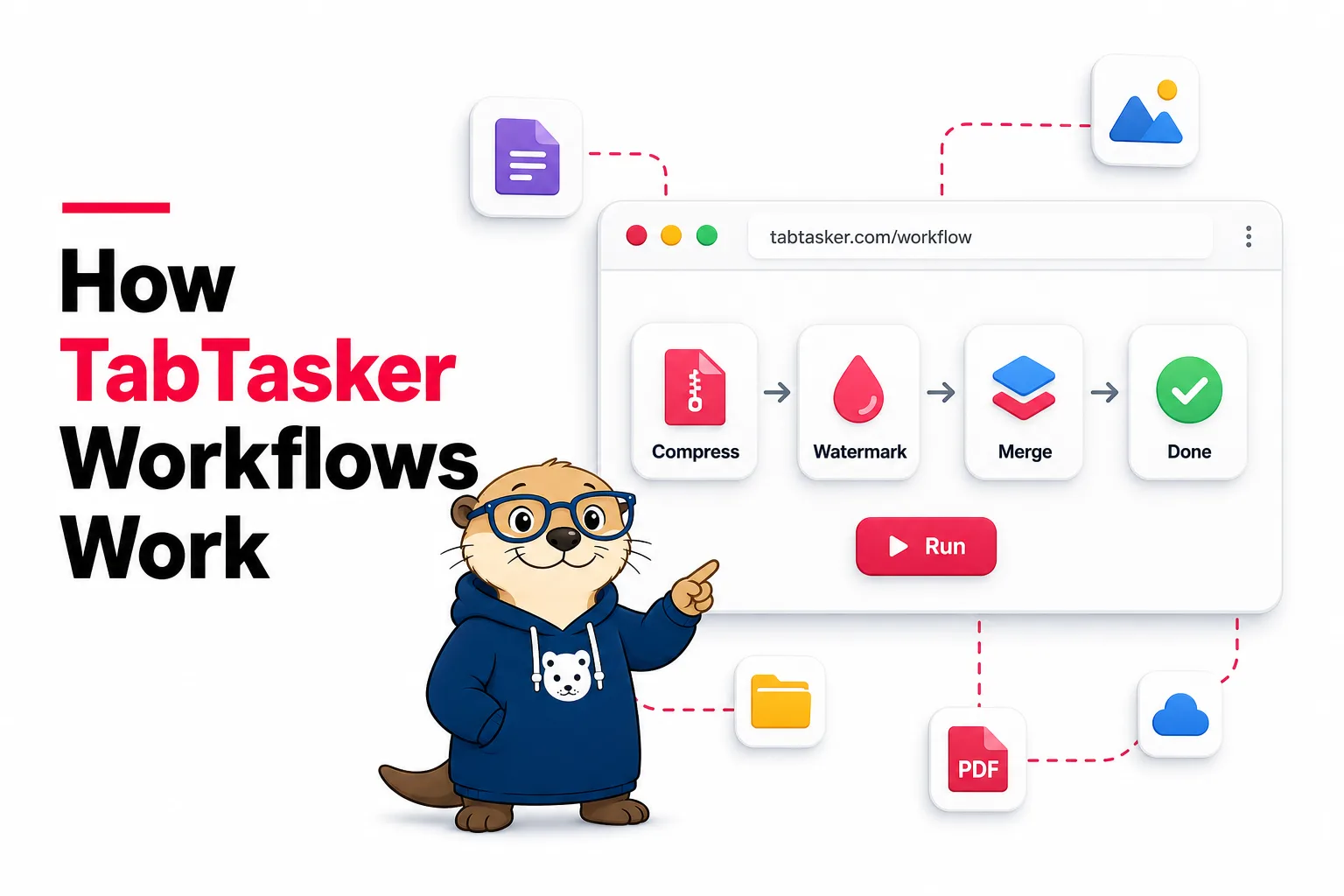
One file can need more than one tool
Most browser tools are built around one action: compress a PDF, transcribe audio, remove an image background, or convert text to speech. That is useful, but real work often has several steps.
A meeting recording might need transcription, summarization, and a PDF export. A report might need text extraction, cleanup, and audio narration. A product image might need background removal, resizing, and conversion. TabTasker Workflows are designed for those chains.
What is a workflow?
A workflow is a reusable pipeline made from nodes. Each node is a tool or small action, and each wire passes the output from one node into the next.
Instead of opening three separate pages and downloading files between each step, you build the chain once. After that, you can drop in a file, press run, and inspect the results from every stage.
The basic pieces
- Nodes are the steps in the process, like Upload, Speech to Text, Text to PDF, PDF Text Extract, or Text to Speech.
- Ports describe what a node accepts and produces. A text output connects to a text input. An audio output connects to an audio input.
- Wires move data between nodes. Their color follows the output type, so text, audio, image, and PDF paths are easier to read.
- Templates are ready-made workflows for common jobs, such as meeting notes, PDF to podcast, AI writing, and photo cleanup.
How running a workflow works
When you press Run, TabTasker looks at the graph and figures out which nodes can run first. Upload and text-input nodes usually start the process. Once a node finishes, its result becomes available to any connected node that depends on it.
The runner continues step by step until every reachable node has finished, failed, or been skipped because a required input was missing. The bottom results panel shows progress while the workflow runs, then keeps the outputs grouped by node so you can see how the work evolved.
A simple example: meeting notes
The meeting notes template starts with an audio file. That audio flows into speech to text, which creates a transcript. The transcript then flows into an AI text step that turns it into cleaner notes. Finally, the notes can be exported as a text or PDF-style result.
The important detail is that each step is visible. You can inspect the transcript before the summary, then inspect the summary before downloading the final file. Workflows are not just a black box.
A second example: PDF to podcast
The PDF to podcast template takes a PDF, extracts readable text, and sends that text into speech synthesis. The output is an audio file you can play or download.
This is the same idea as the standalone PDF to Podcast tool, but the workflow view makes the intermediate stages easier to understand and reuse.
Why this stays private
Workflows follow the same rule as the rest of TabTasker: your files stay in your browser. The workflow graph, files, intermediate outputs, and downloaded results are handled locally on your device.
Some AI models need to download the first time you use them. After that, the browser can cache them for future runs. Your documents, recordings, and images are not uploaded to a TabTasker processing server.
Why templates help
A blank canvas is powerful, but templates make workflows easier to start. They show useful node placements, the right wire types, and a complete end-to-end path for a real task.
You can open a template, clone it into your own workflow, adjust the text prompts or output settings, and save it for later. The template is a starting point, not a locked recipe.
What the results panel shows
The results panel is meant to answer one question: what happened at each step? It shows the status of the run, the nodes that produced outputs, and small previews for text, images, PDFs, and audio files.
You can open a larger preview, play audio outputs, read generated text, and download individual files or everything at once. That makes it easier to debug a workflow and easier to trust the final result.
When to use workflows
- Use workflows when a task has repeated steps.
- Use workflows when you want to inspect intermediate results.
- Use workflows when you want one file drop to produce several outputs.
- Use workflows when you want private AI and file tools in one reusable pipeline.
Workflows are in beta
The workflow builder is still in beta, which means the core model is working but the experience will keep improving. Templates, node coverage, previews, and error handling will all get sharper as people use it on real jobs.
Try the builder at TabTasker Workflows, start from a template, and send feedback from the workflow page when something feels confusing or when a new node would make your process easier.