 TabTasker
The fastest way to add page numbers to a PDF depends on what you're protecting: your time or your data. A client-side tool like TabTasker numbers pages in your browser without uploading anything, which makes it the strongest default for sensitive files. A desktop editor gives you the deepest control over headers, footers, and page-label metadata, best for books or mixed numbering. Upload-based online editors are fine for a quick, disposable one-off job.
TL;DR:
- Client-side tools like TabTasker provide the highest privacy level by processing files entirely within your browser without uploading, ideal for sensitive documents.
- Desktop editors offer precise control over page numbering, including setting specific starting points and managing page-label metadata for professional layouts.
- Upload-based online editors are suitable for quick, one-off jobs but pose privacy risks, especially with larger files or confidential content.
- Correct page numbering requires finalizing page order and content before applying numbers to avoid misalignments or incorrect totals.
- Understanding the difference between visible page stamps and page labels ensures proper navigation and professional formatting in complex or lengthy documents.
Table of Contents
- Which Page Numbering Method Should You Use?
- How Do You Add Page Numbers With TabTasker?
- How Do You Add Page Numbers in a Desktop Editor?
- How Do You Number Pages With an Online PDF Editor?
- Page Labels vs. Page Stamps: What's the Real Difference?
- Troubleshooting Common Page Numbering Problems
- Can You Add Page Numbers to a Secured or Read-Only PDF?
- Will Page Numbers Look the Same in Every PDF Reader?
- How Do You Remove or Edit Page Numbers Already in a PDF?
- What Usually Goes Wrong When Numbering a PDF?
- Why Client-Side Tools Change the Calculus on PDF Editing
- Number Your PDF Privately With TabTasker
- Sources
Which Page Numbering Method Should You Use?
Not every PDF deserves the same treatment. A tax return and a recipe printout do not carry the same risk if a numbering tool keeps a copy on someone else's server, so the right method depends on what's inside the file and how much control you need over the result.
- TabTasker (client-side, browser-based): processes the file on your device with no upload step, which makes it a solid pick for contracts, medical records, or anything you'd rather not hand to a stranger's cloud.
- Desktop PDF editor: gives you full control over headers, footers, fonts, and the /PageLabels metadata that governs how viewers navigate the document. Better suited to books, reports, and anything with mixed numbering schemes.
- Online editors (upload-based): often the simplest interface for a single, low-stakes edit, but the file has to leave your device first, and some tools carry file-size or retention limits.
Before picking a tool, ask three quick questions: How sensitive is this file? How many pages and how complex is the numbering? Do I need this fast or do I need it exact? Privacy-sensitive documents point toward TabTasker. Complex, professional layouts point toward a desktop editor. Quick, disposable jobs are what online editors were built for.
How Do You Add Page Numbers With TabTasker?
TabTasker keeps the entire numbering workflow inside your browser tab, so the PDF never touches a remote server. Here's how the process runs from start to finish.
- Open your PDF in TabTasker's PDF Page Gallery or the PDF edit workflow.
- Choose the header or footer stamp option, then set the position (top or bottom, left, center, or right).
- Set the number format, the page range to number, and the starting number.
- Preview the result on a few sample pages before committing.
- Export the finished file directly to your device.
If you need "Page 1 of N" formatting, most numbering workflows in TabTasker support that token directly. Because everything runs client-side, changes exist only in your browser session until you export. Nothing gets stored on a server, and nothing syncs anywhere unless you choose to save it yourself.
Pro Tip: Always open the exported copy and scroll through it using TabTasker's page preview before you consider the job done. A format that looks right in the editor can still shift slightly once it's baked into the final file, especially on pages with existing footers or scanned content.
How Do You Add Page Numbers in a Desktop Editor?
Desktop editors trade convenience for precision, and that trade-off matters once a document needs to look genuinely professional. A typical workflow starts with opening the file, then choosing Edit → Header & Footer → Add or the equivalent menu path, which is how most desktop tools structure the feature.
From there, you insert the page number token, choose its placement, pick a font, and decide whether odd and even pages should mirror each other, a common choice for anything meant to be printed and bound.
- Set the page range the numbering should apply to, rather than defaulting to the whole document.
- Set a starting number so numbering can begin on page 3 while still displaying as "1," a frequent need in reports with a cover page and table of contents.
- Decide whether you want a visible stamp only, or whether the document also needs PDF page labels.
Here's where most casual guides stop short. Visible page numbers and PDF /PageLabels metadata are not the same thing. A page label is metadata in the document catalog that tells a PDF viewer what number to display in its navigation bar, independent of what's printed on the page itself. This is how a 40-page thesis can show Roman numerals ("iii," "iv") on its front matter and Arabic numerals starting fresh at "1" on chapter one, all in a viewer's sidebar, without any of that logic being baked into the visible page content.
If you're working from a Word or InDesign source file, it's often faster to set the numbering there and re-export to PDF, rather than trying to stamp corrections onto a PDF after the fact. Source-level numbering updates automatically when pages shift; stamped numbering does not.
How Do You Number Pages With an Online PDF Editor?
Upload-based online editors follow a familiar pattern, and it's worth knowing the steps even if you'd rather avoid the upload step for sensitive files.
- Upload the PDF to the tool's site, then open its header/footer or Add Text feature.
- Position the number on the page and choose the numbering format you want.
- Set the page range, or the starting page, and use "Page X of Y" tokens if the tool supports them.
- Download the finished file and open it immediately to confirm the numbers landed where you expected.
That last step matters more than it sounds. Numbering placement can shift depending on margin settings, and a font substitution can throw off spacing you didn't anticipate.
The bigger consideration is what happens to your file during that upload window. Many of these platforms require an account or store files temporarily on their servers, which is a reasonable trade for a flyer or a public handout but a real question mark for a signed contract or a client's financial statement. If the document contains anything you wouldn't want sitting on someone else's infrastructure, even briefly, a client-side option is the safer default.

Page Labels vs. Page Stamps: What's the Real Difference?
A visible page number and a PDF page label solve two different problems, and confusing them causes most of the numbering headaches people run into with long or professionally formatted documents.
A page stamp is text burned directly onto the page. It's part of the page content, permanent once applied, and visible whether you're using it or not. A page label is metadata, stored separately, that tells your PDF viewer what number to show in its own navigation panel, letting the sidebar say "Page iv" while the printed page shows nothing at all, or something entirely different.
- Front matter (title page, table of contents, preface) commonly uses Roman numeral page labels, while the main body switches to Arabic numerals starting at 1.
- Legal and technical documents sometimes use prefixed labels, such as "A-1," "A-2," useful for appendices or exhibits that need their own numbering track.
- Page-label ranges let you set a starting value for each section, so an appendix can begin its own count without disturbing the rest of the document.
- Simple editors that only offer a "stamp" feature don't touch this metadata at all. They add visible text and stop there, which is fine for a quick memo but insufficient for a document meant to be navigated professionally.
Knowing which one you actually need saves a lot of frustration. If your document just needs a number printed at the bottom of each page, a stamp does the job. If you need a 60-page report where the viewer's page counter matches the printed number exactly, even across sections with different numbering styles, you need page labels.
Troubleshooting Common Page Numbering Problems
Most numbering complaints trace back to one of a handful of predictable causes, and each has a fast fix.
- Numbers wrong after reordering pages: reapply the numbering after the reorder is finalized. Numbering locks in at the moment it's applied, not dynamically.
- Text overlapping page content: adjust the margin settings or move the number to a different corner; this usually happens when a footer already occupies that space.
- "1 of N" count doesn't match: confirm your export includes every page before stamping, or regenerate the numbering after any late edits add or remove pages.
- Numbers not updating in a merged document: re-run the numbering step after merging, since most tools number the file as it exists at that moment, not retroactively.
For anything with a source file, decide early whether you're numbering in the PDF or in the original document. Editing in Word or InDesign and re-exporting is almost always cleaner for documents that will change again.
Pro Tip: Save an unnumbered copy of your PDF before you stamp anything, and test your settings on a short sample range first. It takes thirty seconds and saves you from re-uploading or reopening a 200-page file because the format was off.
Can You Add Page Numbers to a Secured or Read-Only PDF?
A PDF marked read-only or protected with permissions restrictions will usually block most editing tools, including page numbering, until those restrictions are addressed. The behavior depends on what kind of protection is in place.
If the file has an open password (you need a password just to view it), you'll need that password before any editor, TabTasker included, can touch the content. There's no legitimate workaround here, and that's by design.
If the file has permissions restrictions (viewable by anyone, but editing, printing, or copying is disabled) without an owner password, some editors can still apply changes, though this varies by tool and by how the restrictions were set. A client-side tool has an advantage here: because the file never leaves your device, you're not adding a second party's server into the chain of custody for a document you may have restricted for exactly that reason.
The practical order of operations is: confirm you have the rights or password needed to edit the file, remove or temporarily lift restrictions if you have permission to do so, apply the page numbering, then reapply security settings afterward if the document needs to stay protected. Trying to number a locked file without addressing the lock first is the single most common reason people report that "nothing happens" when they try to add numbers. The tool isn't broken. The file is telling it no.
Will Page Numbers Look the Same in Every PDF Reader?
Visible page stamps render consistently across virtually every PDF reader, since they're just text embedded in the page content, no different from any other text on the page. Where compatibility gets shaky is with page labels and with fonts.
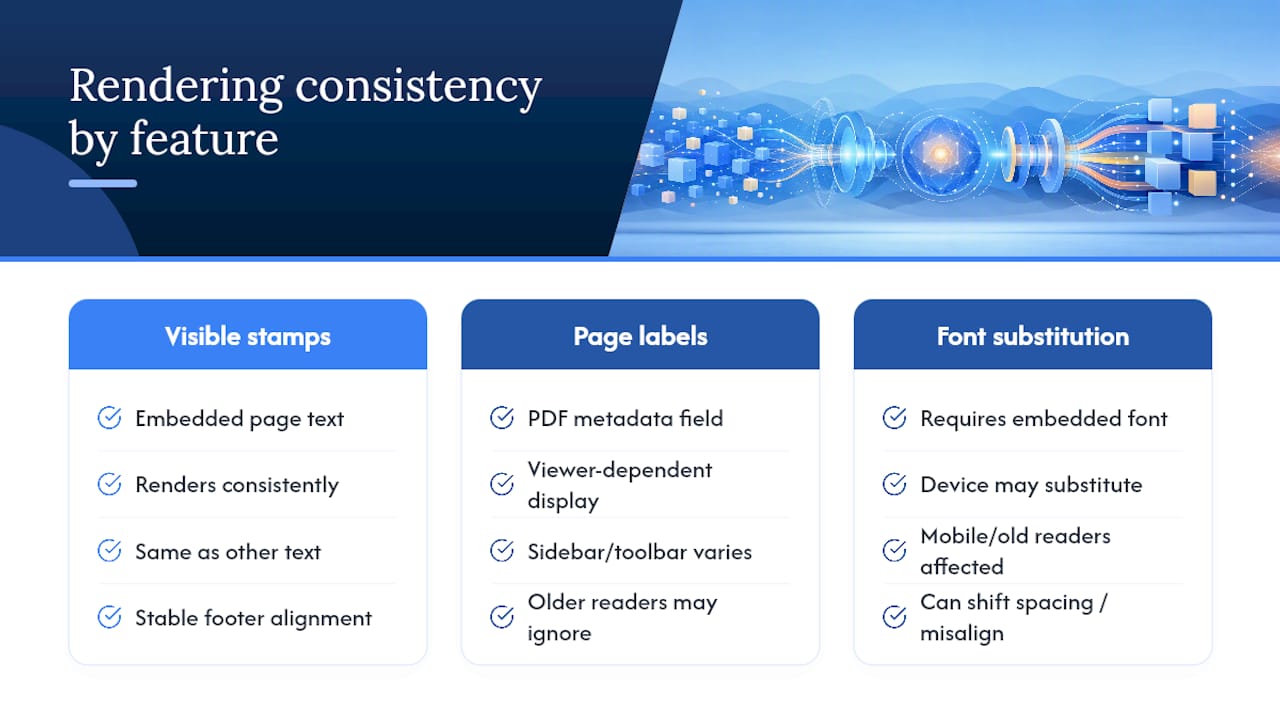
Page label metadata is part of the PDF specification, but how a reader displays that metadata in its sidebar or toolbar varies. Most modern readers show the logical page label correctly, but older or more basic readers sometimes default to showing the raw page count instead, ignoring the label entirely. If you're distributing a document to a wide audience with mixed software, don't assume everyone will see "iv" in their navigation panel just because you set it that way.
Font substitution is the quieter problem. If you stamp numbers using a font that isn't embedded in the PDF, some readers will substitute a default font when the original isn't available on the viewing device, which can shift spacing just enough to misalign a footer. This shows up most often with PDFs opened on mobile readers or older desktop software.
The safest habit is testing your numbered PDF in at least two different readers, ideally one desktop and one mobile, before sending it out widely. It costs a minute and catches the handful of edge cases that otherwise surface only after a client or professor opens the file on unfamiliar software.
How Do You Remove or Edit Page Numbers Already in a PDF?
Removing an existing page number depends entirely on how it got there in the first place, which is the part most people skip past.
If the numbers are a visible stamp, baked into the page as text, you'll need an editor capable of detecting and removing embedded text objects, then reapplying new numbering if needed. Some editors offer a direct "remove page numbers" feature; others require you to select and delete the text manually on each page, which is tedious but works.
If the numbers come from page-label metadata, the fix is simpler: you're not editing page content at all, just resetting the label ranges in the document catalog. Most desktop editors that support page labels also let you clear or reassign them without touching anything visible on the page.
The tricky case is a document that has both, a visible stamp layered on top of correct page-label metadata, often the result of someone numbering a PDF twice by mistake, once through stamping and once through a proper labeling workflow. When that happens, check for duplicate or conflicting numbers in the corner of a few sample pages before you start editing, since fixing the wrong layer leaves the redundant one behind.
What Usually Goes Wrong When Numbering a PDF?
A handful of mistakes account for most numbering complaints, and nearly all of them are avoidable with a quick check before you export.
The most common error is numbering before the document is finalized, then adding or deleting pages afterward, which throws off both the count and any "of N" totals. Close behind is applying numbering to scanned or image-based PDFs where the tool can't properly detect existing page boundaries, sometimes causing numbers to land on the wrong page entirely.
Font and encoding mismatches cause a subtler problem: numbers that look correct in the editor but render as blank boxes or wrong characters once opened elsewhere, usually tied to a font that wasn't embedded in the export. And with tools that only stamp visible text, people frequently expect the change to update a viewer's page-count sidebar, not realizing that only page-label metadata controls that display.
The fix for nearly all of these is the same: finalize your page order and content first, apply numbering last, and open the exported file in a second reader before you send it anywhere. It's a small habit that catches the majority of numbering problems before anyone downstream ever sees them.
Why Client-Side Tools Change the Calculus on PDF Editing
Most people don't think about where their file goes when they drop it into a numbering tool, and that's exactly the gap TabTasker was built to close. Processing happens on your own device, so a contract, a medical record, or a client deliverable never has to travel to someone else's server just to get a header stamped on it. That single design choice removes an entire category of risk that upload-based tools simply can't avoid.
TabTasker also bundles that same privacy-first approach across other file operations, from PDF editing to image and audio tools, so you're not juggling five different services with five different data policies. A desktop editor still earns its place for a 300-page manuscript with mixed Roman and Arabic page labels. But for the overwhelming majority of numbering jobs, especially anything sensitive, a client-side workflow is the more defensible default, not just the more convenient one.
— Vehicularis
Number Your PDF Privately With TabTasker
TabTasker is the alternative to uploading your files to a stranger's server just to add a footer, numbering pages entirely inside your browser, with no account, no upload, and no wait for a "processing" screen. You can preview the result, adjust placement, and export the finished file straight to your device.

Start with the PDF Page Gallery to preview and number your document, then check out TabTasker's guides on signing a PDF without uploading it or password-protecting a PDF in 30 seconds for the natural next steps once your pages are numbered. If you're comparing browser tools against traditional online editors first, TabTasker's guide to online document editors lays out the trade-offs plainly. Open your file and give it a try.
Sources
For deeper technical grounding, see the W3C's guidance on PDF page labeling, Hostos/CUNY's step-by-step numbering guide, and Mapsoft's explanation of numbering schemes.
- PDF17: Specifying consistent page numbering for PDF documents | WAI | W3C
- Adding Page Numbers to PDFs - Hostos Social Network - CUNY