 TabTasker
TL;DR:
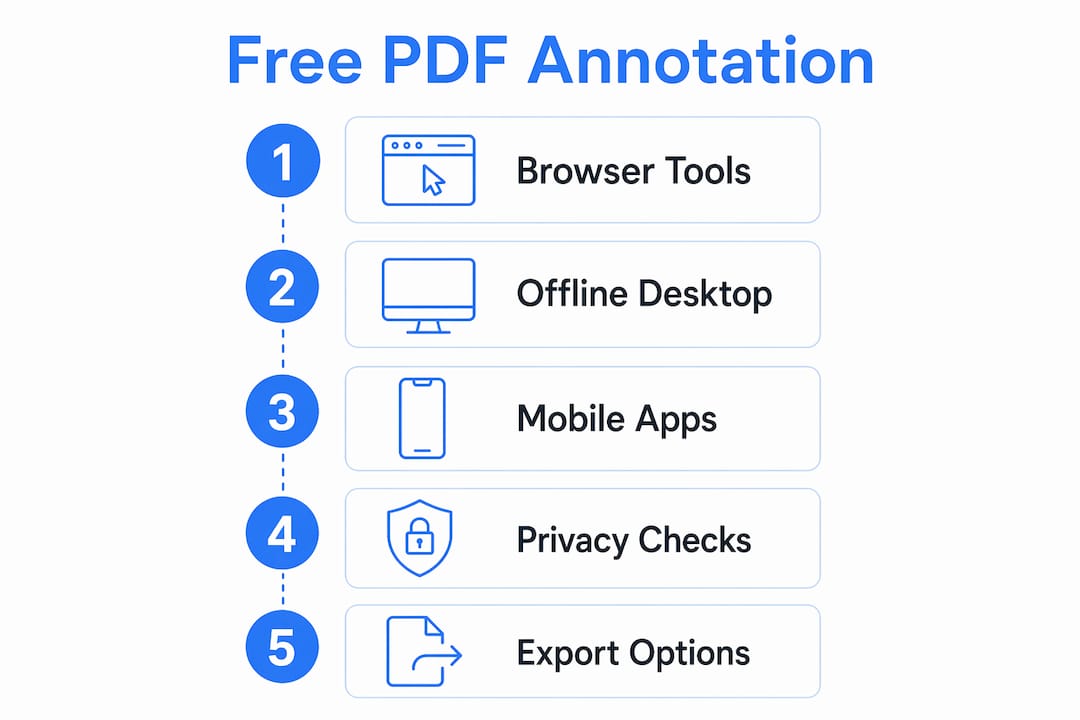
- You can annotate PDFs for free using client-side browser tools or built-in OS features that keep files local.
- Tabtasker processes PDFs entirely in your browser without uploading, ensuring privacy and control over your files.
You can annotate PDFs for free without subscribing by using client-side browser tools, built-in OS markup, or offline desktop and mobile apps. The most private option is a browser tool that runs PDF.js and WebAssembly locally, meaning your file never leaves your device. Tabtasker takes exactly this approach, and its blog documents the client-side signing process as proof. When compatibility matters, confirm your tool exports standard PDF annotation objects rather than flattening everything into a page image.
Table of Contents
- Which free method should you use right now?
- How do you annotate a PDF privately in your browser with Tabtasker?
- How do you annotate offline on desktop without a subscription?
- How do you annotate on mobile without paying or signing up?
- Privacy checklist: how do you confirm a tool never uploads your PDF?
- How are PDF annotations saved, and will they survive in other readers?
- When should you avoid online editors entirely?
- Key Takeaways
- Why client-side tools are the right default for PDF annotation
- Tabtasker gives you private PDF annotation at no cost
- Useful sources and further reading
Which free method should you use right now?
Your best option depends on your device and how sensitive the file is.
- Browser, privacy-first: Use a client-side web editor built on PDF.js or WebAssembly (like Tabtasker). Your file loads into browser memory and never touches a server.
- Desktop offline (Windows): Microsoft Edge has built-in PDF markup. Open any PDF in Edge, select the draw or highlight tool, and save locally.
- Desktop offline (macOS): Preview handles highlights, comments, and signatures natively. No install, no account.
- Desktop offline (Linux): Free local viewers with annotation layers work without internet access. Confirm exports stay editable.
- Mobile (iOS): The built-in Markup tool in Files or Mail annotates and exports locally.
- Mobile (Android): Local PDF viewer apps with markup features, or a client-side browser editor, work without sign-ins.
- Fallback (online editor unavoidable): Run the privacy checklist below before you open the file.
How do you annotate a PDF privately in your browser with Tabtasker?
Tabtasker processes files entirely in your browser using client-side local processing, so no server ever receives your document. Here is the full walkthrough.
- Open the Tabtasker PDF tool at tabtasker.com. No account or sign-up required.
- Load your PDF. Click the file picker or drag the document into the tool. The file loads into browser memory only.
- Annotate. Use the toolbar to highlight text, add text comments, draw shapes, or place a signature.
- Review your markup by scrolling through the document before exporting.
- Export. Click the download button. Tabtasker assembles the annotated PDF locally using a local exporter and saves it directly to your Downloads folder.
Because WebAssembly drives the rendering, the process runs at near-native speed with no server load and no data transmission.
Privacy confirmed: Tabtasker exports standard PDF annotation objects, not flattened images, so your highlights and comments remain editable when you open the file in Adobe Acrobat or Preview.
Pro Tip: Test local processing by switching your device to airplane mode before you open the tool. If the editor still loads and exports the PDF, your file never left your device. You can also open browser DevTools (F12 → Network tab) and watch for any POST or PUT requests while annotating. A clean network log is your confirmation.
How do you annotate offline on desktop without a subscription?
Built-in OS tools handle most annotation tasks without any extra software.
- Windows: Microsoft Edge opens PDFs directly and offers highlight, draw, and sticky-note tools. Save the annotated file locally and skip OneDrive prompts if privacy matters.
- macOS: Preview's Markup toolbar covers highlights, text boxes, shapes, and signatures. File → Export as PDF saves a standard annotated file.
- Linux: Free local PDF viewers with annotation support export editable layers. Always open the exported file in a second viewer to confirm annotations survived.
- Cross-platform free apps: Choose apps that store files locally by default. Check the settings for any auto-sync or cloud-backup option and turn it off.
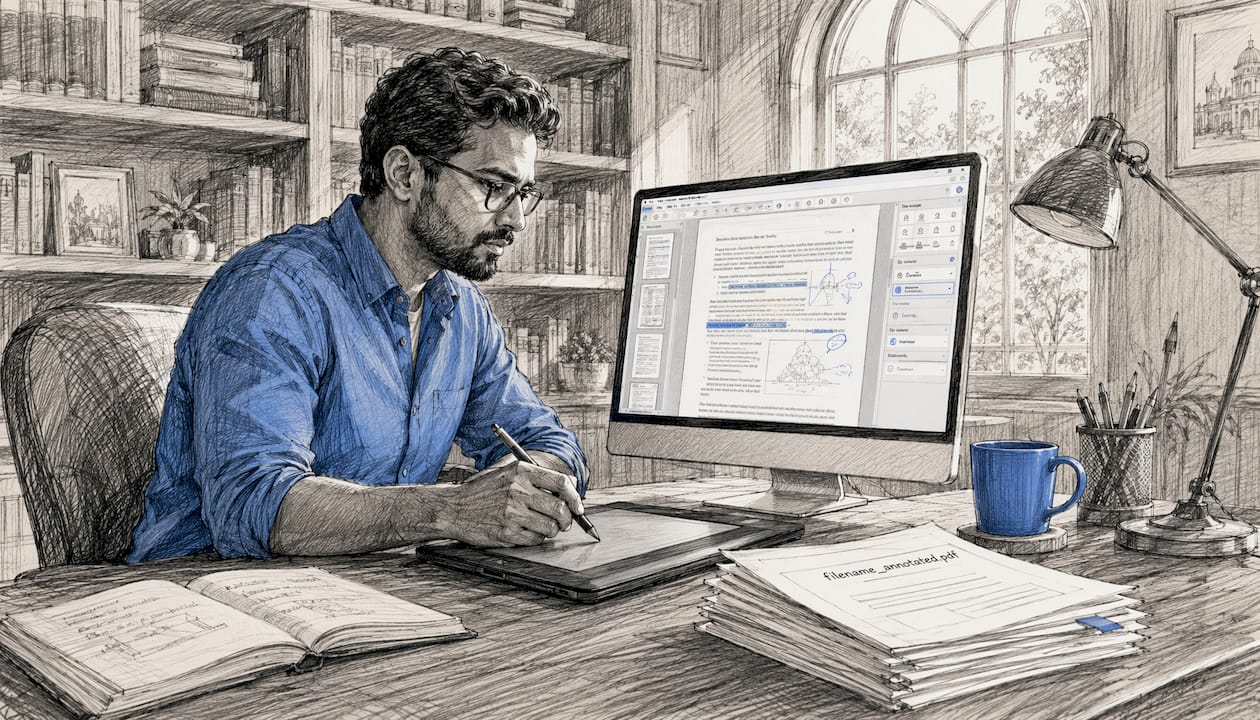
Pro Tip: On any platform, work with a copy of the original file. Rename it "filename_annotated.pdf" before you start so the source stays clean. If you are on Windows, right-click OneDrive in the system tray and pause sync before opening sensitive documents in Edge.
How do you annotate on mobile without paying or signing up?
Mobile annotation is faster than most people expect, and the free routes are genuinely capable.
- iOS: Open a PDF in the Files app, tap the share icon, then tap Markup. Annotate with the pen, highlighter, or text tool, then tap Done to save locally. No app download needed.
- Android: A local PDF viewer app with built-in markup works offline. Look for apps that explicitly state "no upload" or "local processing" in their description.
- Browser-based on mobile: Tabtasker's client-side editor runs in a mobile browser. Load the PDF, annotate, and download the result to local storage.
- Permissions check: Before installing any PDF app, review its permissions. An annotation tool has no reason to request contacts, camera, or network access beyond what it needs to load a file.
Pro Tip: Enable airplane mode before annotating on mobile and export to your local Downloads folder rather than iCloud or Google Drive. That single habit guarantees the file never leaves your device, regardless of which app you use.
Privacy checklist: how do you confirm a tool never uploads your PDF?
Not every tool that calls itself "private" actually is. These five checks take under two minutes.
- Airplane mode test: Disconnect from the internet before opening the editor. If it still annotates and exports, the tool is genuinely local. If it stalls or throws a network error, it needs a server.
- DevTools network inspection: In Chrome or Firefox, open DevTools (F12), go to the Network tab, and watch for POST or PUT upload requests while you annotate. Any file-upload request is a red flag.
- Library signals: Tools built on PDF.js, Fabric.js, or WebAssembly typically process in memory. Check the tool's "About" page or source for these library names.
- Account and cookie check: Avoid tools that require an email address, sign-up, or cloud storage authorization before letting you export.
- Storage destination: Confirm the exported file lands in your local Downloads folder, not a third-party cloud service.
Pro Tip: If you need to share the annotated PDF securely, consider password-protected file sharing rather than emailing the file directly. It adds one layer of protection without requiring either party to create an account.
How are PDF annotations saved, and will they survive in other readers?
The export method determines whether your markup travels with the file or gets baked into a flat image.
| Export type | What it means | Editable later? |
|---|---|---|
| Standard annotation objects | Highlights, comments, and shapes stored as native PDF objects | Yes, in most readers |
| Flattened (rasterized) | Annotations merged into the page image | No |
| Redacted (bytes removed) | Content permanently deleted from the file | No (by design) |
Tools built on PDF.js, Fabric.js, and jsPDF can export standard annotation objects when implemented correctly. Tabtasker uses this approach. Tools that rasterize pages produce flattened outputs that look identical on screen but lose editability.
- Always test the export: Open your annotated file in a second reader (Adobe Acrobat, Preview, or a browser) to confirm highlights and comments appear as expected.
- Redaction is different from annotation: If you need to permanently remove content, use a tool that explicitly states it removes bytes, not just visually covers them. Then verify by opening the file in a hex editor or a PDF inspector.
- Sharing tip: Standard PDF annotation objects are compatible with Adobe Acrobat, Preview, and most modern readers. Flattened exports are safer for final distribution when you do not want recipients to edit your markup.
When should you avoid online editors entirely?
For legal contracts, medical records, financial statements, or any document marked confidential, a server-side online editor is the wrong tool. If you're not paying for the product, you might be the product, and your file could be stored, analyzed, or retained after your session ends.
- Avoid online editors for documents containing personal identifiers, privileged legal content, or protected health information unless the tool explicitly documents client-side processing with verifiable proof.
- If an online editor is unavoidable: Strip metadata from the file first, work from a redacted copy rather than the original, and clear your browser cache and cookies after the session.
- Temporary copies: Create a working copy, annotate it, then delete the copy from your browser's temp storage when done.
- Password-protect before sharing: If you must transfer the annotated file, use encrypted or password-protected transfer rather than plain email.
Warning: Never rely on a tool's claimed "private mode" or "no storage" badge without verifying network behavior yourself or finding documented client-side architecture. Marketing copy is not a privacy guarantee. The airplane mode test and a DevTools network inspection are the only checks that actually confirm local-only processing.
For a deeper look at how online vs. offline editors compare on privacy and capability, Tabtasker's guide covers the tradeoffs in detail.
Key Takeaways
Client-side browser tools using PDF.js and WebAssembly are the fastest, most private way to annotate PDFs for free without a subscription, because your file never leaves your device.
| Point | Details |
|---|---|
| Best privacy-first route | A client-side browser editor (Tabtasker) using PDF.js and WebAssembly keeps your file local with no upload required. |
| Offline desktop options | Built-in tools like macOS Preview and Windows Edge markup work without internet and avoid cloud folders when saving. |
| Mobile annotation | Use iOS built-in Markup or an offline-capable Android viewer; annotate in airplane mode for maximum privacy. |
| Verify local processing | Run the airplane mode test or inspect DevTools network logs to confirm no file upload occurs during editing. |
| Tabtasker exports | Tabtasker exports standard PDF annotation objects, keeping highlights and comments editable in other readers. |
Why client-side tools are the right default for PDF annotation
The conventional wisdom says "just use a free online tool." That advice skips the question that actually matters: free to whom, and at what cost? Most browser-based PDF editors that require an account or upload are free in the sense that you do not pay with money. What you pay with is less obvious.
Open-source projects built on open web standards and clear licensing like AGPL-3.0 make a stronger long-term guarantee than any "we don't store your files" privacy policy. A policy can change overnight. Code that runs locally, by design, cannot upload what it never receives.
Tabtasker's approach reflects this reasoning. Its free offline tools process PDFs, images, and audio in the browser without accounts or uploads, and its documentation shows the architecture rather than just asserting it. That transparency is worth more than a privacy badge on a marketing page. For everyday PDF annotation, client-side tools are not just a privacy preference; they are the only option that gives you actual control over your document.
Tabtasker gives you private PDF annotation at no cost
Every tool in Tabtasker's suite runs locally in your browser. No upload, no account, no watermark, and no subscription. That is the concrete difference from most "free" PDF editors you will find online.

Tabtasker's PDF editor handles highlights, text comments, shapes, and signatures, then exports a standard PDF you can open in any reader. The same platform includes a private markdown editor and a browser-to-browser file share tool for when you need to send the annotated file without exposing it to a third-party server. Open tabtasker.com and start annotating your PDF right now, no sign-up required.
Useful sources and further reading
Tabtasker documentation and proof points:
- How to Sign a PDF Without Uploading It Anywhere — Tabtasker's step-by-step documentation of client-side PDF processing.
- How to Edit Documents Without Compromising Your Privacy — covers WebAssembly and client-side editing techniques in depth.
- Tabtasker free offline tools — the full suite of private, no-upload PDF, image, and audio tools.
Open-source projects and technical references:
- LeedPDF (leed_pdf_viewer) on GitHub — a 100% client-side PDF annotation web app built on SvelteKit and Tauri, AGPL-licensed, with local auto-save and no account required. Useful for developers who want to inspect or contribute to an open-source annotation implementation.
- PDF.js — Mozilla's open-source PDF rendering library, the foundation for most client-side browser PDF tools.
- WebAssembly.org — the official reference for the binary instruction format that enables near-native browser performance for tools like PDF editors.