 TabTasker
TL;DR:
- Tabtasker offers browser-based audio editing that processes files locally without requiring an account or uploading data. It supports tasks like trimming, converting, compressing, and transcribing while keeping files private on your device. Trusted tools ensure privacy by architecture, not just policy, and large files over 200 MB may need splitting first.
For a free, no-subscription browser audio tool that keeps your files private, Tabtasker is the strongest all-around pick — it processes everything client-side, requires no account, and covers the tasks that most users actually need: trimming, converting, compressing, and speech-to-text. Your audio never leaves your device.
A few other options fit specific situations:
- Lightweight single-task editing: AudioMass handles basic cuts and fades in a browser tab with no signup, though its feature set is narrower than a full workspace.
- Quick stem splitting: Specialized AI splitters can separate vocals from instrumentals online, but most upload your file to a server — worth knowing before you paste a sensitive recording.
- Format conversion only: Several single-purpose converters run locally in modern browsers, though they rarely bundle trimming or compression alongside.
If privacy matters to you, the question isn't just "is it free?" It's whether the tool actually keeps your audio on your machine or not.
Table of Contents
- What can browser audio tools do for each task?
- How do you pick the right free browser audio tool?
- What does Tabtasker actually do for audio?
- How do you complete common audio jobs entirely in a browser?
- Key Takeaways
- The case for keeping audio tools honest
- Tabtasker: free, private audio tools with no account required
What can browser audio tools do for each task?
Browser-based audio editing, sometimes called in-browser or web-native audio editing, covers a wider range of tasks than most users expect. The Web Audio API is the underlying browser technology that makes local, real-time audio processing possible without a server upload. Here's what each common task looks like in practice:
| Task | Tool category | What to expect |
|---|---|---|
| Trim / cut | Audio cutter | Fast, accurate; file stays local if processing is client-side |
| Join / merge | Audio joiner | Works well for short clips; large files may slow the browser |
| Format convert | Audio converter | WAV, MP3, OGG widely supported; FLAC varies by browser |
| Compress | Audio compressor | Reduces file size for email or web; quality depends on bitrate settings |
| Vocal removal | Stem splitter | AI-based; most free options upload to a server |
| Pitch change | Pitch shifter | Available in some editors; quality varies |
| BPM / key finder | Analysis tool | Lightweight; usually client-side |
| Voice record | In-browser recorder | Works via microphone API; export quality tied to browser codec |
| Speech-to-text | Transcription tool | Some run locally; others send audio to a cloud model |
For digital audio quality, the export format matters as much as the edit itself. WAV preserves full quality at the cost of file size; MP3 at 192 kbps is a reasonable middle ground for most podcast or voice work. Browser editors generally handle these trade-offs well for everyday tasks, though they're not a replacement for a full DAW when you need multitrack mixing or professional mastering. Free desktop DAWs still lead on professional workflows, but browser tools are closing the gap for basic editing and podcast cleanup.
The comparison of free audio software shows a long history of open-source tools covering these categories — the browser-native versions are simply the most friction-free entry point today.
How do you pick the right free browser audio tool?
Not every tool that calls itself "free" and "no signup" actually behaves that way once you load a large file or try to export. Run through this checklist before committing to any option:
- Client-side vs. upload processing. Does the tool state explicitly that audio is processed locally? Check the privacy policy, not just the marketing headline. Tools that emphasize no-upload, client-side processing are the ones to trust for sensitive recordings.
For podcast cleanup, client-side processing and export quality are the two criteria that matter most. For stem splitting, you'll almost certainly need a cloud-based AI service — just go in knowing your file is leaving your device. For quick voice memos, recorder compatibility and export format are the only things worth checking.
Pro Tip: Open the browser's developer tools (Network tab) while you load a file into any "client-side" tool. If you see outbound requests carrying audio data, the tool is uploading your file regardless of what the marketing says.
What does Tabtasker actually do for audio?
Tabtasker's audio tools run entirely in your browser using client-side processing. No account. No upload. Your file loads into the browser's local memory, gets processed there, and exports back to your device. That's the architecture, not a marketing claim.
"Files remain local to the user's device, eliminating the risk of data leaks associated with traditional online file manipulation services." — Tabtasker product description
The audio workspace covers trimming, waveform editing, and basic workspace operations. The trim tool is the fastest entry point for cutting a recording down to size. The converter handles format changes between WAV, MP3, and other common types. The compressor reduces file size for sharing without requiring you to understand bitrate math. Speech-to-text transcription runs locally too — no audio sent to a cloud model — which is covered in detail in Tabtasker's guide to transcribing without uploading.
On practical limits: browser memory is the real ceiling. Files above roughly 200 MB can slow or crash a browser tab depending on available RAM. For most podcast episodes, voice memos, and short music clips, this is not a problem. For hour-long raw recordings, split the file first.
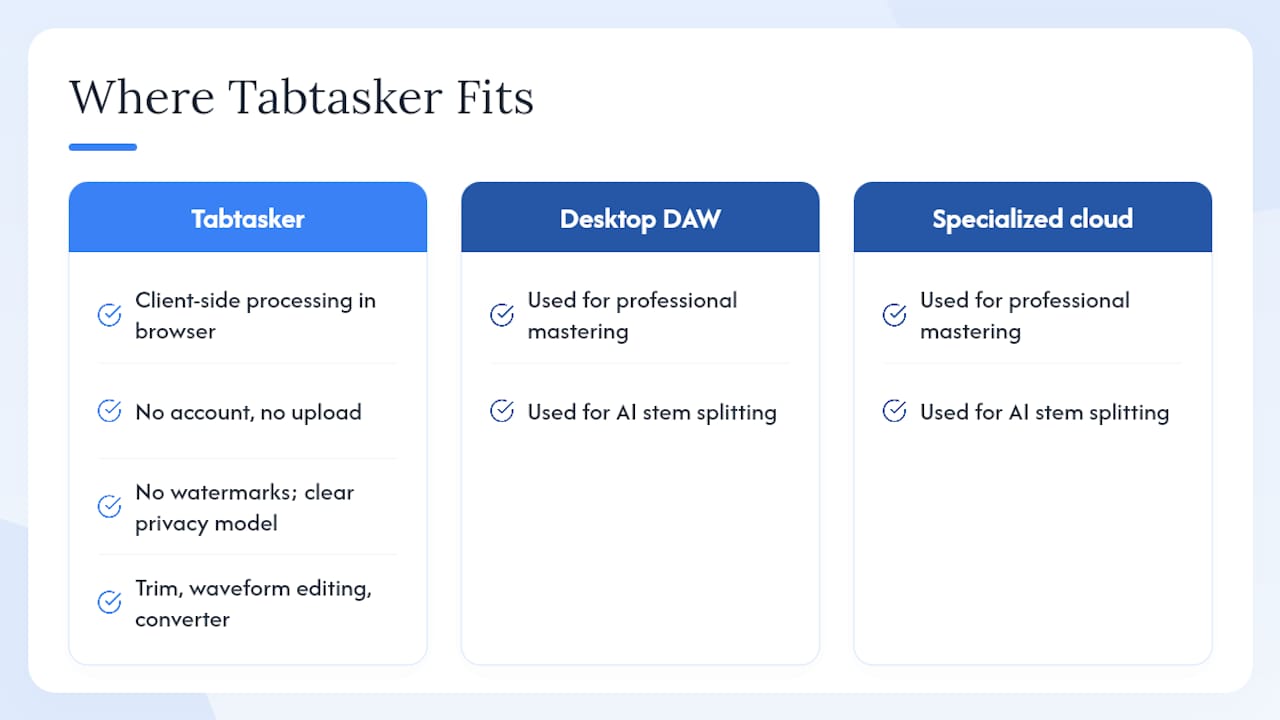
The interface is clean and task-focused. There's no multitrack mixer, no plugin chain, and no learning curve beyond "load file, make edit, export." That's a deliberate trade-off. Tabtasker fits the checklist from the previous section on every point: client-side, no watermarks, no signup, and a clear privacy model. Where it doesn't fit is when you need AI stem splitting or professional mastering — those tasks still belong on a desktop DAW or a specialized cloud service.
An independent review of AudioMass, a comparable lightweight browser editor, confirms that browser-native tools now handle common podcast tasks — trim, normalize, basic noise reduction — well enough for most non-professional workflows.
How do you complete common audio jobs entirely in a browser?
Trim and export a clean recording
- Open the Tabtasker audio workspace in your browser.
- Load your file — drag and drop or use the file picker. Nothing uploads.
- Select the region to keep using the waveform view.
- Trim to selection.
- Export as WAV for full quality or MP3 at a reasonable bitrate for a smaller file. Refer to Tabtasker's audio file formats guide if you're unsure which format fits your use case.
Convert and compress for sharing
- Open the audio converter.
- Load the file and choose your target format (MP3 for email, OGG for web).
- Run the conversion — processed locally, no wait for a server.
- If the file is still large, open the compressor and reduce the bitrate to 128 kbps for voice-only content.
- Export and share. For device-to-device transfer without a cloud service, Tabtasker's browser-to-browser file share moves the file directly.
Record, clean up, and export in one session
- Open the audio workspace and use the in-browser recorder (microphone access required).
- Record your take. For better capture quality, a dedicated USB microphone makes a noticeable difference — see this roundup of Blue Yeti alternatives if you're setting up a recording space.
- Trim silence from the start and end.
- Export as MP3.
Warning: Files above 100 MB behave unpredictably on mobile browsers. Split large recordings on desktop first, then work with the segments. Safari on iOS has codec limitations that can affect MP3 export — WAV is the safer choice on Apple mobile devices.
Key Takeaways
Client-side browser audio tools give you genuine privacy and zero friction — but knowing their limits is what separates a smooth workflow from a frustrating one.
| Point | Details |
|---|---|
| Client-side processing matters | Tools that process audio locally keep your files off servers; always verify with the browser's Network tab. |
| Export format shapes quality | WAV preserves full quality; MP3 at 192 kbps suits most podcast and voice work without bloating file size. |
| File size has a real ceiling | Files above roughly 200 MB can slow or crash a browser tab; split large recordings on desktop first. |
| Stem splitting still needs the cloud | AI vocal removal almost always uploads your file; use a specialized service knowingly, not by default. |
| Tabtasker covers the core tasks | Trim, convert, compress, and transcribe all run client-side with no signup at tabtasker.com/audio/workspace. |
The case for keeping audio tools honest
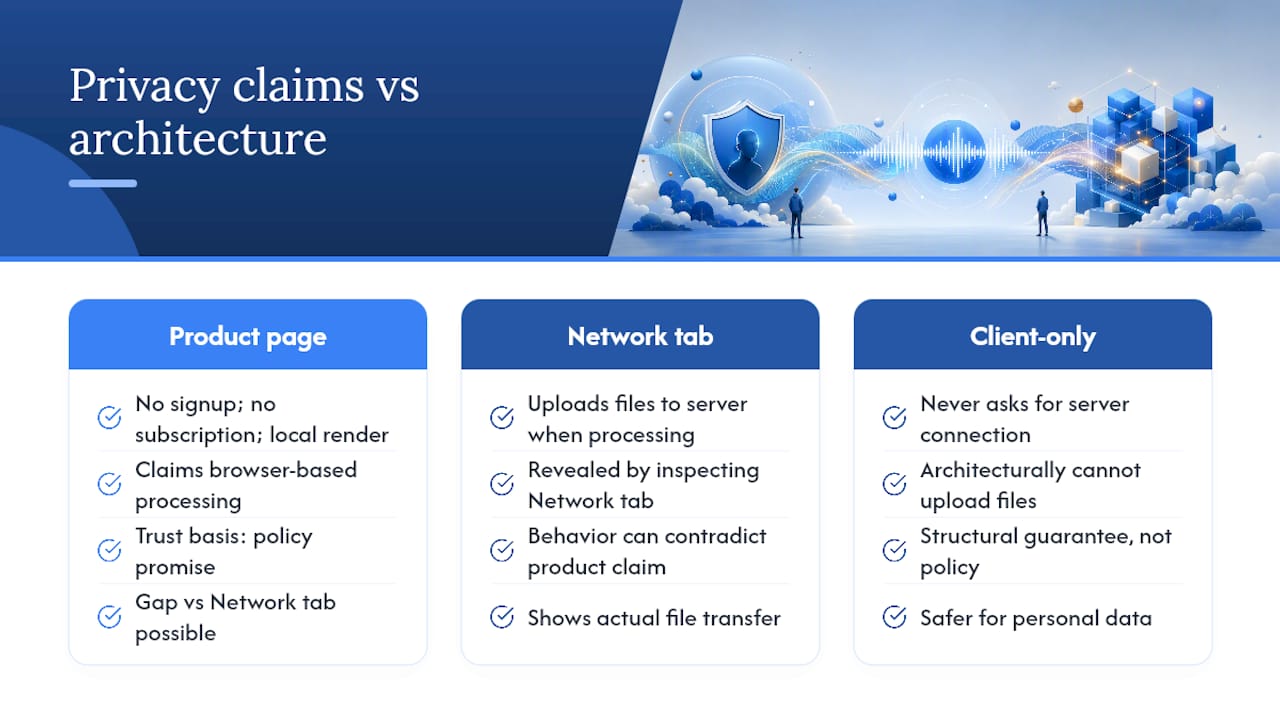
There's a pattern worth noticing in the free-tool space: the word "free" does a lot of work that the word "private" should be doing. Many browser audio tools advertise no subscription and no signup, then quietly route your file through a server the moment you hit process. The Notevibes online editor, for example, documents browser-based functionality and local rendering claims — but the gap between what a product page says and what the Network tab shows can be significant.
The tools worth trusting are the ones that are architecturally incapable of uploading your file — because they never ask for a server connection in the first place. That's a structural guarantee, not a policy promise. Policies change; architecture is harder to quietly revise.
For students editing interview recordings, podcasters trimming episodes, or anyone handling audio that carries personal information, the distinction between "we say we don't store it" and "we literally can't receive it" is the one that matters.
Tabtasker: free, private audio tools with no account required
If you've been bouncing between tools that promise "no signup" and then ask for an email before you can export, Tabtasker is the straightforward alternative. Every audio tool on the platform — trim, convert, compress, transcribe — runs entirely in your browser with no file upload and no account.

The Tabtasker audio workspace is the fastest way to verify this yourself: load a file, watch the Network tab, and confirm nothing leaves your machine. Beyond audio, the same client-side approach covers PDF editing, image processing, and developer utilities — all at tabtasker.com. Open the workspace and run your first trim right now, no form to fill out.
Useful sources and further reading
| Source | What it supports in this article |
|---|---|
| Web Audio API — MDN Web Docs | Client-side processing architecture and browser audio capabilities |
| Digital audio — Wikipedia | Sample rate, bit depth, and format trade-offs for browser exports |
| Comparison of free audio software — Wikipedia | Task categories and free-tool feature taxonomy |
| AudioMass Review — AI Trendy Tools | Real-world limits and benefits of zero-signup browser editors |
| Notevibes online audio editor | Typical product messaging and feature claims for browser editors |
| Submind free audio tools | Privacy-first browser tool trend and no-upload claims |
| AI stem splitter benchmark — DEV Community | Quality and speed trade-offs for AI vocal removal |
| Free DAW comparison — Bedroom Producers Blog | Desktop vs. browser trade-offs for professional workflows |
| Best audio editing software — Zapier | Background context for common reader questions and tool categories |