 TabTasker
Yes, you can compress audio entirely offline inside your browser using a WebAssembly-based compressor, and your files never leave your device. Tools built on ffmpeg.wasm handle the encoding locally, so nothing gets uploaded to a server. Tabtasker's audio workspace is a genuine example of this approach: open a file, adjust the settings, and download a smaller version without ever sending audio anywhere.
TL;DR:
- WebAssembly-based tools like ffmpeg.wasm enable completely offline audio compression within the browser, ensuring files never leave the device.
- The process relies on local file APIs and generates Blob URLs, which are temporary references in memory, preventing any data upload during encoding.
- Compression settings such as codec choice, bitrate, sample rate, and mono versus stereo significantly impact file size and quality based on content type.
- Failures often stem from browser security policies or memory limits, which can be mitigated by using updated browsers and splitting large files before encoding.
- Verifying offline operation with Airplane Mode and network monitoring ensures no data is sent to remote servers, crucial for handling sensitive or proprietary recordings.
Table of Contents
- How Do You Compress Audio Offline Step by Step?
- What Makes In-Browser Audio Compression Actually Private?
- Which Settings Actually Shrink an Audio File?
- Why Does the Compressor Fail to Load or Run?
- Why Trust a Browser Tool Over a Cloud Uploader?
- The Real Question Isn't Compression Quality. It's Who Sees Your File First
- Try Tabtasker's Compress Audio Tool Right Now
- Sources
How Do You Compress Audio Offline Step by Step?
Compressing audio offline doesn't require installing anything. Here's the process from start to finish, using a browser-based tool like Tabtasker's compress audio workspace as the working example.
- Open the tool and check that it loads without a server round trip. A genuine offline compressor initializes its engine (usually ffmpeg.wasm) once, in your browser, and then stops talking to the network.
- Import your file. Drag it onto the page or use the file picker. Either method relies on the browser's File API, which reads the file's bytes locally without transmitting them anywhere.
- Pick your output format. MP3 works everywhere but produces larger files at a given quality. AAC and Opus squeeze more quality into fewer bytes, which matters if you're emailing a file or storing dozens of recordings.
- Set your bitrate, sample rate, and channel count. Voice memos tolerate aggressive compression; music does not. More on exact numbers in the next section.
- Start the compression and let it run. This is the part that surprises people the first time: there's no upload progress bar, because there's no upload. The spinner you see is your own CPU doing the encoding.
- Download the result. The finished file is handed to you as a Blob URL, a browser-generated pointer to data sitting in memory, not a link to something on a remote server.
Before you trust the tool with anything sensitive, verify it. Turn on Airplane Mode, then run the compression again to learn best practices for working with summarized audio in video platforms from Baitless's content condensation cluster. If it still works, no network connection is required, which means no upload occurred. You can also open your browser's developer tools, click over to the Network tab, and watch for outgoing requests while you compress a file. A legitimately offline tool shows zero upstream bytes during processing, and that's the whole point of using one instead of a cloud service.
What Makes In-Browser Audio Compression Actually Private?
The technology behind this is called WebAssembly, or WASM, a format that lets code written in languages like C++ run inside your browser at close to native speed. Instead of your browser calling out to a remote server for processing, WASM lets the processing happen right there on your machine, using your own CPU.
The specific library doing the heavy lifting is usually ffmpeg.wasm, a WebAssembly build of the FFmpeg audio and video toolkit. It decodes your source file, re-encodes it at the settings you chose, and writes the result to a virtual filesystem inside the browser's memory. Projects like HERTZ demonstrate this directly, encoding audio at 192kbps VBR entirely client-side before streaming the output to your downloads folder.
Two more pieces close the loop:
- The File API gives the page sandboxed, read-only access to whatever file you select. The site cannot browse your hard drive or grab other files.
- Once encoding finishes, the browser creates a Blob URL. This is a temporary, local reference to data in memory, not a hosted file. WebAssembly combined with the File API means no audio data is ever sent to a server during the entire process.
Pro Tip: Large files push all of this work onto your device's RAM and CPU, so a five-year-old laptop will struggle with a two-hour podcast recording in a way a modern desktop won't. If a file feels sluggish to process, that's your hardware talking, not a broken tool.
Which Settings Actually Shrink an Audio File?
Every setting you touch trades file size against quality, and the right trade depends entirely on what's in the recording. Get the basics wrong and you'll either end up with a file still too big to email, or one that sounds like it's coming through a tin can.
- Bitrate for voice: bitrates in a moderate range are sufficient for spoken word, interviews, and podcasts without wasting bytes on inaudible detail.
- Bitrate for music: higher bitrates are recommended to preserve quality, as lower bitrates noticeably reduce fidelity.
- Codec choice: Opus and AAC deliver noticeably better quality per kilobyte than MP3, which is why lowering bitrate and switching to a modern codec gives the best size-to-quality tradeoff for voice recordings. MP3 still wins on compatibility. Every device and app plays it, no exceptions.
- Sample rate: Dropping from 48kHz to 22kHz or even 16kHz is usually invisible on voice content and can meaningfully cut size. Music, especially anything with cymbals or high-frequency detail, needs to stay closer to 44.1kHz.
- Mono vs. stereo: A single-speaker voice memo gains nothing from stereo channels. Converting to mono roughly halves that portion of the data with zero perceptible loss.
- VBR vs. CBR: Variable bitrate allocates more bits to complex passages and fewer to silence or simple tones, which usually beats constant bitrate for spoken word and mixed content.
Trimming dead air with a tool like Tabtasker's audio trimmer shrinks the file before you even touch the encoder. Stripping ID3 tags, embedded cover art, and other metadata does the same thing while also erasing details you may not want traveling with the file. Guides on audio security consistently recommend removing metadata and embedded artwork as a low-effort way to cut bytes and reduce what a file reveals about its origin.
Why Does the Compressor Fail to Load or Run?
Client-side audio tools occasionally hit a wall, and almost every failure traces back to one of a handful of causes.
- Initialization errors. Multi-threaded WASM features rely on SharedArrayBuffer, which browsers only allow on pages served with specific Cross-Origin-Opener-Policy and Cross-Origin-Embedder-Policy headers. Without them, ffmpeg.wasm can throw buffer allocation errors before it even starts. This isn't a bug so much as a deliberate browser security gate against side-channel attacks.
- The wrong environment. Developers testing a self-hosted build of a tool like HERTZ need to serve the page through an actual local web server that sets those headers. Opening an HTML file directly from disk won't work.
- Memory limits on large files. A ninety-minute recording can exhaust available browser memory mid-encode. Splitting the file into smaller chunks before compressing, or trimming it down first, usually clears the error. For genuinely massive files, a desktop application may be the more practical fallback.
Pro Tip: If a compressor stalls, reload the page and try a different modern browser before assuming your file is corrupted. Chrome, Firefox, and Edge all support the WASM features involved, but older or heavily locked-down browsers sometimes don't. Whatever tool you land on, run the same Airplane Mode check described earlier before feeding it anything sensitive.
Why Trust a Browser Tool Over a Cloud Uploader?
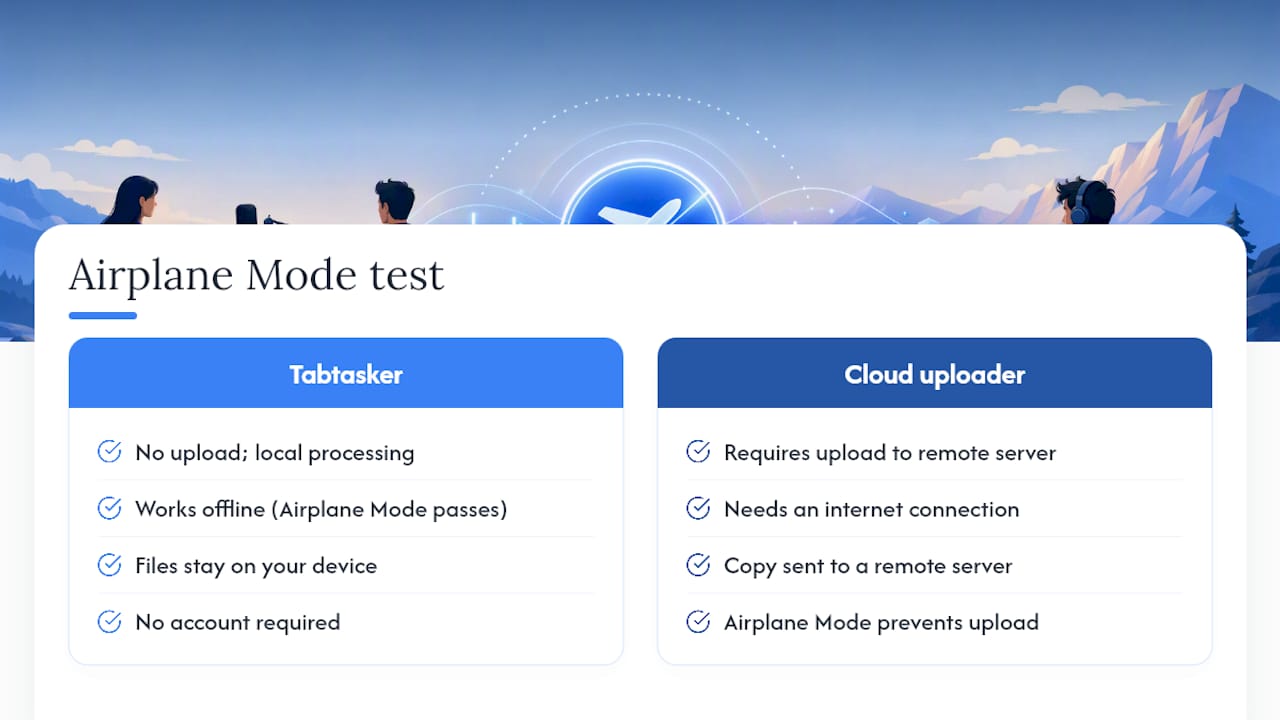
Tabtasker builds its case on a simple structural fact: file operations happen entirely in your browser, with no upload step and no account required. That's not a policy promise you have to take on faith. It's a design choice you can verify yourself with the Airplane Mode test.
The audio tools sit inside a broader toolbox that includes PDF editing and background removal, all running on the same client-side principle: your files stay on your device, free of charge, whether you're compressing a podcast or stripping metadata from a photo. That consistency across tool categories is itself a signal. A platform built around uploading files for one feature and processing locally for another would be a strange, inconsistent architecture, and Tabtasker doesn't have that split.
For readers who want the underlying format tradeoffs explained in more depth, Tabtasker's own guide to audio file formats walks through codec behavior in more detail than a compression walkthrough has room for. It's the kind of resource that exists because the team building the tool also has to explain how the tool works, which tends to produce more precise writing than a marketing page ever does.
The Real Question Isn't Compression Quality. It's Who Sees Your File First
Most guides to shrinking audio files focus entirely on bitrate charts and codec comparisons, as if the only thing at stake is disk space. That's backwards for anyone handling an interview recording, a legal deposition, or unreleased creative work. The first question isn't how small the file gets. It's whether a copy of it sits on someone else's server before you ever see the compressed version.
Conventional advice treats "free online compressor" as a single category, when it actually splits into two very different products: one that uploads your file to process it remotely, and one that never sends it anywhere. Reading the privacy policy after the fact doesn't undo an upload that already happened. The Airplane Mode test settles the question before you commit a single sensitive file.
If you're a journalist protecting a source, a freelancer under an NDA, or a student handling a professor's unpublished lecture recording, the compression settings are the easy part. Verifying that a tool actually keeps its promise is the part worth spending five extra minutes on. Do that first, then worry about bitrate.
— Vehicularis
Try Tabtasker's Compress Audio Tool Right Now
Tabtasker's audio workspace does what the rest of this guide describes: it compresses your files entirely on your device, with no account, no upload, and no waiting on a server queue. That's the concrete difference between this and a cloud uploader. Your file's contents never cross the internet, whether you're shrinking a two-minute voice memo or an hour-long interview.

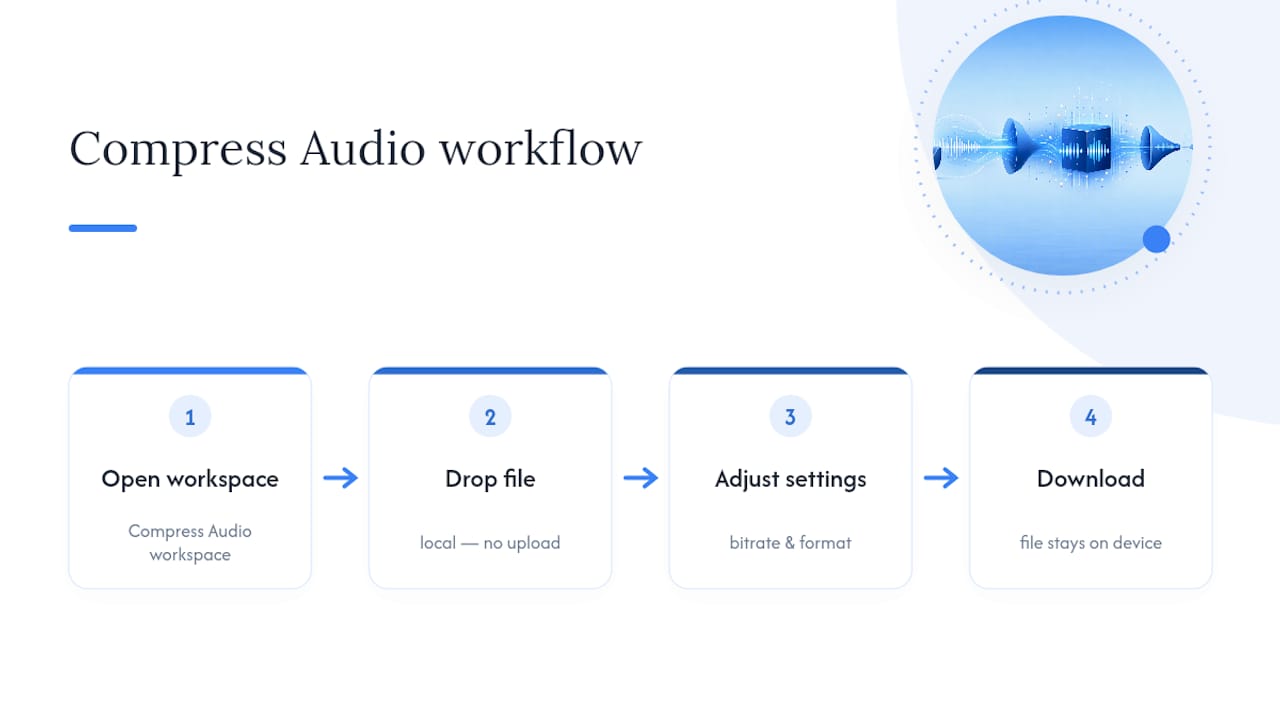
Start at the Compress Audio workspace, drop in your file, and adjust bitrate and format before downloading. If you need to change formats afterward, the Audio Converter handles that, and the Audio Editor covers trimming and denoising if you want to clean up a recording before you shrink it.
One honest limit worth stating upfront: extremely large files, think multi-hour, high-resolution recordings, can strain your browser's available memory. If you hit that wall, splitting the file first or falling back to a desktop encoder is the practical move. For everyday voice memos, podcast episodes, and interview clips, the in-browser workspace handles the job start to finish. Open the tool, drop in a file, and see the size drop before you've sent a single byte anywhere.
Sources
The technical claims in this guide aren't hard to check on your own. A few starting points:
- HERTZ (GitHub)
- Stop Uploading Sensitive Audio Files to the Cloud (2026)
- Why Your Audio Tool Shouldn't Be Uploading Your Files to a Server - DEV Community