 TabTasker
Yes, you can compress PDFs entirely offline. The fastest paths are Tabtasker's local-browser tool (zero uploads, no account), a portable desktop app, or a small command-line tool that supports target-size compression. Because processing happens entirely on your device, your files never touch an external server, which eliminates the data-leak risk that comes with most "free" online compressors. If you've ever wondered what actually happens when you hand a sensitive document to a web service, the short answer is: you often don't know.
Fastest paths at a glance:
- Local browser tool: Open Tabtasker in your browser, drag your PDF in, pick a preset or type a target size, save. No upload, no account.
- Portable desktop app: Run a portable EXE (no install needed), drag the file, choose a preset or exact-size target, export.
- Command-line (Windows):
slimpdf compress --target 3mb input.pdf -o output.pdffor target-aware compression in one command. - Android: Install a trusted offline PDF app from the Play Store (look for "offline" in the description and no network permissions), load the file, choose a size or quality setting, compress.
Pro Tip: Before compressing anything sensitive, open your browser's developer tools (Network tab) or check Android's data-usage screen. A trustworthy offline tool shows zero outbound requests during processing.
Key Takeaways
Offline PDF compression is fully achievable on Windows and Android using free tools that never upload your files, with target-aware options giving you exact control over output size.
| Point | Details |
|---|---|
| Offline compression is private | Files processed locally never reach external servers, removing data-leak risk entirely. |
| Choose the right method | Use lossless for vector/OCR documents; use lossy (150 DPI) for scans where visual fidelity is less critical. |
| Target-aware tools save time | Tools like slimpdf let you specify an exact output size and report whether the target was achieved. |
| Preserve your originals | Always write compressed output to a separate folder; never overwrite the source file. |
| Tabtasker compresses locally | Tabtasker's browser-based compressor processes files client-side with zero uploads and no account required. |
Table of Contents
- How do you compress a PDF offline on Windows and Android?
- How does offline PDF compression actually work?
- Concrete offline workflows: Tabtasker, Ghostscript, and pikepdf
- What DPI and quality settings should you use?
- Troubleshooting: file still large, quality loss, or display errors
- Why Tabtasker is a solid choice for offline PDF compression
- The case for keeping compression local
- Tabtasker handles PDF compression locally, for free
- Sources
How do you compress a PDF offline on Windows and Android?
Windows (4 steps)
- Open Tabtasker's PDF compressor in your browser or launch a portable desktop app (no installation required).
- Drag your PDF into the tool and select a compression preset or type an exact target size (for example, 3 MB for a portal upload limit).
- Click compress and wait for the local processing to finish. The file never leaves your machine.
- Open the output file and spot-check a few pages for readability before deleting the original.
Android (4 steps)
- Install a PDF compressor from the Play Store that explicitly states offline operation and requests no network permissions.
- Grant storage access only; deny any network or contacts permission the app requests.
- Load your PDF, choose a quality level or target size if the app offers one, and run compression.
- Check the output size in your file manager and verify that text and images are still legible.
A quick way to confirm privacy on Android: go to Settings > Apps > [app name] > Permissions and confirm no internet access is granted. On Windows, watch the Network tab in DevTools during a Tabtasker session. You'll see nothing outbound.
How does offline PDF compression actually work?
Offline compression means the entire process runs on your device's CPU and memory. Nothing is routed to a cloud server. That distinction matters most when the PDF contains contracts, medical records, or financial statements, because local processing removes the risk of unauthorized storage or third-party data exposure.
There are two core methods: lossy and lossless.
| Method | How it works | Best for | Effect on OCR/readability |
|---|---|---|---|
| Lossy | Downsamples embedded images, reduces DPI | Scanned documents, photo-heavy PDFs | Can soften text in low-DPI scans; test before committing |
| Lossless | Optimizes internal streams and encoding without dropping image data | Native/vector PDFs, OCR-tagged documents | Preserves full fidelity; smaller size gains |
Target-aware compression adds a third layer of intelligence. Instead of picking a preset and hoping the output lands under your portal's 5 MB limit, you tell the tool your exact ceiling. Tools like slimpdf accept a --target flag and iterate internally until the file meets the threshold, then report whether the target was achieved. That saves you the trial-and-error loop of compressing, checking size, compressing again.
Under the hood, mature engines matter. Ghostscript handles high-quality compression as a primary backend, while pikepdf combined with Pillow serves as a reliable fallback. A well-built toolkit publishes whichever backend produces the smaller file and refuses to output a file larger than the input.
Pro Tip: If your PDF is a native Word-to-PDF export with vector graphics and embedded fonts, try lossless first. Lossy compression on a vector document can rasterize crisp text into blurry pixels.
Concrete offline workflows: Tabtasker, Ghostscript, and pikepdf
Tabtasker local-browser workflow
Open Tabtasker's offline tools in any modern browser. No login, no file upload. Drag your PDF onto the compressor, choose a preset (web, email, or archive) or type a numeric target size. Tabtasker processes the file client-side using your browser's local compute, then prompts a direct download to your device. The Network tab stays silent throughout. For sensitive documents, this is the same privacy guarantee you'd get from a desktop app, without installing anything.
Portable desktop app (no install, Windows)
PDF-Wizard is an example of a privacy-first offline toolkit with three-stage intelligent compression, batch processing, metadata stripping, and zero network requests. Download the portable build, run the EXE, drag in your files, set a target size (presets range from 500 KB to 3 MB), and export. Batch mode lets you queue an entire folder, which is useful when you have a stack of scanned invoices to compress before uploading to an accounting portal.
Command-line: slimpdf and Ghostscript
For readers comfortable with a terminal, slimpdf gives you precise control:
slimpdf compress --target 3mb input.pdf -o output.pdf
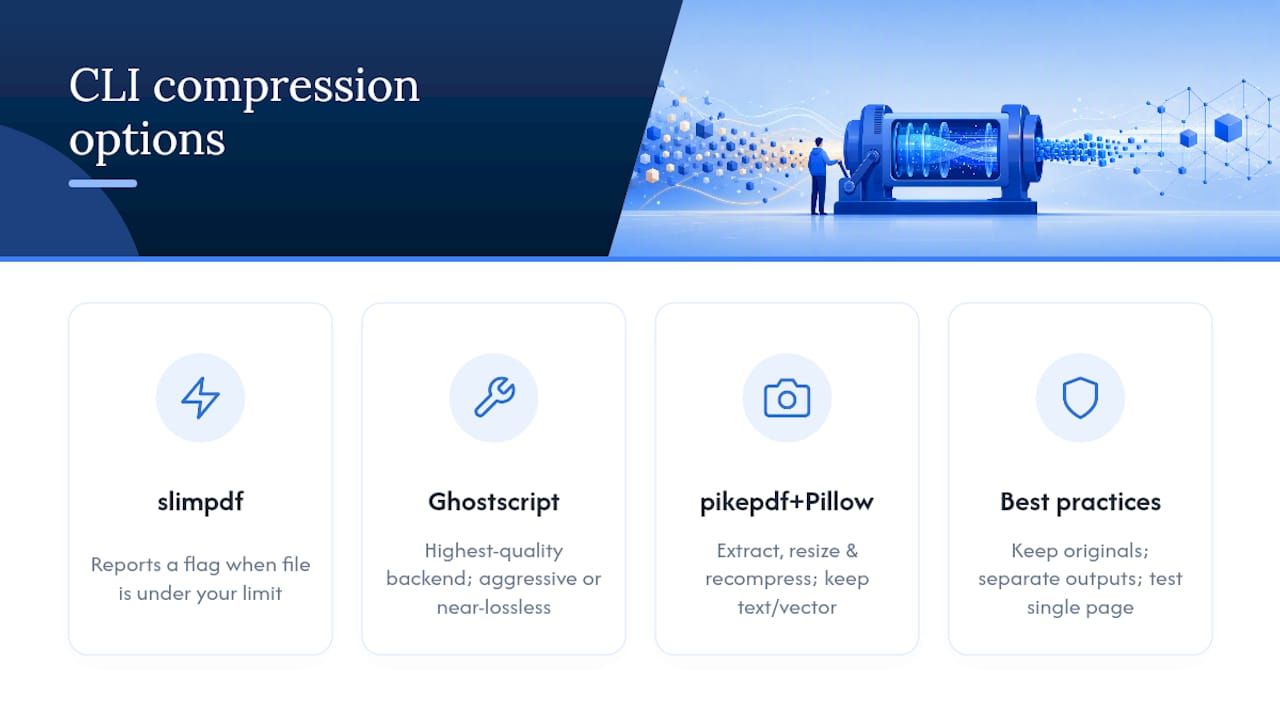
The tool reports a target_achieved flag in its output so you know immediately whether the file landed under your limit. No guessing, no re-runs.
For heavier workloads, Ghostscript's pdfwrite device is the highest-quality backend available:
gs -sDEVICE=pdfwrite -dCompatibilityLevel=1.4 -dPDFSETTINGS=/ebook \
   -dNOPAUSE -dQUIET -dBATCH -sOutputFile=output.pdf input.pdf
Replace /ebook with /screen for aggressive compression or /prepress for near-lossless output. A pikepdf + Pillow script works as a fallback when Ghostscript isn't installed: open the PDF with pikepdf, extract each image, resize and recompress it with Pillow, then reinsert the compressed image while leaving text and vector layers untouched.
Keep your originals. Write compressed files to a separate output folder and never overwrite the source. One aggressive pass on the wrong preset can permanently degrade a scanned document.
Pro Tip: Test compression on a single page before running a batch. Most CLI tools accept a page-range flag. Catching a quality problem on page 1 beats discovering it after processing 200 files.
What DPI and quality settings should you use?
The right settings depend on where the file is going. A PDF destined for a government portal with a small size cap needs different treatment than one you're archiving at home.
| Use case | Target size | Max DPI | Quality hint |
|---|---|---|---|
| Web upload / portal | a moderate-size range | 150 DPI | Medium (lossy OK) |
| Email attachment | a mid-range size limit | 150–200 DPI | Medium-high |
| Print archive | No strict limit | a high-resolution setting | High / lossless |
| Draft / review copy | Under 1 MB | a low to medium resolution setting | Low-medium |
Slimpdf's 150 DPI preset, for example, can shrink a large scanned document significantly while keeping text legible enough for screen reading. For PDFs built from LaTeX or complex vector graphics, pdfsizeopt optimizes internal PDF streams without rasterizing vectors, preserving hyperlinks and crisp text.
Dos and don'ts:
- Do test on one page before batch-compressing.
- Do keep the original in a separate folder. Read more about balancing size and quality before committing to aggressive settings.
- Don't rasterize a vector PDF unless you have no other option. You'll lose searchable text and sharp lines.
- Don't compress an already-compressed JPEG-heavy PDF with lossy again. Generational loss compounds quickly.
Troubleshooting: file still large, quality loss, or display errors
Diagnosing the problem first:
- Open the PDF in a viewer and check whether it contains scanned images or native vector/text content. Scans respond well to lossy DPI reduction; vector PDFs do not.
- Check whether embedded images are JPEG2000 or already heavily compressed. Re-compressing them often increases file size.
- Confirm which backend your tool is using. Ghostscript and pikepdf produce different results on the same file.
Common fixes:
- Try lossless compression first. If the size reduction isn't enough, move to lossy with a moderate DPI (150).
- If the output is larger than the input, switch backends. A responsible compressor refuses to publish a file larger than its input; if yours does, that's a sign it's comparing outputs before committing.
- If OCR text becomes unsearchable after compression, you rasterized a native PDF. Undo, switch to lossless, and rerun.
- On Android, if the app crashes on large files, check available storage. Many offline apps decompress the full PDF into a temp folder before recompressing; a 50 MB scan may need 150 MB of free space.
- For Android permission errors, go to Settings > Apps, revoke and re-grant storage access, then retry.
Why Tabtasker is a solid choice for offline PDF compression
Tabtasker's compressor runs entirely in your browser using client-side JavaScript. No file is uploaded. No account is created. The Network tab in your browser's developer tools will show zero outbound requests during a compression session, which is the clearest possible proof that your document stays local.
Relevant features for compression workflows:
- PDF compression with preset and target-size options
- Metadata stripping to remove author, creation date, and software tags that add unnecessary bytes
- Batch processing for multiple files in one session
- Save-to-local download, with no cloud storage involved
For readers who also need to compress images embedded in their PDFs before conversion, Tabtasker's image workspace handles that locally too. And if you want to understand the full risk picture of the alternative, what happens when you upload a PDF online is worth a read before you hand a sensitive file to any web service.
Pro Tip: After compressing, use Tabtasker's metadata stripper to remove any remaining document properties. It takes seconds and reduces both file size and information exposure.
The case for keeping compression local
Most people reach for an online compressor because it's fast. That's fair. But "free" online tools often monetize through data retention, ad targeting, or selling processing logs. The file you upload to reduce a 10 MB scan might sit on a server you've never heard of.
Target-aware compression changes the calculus further. For portal submissions with hard size limits, a tool that iterates to an exact target is genuinely more useful than one that offers three vague presets. The combination of local processing and target-aware output means you get precision without exposure.
Reserve aggressive lossy settings for drafts and review copies. For anything that needs to stay readable or searchable long-term, lossless or moderate-DPI lossy is the right call. And always keep the original. Compression is a one-way street if you don't.
Tabtasker handles PDF compression locally, for free
Tabtasker gives you a full suite of private, browser-based file tools that run entirely on your device. No uploads, no accounts, no guessing about where your files go. For PDF compression specifically, you get preset and target-size options, metadata stripping, and batch support, all in one place.

Getting started takes about 30 seconds. Open Tabtasker's offline tool suite, select the PDF compressor, drag in your file, choose a preset or type your target size, and download the result. If you also need to clean up images before converting them to PDF, the image workspace handles resizing and compression locally with the same zero-upload guarantee. Try it now at Tabtasker.