 TabTasker
Yes, you can remove background noise from a recording completely offline, and it usually works well. Desktop editors like Audacity, on-device AI apps, browser-based RNNoise tools, and open-source CLI models all handle it without touching a server. For most people, the fastest fix is an on-device AI tool or a browser-based RNNoise cleaner for voice recordings; if you need surgical control over steady hiss or hum, Audacity's noise-profile workflow still wins. Tools like Tabtasker's browser-based denoiser cover both needs without ever asking you to upload a file.
TL;DR:
- On-device AI apps are the fastest and easiest solution for cleaning voice recordings, especially for quick podcast edits or voice memos.
- Manual noise-profile editing with Audacity provides the most control for steady background sounds but requires practice and careful noise sampling.
- Browser RNNoise tools process audio locally within the browser, ensuring privacy without file uploads, and are ideal for short clips or privacy-sensitive situations.
- CLI tools like RNNoise, DeepFilterNet, and Fbdenoiser allow batch processing and fine control but need familiarity with command-line interfaces and compatible hardware.
- Running multiple gentle denoising passes and working in WAV format before compression significantly reduces artifacts and enhances audio quality.
Table of Contents
- How Do You Choose the Right Offline Denoising Method?
- How Do You Use a Noise Profile in Audacity?
- What Are the Trade-Offs With On-Device AI Denoisers?
- Can Browser-Based RNNoise Tools Really Stay Private?
- What Do CLI Tools Like RNNoise, DeepFilterNet, and Fbdenoiser Offer?
- Which Settings and Formats Actually Improve Results?
- Why Local Processing Changes What's Possible With Sensitive Audio
- Clean Audio Without Ever Leaving Your Browser
- Sources
How Do You Choose the Right Offline Denoising Method?
Every offline denoising path trades speed for control differently. Some tools ask nothing of you beyond a single click; others hand you sliders and expect you to know what you're doing with them.
Here's how the four main categories stack up against each other:
- On-device AI apps: Fastest option, tuned for voice, minimal setup. Good for podcasters and interviewers who just need clean audio fast.
- Audacity or manual noise-profile editing: Free and precise, but takes practice. Best for steady background noise like fan hum or room tone.
- Browser RNNoise / WebAssembly tools: No install required, processing stays fully local, and it's a strong default when privacy is the priority.
- CLI and open-source models: Highest control and batch-processing power, aimed at people comfortable with a terminal.
If you're cleaning up a single voice memo, start with an on-device app or a browser tool. If you're prepping a podcast episode with inconsistent noise, Audacity's manual controls will serve you better long term.
How Do You Use a Noise Profile in Audacity?
Audacity's Noise Reduction effect is still one of the most dependable free tools for cleaning steady background noise, and it's fully offline once installed. It works by learning what your unwanted noise sounds like, then subtracting that pattern from the rest of the track.
Here's the sequence:
- Find a section of at least 0.5 seconds where only the background noise plays, no speech or music.
- Select that section, then go to Effect → Noise Reduction → Get Noise Profile.
- Select the clip or the entire track you want cleaned.
- Open Effect → Noise Reduction again and set your starting values: Noise Reduction around 12 dB, Sensitivity around 6, and Frequency Smoothing around 3.
- Click Preview, listen closely for artifacts, then click Apply once it sounds right.
Two light passes at gentler settings almost always sound better than one aggressive pass. Aggressive settings tend to introduce a warbling, underwater quality to speech. Save an intermediate version after each pass so you can back up if a later step goes wrong, and export your final result to WAV rather than compressing it right away.
Pro Tip: If your noise profile sample is too short or contains a stray cough or click, the whole pass gets thrown off. Grab at least a full second of clean silence before you commit to a profile.
What Are the Trade-Offs With On-Device AI Denoisers?
On-device AI denoisers work differently than Audacity's manual approach. Instead of learning a noise profile from your specific recording, they ship with a pretrained model baked into the app itself, so they judge what "noise" sounds like based on thousands of prior examples rather than your particular room. Apps like DeepDenoiser run DeepFilterNet3 entirely on-device for this reason, and similar mobile apps such as NoiseFix follow the same model.
The typical flow is simple: import your file, apply the denoiser, preview the result, export. That simplicity is the whole appeal.
- Pros: fast, low effort, works well on voice-heavy recordings, keeps everything local.
- Cons: can flatten vocal timbre or over-smooth breathy consonants if pushed too hard, and it offers less nuance for music with delicate texture.
Try the lowest strength setting first, then medium, comparing each against the original before committing to the strongest pass. If you plan to edit further afterward, export a lossless file rather than a compressed one so you're not stacking compression artifacts on top of denoising artifacts.
Can Browser-Based RNNoise Tools Really Stay Private?
RNNoise, compiled to WebAssembly, runs the entire noise-suppression model inside your browser tab rather than sending anything to a server. The page decodes your audio file, resamples it (commonly to 48 kHz mono), processes it frame-by-frame through the model, then re-encodes the cleaned result locally before you download it.
That architecture is why properly built browser denoisers can claim zero-upload privacy without asking you to trust a company's word for it. You can verify it yourself.
- Open your browser's developer tools and watch the Network tab while processing a file. No outbound file transfer should appear.
- Disconnect from Wi-Fi after the page loads, then try processing a file. If it still works, the model is genuinely running client-side.
- These tools are best suited to short voice clips, interview snippets, and situations where installing desktop software isn't an option, like a shared or locked-down computer.
Roughly a second and a half of noise-only audio is usually enough for RNNoise-based tools to build an internal reference, though most implementations skip the manual profiling step Audacity requires and adapt automatically as the file plays.
What Do CLI Tools Like RNNoise, DeepFilterNet, and Fbdenoiser Offer?
Command-line denoising opens up batch processing and finer model control, which matters if you're cleaning dozens of files at once rather than one podcast episode. Three models dominate this space, and they're not interchangeable.
| Model | Best for | Hardware needs |
|---|---|---|
| rnnoise | Fast, low-latency voice cleanup | Runs comfortably on CPU |
| DeepFilterNet | Higher-quality, full-band restoration | CPU works; benefits from more cores |
| fbdenoiser (Demucs-based) | Strong general audio enhancement | Optional CUDA GPU speeds things up significantly |
A typical command using an open-source denoising toolkit looks like this: python -m denoise --model <model> --input <in.wav> --output <out.wav>, with model-specific flags like --df-pf for DeepFilterNet's post-filter or --fb-dry to control the dry/wet mix on fbdenoiser. For batch jobs, loop the command across a folder rather than processing files one at a time by hand. GPU acceleration helps most with fbdenoiser; rnnoise and DeepFilterNet run efficiently enough on a normal CPU that a dedicated graphics card usually isn't necessary.
Which Settings and Formats Actually Improve Results?
Small habits separate a clean-sounding file from one riddled with digital artifacts, regardless of which tool you're using.
- Run two or three gentle denoising passes instead of one heavy-handed one; it preserves more natural vocal texture.
- Keep an unprocessed backup of every file before you touch it.
- Work in WAV while editing, then convert to MP3 or another compressed format only at the very end. A dedicated audio converter makes that final step painless.
- For a single loud click, cough, or door slam, spectral editing that targets just that moment beats a blanket noise-profile pass; broad noise reduction is better suited to constant hiss, hum, or fan noise. Spectral repair tools exist specifically for this kind of surgical fix.
- If you're cleaning audio embedded in a video file, the same noise principles apply, and dedicated video noise-removal guides cover format-specific quirks worth knowing.
- Confirm any tool's offline claim yourself: disable your network connection or watch the browser's request log during processing.
Pro Tip: If a denoised voice sounds slightly robotic or "wet," you likely over-reduced. Undo, drop your reduction setting by a few dB, and run a second lighter pass instead.
Why Local Processing Changes What's Possible With Sensitive Audio
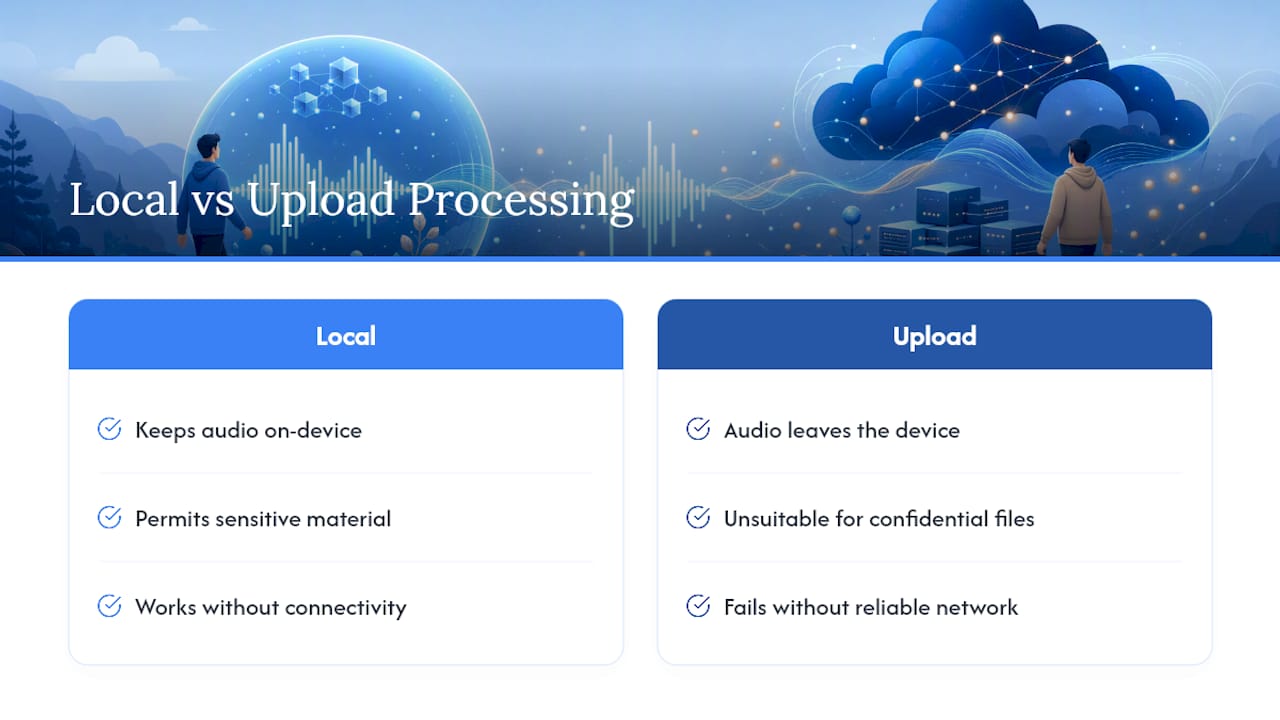
Journalists recording a confidential source, lawyers reviewing a deposition tape, therapists handling session notes: none of them should have to upload that audio anywhere to make it intelligible. Offline denoising isn't a workaround for people without internet. It's the only responsible option when the content itself can't leave the device.
It also solves a quieter problem: plenty of fieldwork happens somewhere without reliable connectivity at all. A workflow that depends on an upload simply fails there. Tools built for local audio work solve both problems at once.
— Vehicularis
Clean Audio Without Ever Leaving Your Browser
Tabtasker's audio denoise tool runs the entire noise-reduction process inside your browser tab, with nothing sent to a server and no account required to use it.

Getting started takes about a minute. Open the denoise tool, drop in your audio file, then choose a denoise strength and export the cleaned result directly to your device. There's no install, no sign-up form, and no waiting on an upload bar before processing even starts.
It's free, and it connects directly to Tabtasker's other local audio tools, including the audio workspace for trimming and further edits, and the audio compressor for shrinking your final file before you send it anywhere. Try the denoise tool on your next recording and see how far a truly offline workflow can take you.
Sources
- Remove Background Noise from Audio – Free Noise Reduction Tool
- Free Audio Noise Reducer Online (Private, No Upload)