 TabTasker
Yes, you can edit PDFs completely offline, and you have two reliable paths to get there: a privacy-first client-side browser tool or a local desktop app. For quick text changes, annotations, or signatures, a client-side tool like Tabtasker handles it instantly with nothing installed. For heavier work like batch OCR or legal redaction across hundreds of pages, a dedicated desktop app carries more weight. Pick your starting point, then follow the workflow below.
TL;DR:
- Offline PDF editing tools rely on local processing, with browser-based options suitable for quick edits and desktop apps for complex tasks like OCR and redaction.
- Client-side tools prevent data from leaving your device, making them ideal for sensitive documents, but OCR quality and redaction verification vary by software.
- Confirm that offline tools do not back up or upload files automatically, and always verify redactions by reopening files in different viewers to ensure data is fully removed.
- Lightweight editors under 50 MB can handle basic edits, but heavier OCR suites are necessary for scanned documents or batch redaction jobs.
- Using offline tools like Tabtasker ensures complete privacy, as files never leave your device, minimizing the risk of metadata or content exposure in sensitive workflows.
Table of Contents
- Which Offline PDF Editing Tools Actually Work Without the Internet?
- How to Edit a PDF Offline: A Step-by-Step Workflow
- Does Editing Offline Actually Protect Your Privacy?
- How Do You Choose the Right Offline PDF Editor?
- How Tabtasker Handles Offline PDF Editing
- The Real Cost of "Free" PDF Tools
- Edit, Sign, and Convert PDFs Without Ever Uploading Them
- Sources
Which Offline PDF Editing Tools Actually Work Without the Internet?
Offline PDF editing splits into four practical categories, and each one trades something for something else. Understanding the trade-off matters more than picking a brand name, because the "best" tool depends entirely on what you're editing and how sensitive it is.
Client-side browser tools run the entire editing process inside your browser's memory, on your device, with nothing sent to a server. That's a different model from most "online PDF editors," which upload your file to someone else's cloud before handing it back. A genuine client-side tool skips that step, which is why you'll see confidential-document threads on forums like Reddit steering people away from upload-based services toward local browser or desktop tools instead.
Open-source desktop apps take a different approach. Projects like PDF Editor Offline bundle editing, OCR, redaction, metadata cleanup, and batch conversion into a self-contained package that never touches the internet. The code is public, so anyone can verify what it actually does with your files.
Native desktop editors, free or paid, focus on polish: in-place text editing, image swaps, and page management with a refined interface. PDF Chisel, for instance, runs cross-platform and supports true in-place edits rather than just overlay annotations.
Built-in OS tools round out the list:
- Windows lacks a native full editor, pushing users toward third-party desktop apps from the Microsoft Store or developer sites.
- macOS Preview handles basic annotation and signatures but stops short of real text editing.
- Most OS tools skip secure redaction entirely, which matters if you're removing sensitive content rather than just marking it up.
How to Edit a PDF Offline: A Step-by-Step Workflow
Whether you're using a browser-based tool or a downloaded app, the sequence stays roughly the same.
- Open the file locally and confirm offline mode. For browser tools, check that processing happens in-page, not via a hidden upload. For desktop apps, disconnect from Wi-Fi once to confirm nothing breaks.
- Identify the text layer. Native PDFs have selectable text you can edit directly. Scanned documents are just images of text, so you'll need OCR before any edit sticks.
- Make text and image edits. In-place editors let you click and retype; overlay tools add new text boxes on top. Watch for font mismatches when reflowing paragraphs.
- Handle pages. Rotate, reorder, split, or merge as needed, following best practices for export detailed in AutoCAD PDF Export Settings Explained for Architects. This is usually the fastest part of the whole process.
- Run OCR on scanned pages. A local OCR engine converts image text into searchable, selectable text. Quality varies by tool, so always spot-check the output.
- Apply redaction, not just black boxes. True redaction removes the underlying data. Test this by reopening the exported file in a different viewer to confirm the text is actually gone, not just hidden.
- Save a dated copy and archive the original. Keep your unedited source file untouched in case you need to redo the work.
Pro Tip: Open-source projects often ship demo files like a demo-redaction.pdf built specifically to test whether your redaction is permanent. Run one through your tool before trusting it with a real sensitive document.
Does Editing Offline Actually Protect Your Privacy?
Editing offline only protects you if the tool behaves the way it claims to, so treat this as a checklist rather than an assumption.
Start by confirming the tool performs genuinely local processing. Turn off cloud sync or auto-backup features before you begin, since some apps quietly back up open documents to a connected drive. Test permanent redaction by reopening the exported file, ideally in a second, unrelated viewer, and searching for the text you removed.
Metadata is the part people forget. A PDF can carry author names, edit history, and even GPS data buried in hidden objects long after the visible content looks clean. Look for an explicit "export without metadata" option rather than assuming a save-as strips it automatically.
A handful of practical habits round out the checklist:
- Clear your app's temp files after editing anything sensitive.
- Favor tools that disable auto-update and remote calls by default, a security pattern built into some open-source desktop editors specifically to limit outbound connections.
- Encrypt the device storing the file, and back up sensitive documents only to encrypted, access-controlled locations.
One detail worth remembering: installer size correlates loosely with capability. Lightweight editors can run under 50 MB, while full OCR suites push installs considerably larger, a real factor if you're working on an older machine.
How Do You Choose the Right Offline PDF Editor?
Matching the tool to the job saves you from installing something heavy for a task that needed thirty seconds in a browser.
- List what you actually need to do. Light annotation and signing need almost nothing. In-place text rewrites need a real editor. Scanned contracts need OCR. Legal or medical redaction needs provable, permanent removal.
- Weigh local processing against convenience. A client-side browser tool wins on speed and zero install footprint. A desktop app wins on raw editing power and batch capability.
- Check OCR quality before committing to a workflow. Not every offline tool bundles a strong OCR engine, and language support varies enough to matter if you work in more than English.
- Confirm redaction is provable, not cosmetic. Ask whether the tool removes underlying data or just draws a box over it.
- Ask three questions before adopting anything: Does it auto-update silently? Does it collect telemetry? Does it require an account to function?
Open-source options carry one advantage worth weighing on its own: the code is inspectable, which matters if you're handling documents where "trust us" isn't good enough.
How Tabtasker Handles Offline PDF Editing
Tabtasker runs entirely client-side: no uploads, no account, no server ever seeing your document. Every tool processes files locally in your browser, which means the privacy checklist above is baked into the architecture rather than bolted on as a setting you have to remember to enable.
Inside the browser, you can:
- Edit text and add annotations directly on the page
- Reorder, rotate, split, or merge pages
- Sign documents locally without routing them through a third-party server
- Save the finished file straight back to your device
Because nothing leaves your machine, there's no risk of metadata exposure via server-side copies. That makes Tabtasker a strong pick when you want privacy-first edits fast, without downloading and configuring a full desktop suite first. For heavier batch OCR jobs across hundreds of scanned pages, a dedicated desktop app still has an edge. For everything else, from contracts to forms to quick redactions, a browser tool covers the job in the time it takes a native app to finish installing.
The Real Cost of "Free" PDF Tools
Most guidance on this topic treats "offline" as a feature checkbox rather than the actual point. That's backwards. The reason offline editing matters isn't convenience. It's that every upload to a cloud-based editor is a small, permanent decision you can't take back: your document, and everything embedded in it, now lives on someone else's server.
The industry's own marketing gives this away. Commercial PDF tools increasingly lead with phrases like "edit locally" and "keep documents private" as primary selling points, which tells you the market already knows uploads are the liability, not the convenience.
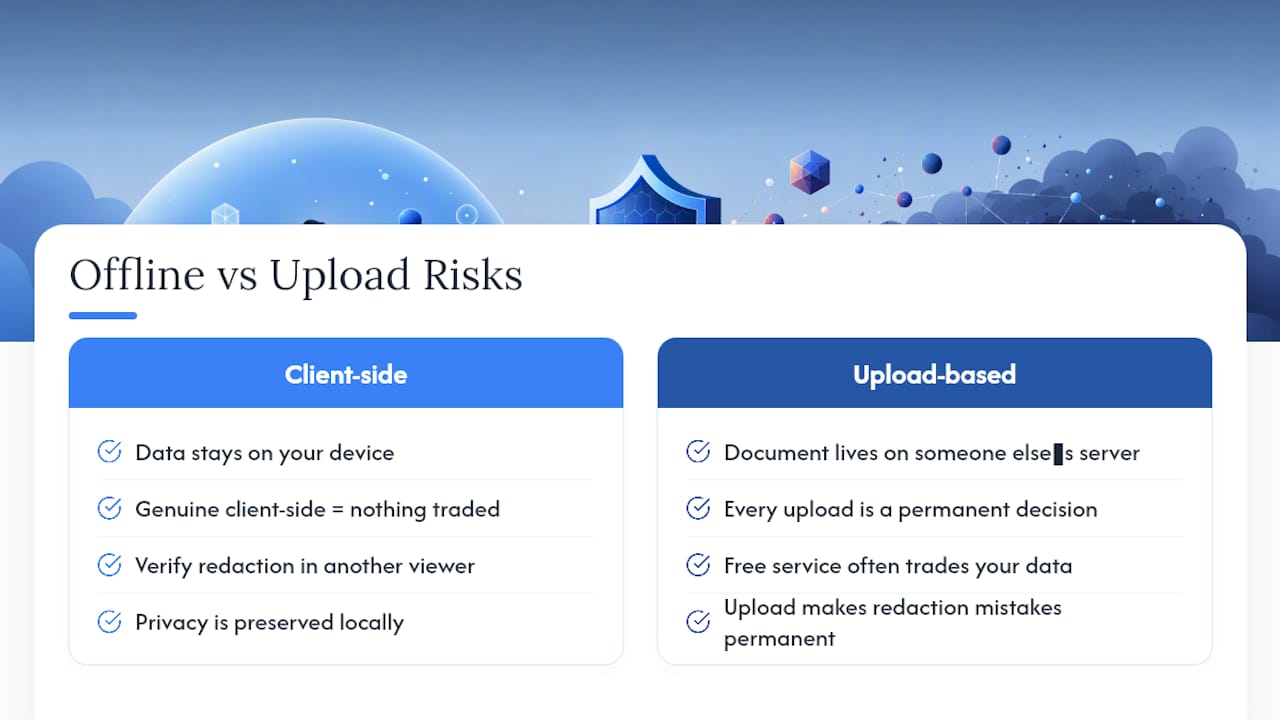
What gets underrated is redaction verification. Plenty of people black out a paragraph, feel satisfied, and never reopen the file in a second viewer to check whether the text is actually gone. That single step, testing your own work in an unrelated tool, catches more privacy failures than any feature list ever will.
If you're not paying for the tool, ask what you're actually trading. With genuine client-side processing, the answer is nothing. With an upload-based "free" service, the answer is usually your data.
— Vehicularis
Edit, Sign, and Convert PDFs Without Ever Uploading Them
Tabtasker gives you a full offline editing suite in your browser, with none of the install time a desktop app demands and none of the upload risk a cloud editor carries. Every PDF tool, from text edits to redaction to signing, runs locally on your device, so the file you open never leaves your machine.

That matters most for the documents you'd never want sitting on a stranger's server: contracts, medical forms, financial statements. Tabtasker's free offline PDF tools cover editing, signing, and conversion, and the same client-side approach extends across the platform to image and audio tools if your workflow needs more than PDFs. If you're chaining multiple steps together, like converting scanned images to PDF and then signing them, the workflow builder lets you set that up once and reuse it. Open a PDF at Tabtasker right now and make your first edit before you'd even finish downloading a desktop alternative.