 TabTasker
You can fill a PDF form offline right now, no internet connection required, using an offline PDF editor, a portable app, a mobile editor with offline mode, or a client-side browser tool like Tabtasker. For heavy, repeated form work, a native desktop app is your best bet. For a quick, private edit on a document you'd rather not send anywhere, a browser-based tool that never leaves your device does the job in seconds.
- Fillable (AcroForm) PDF: open it in any offline editor and type directly into the fields.
- Scanned or flat PDF: you'll need OCR or a text overlay tool before you can type on it.
- Signing and flattening can both happen offline, no cloud step required.
Key Takeaways
Filling a PDF form offline works best when you match the tool to the form type: AcroForm fields need a field-aware editor, scanned forms need OCR or an overlay, and privacy-sensitive documents belong in a tool that never leaves your device.
| Point | Details |
|---|---|
| Identify your PDF type first | Check whether fields highlight when clicked (AcroForm) or the page is a flat image (scanned) before picking a tool. |
| Use OCR for scanned forms | Offline OCR and field detection turn a flat scan into a typeable form without any internet connection. |
| Flatten before you share | Locking entries and signatures into the page prevents accidental edits after the form is finished. |
| Batch forms with CSV/XFDF | Export data as CSV or XFDF to mail-merge dozens of identical forms instead of retyping each one. |
| Tabtasker handles the whole flow | Tabtasker fills, signs, and flattens PDFs entirely in your browser with client-side processing and no account required. |
Table of Contents
- How Do You Fill a PDF Form Offline?
- AcroForm Fields vs. Scanned PDFs: Which One Do You Have?
- Save, Sign, and Flatten a Filled PDF Without Uploading It
- How to Fill and Sign a PDF Offline With Tabtasker
- Common Problems When Filling PDFs Offline (and Fixes)
- Sources
How Do You Fill a PDF Form Offline?
The method that works best depends on your device, how often you fill forms, and how much you care about where the file travels while you're editing it. Here's how the main offline routes stack up.
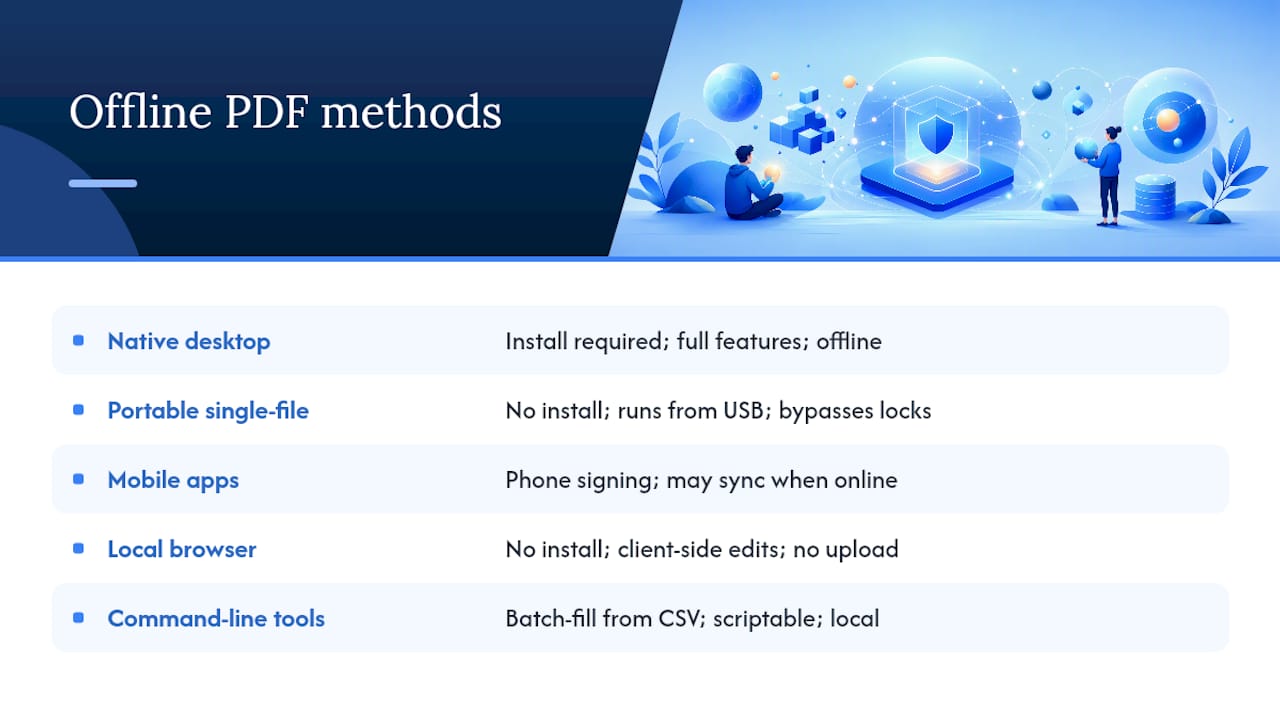
Native desktop editors give you the deepest feature set: field detection, digital signatures, OCR, and reliable saving, all without a network connection. If you fill out forms weekly (leases, intake paperwork, tax documents), this is worth installing.
Portable single-file editors run straight from a USB drive with no install and no admin rights. That matters more than it sounds. Locked-down work laptops, library computers, and shared family PCs often block software installs entirely, and a portable build sidesteps that problem completely. Some portable Windows PDF editors even bundle OCR and signing into that single executable.

Mobile apps with offline modes are handy for signing something on your phone between meetings, but check the fine print. Many "offline" mobile apps still quietly sync to a cloud account once you reconnect. Turn that off if privacy matters to you.
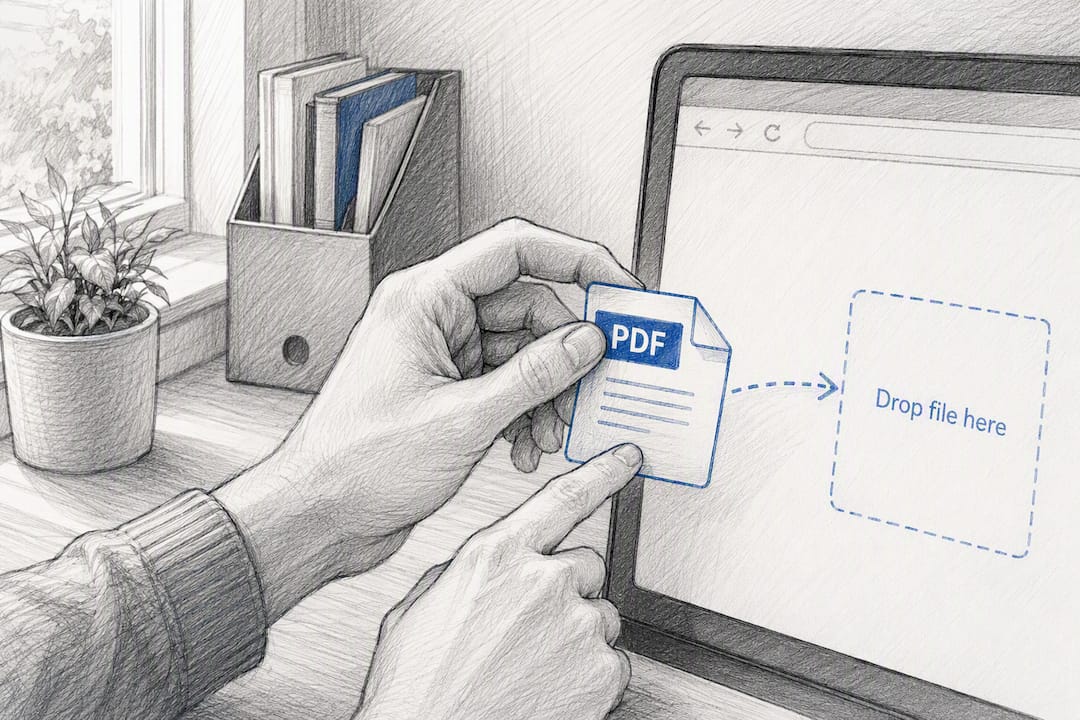
Local, browser-based tools like Tabtasker sit in an odd, useful middle ground: no install, but the actual editing happens client-side on your machine rather than on a remote server. You open the file, the browser processes it locally, and nothing gets transmitted.
Command-line and scriptable tools matter if you're filling the same form fifty times with different names and addresses. Projects like nib let you batch-fill from a CSV or XFDF file entirely on your own machine, which turns a tedious afternoon into a five-minute script.
AcroForm Fields vs. Scanned PDFs: Which One Do You Have?
Not every PDF form is built the same way, and figuring out which type you're holding determines your entire next step.
An AcroForm (or interactive) PDF has actual embedded fields: text boxes, checkboxes, dropdowns, that highlight when you click them. A flat or scanned PDF is just an image of a form, no fields underneath, so nothing responds when you click. Government forms and scanned mail-in applications are frequent offenders.
Here's how to handle each one without touching the internet:
- For AcroForm PDFs: open the file in your offline editor, click each field, type your answer, and save. Most editors let you export the entered data separately as XFDF or CSV, which is handy if you need to reuse those answers elsewhere.
- For flat, scanned PDFs: run offline OCR to detect where the form lines and boxes sit, letting your editor generate fillable fields automatically. Tools like OffPDF build this OCR-based field detection directly into their desktop app.
- If OCR guesses wrong (it sometimes places a field slightly off a signature line), use a text overlay tool instead: drop text boxes anywhere on the page, position them by eye, then flatten the result so it prints and displays cleanly.
- If the form is genuinely a mess (crooked scan, missing lines, inconsistent spacing), it's often faster to recreate it from scratch than to fight the overlay.
Pro Tip: If you're filling out the same form for a dozen people (event registrations, employee onboarding), export your answers as a CSV first, then run a batch mail-merge instead of retyping each one by hand.
Save, Sign, and Flatten a Filled PDF Without Uploading It
Saving sounds simple until you overwrite your blank template by mistake. Use Save As to create a new file, and keep the original template untouched for next time. If you need the raw entries separately, most editors will export just the form data as XFDF or CSV.
Signing offline comes in two flavors. An image signature (a scanned or drawn signature dropped onto the page) is fast and fine for informal documents. A locally created digital signature, generated and stored on your own device, carries a timestamp and cryptographic backing that holds up far better for contracts or legal forms, according to Tabtasker's e-signature documentation.
Once signed, flatten the PDF: this locks your entries and signature into the page itself so nobody can edit them later. Printing to PDF or exporting as PDF/A accomplishes roughly the same thing.
- Check your file's "Save As" location to confirm it wrote to your device, not a temp cloud folder.
- Look for an offline indicator or airplane-mode test: if the tool still saves with Wi-Fi off, you're in the clear.
Tools built specifically around 100% local processing skip telemetry and account requirements entirely, which is worth checking for if a form contains anything sensitive.
How to Fill and Sign a PDF Offline With Tabtasker
Tabtasker's PDF tools run entirely in your browser, and the processing happens on your device rather than a remote server, so nothing about the document you're filling out ever leaves your machine.
Here's the actual workflow:
- Open your PDF in Tabtasker's editor. No account, no upload screen, no waiting on a server response.
- If the form has interactive fields, click and type directly. If it's a flat or scanned form, switch to the text tool and place your entries manually.
- Save your finished file, or export just the entered data if you're planning to reuse it across multiple copies of the same form.
- Use the built-in e-sign tool to add your signature, then flatten the document so the signature and entries can't be altered afterward.
Pro Tip: Filling out the same form dozens of times? Prep your data as a CSV first (there are solid guides on structuring CSVs for editing if you're new to it), then run it through a CSV-to-PDF workflow to batch-generate filled copies instead of repeating the process by hand.
Want to double check a signature landed correctly before you send the file anywhere? Tabtasker's signature verification tool confirms it locally, no upload needed for that step either.
Common Problems When Filling PDFs Offline (and Fixes)
A few issues show up constantly, and most have quick fixes once you know what's actually broken.
- Fields won't accept input: you may be looking at an XFA form rather than a standard AcroForm. XFA forms need a compatible editor or Adobe's own reader. If nothing works, print the PDF to a new file and type over it with a text overlay tool.
- Text looks wrong or missing after saving: this is usually a font embedding issue. Re-save with "embed fonts" enabled, or print to PDF using a renderer that preserves the original appearance.
- The form seems to require a special viewer or JavaScript calculations: some government and financial forms rely on scripts that only work in specific readers. If your offline editor can't run them, fill the static fields manually and skip the automatic calculations.
- File won't save at all: check for a read-only flag, confirm you have write permission to that folder, and try Save As to a different location. Overzealous antivirus software occasionally locks a file mid-save, too.
Lightweight PDF readers are a common source of this last problem. A recurring theme in Sumatra's own user forum is people asking why their reader won't let them type into a form, and the honest answer is that stripped-down viewers were never built for form filling in the first place. Switching to a dedicated editor solves it instantly.
Why local-first tools are the pragmatic choice for form filling
Uploading a tax form or medical intake sheet to a cloud converter to save five minutes has always struck us as a bad trade. You don't know how long that file sits on someone else's server, who has access to it, or whether it gets logged. Local-first tools remove that question entirely: nothing to trust, because nothing left your device.
That matters most with sensitive paperwork, on unreliable Wi-Fi, or when you're batch-filling dozens of forms and don't want dozens of upload cycles slowing you down. For more on this, our guide to editing documents without compromising privacy goes deeper into the tradeoffs.
— Vehicularis
Tabtasker: fill and sign PDFs offline, right in your browser
Every method in this guide works, but most desktop editors ask you to install something, and most mobile apps quietly phone home the moment you reconnect to Wi-Fi. Tabtasker skips both problems: it runs in your browser, processes your file locally, and never asks you to create an account or hand over a document to a server.

Open a form, fill the fields, add your signature, flatten it, and save. That entire sequence happens on your own machine from start to finish. If you're filling the same form repeatedly, the CSV-to-PDF tool turns a spreadsheet of names and details into a stack of finished forms in one pass. Start with any PDF at Tabtasker's free toolkit and see how far you get before you ever need to sign up for anything.
Sources
For a scriptable, local-first CLI approach to batch filling, see nib's project page. Readers stuck with a lightweight viewer that won't accept form input can see the exact issue discussed on the Sumatra forum. For the signing step itself, Tabtasker's guide on signing a PDF without uploading it walks through the process end to end.