 TabTasker
The fastest way to get a reliable free transcript is OpenAI Whisper, run locally or through a no-install web tool built on it. Whisper wins on accuracy and costs nothing beyond your own time, which makes it the default answer to almost every "how do I transcribe this for free" question.
- Pick Whisper (local or web) when you need accuracy, have a long recording, or care about privacy.
- Pick a device built-in (Google Docs, Voice Memos, Google Recorder) when you need speed and zero setup, like jotting a quick voice memo.
Start with the quick start methods below, then come back for the details once you've got a working transcript.
Key Takeaways
The most reliable free transcription workflow pairs Whisper for accuracy with a manual proofreading pass before you publish or share anything.
| Point | Details |
|---|---|
| Choose Whisper for accuracy | Use local install or a Whisper-based web tool for long, noisy, or accented audio. |
| Use built-ins for speed | Google Docs, Voice Memos, and Google Recorder work best for quick dictation with zero setup. |
| Always proofread the draft | Even 95 to 98% accurate transcripts miss names, jargon, and speaker attributions. |
| Match export format to purpose | Use SRT or VTT for captions, TXT for editing, JSON for timestamped data. |
| Go browser-based for privacy | TabTasker transcribes locally in-browser with no uploads, ideal for sensitive recordings. |
Primary sources and further reading
- The Complete Guide to AI Transcription covers accuracy benchmarks and supported export formats.
- How to Transcribe Audio Free With Whisper breaks down Whisper's model sizes and cost structure.
- Loughborough University's announcement explains why manual review remains necessary.
- AI Learning Guides offers no-code Whisper paths for nontechnical users.
- noScribe on GitHub documents a local GUI that bundles Whisper with diarization.
Table of Contents
- Free AI Transcription Guide: Three Ways to Start Right Now
- How Do You Run OpenAI Whisper for Free?
- Are Google Docs, Voice Memos, and Google Recorder Good Enough?
- What's the Best Offline Desktop Option for Long Recordings?
- How Accurate Is Free AI Transcription, and What Needs Fixing?
- What File Formats Should You Export?
- Which Workflow Should You Use for Interviews, Meetings, or Podcasts?
- Try TabTasker for Free, Private Transcription in Your Browser
- Sources
Free AI Transcription Guide: Three Ways to Start Right Now
You don't need to read the whole guide before you get a transcript. Pick one of these three paths based on what you're transcribing and how much patience you have for setup.
Method A: Whisper, the accuracy path
- Open a free Whisper-based web tool or run the model locally.
- Upload or drop in your audio file.
- Wait for processing, then download the text.
Pros: highest accuracy on noisy or accented speech. Cons: local setup takes a few minutes the first time. Time to result: 2 to 10 minutes depending on file length.
Method B: Device built-ins, the speed path
- Open Google Docs Voice Typing, iPhone Voice Memos, or Google Recorder.
- Speak or play back audio near the microphone.
- Copy the text out immediately.
Pros: zero setup, works instantly. Cons: struggles with multiple speakers or background noise. Time to result: near-instant.
Method C: Free web apps running transient Whisper instances Best for batch uploads when you're not technical and don't want a local install. Time to result: a few minutes per file.
Pro Tip: If you're unsure which path to pick, run a 30-second test clip through Whisper and a built-in side by side. The gap in accuracy on real-world audio usually settles the choice fast.
How Do You Run OpenAI Whisper for Free?
Whisper is free and open-source, trained on 680,000 hours of audio, and it's the best free option when accuracy matters more than convenience. Run it locally for zero-cost, fully private transcription, or use the hosted API, which costs roughly $0.006 per minute, when you'd rather skip the setup.
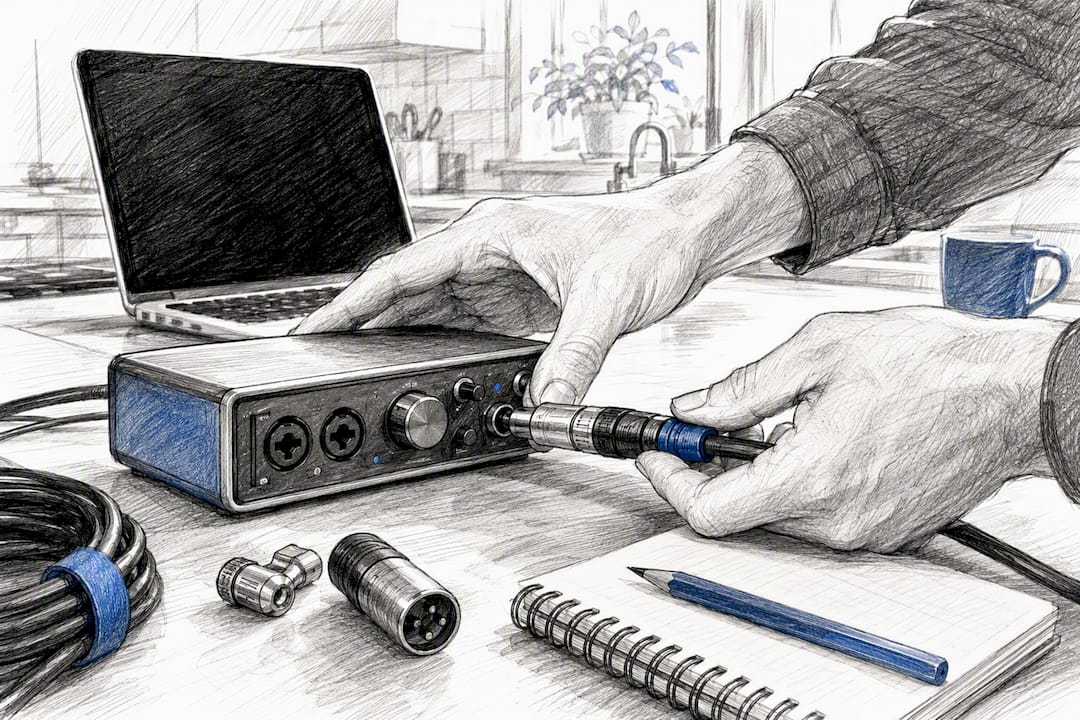
Local install checklist: Python 3, ffmpeg, and optionally GPU drivers if you have an NVIDIA card for faster processing. Once installed, a basic command like whisper myfile.mp3 --model base gets you a transcript with no further configuration.
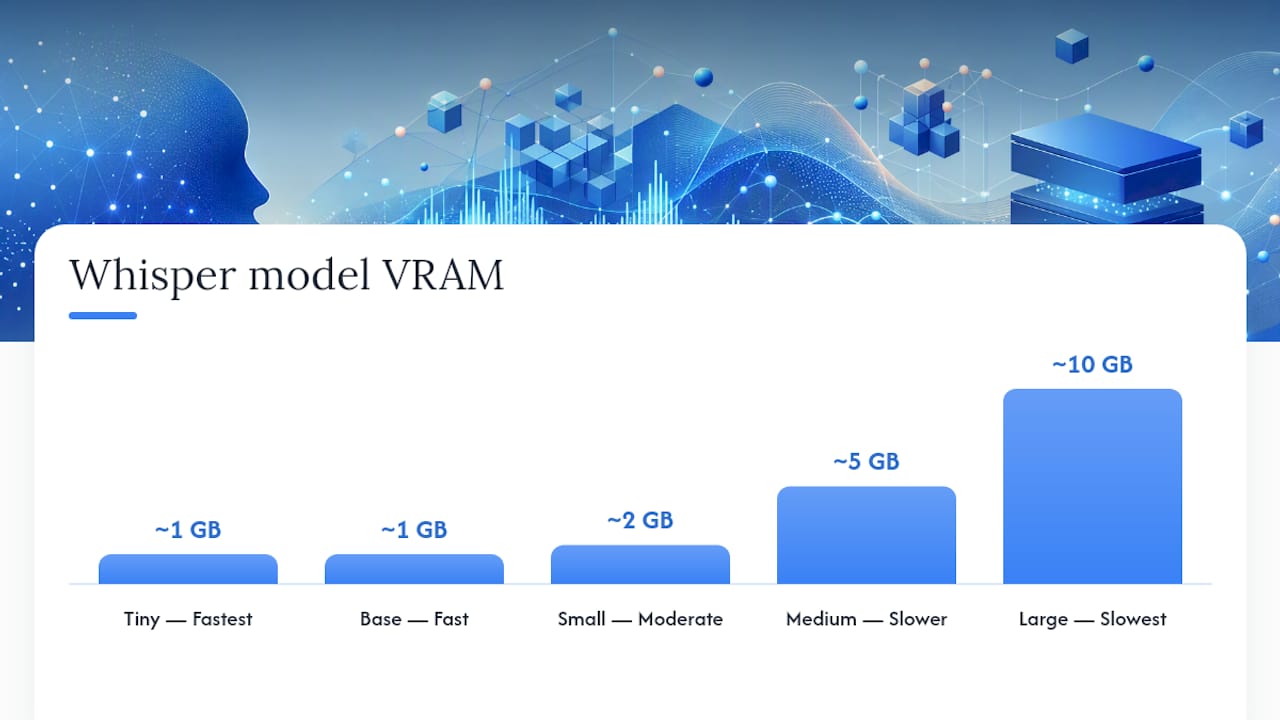
Model size determines the trade-off between speed and accuracy:
| Model | Relative Speed | VRAM Needed | Best Use Case |
|---|---|---|---|
| Tiny | Fastest | ~1GB | Quick drafts, casual notes |
| Base | Fast | ~1GB | Everyday transcription |
| Small | Moderate | ~2GB | Interviews, podcasts |
| Medium | Slower | ~5GB | Technical or accented audio |
| Large | Slowest | ~10GB | Maximum accuracy, archival work |
If you'd rather skip Python entirely, no-code shortcuts and free web UIs built on Whisper give nontechnical users the same accuracy without touching a terminal.
Pro Tip: Local Whisper never sends your file anywhere. The hosted API does. If the recording involves anything sensitive, that distinction should decide which mode you use, not convenience.
Are Google Docs, Voice Memos, and Google Recorder Good Enough?
For live dictation or a fast voice note, yes. These built-ins are the quickest way to get text on screen, but they weren't built for demanding transcription work.
- Google Docs Voice Typing: Open a doc, go to Tools, select Voice Typing, and speak directly into the microphone as it types in real time.
- iPhone Voice Memos: Record your memo, tap the transcript icon, and Apple's on-device model generates text automatically.
- Google Recorder: Record on a Pixel device, and it transcribes live as you speak, no upload required.
- Best for: dictation, meeting notes, quick reminders.
- Weak on: multiple speakers, background noise, long recordings.
- No speaker labels or exportable timestamps in most cases.
Once a recording runs past a few minutes or involves more than one voice, move to Whisper. Built-ins simply weren't designed for that job.
What's the Best Offline Desktop Option for Long Recordings?
If you need privacy and have hours of audio to process, use Audacity paired with the OpenVINO Whisper plugin. It keeps every file on your machine and adds real audio cleanup before transcription even starts.
- Import your recording into Audacity and run noise reduction to strip background hum.
- Trim dead air and split long files into manageable segments.
- Run the OpenVINO Whisper plugin directly inside Audacity to generate the transcript.
- Confirm the plugin runs fully local. No file should leave your device.
- Expect longer processing time on CPU only. GPU acceleration speeds this up considerably.
- Open-source suites like noScribe bundle Whisper with diarization and a local interface, so you get speaker labels without any cloud step.
How Accurate Is Free AI Transcription, and What Needs Fixing?
AI gets you close, not finished. Modern engines including Whisper hit roughly 95 to 98% accuracy on clear audio, but that still leaves errors in names, technical terms, and overlapping speech that need a human pass before publishing.
Run this checklist on every draft transcript:
- Scan for misheard names and proper nouns.
- Verify numbers, dates, and technical jargon.
- Confirm speaker attributions if diarization was used.
- Check timestamps against the original audio at a few random points.
- Use word-confidence scores where the tool provides them to flag likely errors fast.
- Search the transcript for repeated terms specific to your topic. Jargon is where models slip most.
Researchers caution that even strong models hallucinate occasionally or misread jargon, so treat every AI transcript as a draft, especially for interviews, legal notes, or published writing. A five-minute QA pass catches most of what matters.
What File Formats Should You Export?
Most free tools export more than plain text. Expect TXT, SRT, VTT, and often JSON with timestamps or speaker labels built in.
- TXT for basic reading, editing, or feeding into another writing tool.
- SRT for subtitles on YouTube or video editors.
- VTT for web-native captions embedded in HTML5 players.
- JSON when you need timestamps or diarized speaker data for a custom workflow.
To export captions with speaker labels, choose a tool that supports diarization output. If you're refining a transcript for publishing afterward, a markdown editor makes cleanup and formatting far faster than working in plain text.
Which Workflow Should You Use for Interviews, Meetings, or Podcasts?
Each use case calls for a slightly different combination of the methods above. Here are three that consistently deliver a clean result in one pass.
Interview: Record with an external mic, run through Whisper locally for diarization, then check names, quotes, and attributions. Roughly 10 to 15 minutes for a 30-minute interview.
Meeting: Use Google Recorder or Google Docs Voice Typing for live capture, then generate a short summary and pull out action items. Nearly instant, since practitioners consistently favor built-ins for speed over robustness in this scenario.
Podcast: Batch process episodes through Whisper, export SRT for captions, then do a fast proofreading pass before publishing. Expect 15 to 20 minutes per hour of audio.
Why we favor privacy-first, browser-based transcription
We favor local and browser-based tools over cloud uploads whenever a recording involves anything sensitive, because the privacy guarantee is simple: if the audio never leaves the device, there's nothing to leak. Testing across Whisper's local mode, its hosted API, and several built-ins makes one thing clear: speed and privacy are usually a trade-off, not a package deal, so decide which one matters more before you pick a tool. Whatever method you choose, proofread the output. No free tool, including the ones recommended here, replaces a careful human read-through.
Try TabTasker for Free, Private Transcription in Your Browser
TabTasker gives you Whisper-level transcription without sending a single file to a server, because everything runs client-side in your browser. That matters most for interviews, legal notes, or client calls you'd rather not upload anywhere, even to a "free" cloud tool.

- No uploads, no accounts. Audio stays on your device the entire time.
- Export formats that fit your workflow, including plain text and subtitle-ready files.
- Works the moment you open the tab. No install, no command line, no waiting on a Python setup.
If you're dealing with a large audio file that needs cleanup first, the audio editor trims and reduces noise before you even start transcribing, and the audio converter handles format mismatches in seconds. When you're ready, head to the transcription tool with advanced features and drop in your file. You'll have a working draft before your coffee gets cold.
Sources
- The Complete Guide to AI Transcription
- How to Transcribe Audio Free With Whisper (2026 Guide) | AI Weekly
- AI transcription tools: a time-saver or security risk? (Loughborough University announcement)
- How to Use AI to Convert Speech to Text for Free - AI Learning Guides