 TabTasker
TL;DR:
- You can annotate PDFs entirely in your browser without installing software or altering the original text.
- Choosing client-side tools enhances privacy, while server-based editors enable collaboration but may retain files.
You can annotate a PDF entirely in your browser using tools that add a separate markup layer over the document — no desktop app required, and no changes to the original text.
Here's what you need to do right now:
- Open or upload your PDF (drag and drop, or pull from cloud storage)
- Pick an annotation tool from the toolbar (highlight, sticky note, text box, shape)
- Add your markups page by page
- Save or export — choose editable (layer preserved) or flattened (markups permanent)
TL;DR on tool choice: If your document contains sensitive information, use a browser-only (client-side) tool that never uploads your file. If you need real-time collaboration or advanced features, a server-based editor works — but check its retention policy first.
Table of Contents
- What annotation tools you'll find in online PDF editors
- How to annotate a PDF online: a step-by-step workflow
- How collaboration works when you annotate PDFs online
- What happens when you save, export, or share an annotated PDF
- Server uploads vs. client-side tools: what the privacy difference actually means
- When should you annotate instead of editing, filling, signing, or redacting?
- Common problems and quick fixes when annotating PDFs online
- Accessibility features for users with disabilities
- Free vs. paid limits and device and browser support
- How online PDF tools connect to Google Drive, Dropbox, and OneDrive
- Mobile annotation and keeping your markups in sync across devices
- Performance and offline annotation: what actually works without internet
- Key Takeaways
- Why a privacy-first approach to annotation actually matters
- Tabtasker: annotate and sign PDFs privately, without uploading
- Further reading and useful sources
What annotation tools you'll find in online PDF editors
PDF annotations are interactive markups that sit in a separate layer and do not alter the original document text. Every mainstream online editor surfaces roughly the same toolbar, though the icons vary.
Standard annotation types:
- Highlight, underline, strikethrough — text markup for quick reference, editorial review, or showing deletions
- Sticky notes / comments — threaded feedback tied to a specific location; best for review cycles where replies matter
- Free text boxes — floating labels you can place anywhere on the page, useful when you need to add a note where there's no selectable text
- Shapes (rectangles, circles, arrows, lines) — good for calling out diagrams or marking regions
- Ink / freehand drawing — useful on tablets or touch screens for hand-drawn corrections
- Stamps — pre-built labels like "Approved," "Draft," or "Confidential"
- Signatures — a drawn, typed, or image-based signature placed as an annotation
Most tools let you adjust color, opacity, line thickness, and font size for each annotation type.
Pro Tip: Use a consistent color system across your team — yellow for questions, green for approvals, red for required changes. Combined with comment threads, this turns a single PDF into a structured review record without any extra software.

How to annotate a PDF online: a step-by-step workflow
The core workflow is the same across almost every web-based editor: open → select tool → annotate → save. Here's how it plays out in practice.
- Open the PDF. Drag and drop the file into the editor, or connect your Google Drive, Dropbox, or OneDrive account to open it directly from cloud storage. Tools like Smallpdf and Evernote's PDF editor accept both methods.
- Pick your annotation tool. Click the toolbar icon for the markup you need. Most editors group text markup tools together and separate drawing tools.
- Apply annotations page by page. Click or tap to place sticky notes, drag to highlight text, or draw shapes. Navigate between pages using the editor's page controls.
- Use comment and reply threads for collaborative notes. If you're reviewing with others, add a comment and tag a colleague. This keeps feedback organized and traceable.
- Save or export. Choose between saving with an editable annotation layer (markups can still be moved or deleted) or flattening the file so markups become permanent. More on this distinction in the next section.
- Download or share. Download the annotated PDF directly, or generate a shared link with the appropriate permission level (view, comment, or edit).
Pro Tip: On long documents, open a second browser tab with the same PDF as a reference. Most web editors also support keyboard shortcuts — check the editor's help menu for page navigation and tool-switching shortcuts that save real time.
A note on mobile: touch interfaces replace pointer precision with tap-and-drag gestures. Sticky notes and highlights work well on phones; freehand drawing and precise shape placement are easier on a tablet with a stylus or on a desktop.
How collaboration works when you annotate PDFs online
Online PDF annotation tools handle collaboration in a few different ways, and knowing which model a tool uses saves you from a frustrating mid-review surprise.
What most collaborative tools offer:
- Comment threads with replies, so reviewers can respond to each other's notes without emailing back and forth
- @mentions (in tools that support them) to notify a specific person about a comment
- Shared links with permission levels: view-only, comment-only, or full edit access
- Version history in more advanced tools, so you can see what changed between review rounds
What to watch for: Many free-tier tools only support single-session annotation. You annotate, download, and share the file manually — there's no live multi-user editing. pdfFiller, for example, supports individual annotation sessions and lets you download the marked-up result, but does not offer real-time co-editing in its standard workflow. Evernote's PDF editor similarly focuses on individual annotation rather than simultaneous multi-user sessions.
When a tool does support shared review links, confirm whether comments are embedded in the exported PDF or only visible inside the platform. Exporting review history as part of the PDF is the safer choice if recipients use a different reader.

What happens when you save, export, or share an annotated PDF
This is where most annotation mistakes happen. The difference between an editable save and a flattened export determines whether your markups survive the trip to another reader.
Editable vs. flattened annotations:
- Editable save: Annotations stay in a separate layer. The recipient can move, edit, or delete them in a compatible viewer. This is what happens when you "Save" normally in most editors, including macOS Preview.
- Flattened save: Markups are merged into the document content and become permanent. The standard way to flatten is Print → Save as PDF. Recipients see the markups but cannot interact with them.
Common export options:
- Save as PDF with annotation layer retained (editable)
- Print to PDF (flattens markups permanently)
- Export annotations as XFDF or JSON — a format that stores annotation data separately so it can be re-imported into a compatible tool without touching the original PDF bytes
- "Save a copy" vs. "Export" — these behave differently depending on the editor, so test before sharing
Compatibility note: Annotations can render differently across PDF readers. A sticky note added in one tool may appear as a flat icon in another, or not at all. Before sending a final document, open it in the recipient's likely reader (Adobe Acrobat Reader, Chrome's built-in viewer, or Apple Preview) and confirm everything is visible.
Quick sharing checklist:
- Confirm annotations are visible in the target reader
- Choose flattening if you want markups to be permanent and universally visible
- Export XFDF/JSON if you want re-importable annotations without altering the original file
- Verify the signed or annotated PDF hasn't been altered after the fact
Server uploads vs. client-side tools: what the privacy difference actually means
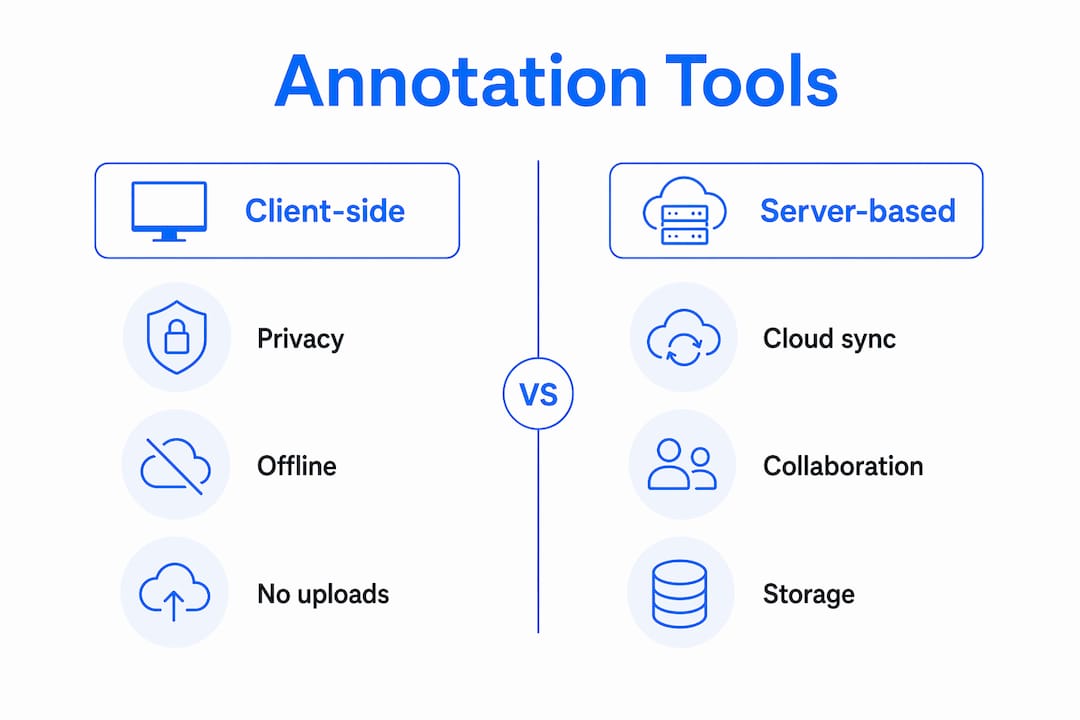
Client-side tools process your file in local browser memory and never send it to a remote server. Server-based editors upload your file, process it on their infrastructure, and return the result. That distinction matters more than most people realize.
Client-side tools:
- Your file never leaves your device
- Works offline in many browsers
- No account required in most cases
- No server retention risk
Server-based tools:
- Enable real-time collaboration and advanced processing
- May retain uploaded files or temporary copies depending on their policy
- Require an internet connection
- Often require sign-in for full features
If you're not paying for the product, you might be the product. Free server-based tools frequently monetize through data retention, ad targeting, or usage analytics. Always read the privacy policy before uploading a contract, medical record, or any document with personal information. For guidance on secure document sharing patterns, developer-focused resources can clarify what "secure" actually means at the infrastructure level.
Pro Tip: To verify whether a tool is truly client-side, open your browser's developer tools (F12), go to the Network tab, and load your PDF. If you see a file upload request to an external server, the tool is not processing locally. No outbound file request means local processing.
When should you annotate instead of editing, filling, signing, or redacting?
Annotation is the right choice when you want to preserve the original document and add a feedback layer on top. It's the wrong choice when you need to change the actual content.
Quick decision guide:
- Proofreading and review → annotate (highlight errors, add sticky notes, use strikethrough)
- Correcting OCR errors or changing text → use a PDF editor that modifies content directly
- Completing a form → use a form-fill tool (annotation text boxes are not the same as form fields)
- Legal approvals → sign (a signature annotation is different from a legally binding e-signature in some contexts)
- Removing sensitive data → redact (annotation does not hide content; it only adds a layer on top)
Some workflows combine actions: annotate a contract for review, then sign it in the same session. Tools like pdfFiller support this combination. On mobile, redaction and advanced editing are often limited, so complete those steps on desktop before sharing.
Common problems and quick fixes when annotating PDFs online
Annotations not visible in another reader: The recipient's viewer may not support annotation layers. Flatten the PDF before sharing, or ask the recipient to open it in a full-featured reader like Adobe Acrobat Reader.
Scanned PDFs and image-based files: Annotation tools can place markups on top of scanned pages, but text-selection tools won't work unless OCR has been run first. Use a searchable PDF workflow to make scanned text selectable before annotating.
Read-only or secured PDFs: Some PDFs have permissions set that block annotation. Try opening the file in a different viewer, or use Print → Save as PDF to create an unsecured copy — though this flattens any existing markups.
Large files and slow performance: Files over 50 MB can slow browser-based editors significantly. Compress the PDF first, or split it into sections. Evernote's PDF editor notes a 100 MB maximum file size for uploads.
Corrupted or missing annotations after download: Export annotations as XFDF or JSON as a backup before downloading the final PDF. If the embedded annotations are corrupted, you can re-import from the backup file.
Accessibility features for users with disabilities
Accessibility in online PDF annotation tools is uneven, and it's worth checking before committing to a workflow. Screen reader support, keyboard navigation, and high-contrast modes vary significantly across tools.
Most modern web-based editors support basic keyboard navigation for toolbar access and page scrolling. Tools built on established PDF viewer frameworks tend to offer better accessibility because those frameworks include ARIA labels and focus management by default. Smallpdf's web interface, for example, is browser-based and inherits some accessibility support from the browser itself.
For users with motor impairments, voice control software (like Apple's Voice Control or Windows Speech Recognition) can interact with browser-based tools, though precision tasks like freehand drawing remain difficult. Sticky notes and text boxes are generally the most accessible annotation types because they require only a click and keyboard input.
If accessibility is a hard requirement, test the specific tool with your assistive technology before adopting it for a critical workflow.
Free vs. paid limits and device and browser support
Most online PDF annotation tools offer a free tier with meaningful restrictions. Understanding those limits upfront prevents mid-session frustration.
Typical free-tier limits:
- File size caps (Evernote's PDF editor sets a 100 MB maximum)
- Number of annotations or pages per session
- Watermarks on exported files
- No cloud storage or sharing links without an account
Smallpdf's free tier allows a limited number of tasks per day before prompting an upgrade. pdfFiller offers a free trial but moves to a paid subscription for ongoing use. Evernote's PDF annotation tools are available within its free plan, though Evernote's broader storage limits apply.
Browser and device support: All four tools covered here (Smallpdf, Evernote PDF Editor, pdfFiller, and Tabtasker) run in modern desktop browsers without requiring a plugin. Chrome, Firefox, Edge, and Safari all work. Mobile browser support is generally available but with a reduced feature set. Dedicated mobile apps (Smallpdf has iOS and Android apps) offer a better touch experience than a mobile browser.
How online PDF tools connect to Google Drive, Dropbox, and OneDrive
Cloud storage integration is one of the most practical features in server-based PDF editors, and it's worth knowing how it actually works.
Smallpdf and pdfFiller both support direct import from and export to Google Drive, Dropbox, and OneDrive. You authorize the connection once, and the tool can read and write files to your cloud folders without you downloading and re-uploading manually. This is convenient for team workflows where files live in shared drives.
The trade-off: connecting a PDF tool to your cloud storage grants it access to those files. Review the permission scope carefully — some tools request broad read/write access to your entire Drive rather than a single folder. For a broader look at how online document editors handle cloud integration, the workflow differences between tools become clearer in context.
Client-side tools like Tabtasker don't connect to cloud storage in the same way, since files stay local. You open a file from your device, annotate it, and save it back locally — then upload to Drive or Dropbox yourself if needed.
Mobile annotation and keeping your markups in sync across devices
Annotation synchronization across devices depends entirely on whether the tool uses cloud storage as its backbone.
Server-based tools with accounts (Smallpdf, pdfFiller, Evernote) sync annotations through their cloud infrastructure. Annotate on your phone, open the same file on your laptop, and the markups are there. This works well when the file is stored on the platform's servers or linked to a connected cloud account.
Client-side tools don't sync automatically because there's no server to sync through. Your annotated file lives on the device where you created it. To move it to another device, you transfer the file manually — email it, AirDrop it, or save it to a shared folder.
For most casual users, the manual transfer is a minor inconvenience. For teams doing multi-round reviews across devices, a server-based tool with account sync is the more practical choice, provided the privacy trade-off is acceptable.
Performance and offline annotation: what actually works without internet
Browser-based annotation tools vary widely in how they handle large files and offline conditions.
Client-side tools, by design, run entirely in your browser's local memory. Once the tool's web page has loaded, you can disconnect from the internet and continue annotating. Tabtasker's tools work this way — the processing happens in your browser, so a dropped connection doesn't interrupt your session. This is a genuine advantage for users on unreliable connections or working with confidential files in restricted environments.
Server-based tools require a live connection throughout the session. If your internet drops mid-annotation, you may lose unsaved work. Most mitigate this with autosave, but behavior varies. File size also affects performance: a 50-page PDF with embedded images will load and respond more slowly in a browser editor than a simple text document. Compressing the PDF before opening it in a web tool is the single most effective performance fix.
Key Takeaways
Online PDF annotation adds a markup layer over the original document — choosing client-side tools keeps your file private, while flattening your export makes markups permanent and universally visible.
| Point | Details |
|---|---|
| Annotation is a separate layer | Markups don't alter original text; flattening merges them permanently into the document. |
| Client-side tools protect privacy | Browser-only tools never upload your file, eliminating server retention risk. |
| Export format determines compatibility | XFDF/JSON exports are re-importable; Print-to-PDF flattens and locks markups. |
| Test visibility before sharing | Open the annotated PDF in the recipient's likely reader to confirm markups appear correctly. |
| Tabtasker works offline, no account needed | Tabtasker processes PDFs locally in your browser, with no upload and no sign-in required. |
Why a privacy-first approach to annotation actually matters
The conventional wisdom treats "free online PDF tool" as a single category. It isn't. The gap between a tool that processes your file locally and one that uploads it to a server is not a technical footnote — it's the difference between a document that stays yours and one that enters someone else's infrastructure.
Most people don't read retention policies. They upload a contract, annotate it, download it, and move on. What they don't see is whether that file sat on a server for 24 hours, 30 days, or indefinitely. The tool's free tier often funds itself through data. That's not a conspiracy theory; it's a business model.
Client-side tools flip this. When annotation happens in your browser's memory, there's nothing to retain. The file never left your device. For everyday documents, that may feel like overkill. For anything sensitive — legal, medical, financial — it's the only reasonable default.
Tabtasker is built on this principle. Its PDF signing tool works entirely offline, and the same client-side approach applies across its annotation and editing tools. No account, no upload, no waiting for a server response. The privacy benefit is structural, not a marketing claim.
Tabtasker: annotate and sign PDFs privately, without uploading
If you've read this far, you already know the core risk with most free PDF tools: your file goes to a server, and what happens next depends on a privacy policy most people never read.

Tabtasker takes a different approach. Every tool on the platform runs directly in your browser, processing files in local memory. There's no account to create, no file size limit tied to a subscription tier, and no upload request going out to a remote server. You can annotate, flatten, and sign a PDF offline — then download the result and share it however you choose. The same privacy-first design covers image tools, audio tools, and the full offline toolbox at Tabtasker. Open the tool, load your file, and start working. Nothing leaves your device until you decide it does.
Further reading and useful sources
- How to Implement PDF Annotations in JavaScript — Syncfusion's developer guide covering annotation types, programmatic APIs, and XFDF/JSON export for building or understanding web PDF viewers
- Annotate a PDF in Preview on Mac — Apple Support documentation on saving, flattening, and annotation options in macOS Preview
- What Actually Happens When You Upload a PDF Online — Tabtasker's breakdown of server retention risks in common free PDF tools
- How to Edit Documents Without Compromising Your Privacy — Tabtasker's guide to privacy-conscious document editing workflows
- Content Creator Privacy Checklist — practical privacy checklist for anyone sharing annotated drafts or sensitive files online
- How to Protect and Password-Encrypt a PDF — securing your PDF after annotation before sharing
Before sharing any annotated document containing sensitive information: confirm the tool's privacy policy, verify your export method (editable vs. flattened), and test visibility in the recipient's PDF reader.