 TabTasker
TL;DR:
Live video calling transmits encrypted, real-time audio and video between devices using WebRTC technology.
Starting calls requires a device with a camera and microphone, a stable internet connection, and a compatible browser.
Live video calling is defined as real-time, two-way audio and video communication transmitted over the internet between two or more devices. The standard technology powering most browser-based calls today is WebRTC, which mandates encrypted media transport by default. Tools like InstantVideoCall, SealedCall, and VideoSDK have made it possible to start a call instantly without downloading software or creating an account. Whether you are catching up with a colleague or hosting a client meeting, understanding how these tools work protects both your time and your privacy.
What do you need to call live video?
The minimum requirements for a live video call are a device with a camera and microphone, a stable internet connection, and a compatible browser or app. Most modern laptops, smartphones, and tablets meet these requirements out of the box. The gap between a good call and a frustrating one usually comes down to connection quality and browser compatibility.

Device and browser requirements
WebRTC, the open standard behind browser-based video calls, runs natively in Chrome, Firefox, Safari, and Edge. No plugin is required. Your camera and microphone must be functional and accessible to the browser. On mobile, video calls require data via Wi-Fi or a carrier plan, and data charges may apply depending on your plan.
Comparing popular live video calling tools
| Tool | Security | Ease of use | Platform |
|---|---|---|---|
| InstantVideoCall | WebRTC encryption | No sign-up required | Browser |
| SealedCall | AES-128-GCM per-frame encryption | No sign-up required | Browser |
| VideoSDK | WebRTC + configurable E2EE | Developer-focused | Browser and mobile |
| Zoom | AES-256 encryption | Account required | App and browser |
| Google Meet | WebRTC encryption | Google account needed | Browser and app |
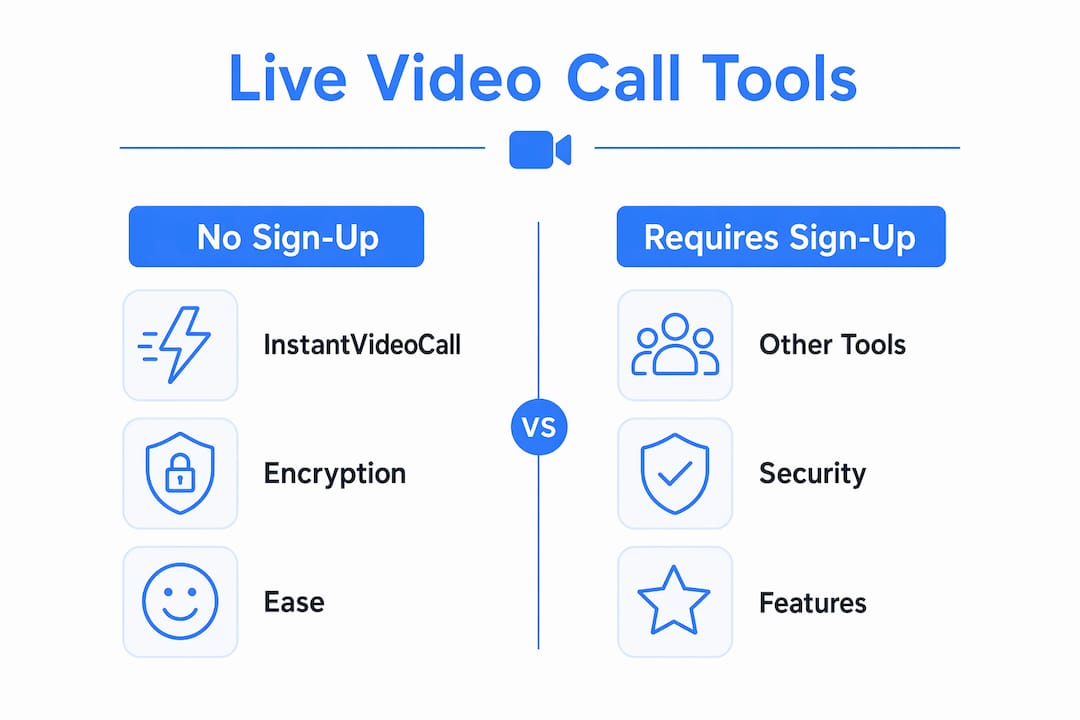
The tools without sign-up requirements are worth noting. They remove the friction of account creation while still delivering encrypted calls. If you are not paying for the product, ask yourself what the provider gains from your session data.
How to start a browser-based live video call
Starting a browser-based call is a straightforward process. The click-to-call workflow works by generating a unique room link that you share with participants. No downloads, no accounts. Here is how it works in practice:
-
Open the tool in your browser. Navigate to a service like InstantVideoCall in Chrome, Firefox, Safari, or Edge.
-
Click “Start Call.” The tool generates a unique room URL tied to your session.
-
Share the link. Copy and send the URL to your participant via email, text, or chat.
-
Grant camera and microphone access. Your browser will prompt you to allow access. Click “Allow.”
-
Wait for your participant to join. They click the link, grant permissions on their end, and the call connects.
-
End the call by closing the tab or clicking the disconnect button. The room link expires with the session.
The permission prompt in step four is handled by the browser’s getUserMedia API. Without this permission, the camera and microphone stay blocked and the call fails. Most browsers remember your choice for that site, so you will not be prompted again on the next call.
Pro Tip: Run a quick camera and microphone test before your actual call. Most WebRTC tools include a precall check screen. Catching a blocked permission or a muted mic before your meeting starts saves real embarrassment.
Reusing media tracks from a precall test is a recognized best practice. Track reuse means the browser does not re-request permissions mid-call, which keeps the experience smooth and avoids interruptions.
How secure is a live video call?
WebRTC mandates DTLS-SRTP encryption for all media streams by default. There is no opt-out path. Every audio and video packet is encrypted at the endpoint before it travels across the network. This applies even when calls are routed through relay servers, known as TURN servers, because TURN relays cannot decrypt the media they carry.
That baseline encryption is strong. But it is not the whole story. The security of a live video call also depends on how the signaling layer is handled. Signaling is the process of exchanging connection details between participants before the call starts. If signaling is not encrypted, an attacker could intercept session metadata even if the media itself is protected.
Some tools go further than the WebRTC baseline. SealedCall, for example, encrypts each media frame with AES-128-GCM and uses encrypted signaling with the MLS protocol. This means no intermediary, including the server operator, can read the call content. That level of protection matters for legal, medical, or sensitive business conversations.
Key security features to look for when choosing a live video calling tool:
-
DTLS-SRTP media encryption. This is the WebRTC standard and should be non-negotiable.
-
Encrypted signaling. Look for HTTPS connections and tools that explicitly state signaling is protected.
-
Per-frame or end-to-end encryption. Advanced tools like SealedCall add this layer on top of transport encryption.
-
No server-side media storage. Calls that are not recorded and not stored reduce your exposure.
-
Transparent privacy policy. If the provider does not clearly state what data they collect, assume they collect everything.
Pro Tip: Before joining any call, check that the URL begins with HTTPS. Browser camera access requires a secure context. An HTTP URL will block your camera and microphone at the browser level, and no amount of permission clicking will fix it.
True end-to-end encryption requires more than encrypted media transport. Secure key exchange and protected signaling are equally critical. A provider claiming E2EE without explaining their key distribution method deserves scrutiny.
Common live video call problems and how to fix them
The most common cause of a failed call is a blocked or missing permission. Blocked camera or microphone access is the first thing to check when a call shows no video or audio. Here is a breakdown of the most frequent issues and their fixes:
-
Camera or mic blocked in the browser. Click the lock icon in your browser’s address bar and set camera and microphone to “Allow.” Refresh the page and try again.
-
Camera or mic blocked at the OS level. On Windows, check Settings > Privacy > Camera and Microphone. On macOS, check System Settings > Privacy and Security. The browser needs OS-level permission first.
-
Call works locally but fails in production. This is almost always an HTTPS context issue. Browsers block camera access on non-secure pages.
-
Poor video quality or dropped frames. Check your internet connection. Video calls consume significant bandwidth. Switch from mobile data to Wi-Fi when possible.
-
Repeated permission prompts mid-call. This happens when the app does not reuse media tracks. Use a tool that supports precall track reuse to avoid this friction.
-
Participant cannot join via the link. Confirm the link has not expired. Some tools generate single-use or time-limited room URLs.
-
Echo or feedback during the call. Use headphones. The microphone picking up speaker output creates a feedback loop that headphones eliminate entirely.
Most of these problems are fixable in under two minutes once you know where to look. The pattern is consistent: check permissions first, then connection, then the URL context.
Key Takeaways
The most reliable live video calls combine WebRTC’s mandatory encryption with encrypted signaling, precall permission checks, and a tool that does not require an account or download.
| Point | Details |
|---|---|
| WebRTC encryption is mandatory | All media streams use DTLS-SRTP by default, with no opt-out available. |
| Signaling security matters too | Transport encryption alone is not enough. Verify that signaling is also encrypted. |
| Permissions must be granted first | Blocked camera or mic access is the leading cause of failed calls. Check browser and OS settings. |
| No-download tools reduce friction | Services like InstantVideoCall let you start a call from a browser link with no account needed. |
| Precall testing prevents surprises | Running a device check before the call catches permission and hardware issues early. |
My honest read on live video calling tools
The browser-based video call space has matured quickly, and the baseline security is genuinely good. WebRTC’s mandatory encryption means that even free, no-account tools offer a level of media protection that would have required enterprise software five years ago. That is worth appreciating.
What I find underappreciated is the signaling layer. Most people assume that if the call is “encrypted,” everything is protected. The reality is that transport encryption covers your audio and video packets, but the metadata exchanged before the call starts, including who is calling whom and when, can still be exposed if signaling is not secured. Tools like SealedCall address this explicitly. Most mainstream apps do not.
My practical advice: use browser-based tools for casual or one-off calls where no account is a genuine advantage. For recurring professional calls involving sensitive information, choose a tool that publishes its encryption architecture clearly, not just a marketing claim of “end-to-end encrypted.” If the privacy policy is vague or the tool is free without any clear business model, treat that as a signal worth investigating.
The precall check is the single habit that eliminates most call-time frustration. Spending 60 seconds confirming your camera and mic work before a meeting is not excessive caution. It is basic professionalism.
— Vehicularis
Tabtasker tools that work alongside your video calls
Live video calls handle the conversation. What they do not handle is sharing files, documents, or media during or after that conversation without introducing new privacy risks.

Tabtasker’s browser-based file sharing lets you send files directly from your browser to another person’s browser, with no uploads to a server and no account required. Files stay on your device until the moment of transfer. That same privacy-first approach extends across Tabtasker’s full suite of free tools, covering PDF editing, image processing, and audio editing, all running locally in your browser. When your call ends and the work begins, Tabtasker keeps your files off the cloud.
FAQ
What is live video calling?
Live video calling is real-time, two-way audio and video communication over the internet. It uses protocols like WebRTC to transmit encrypted media streams between devices.
Do I need to download an app to call live video?
No. Browser-based tools like InstantVideoCall let you start and join a call directly in Chrome, Firefox, Safari, or Edge with no download or account required.
Is a browser-based video call secure?
Yes, at the transport level. WebRTC mandates DTLS-SRTP encryption for all media by default. For full end-to-end security, also verify that the tool encrypts its signaling layer.
Why is my camera blocked during a video call?
Your camera is blocked either because the browser has not been granted permission or because the page is not served over HTTPS. Check your browser’s site settings and confirm the URL starts with HTTPS.
What is the best way to avoid call problems?
Run a precall device test before joining. Confirm camera and microphone permissions are set to “Allow” in both your browser and your operating system settings.