 TabTasker
Pretty print turns dense, single-line JSON into readable, indented text without touching the underlying data. The fastest routes are a browser formatter for a quick paste job, JSON.stringify(obj, null, 2) in JavaScript, json.dumps(obj, indent=2) in Python, or jq '.' at the command line. For anything containing customer records, API keys, or client data, a local, offline tool like Tabtasker keeps the file on your machine instead of someone else's server.
TL;DR:
- Pretty printing enhances readability but does not alter the data, making it ideal for debugging, code reviews, documentation, and manual editing of JSON files.
- Browser-based formatters often upload data to remote servers, so verifying local processing is crucial when handling sensitive or large JSON files over 1MB.
- Popular snippets in JavaScript, Python, jq, and Go allow quick, scriptable, and customizable pretty printing directly within development workflows.
- Sorting keys alphabetically helps create cleaner diffs, but may obscure related fields; colorized tree views assist navigation with large files but can lag with very extensive data.
- Using local tools and extensions ensures privacy and performance, especially when working with sensitive customer or internal data, avoiding unintended data leaks.
Table of Contents
- What Is JSON Pretty Print and When Should You Use It?
- How Do You Pretty Print JSON in a Browser?
- Indentation, Sorted Keys, and Colorized Views: Which Matters?
- Pretty Print in Code: Snippets for JS, Python, jq, and Go
- When Should You Switch to Offline or Native Tools?
- Why Won't My JSON Format? Fixing Common Errors
- Quick Reference: Commands and Snippets by Tool
- Why Local Processing Should Be the Default, Not the Exception
- Format JSON in Your Browser Without Sending It Anywhere
- Sources
What Is JSON Pretty Print and When Should You Use It?
Pretty printing is purely cosmetic. It adds line breaks, indentation, and spacing to a JSON string without altering a single key or value. The JSON specification itself treats whitespace as insignificant, so a formatted file and its minified twin are functionally identical to any parser that reads them.
That distinction matters once you're staring at a 4,000-character response from an API and trying to find why a field came back null. Pretty print earns its place in a few recurring situations:
- Debugging API responses, where a wall of text shows the one field that's wrong
- Code review, where a formatted diff shows exactly which value changed instead of a full-line rewrite
- Documentation, where readers need to scan a structure at a glance
- Manual editing, where you're hand-tweaking a config file and need to see nesting levels clearly
Minified JSON still wins for production. It ships smaller over the wire and parses marginally faster. The two formats aren't competitors, they're the same data dressed for different occasions.
How Do You Pretty Print JSON in a Browser?
The quickest path for a one-off file is an online JSON formatter or a browser extension, and the workflow is nearly identical across every tool worth using:
- Paste or drag your raw JSON into the input field.
- Set your indentation preference, usually 2 or 4 spaces.
- Click format (or let it auto-format as you type).
- Scan the output for red error markers or line highlights.
- Copy the result or download it as a file.
Look for a few specific features before you commit to a tool: adjustable indentation, a "sort keys" toggle, a collapsible tree view for nested objects, and inline error display that points to the exact line and column where parsing failed.
The catch is what happens to your data in between steps 1 and 3. Many web-based formatters upload your paste to a remote server to process it, which is a real problem if the JSON contains user records, tokens, or anything under an NDA. Browser extensions that run locally without transmitting your data close that gap, and so does any tool that formats entirely client-side in the browser tab, with nothing sent anywhere.
Pro Tip: Before pasting sensitive JSON into any web tool, open your browser's network tab and hit format once. If you see an outbound request firing, that data left your machine. If nothing shows up, it's processing locally.
Indentation, Sorted Keys, and Colorized Views: Which Matters?
Formatting choices seem trivial until your team argues about them in a pull request. A few conventions dominate real codebases:
- 2 spaces is the default in most JavaScript and front-end tooling, favored for compact diffs.
- 4 spaces shows up more in Python and enterprise Java shops, where deeper nesting is common.
- Tabs render inconsistently across editors and are increasingly rare in shared config files.
Sorting keys alphabetically makes diffs cleaner because two versions of the same object always list fields in the same order, so a diff tool shows only the actual value that changed. The trade-off: alphabetical order can bury a field's semantic relationship to its neighbors, scattering "id" and "type" away from each other even when they logically belong together.
Colorized tree views, often powered by syntax highlighters like Pygments, help you collapse and expand nested branches instead of scrolling through hundreds of lines. The limitation is scale. Past a few thousand lines, even a well-built tree view starts to lag, and you're better off with a text-based search.
Pretty Print in Code: Snippets for JS, Python, jq, and Go
Reaching for an online tool every time you need to inspect a JSON response is slow. These snippets solve it in one line, and each language handles indentation and key order slightly differently.
JavaScript ships pretty printing natively. JSON.stringify(obj, null, 2) takes your object, skips a replacer function (the null), and indents with 2 spaces:
console.log(JSON.stringify(myObject, null, 2));
Swap the 2 for 4 or a tab character ("\t") depending on your team's style guide.
Python handles it through the standard library. json.dumps() accepts both an indent and a sort_keys argument, and the official documentation covers writing the result straight to a file:
import json

with open("output.json", "w") as f:
    json.dump(data, f, indent=2, sort_keys=True)
Using json.dump() instead of json.dumps() writes directly to the file object, which saves a step when you're not printing to the console.
jq, the command-line JSON processor, is often the fastest option for anyone working in a terminal:
jq '.' file.json
That single command reformats and pretty-prints by default. Add -S to sort keys alphabetically:
jq -S '.' file.json
jq also handles NDJSON (newline-delimited JSON) through streaming modes, which matters because attempting to pretty-print a stream of separate JSON objects as though it were one giant object will simply fail.
Go uses encoding/json and its MarshalIndent function:
formatted, err := json.MarshalIndent(data, "", "  ")
if err != nil {
    log.Fatal(err)
}
fmt.Println(string(formatted))
For files too large to load into memory at once, Go's json.Decoder supports token-by-token streaming, which avoids the memory spike of unmarshaling an entire multi-gigabyte payload in one call.
When Should You Switch to Offline or Native Tools?
Browser-based formatters are convenient right up until the file gets big or the data gets sensitive. Both problems have the same fix: move the work off the web page.
Size is the more common trigger. Many browser tools start to hang or crash once a file crosses roughly 1MB, because the browser tab is holding the entire string in memory while also rendering a live tree view on top of it. At that point, jq or a native desktop app handles the same file without breaking a sweat, and native editors built on engines like Monaco (the same engine behind VS Code) add syntax highlighting and search that a plain textarea never will.
Privacy is the quieter trigger, and it's the one developers underestimate. If you're not sure whether a paste box is sending your data to a server, assume it is. Local processing options avoid the risk entirely:
- Browser extensions explicitly built for offline-only processing, which validate and format without an upload step
- Editor plugins for tools like Notepad++, which lacks native pretty print and relies on add-ons to fill the gap
- In-browser tools that run entirely client-side, so the JSON never leaves the tab even though you're technically "online"
Pro Tip: If you're pasting production data into any formatter, check for an explicit "processed locally" or "no upload" statement before you trust it with anything you wouldn't want cached on a third-party server.
Why Won't My JSON Format? Fixing Common Errors
A validator error usually points to the exact spot, but reading it takes a little practice.
- "Unexpected token" almost always means a stray comma, a missing bracket, or a quote mark that wasn't closed. Check the line and column the error names first.
- Trailing commas after the last item in an array or object are invalid in JSON, unlike JavaScript object literals. Delete the comma before the closing bracket.
- Unquoted keys, like
{name: "value"}instead of{"name": "value"}, are a JavaScript convention that JSON doesn't allow. Wrap every key in double quotes. - Isolate before you fix. Copy just the flagged line and a few lines around it into a separate scratchpad, correct it there, then paste it back. This keeps one small error from making the whole file impossible to read while you search for it.
Once the syntax is clean, reformat again immediately, since a single fix at the top of a file can shift every line number below it.
Quick Reference: Commands and Snippets by Tool
Keep this nearby for the moment you need a fix without hunting through documentation again.
| Tool | Command / Snippet | Best For |
|---|---|---|
| JavaScript | JSON.stringify(obj, null, 2) | Browser console, Node scripts |
| Python | json.dumps(obj, indent=2, sort_keys=True) | Scripts, writing formatted files |
| jq | jq '.' file.json / jq -S '.' file.json | Terminal, sorted keys, piping |
| Go | json.MarshalIndent(data, "", " ") | Compiled services, streaming decode |
| Browser formatter | Paste, choose indent, format | Quick one-off checks, non-sensitive data |
Speed favors the browser for a five-second check. Privacy and size both favor jq, a native app, or an in-browser tool that never uploads the file.
Why Local Processing Should Be the Default, Not the Exception
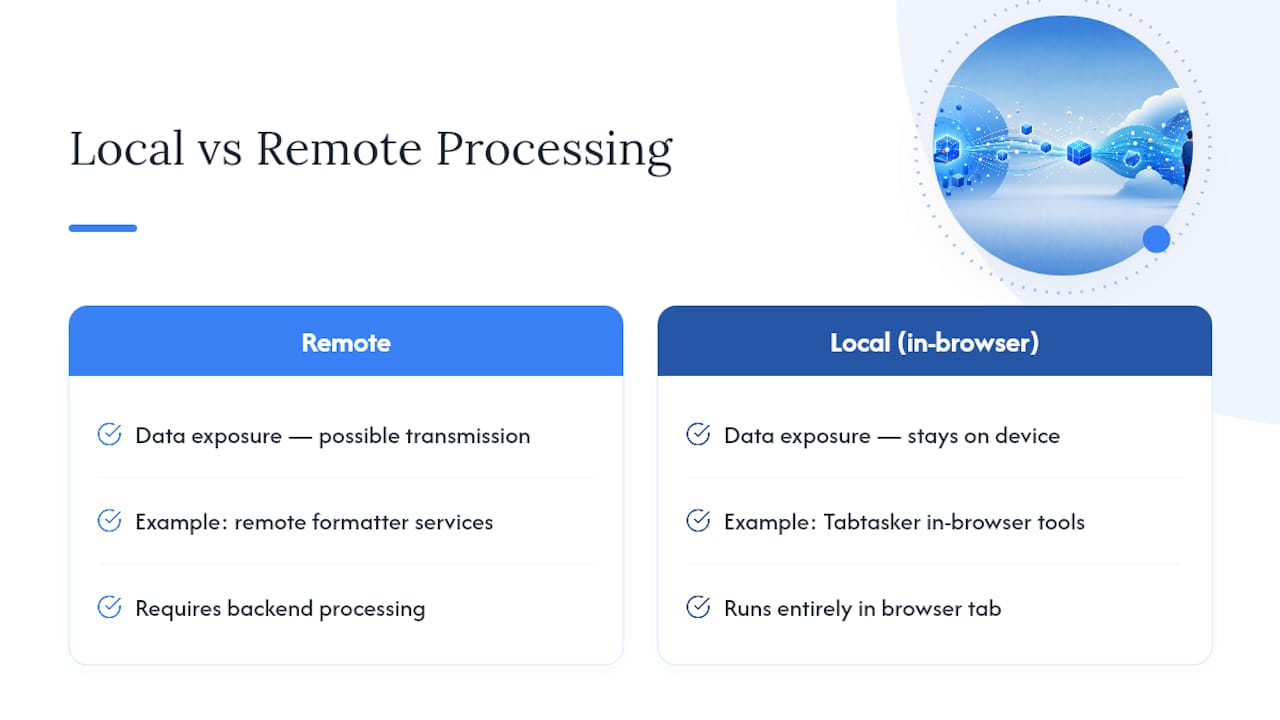
Most developers don't think twice about pasting a JSON response into a web formatter, right up until that response contains a customer's email, an internal API token, or a database dump. Local processing isn't a niche preference for the paranoid. It's the baseline expectation for handling anything that wasn't already public.
Tabtasker builds its JSON formatter, along with its CSV editor and file conversion workflows, to run entirely in the browser tab with nothing transmitted to a server. That approach mirrors the in-browser editor engines increasingly common in developer tooling, where the processing power of the local machine replaces the need for a remote backend entirely.
— Vehicularis
Format JSON in Your Browser Without Sending It Anywhere
Every method in this guide works. The difference with Tabtasker is that formatting happens entirely in your browser tab, so a customer record or an API key never leaves your device to reach a server you don't control. That matters more than convenience once you're debugging anything you wouldn't want logged somewhere else.

Using it takes three steps: paste your raw JSON into the tool, choose your indentation, and copy or save the formatted output. No account, no upload, no waiting on a server response. The same local-first approach runs across Tabtasker's other developer and text tools, including the CSV editor for converting between formats and the Markdown editor for writing up the docs once your data's clean. Head to Tabtasker and format your next JSON file without it ever touching someone else's infrastructure.
Sources
For deeper technical reference, the Python JSON documentation covers every argument json.dumps() accepts, including encoding edge cases this guide didn't touch. The JSON specification is the shortest possible read on how the format actually works. Developers building custom syntax highlighting for JSON output should look at Pygments, and anyone curious how offline extensions confirm local-only behavior can check the Firefox JSON Formatter Offline listing directly. For general context on rendering formatted code in documentation, this developer's guide to syntax highlighting is worth a look.
- Python json — JSON encoder and decoder — Python docs
- JsonStudio — JSON Formatter
- JSON Formatter Offline — Firefox Add-ons
- JSON Formatter Offline (VS Code Marketplace)