 TabTasker
TL;DR:
- Using browser-based tools like Adobe Acrobat's free online merger or Tabtasker offers a quick, secure way to combine PDFs without installing software. Organizing files with clear names and proper sequence beforehand simplifies merging and improves document clarity. Tabtasker provides privacy by processing files locally, making it a reliable option for sensitive or research-related projects.
What's the fastest free way to merge PDFs for school projects?
The fastest free approach is to use a browser-based tool that requires no account and no software installation. For students, that usually means one of three paths: an online PDF merger like Adobe Acrobat's free web tool, a built-in operating system feature, or a client-side browser tool like Tabtasker that never uploads your files at all.
Here's a quick breakdown of your best options:
- Adobe Acrobat online (free tier): Upload files, reorder them, and merge up to 100 files or 1,500 pages into one PDF. Works on any browser, any device.
- Tabtasker (offline, in-browser): Merge, edit, and compress PDFs directly in your browser with no upload and no account required. Your files stay on your device.
- Mac Preview: Open multiple PDFs in Preview, drag thumbnails to reorder, then export as a single file. No internet needed.
- Windows + online tool: Windows Edge can view PDFs but cannot merge them natively, so you'll need a web tool or desktop software for combining files on a PC.
- Chromebook Files app + browser tool: Organize files locally, then use a browser-based merger to combine them.
Formatting stays intact across all of these methods. When you merge PDFs properly, fonts, images, and layouts carry over exactly as they were in the originals.
How do you merge PDFs for school projects, step by step?
The process is nearly identical across tools, but the privacy implications differ. Here's how to do it on each major platform.
On Windows
Windows doesn't include a native merge feature, so you'll use a browser tool.
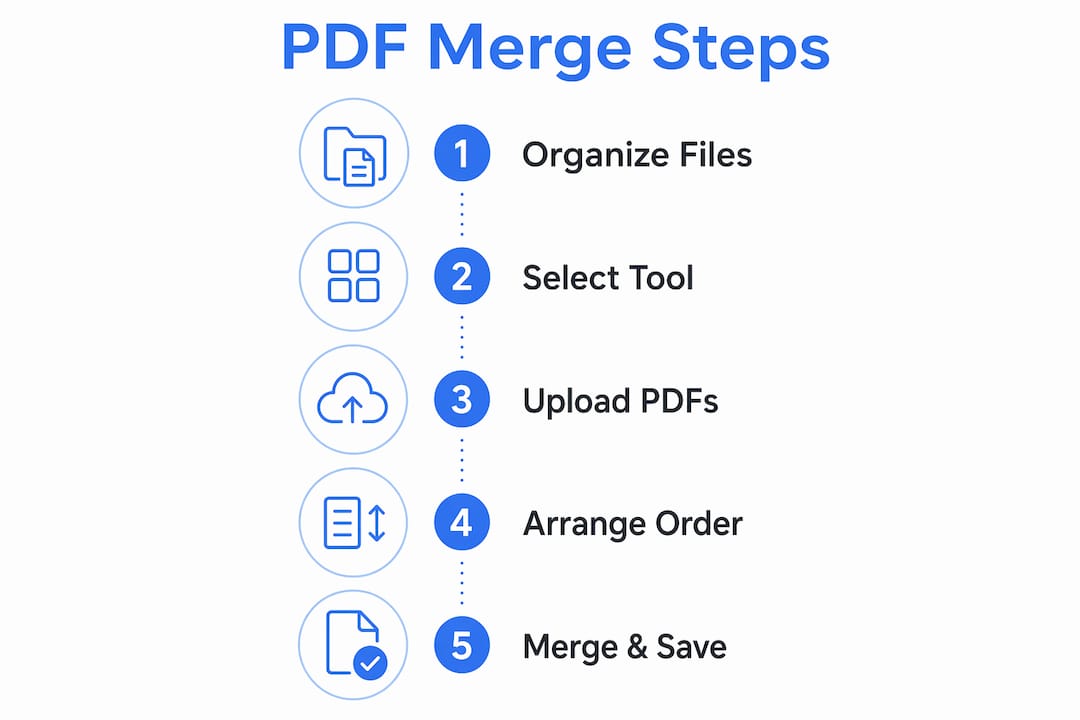
- Open your browser and go to a free PDF merger (Adobe Acrobat online or Tabtasker).
- Drag and drop your files into the tool, or click "Select files" to browse.
- Reorder files by dragging them into the sequence you want.
- Click "Merge" and download the combined PDF.
Adobe's tool preserves formatting during the merge, so you won't need to reformat anything afterward.
On Mac
Open the first PDF in Preview, then open the Thumbnails sidebar (View > Thumbnails). Drag additional PDF files directly into the sidebar in the order you want, then go to File > Export as PDF. Done, no internet required.

On Chromebook
Use the Files app to gather your PDFs into one folder first. Then open a browser-based merger, upload your files, reorder them, and combine PDFs on Chromebook with a single click.
On mobile (iOS and Android)
Most free PDF apps on iOS and Android let you select multiple files and merge them in a few taps. Look for apps that process files locally rather than uploading them to a remote server.
Pro Tip: Before you hit "Merge," rename each file clearly (e.g., "Section1_Intro," "Section2_Research") and arrange them in the exact order you want. Reordering after the fact takes more time than getting the sequence right upfront.
Why organizing your files before merging saves you real headaches
Logical grouping and accurate file naming make navigation and grading tasks noticeably easier, both for you and for whoever reviews your work. Dumping files into a merger in random order produces a document that's hard to read and even harder to grade.
A few practical habits before you combine PDFs for school:
- Name files with a number prefix: "01_Cover," "02_Introduction," "03_Research" sorts automatically in any file browser.
- Group by project section or theme: Keep all lab data together, all references together, and all visuals together before merging.
- Remove duplicates first: Check for repeated pages or outdated drafts before you combine them into one document.
- Use a staging folder: Move only the final versions of each file into a dedicated folder, then merge from that folder alone.
On Chromebooks specifically, the Files app lets you create folders to organize PDFs before merging, which cuts down on the confusion of pulling files from multiple locations. The same principle applies on any device: a tidy source folder produces a tidy merged document.
How merging PDFs actually improves your academic workflow
Merging PDFs is a document management strategy, not just a convenience. When you keep related materials together, like bibliographies, appendices, and the main report, you reduce the chance that a reviewer misses something critical.
Think about what happens when you submit five separate files for one project. Your instructor has to open each one individually, check that nothing is missing, and mentally reassemble the document you should have assembled yourself. A single merged PDF eliminates that friction entirely. It also reduces the risk of a file being overlooked or attached in the wrong order.
For group projects, the benefit compounds. One shared document means everyone is looking at the same version, in the same sequence, with no confusion about which draft is current.
How Tabtasker protects your privacy while merging PDFs
Most free online tools process your files on their servers. You upload your document, their system handles the merge, and your file passes through infrastructure you know nothing about. If you're not paying for the product, you might be the product.
Tabtasker works differently. Its client-side processing means your files never leave your device. The merge happens entirely in your browser, with no upload, no account, and no data exposure. For students handling research data, personal notes, or any sensitive project material, that distinction matters.
Key features Tabtasker offers for students:
- PDF merging offline: Combine school project files without an internet connection.
- PDF editing in-browser: Annotate, reorganize, or trim pages before or after merging.
- PDF compression: Reduce file size after merging so the document is easy to email or submit through a learning management system.
- No sign-up required: Open the tool, use it, done.
If you're already thinking about editing documents without compromising privacy, Tabtasker's approach to PDF merging fits that same principle. Your files are yours, and they stay that way.
For students who also need to finalize documents after merging, Tabtasker's free PDF signing tool lets you add a signature without uploading anything to a third-party server.
How to review and annotate your merged PDF effectively
A merged PDF is only useful if you can navigate and mark it up efficiently. A few habits here make a real difference when you're reviewing a 40-page project document the night before it's due.
Add bookmarks or a table of contents. If your PDF tool supports it, add named bookmarks at the start of each major section. Adobe Acrobat's desktop version does this; some browser tools do too. Bookmarks let you jump directly to "Results" or "References" without scrolling through the whole document.
Use annotation tools deliberately. Highlight key claims in yellow, use comments for questions or revisions, and use a different color for passages that need citations. Color-coded annotations turn a passive read into an active review. Adobe Acrobat's online editor supports comments and annotations directly in the browser.
Check page order before sharing. Scroll through the full merged document once before you send it. It takes two minutes and catches any pages that merged out of sequence.
Compress before submitting. A merged PDF can get large quickly, especially if it includes images or scanned pages. Running it through a compression tool keeps it under submission size limits. Tabtasker's guide on compressing a PDF without losing quality walks through exactly how to do that without degrading your visuals.
For school projects that require a signature alongside the merged document, pairing your PDF merger with a PDF signing solution designed for educational workflows keeps the whole submission process in one place.

Tabtasker gives you a full browser-based toolbox for PDF merging, editing, compression, and signing, all free, all offline, and all without handing your files to a server you don't control. Try the free PDF signing tool or explore the complete suite at tabtasker.com.
Key Takeaways
Merging PDFs for school projects works best when you organize files first, choose a privacy-respecting tool, and verify page order before submitting.
| Point | Details |
|---|---|
| Best free methods | Adobe Acrobat online and Tabtasker both merge PDFs for free, with no software to install. |
| File limits (Adobe) | Adobe's free tool supports up to 100 files or 1,500 pages in a single merged PDF. |
| Formatting is preserved | Merging with reputable tools keeps fonts, images, and layouts intact, no reformatting needed. |
| Privacy matters | Tabtasker processes files client-side, so your documents never leave your device. |
| Organize before merging | Naming files with number prefixes and grouping by section produces a cleaner, easier-to-grade document. |