 TabTasker
No sign-up PDF tools are browser-based applications that let you edit, sign, merge, and compress PDF files without creating an account or uploading anything to a server. Your file stays on your device the entire time. The processing happens inside your browser using WebAssembly, a technology that runs near-native code locally, so there is no cloud interaction and no data exposure. If you have ever wondered whether the "free" tool asking for your email address is actually free, these tools answer that question by removing the ask entirely.
Here is what sets them apart from traditional online PDF editors:
- No registration required. Open the tool, load your file, and start working.
- No file uploads. Your PDF never leaves your device, even for a millisecond.
- No ads fed by your data. Without an account, there is nothing to track.
- Instant download. Once you finish editing, you download the result directly to your device.
- Works offline (after initial load). Many client-side tools function without an active internet connection once the page has loaded.
The tradeoff is real: these tools tend to have file size limits and fewer advanced features than subscription platforms. But for the majority of everyday PDF tasks, they cover everything you need.
Table of Contents
- What can you actually do with no sign-up PDF tools?
- Why processing PDFs locally protects you more than you might think
- How to use these tools safely and effectively
- How Tabtasker handles PDF privacy from the ground up
- How no sign-up PDF tools compare across feature categories
- What browsers and hardware do these tools actually need?
- Security beyond privacy: what else to watch for
- When a cloud-based tool is actually the better choice
- Tabtasker: private PDF tools with no strings attached
- Key Takeaways
What can you actually do with no sign-up PDF tools?
The feature set has grown considerably. What started as basic text annotation has expanded into a full document workflow for most users.
Editing and annotating: You can add or remove text, insert images, highlight passages, and place annotations directly on any page. Tools like SimplePDF handle this entirely in-browser with no watermarks and no registration.
Signing without a third-party service: You can draw your signature with a mouse or touchscreen, type it using a handwriting font, or upload a signature image, then place it precisely on any page. This eliminates the need for cloud-based e-signature platforms that require you to upload sensitive contracts.
Merging and splitting: Combine multiple PDFs into one document or break a large file into smaller sections, all processed locally.
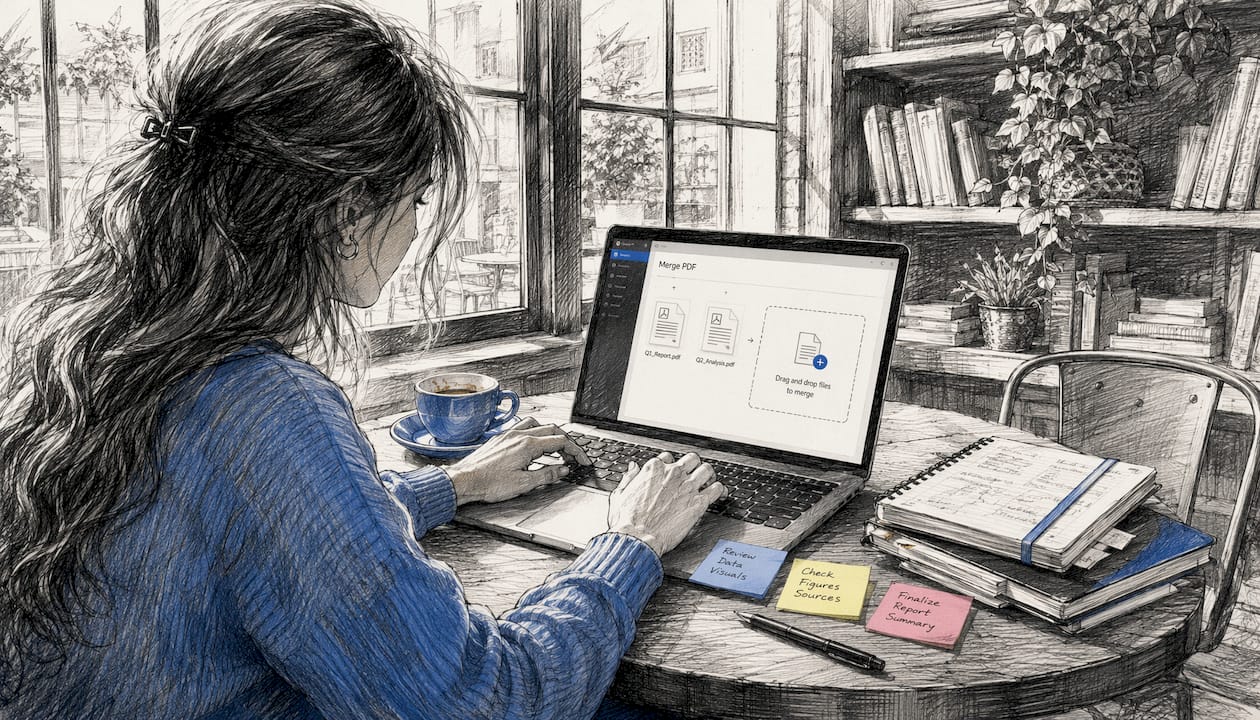
Compression and rotation: Shrink oversized files for email or storage, and fix incorrectly oriented pages, without sending your financial reports or medical records to an unknown server.
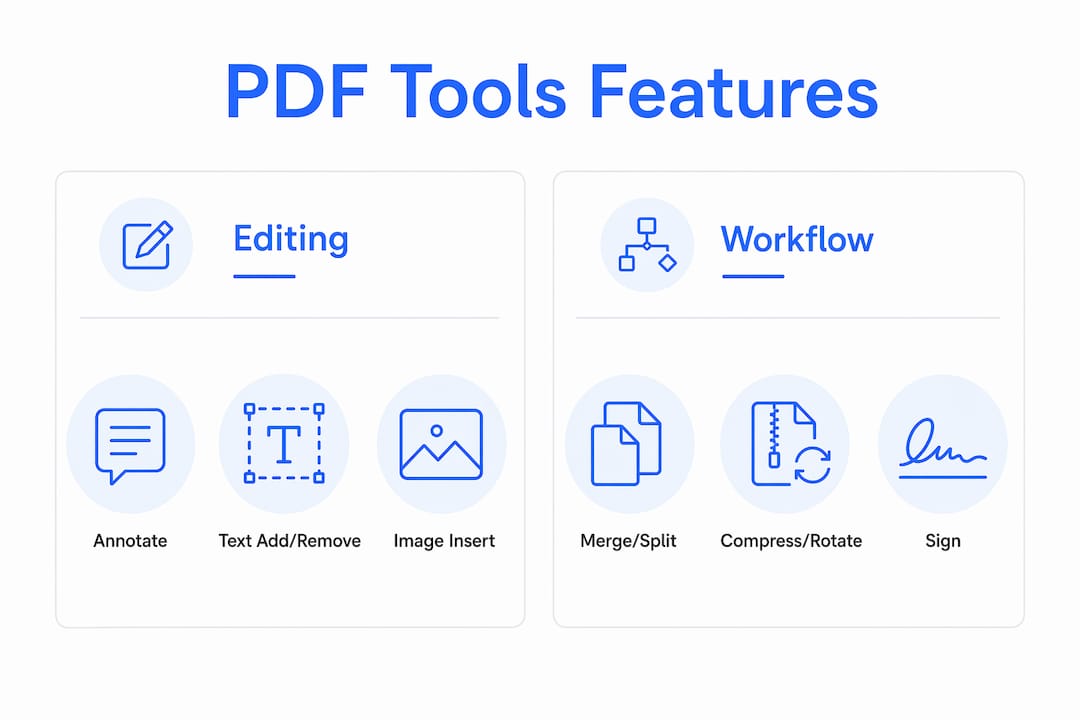
Watermarking, font extraction, and protection: Add "CONFIDENTIAL" stamps, identify fonts used in a document, or apply AES encryption before sharing. Noll.to offers over 100 such privacy-first tools running entirely via WebAssembly.
Limitations to know upfront: File size caps are common, typically limiting very large or image-heavy PDFs. Advanced features like optical character recognition (OCR) or complex form creation usually require a paid or cloud-based platform. Redaction tools exist but are still marked beta on some platforms.
Why processing PDFs locally protects you more than you might think
When you upload a PDF to a cloud-based tool, you are trusting that company's servers, security practices, and privacy policy. That trust is not always warranted. Data breaches at document platforms have exposed contracts, tax forms, and medical records. With client-side tools, that risk disappears because there is nothing to breach on their end.
Your files never leave your device, which means no interception in transit and no storage on a third-party server. There is also no identity attached to your session. Without a login, the tool has no way to link your document to you, your employer, or your browsing history.
This matters especially for sensitive documents. Healthcare organizations, law firms, and financial advisors handle files that carry regulatory obligations around data handling. Client-side automation for document workflows addresses exactly this need, replacing manual data entry with private, local processing that keeps confidential records off external servers.
Privacy in practice: A no sign-up tool that runs locally cannot sell your document data, because it never receives it. That is a structural guarantee, not a policy promise.
No personal data collection also means no usage tracking. Cloud tools often log which files you open, how long you spend on them, and what edits you make. That behavioral data has value, and "free" platforms frequently monetize it. Local processing removes that dynamic entirely.
How to use these tools safely and effectively
- Verify the tool runs client-side before you start. Look for explicit language like "runs in your browser" or "WebAssembly." If the site is vague about where processing happens, assume it uploads your file.
- Open your PDF in the tool. Drag and drop or use the file picker. The file loads into your browser's memory, not a remote server.
- Make your edits or add your signature. For signing, draw directly, type with a handwriting font, or upload a signature image. Tabtasker's guide on signing PDFs privately walks through each method step by step.
- Download the processed file immediately. Save it to a folder you control. Do not rely on the tool to store it for you.
- Check your browser version. WebAssembly requires an up-to-date browser. Chrome, Firefox, and Edge all support it fully; older versions may not. Keeping your browser current is the single most important technical step for smooth operation.
- Scan any PDF you receive before opening it in a tool. Malicious PDFs can exploit browser vulnerabilities. Use your operating system's built-in security or a trusted scanner before loading an unknown file.
- Back up edited files. Client-side tools do not save your work to the cloud, which is the point. Keep a local backup or sync to encrypted storage you control.
Pro Tip: Before editing any sensitive document, check that the tool's URL uses HTTPS and that the domain matches the service you intended to visit. Phishing sites mimicking popular PDF tools do exist.
How Tabtasker handles PDF privacy from the ground up
Tabtasker's PDF tools run entirely in-browser using WebAssembly, which means your files stay on your device through every step of editing, signing, encrypting, and verifying. No account is required. Zero data is collected. The platform's approach to editing documents privately reflects a deliberate design choice: if the tool never receives your file, it cannot mishandle it.
| Feature | Tabtasker |
|---|---|
| Account required | No |
| File uploads to server | Never |
| PDF editing | Yes (text, images, annotations) |
| PDF signing | Yes (draw, type, or upload signature) |
| Signature verification | Yes, fully offline |
| Encryption | Yes (AES, locally processed) |
| File compression | Yes |
| Data collection | None |
| Cost | Free |
Tabtasker also covers PDF signature verification, which most no sign-up tools skip entirely. You can confirm that a signed document has not been altered after signing, using public-key cryptography processed locally. For anyone receiving contracts or certified documents, that verification step closes a gap that visual signatures alone cannot address.
- No subscription, no trial period, no hidden costs
- Works for everyday users and business workflows equally
- Covers the full document cycle: edit, sign, verify, compress, share
How no sign-up PDF tools compare across feature categories
Not every client-side tool covers the same ground. The differences tend to fall into three categories: feature depth, file size tolerance, and signing capability.
Basic editors handle text annotation and simple image insertion. They suit quick fixes but struggle with complex layouts or fillable form fields.
Mid-range tools add merging, splitting, compression, and basic signing. SimplePDF sits in this category, offering a clean workflow for everyday tasks with no watermarks and no registration required.
Full-featured client-side platforms like Tabtasker and Noll.to extend into digital signatures with cryptographic verification, AES encryption, redaction, font extraction, and watermarking. These cover professional document workflows without touching a server.
The honest limitation across all categories: none of these tools match the OCR accuracy or collaborative features of enterprise platforms. If you need multiple people editing the same document simultaneously or need to convert scanned images to searchable text at scale, a cloud platform with appropriate data agreements is the more practical choice.
What browsers and hardware do these tools actually need?
WebAssembly support is the baseline requirement. Every major browser released after 2017 supports it, including Chrome, Firefox, Edge, and Safari. The practical advice is simple: keep your browser updated, and you will not run into compatibility issues.
Hardware matters more than most users expect. Processing a large PDF locally means your device's CPU and RAM are doing the work that a server would otherwise handle. A modern laptop or desktop handles this without issue. On older machines or budget tablets, very large files may process slowly or cause the browser tab to become unresponsive.
Mobile browsers generally support WebAssembly, but the experience varies. Drag-and-drop file loading works well on desktop; on mobile, you typically use the file picker instead. Signing by drawing is actually easier on a touchscreen, which is one area where mobile has a genuine advantage.
Security beyond privacy: what else to watch for
Local processing guards against one specific threat: your file being intercepted or stored on an unknown server. But it does not protect against every risk.
Malicious PDFs are a real attack vector. A crafted PDF can exploit vulnerabilities in the rendering engine your browser uses. Always verify the source of any PDF before opening it in a tool, and keep your browser patched. Intelligent document processing frameworks that handle automated PDF workflows at scale typically include malware scanning as a separate layer for exactly this reason.
Phishing tool sites mimic legitimate no sign-up editors to harvest files. The defense is simple: bookmark the tools you trust and navigate directly rather than searching each time.
Unencrypted local storage is a risk if your device is shared or lost. After editing a sensitive document, store the output in an encrypted folder or use the tool's built-in encryption before saving.
When a cloud-based tool is actually the better choice
No sign-up tools are the right call for most individual PDF tasks. But there are situations where a cloud platform with proper data agreements makes more sense.
If your organization needs audit trails, version history, or multi-user collaboration on the same document, local tools cannot provide that. If you need OCR to convert scanned documents into searchable, editable text at volume, client-side OCR is still limited compared to server-side processing. And if you are working under a compliance framework like HIPAA or SOC 2 that requires documented data handling procedures, a vetted cloud vendor with a signed Business Associate Agreement is the appropriate choice, not a free browser tool.
The decision comes down to what you are protecting and who else needs access. For a contract you are signing alone, a no sign-up tool is faster, safer, and free. For a 500-page document that three colleagues need to annotate simultaneously, a cloud platform with proper controls is the practical answer.
Tabtasker: private PDF tools with no strings attached

Tabtasker is built for users who want to get PDF work done without handing over their files, their email address, or their trust. Every tool on the platform runs locally in your browser: edit, sign, verify, compress, and share PDFs without a single byte leaving your device. There is no subscription to manage, no free tier that expires, and no account to create.
The free offline PDF tools cover the full document workflow most users actually need, and the platform extends beyond PDFs into image processing, audio editing, and file sharing, all with the same local-first approach. If you want to see what private PDF signing looks like in practice, the PDF signing tool is a good place to start. Open it, load your document, and sign it without uploading anything anywhere.
Key Takeaways
No sign-up PDF tools that run locally in-browser give you genuine privacy by design, not by policy, because your files never reach an external server.
| Point | Details |
|---|---|
| How they work | WebAssembly runs PDF processing inside your browser, keeping files on your device. |
| Core features | Editing, signing, merging, compressing, and encrypting PDFs are all available without registration. |
| Privacy advantage | No file upload means no server-side storage, no data breach risk, and no usage tracking. |
| Browser requirement | An up-to-date Chrome, Firefox, or Edge browser is all the technical setup you need. |
| Tabtasker | Offers free, account-free PDF editing, signing, and verification with zero data collection. |