 TabTasker
The fastest way to edit files offline is the browser's File System Access API, paired with the Origin Private File System (OPFS) when your workload needs speed. Open a file, change it in memory, save it back to disk. Nothing travels to a server. Tabtasker builds its entire toolbox around this model, so you get PDF, image, audio, and text editing without an upload bar in sight.
Here's the quick version before we get into how it actually works:
- Text, CSV, and Markdown: open, edit, and save with zero round-trips to a server.
- Images and audio: trim, convert, or clean up files entirely on your device.
- PDFs: edit and re-save using the same local-first mechanics.
The single best first move: click "Open" in a tool like Tabtasker, pick your file, and start editing. No account screen will interrupt you, because there isn't one.
Key Takeaways
Editing files offline in the browser works because the File System Access API and OPFS let a page read, modify, and write local files without ever transmitting them to a server.
| Point | Details |
|---|---|
| Core mechanism | The File System Access API's showOpenFilePicker() and createWritable() handle local open and save actions. |
| Speed boost for big files | OPFS with createSyncAccessHandle() enables fast, synchronous writes inside Web Workers. |
| Permission stays scoped | Browsers only grant access to the specific file or folder you select, never the whole drive. |
| Crash resilience | Write queues and IndexedDB shelving protect against interrupted writes and stale handles. |
| Recommended tool | Tabtasker applies this exact model across its Markdown, CSV, image, audio, and PDF tools, with no uploads or accounts. |
Table of Contents
- What This Offline File Editing Guide Covers (and What It Skips)
- Which Browser Features Actually Make Local Editing Possible?
- How Do You Open, Edit, and Save a File Offline?
- Do Your Files Actually Stay Private When Editing Locally?
- What Are the Performance Limits for Large Files?
- Which Tabtasker Tools Fit Common Offline Editing Tasks?
- How Do You Fix Common Offline Editing Errors?
- An Editor's Take on Why Local-First Editing Matters
- Try a Private Offline Editor Right Now
- Frequently Asked Questions
- Sources
What This Offline File Editing Guide Covers (and What It Skips)
This offline file editing guide covers one thing precisely: editing and converting files client-side, inside your browser, with the result saved back to your own device. That includes text, CSV, Markdown, images, audio, and PDFs.
It does not cover making cloud apps like Google Docs work without Wi-Fi, proxy-based video editing workflows, or modifying game save files. Different problems, different audiences.
- In scope: local, browser-based editing and conversion, no uploads, no accounts.
- Out of scope: cloud sync fallbacks, proxy-based video pipelines, game save modding.
- One hard requirement: the page must run in a secure context (HTTPS) and the file picker must be triggered by an actual click, not a background script.
Which Browser Features Actually Make Local Editing Possible?
Three pieces of platform machinery do the heavy lifting. First, the File System Access API gives your browser tab controlled entry points into your device's file system: showOpenFilePicker(), showSaveFilePicker(), and showDirectoryPicker(). Each returns a handle, not a copy pasted into memory forever. That handle is how the File System Access API exposes read and write access to local files while still letting the browser gatekeep what gets touched.
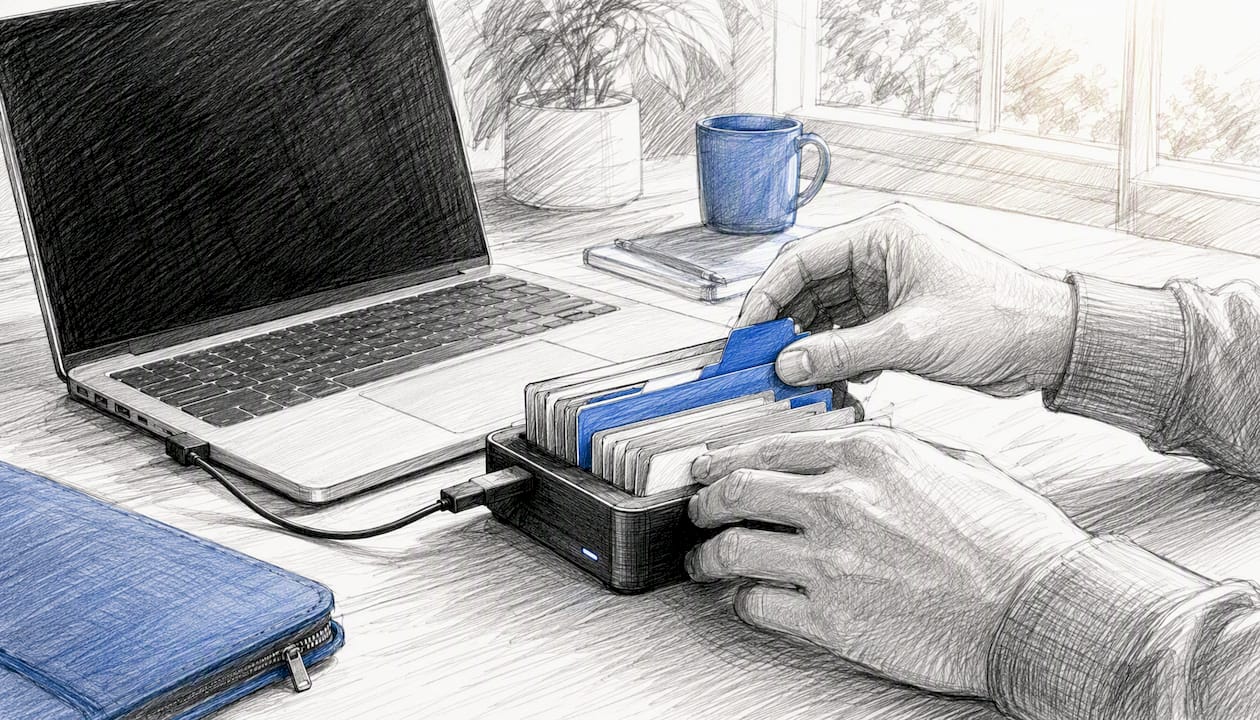
Second, there's the Origin Private File System, a sandboxed storage area tied to the site's origin. OPFS supports createSyncAccessHandle(), which allows synchronous reads and writes from inside a Web Worker. That's a meaningful upgrade for anything CPU-heavy, since the File System API documents OPFS behavior and synchronous access handles for high-performance work.
Third is the permission layer. Opening a file usually requires transient user activation, a fancy way of saying "you clicked something." Persistent handles can be stashed in IndexedDB so a tool remembers your last file across sessions, though the browser will re-confirm permission before writing again.
- Most Chromium-based browsers support the full API on major platforms including Windows, macOS, ChromeOS, Linux, and Android.
- Safari and Firefox lag on full support, which matters for cross-browser tools (more on fallbacks below). For users wanting to ensure privacy and test browser compatibility before editing files locally, reliable free privacy tools can help evaluate your setup and maintain security.
Write operations only become final when
close()is called on the writable stream, which is what keeps a half-finished save from corrupting your original file.
How Do You Open, Edit, and Save a File Offline?
The workflow is short enough to memorize, and once you've done it once, it feels closer to using a desktop app than a website.
- Open the file or folder. Call
showOpenFilePicker()for a single file, orshowDirectoryPicker()if the tool needs to browse a whole folder. SetstartInto a sensible default (like "documents") and use file type filters so the picker only shows relevant formats. - Edit in the page. Keep the returned handle in memory. Simple edits (text, CSV rows) can happen directly in the DOM. Anything heavier, image filters, audio waveform processing, PDF page manipulation, should move into a Web Worker or a WASM module so the main thread stays responsive.
- Save the changes. Call
createWritable()on the handle, write your data (in chunks for large files), then callclose(). That close call is what triggers the atomic swap: the browser replaces the original file only once the writable stream commits, so an interrupted write doesn't leave you with a half-saved mess.
"Save" and "Save As" behave differently under the hood. Save reuses the existing handle and overwrites in place. Save As calls showSaveFilePicker() again, which means a fresh permission prompt and a new handle, useful when you want to branch a file rather than clobber the original. Practical build guides describe this exact pattern for in-browser text editors that open, edit, and save files with the same API calls.
Pro Tip: If your tool handles anything users would be upset to lose, queue writes per-file and keep a shelved copy in IndexedDB until the write confirms. Developers who've built browser-native file systems from scratch report that tabs can be killed mid-write, so a write-ahead buffer is what actually saves you from data loss, not just optimism about browser stability.
The permission model exists precisely so a random webpage can't quietly enumerate your hard drive. You grant access to one file or folder, and that's the extent of it.
Do Your Files Actually Stay Private When Editing Locally?
Here's the part worth being skeptical about, because "your files never leave your device" is a claim, and claims deserve scrutiny. With the File System Access API, the answer holds up structurally: the browser only grants access to whatever file or folder you explicitly selected. It cannot silently walk up a directory tree or peek at unrelated files, a restriction that exists because unrestricted local file access would let any page read or exfiltrate sensitive data on your machine.
Persistent handles saved to IndexedDB don't bypass this either. When a tool tries to reuse a stored handle after you've reopened the tab, the browser re-verifies permission before allowing a write, not just a read.
- Use a dedicated browser profile for sensitive document work, separate from your everyday browsing.
- Be wary of granting directory-level access to pages you don't fully trust; file-level access is narrower and safer.
- For anything you plan to export or share afterward, client-side encryption via the Web Crypto API means only ciphertext ever leaves the browser, even if you later upload the result somewhere.
Pro Tip: Revoke a file handle when you're done with a session, and lean on OPFS for scratch copies instead of keeping a live handle to your real file open longer than necessary. Tabtasker's own approach to keeping files out of the upload pipeline entirely follows this same logic.
What Are the Performance Limits for Large Files?
Browsers aren't built to run indefinitely in the background, so a tab holding a 2GB video file in memory can get reclaimed the moment you switch away. That's the real constraint, not raw processing power.
- Stream large files instead of loading them whole; process in chunks and write incrementally rather than holding everything in RAM.
- Move CPU-heavy work (image filters, audio resampling, PDF rendering) into Web Workers or WASM, keeping the main thread free.
- Use IndexedDB as a spill buffer for intermediate state, and lean on OPFS's synchronous access handles for the fastest in-place writes inside a worker.
Pro Tip: Concurrent writes to the same handle from two tabs are a real failure mode. A per-filename write queue, the same durability pattern behind robust browser filesystem drivers built from scratch, avoids the race entirely.
Which Tabtasker Tools Fit Common Offline Editing Tasks?
Tabtasker runs its entire suite on this local-first model: open a file, edit it, save it back, with nothing routed through a server. No account wall interrupts the flow, and no upload progress bar appears because there's nothing to upload.
- Text and Markdown: the Markdown editor opens local
.mdfiles, edits render live, saves commit straight back to disk. - Spreadsheets and data: the CSV editor handles row-level edits without ever touching a remote database.
- Images: the background remover processes the pixel data on-device, useful for anything you'd rather not hand to a third-party image API.
- Audio: the audio workspace covers trimming and conversion using the same open-edit-save loop.
The point of a native-like Save button isn't nostalgia for desktop software. It's that the file genuinely stays where you left it, on your device, the whole time.
Getting started takes the same three steps regardless of file type: open Tabtasker, click "Open" (or drag your file in), make your edits, then click "Save." That loop is the entire workflow, matching the native-app-style editing that modern browsers now support without asking you to sign up first.
How Do You Fix Common Offline Editing Errors?
Most problems fall into three buckets, and each has a fast fix.
DOMException on save. This usually means the write permission prompt was dismissed, or the save call wasn't triggered by a direct user action. Check that your click handler calls the picker synchronously, and if permission was denied outright, fall back to a standard file download instead.
Unsupported browser. Safari and some Firefox builds don't yet support the full API.
- Check for
window.showOpenFilePickerbefore relying on it. - If missing, fall back to a
<input type="file">element plus a download link for saving. - Recommend switching to a Chromium-based browser for the full local-editing experience.
Stale handles after a crash. Re-open the file rather than trusting a handle that survived a browser crash; if the tool shelved unsaved writes in IndexedDB, offer to replay them once the file reopens.
An Editor's Take on Why Local-First Editing Matters
The web spent two decades training people to expect an upload bar before anything useful happens. That expectation is outdated. Modern browsers now ship enough native-like primitives, atomic writes, worker-based file access, sandboxed local storage, that a page can behave like installed software without asking for your data first.
What's underrated here isn't the convenience. It's that privacy stops being a policy promise and becomes an architectural fact: if a tool never requests upload permission, it structurally cannot leak your file to a server. Prioritize editors built that way, and read the fine print skeptically on any tool that isn't.
Try a Private Offline Editor Right Now
You don't need to install anything or create an account to test this workflow, which is exactly the point. Tabtasker is built so the entire open-edit-save loop happens on your device, with the tool never seeing your file at any stage.

Open the Markdown editor for a text file, the CSV editor for spreadsheet data, or the background remover for a quick image cleanup. Each one skips the sign-up screen entirely: click Open, pick your file, edit, click Save. No upload, no account, and the tool works the same whether or not you're online. If you're unsure where to start, the full tool list is the fastest way to find the right one for what's in front of you right now.
Frequently Asked Questions
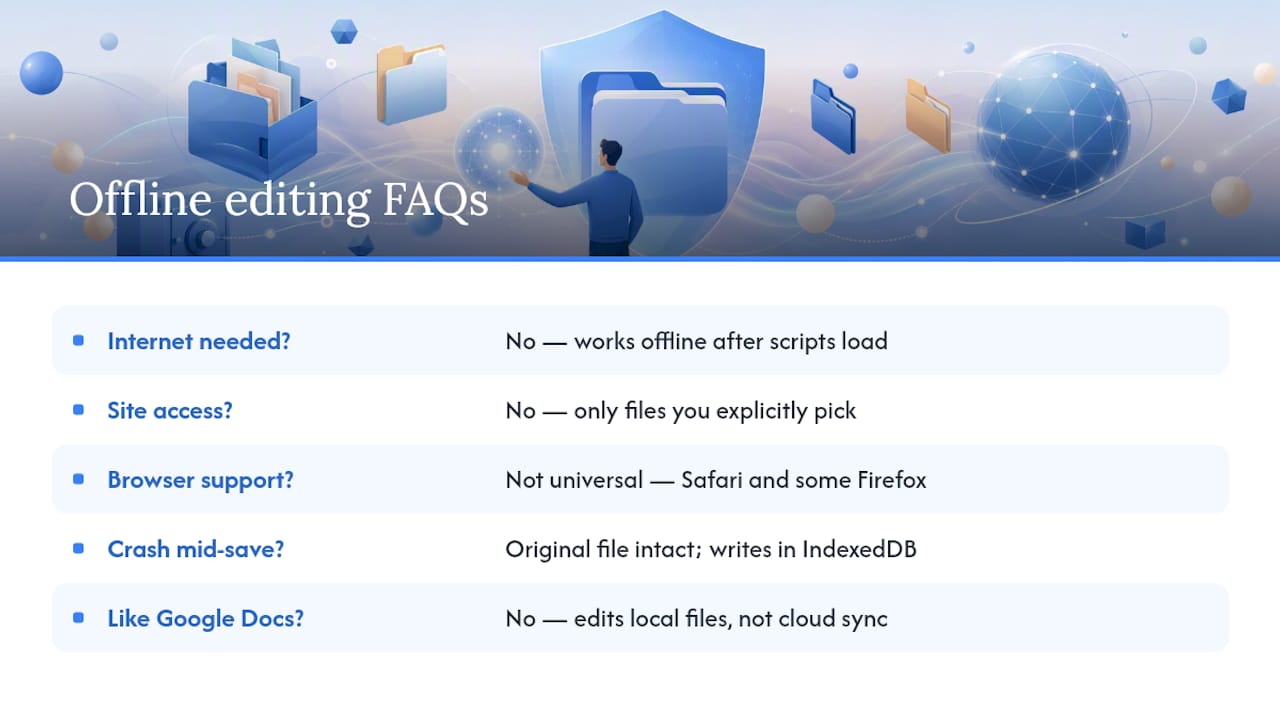
Do I need an internet connection to edit files this way? No. Once the page and its scripts have loaded, the File System Access API and OPFS work entirely offline. You can disconnect from Wi-Fi and continue editing without interruption.
Can a website read files I haven't opened myself? No. The permission model only grants access to files or folders you explicitly select through a picker dialog triggered by your own click.
Why doesn't this work in every browser?
Safari and some Firefox builds haven't shipped full support for the File System Access API. Check for window.showOpenFilePicker before relying on it, and fall back to a standard file input and download link if it's missing.
What happens if my browser crashes mid-save?
Because createWritable() only commits on close(), an interrupted write typically leaves your original file intact rather than corrupted. Well-built tools also shelve pending writes in IndexedDB so you can pick up where you left off.
Is this the same as offline mode in apps like Google Docs? No. This offline file editing guide covers local, browser-based editing of files that live on your device, not syncing a cloud document for later upload.
Sources
A few technical references cover the mechanics behind everything in this guide in more depth.
- The File System Access API: simplifying access to local files | Chrome Capabilities
- I accidentally wrote a filesystem driver. For a browser. — DEV Community
- Fileshot
- Why do browsers disallow accessing files from local file system even if the HTML is local? - Security Stack Exchange