 TabTasker
For most quick jobs, a browser-based converter that runs entirely on your device, like Tabtasker, is the fastest way to turn a PDF into JPG images without touching the internet. If you're batch-processing hundreds of pages or need locked-in 300 DPI output, a lightweight Windows desktop app or a command-line tool does the job better. Both Windows and Android have solid offline paths, so the right choice really just depends on how much control you need.
TL;DR:
- Browser-based converters like Tabtasker are ideal for quick, single-page conversions without internet dependency, but struggle with large files or high DPI needs.
- Windows desktop apps built on Ghostscript or PDFium excel in batch processing, handling high DPI output, and maintaining precise image quality for hundreds of pages.
- Android apps can convert PDFs offline, but require careful permission management, and may face issues with password-protected files or low storage.
- Converting large PDFs at high DPI with browser tools can slow down or stall due to memory limitations, making desktop or CLI tools more suitable for volume work.
- Controlling DPI, format, and output naming conventions is essential for efficient batch processing and avoiding oversized or untraceable image files.
Table of Contents
- Which Offline Method Actually Fits Your Job?
- Windows Offline Apps and Command-Line Tools for Batch Jobs
- Converting a PDF to JPG on Android Without Wi-Fi
- How Browser-Based Tools Convert Files Without Uploading Anything
- Setting DPI, Format, and Quality the Right Way
- Running Batch Conversions Without Losing Track of Files
- Fixing Blank Pages, Bad Fonts, and Oversized Files
- What Most Guides Get Wrong About "Offline" Conversion
- Convert PDFs to JPG Locally with Tabtasker
- Sources
Which Offline Method Actually Fits Your Job?
Not every PDF-to-JPG job deserves the same tool. Converting a single scanned receipt is a different problem than turning a 400-page contract archive into a folder of print-ready images. Picking the wrong method wastes more time than it saves.
Here's how the three main offline paths stack up:
- Browser-based converters (like Tabtasker): No install, no account, works the moment you open the page. Best for one-off conversions, quick previews, or anyone who wants zero setup friction.
- Windows desktop apps: Better for batch jobs, strict DPI requirements, or when you're converting the same type of document over and over. Takes a few minutes to install but pays off on repeat use.
- Android apps or file-manager workflows: Necessary when the PDF lives on your phone and you need the JPG there too, not on a laptop you don't have handy.
The tradeoff comes down to control versus convenience. A browser tool gives you instant results but can slow down on huge files because it's working within your browser's memory limits. A desktop app or CLI tool gives you precise DPI settings and can chew through hundreds of pages overnight, but you have to install something first. If you're not sure which camp you're in, start with the browser method. You can always step up to desktop tools later if the file size or DPI needs outgrow it.
Windows Offline Apps and Command-Line Tools for Batch Jobs
When you need to convert dozens or hundreds of PDF pages at once, or you need every image locked to an exact resolution, Windows desktop tools pull ahead of browser methods. The reason comes down to the rendering engine doing the work behind the scenes.
Tools built on Ghostscript, like PDFSNAP LITE, or on PDFium, like PagePix, handle vector graphics and embedded fonts more precisely than simpler renderers. That matters most at high DPI, where a shaky engine turns crisp text into a smudged mess. PDFSNAP LITE pairs Ghostscript with Pillow for batch processing and configurable DPI, and it ships as a standalone executable, so nontechnical users don't need to install Python first. PagePix handles batch conversion at 300 DPI with automatic output folder organization, which saves you from renaming fifty files by hand.
Here's the typical GUI workflow:
- Open the app and load your PDF (drag-and-drop usually works).
- Set the output format to JPG.
- Choose your DPI (300 for print, 150 for general use).
- Adjust the JPEG quality slider if the app offers one.
- Pick or confirm the output folder.
- Export and let the tool auto-number each page.
If you're comfortable with scripting, command-line tools skip the interface entirely. A typical CLI workflow points at an input folder, runs a conversion command with your DPI and format flags, and writes numbered output files to a destination folder while logging progress as it goes, which is exactly how tools like pdf-to-images handle large batch runs. That logging matters more than it sounds. When something fails on page 340 of 500, you want to know exactly where, not guess.
Pro Tip: If your exported JPEGs look oddly huge, it's almost always the DPI setting, not the JPEG quality slider. Drop from 300 to 150 DPI before you touch anything else, and check the file size difference.
Blank pages usually mean the PDF has a security restriction the tool can't bypass, and missing fonts point to a document built with non-embedded typefaces. Try re-exporting a single page first to isolate the problem before running a full batch.
Converting a PDF to JPG on Android Without Wi-Fi
Your phone can handle this job just as well as a laptop, but you need to confirm the app you're using actually stays offline before you trust it with anything sensitive.
Start by checking the app's permission list before you install it. An app that genuinely works offline shouldn't ask for network access at all, and if it does, that's worth a second look. Many Android listings explicitly advertise offline conversion, but the safest confirmation is watching what happens during the actual conversion. If you never see an upload progress bar or a "processing on server" message, the file stayed on your device.
The basic workflow looks like this on most apps:
- Open the app or your phone's file manager.
- Select the PDF you want to convert.
- Choose JPG as the export format and set a resolution if the app allows it.
- Save the output to local storage, ideally a dedicated folder so you're not hunting through your camera roll later.
Scanned PDFs (photos of paper documents stitched into a PDF) usually convert cleanly since they're already image-based. Native PDFs built from text and vector graphics can be trickier, especially if the app's rendering engine struggles with fonts.
Common Android headaches include permission errors (the app can't write to storage until you grant that access), password-protected PDFs that block conversion entirely, and low storage warnings that kill the export mid-batch. Clearing space or moving the PDF to internal storage before you start usually resolves the last one.
How Browser-Based Tools Convert Files Without Uploading Anything
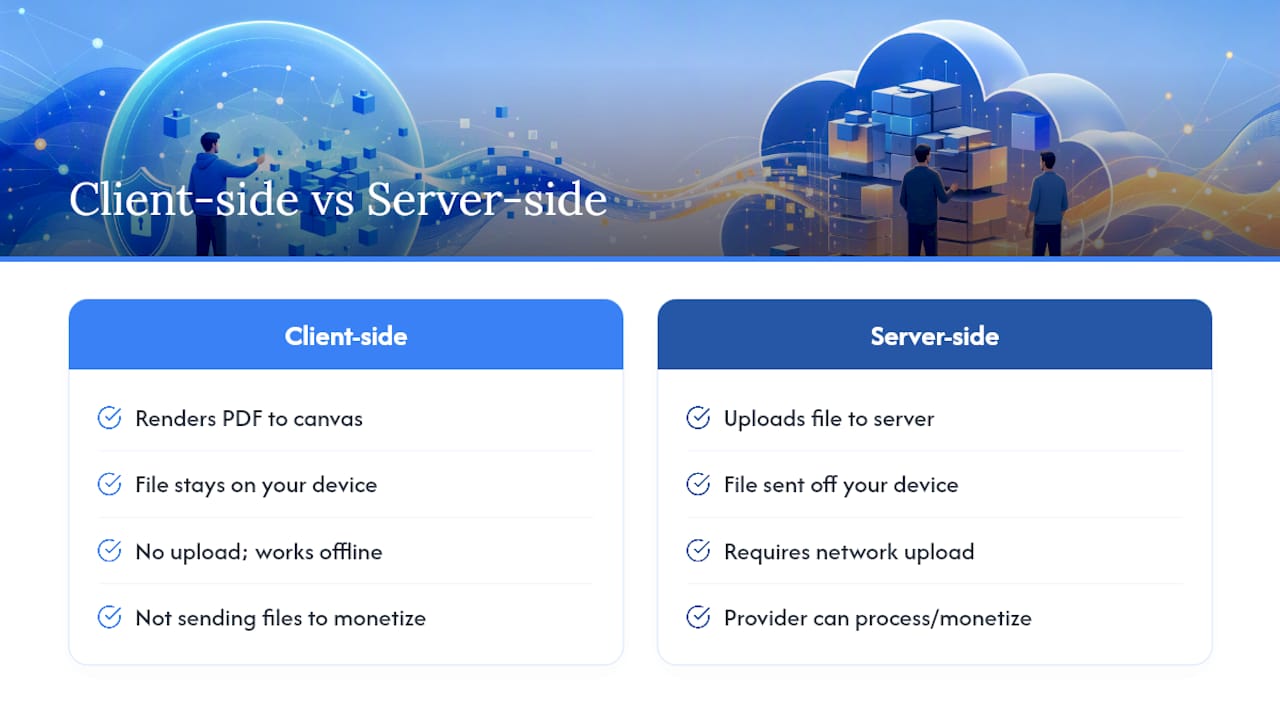
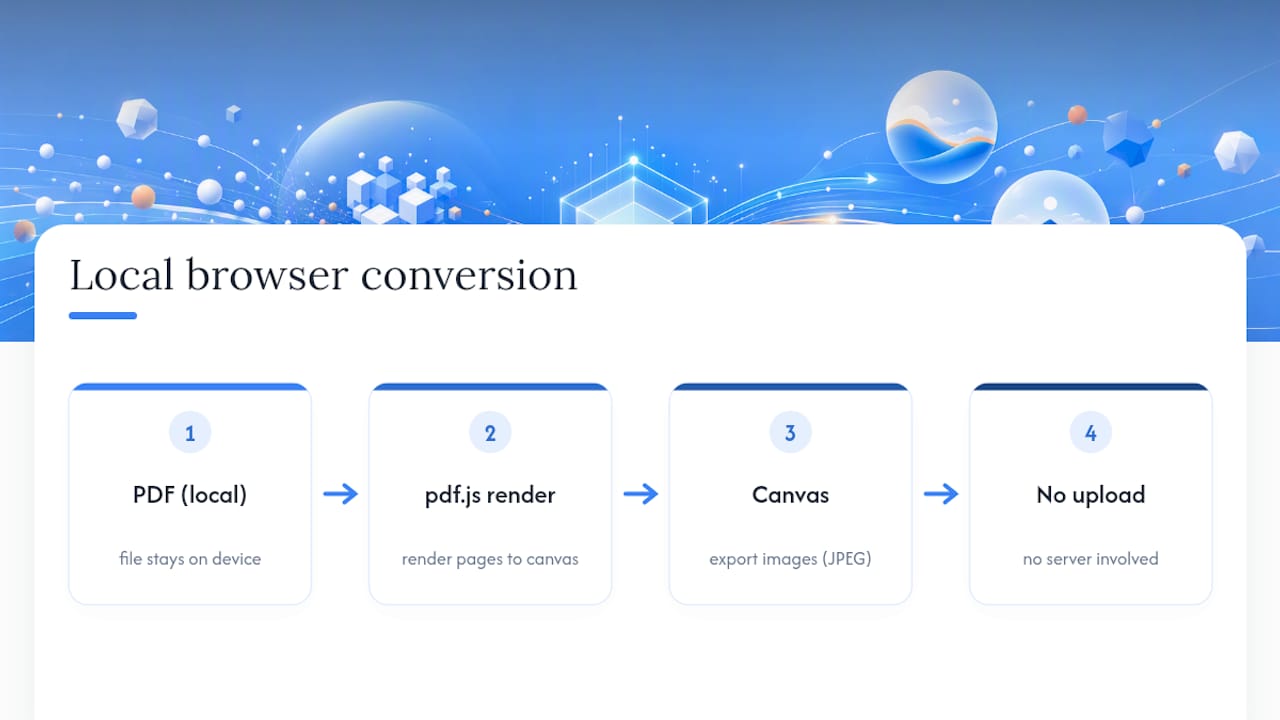
Here's the part most people don't realize: a browser can render a PDF page and turn it into a JPG without ever sending that file anywhere. The technology behind this is pdf.js, a rendering library that draws each PDF page onto an invisible canvas element inside your browser, then exports that canvas as an image file. The PDF stays on your device the entire time, because there's nothing to upload in the first place.
A tool like Tabtasker's converter runs this exact process. You load the PDF locally, pick JPG as the output format, set your DPI, and the browser renders each page on the spot. From there you can download individual pages or grab the entire set as a ZIP file with predictable naming, which saves you from clicking "save" fifty separate times on a long document.
If you're not paying for the product, you might be the product. Client-side tools flip that arrangement, because there's no file transmission for anyone to monetize in the first place.
That's the real distinction between a browser tool that processes files locally and one that quietly ships your document to a server. You can verify it yourself: watch your network activity while converting, or just notice that the tool works the same with your Wi-Fi turned off. If you're curious how this same local-processing model applies to other document tasks, Tabtasker's PDF signing tool uses the identical approach.
The catch is memory. Canvas rendering happens inside your browser's allocated RAM, so extremely large PDFs (think 500+ pages at high DPI) can slow down or stall. That's your cue to switch to a desktop app or CLI tool for anything beyond a moderate batch size.
Setting DPI, Format, and Quality the Right Way
Getting a clean JPG out of a PDF comes down to three settings, and none of them are complicated once you know what each one actually controls.
DPI (dots per inch) determines sharpness and file size. Use these as your baseline:
- 72 DPI for screen viewing only, like a quick preview or a chat attachment.
- 150 DPI as the general-purpose sweet spot for most web use and casual sharing.
- 300 DPI when the image needs to hold up in print or you're archiving a document for legal or professional reference.
JPEG quality is a separate slider from DPI, and it controls compression rather than resolution.
If you're converting a document that's mostly text with sharp edges, like a scanned contract, PNG sometimes beats JPG because it handles flat colors and crisp lines without compression artifacts. WebP splits the difference: smaller files than PNG, better quality retention than aggressive JPEG compression, though fewer older programs open it natively.
For grayscale documents, converting to grayscale before export (rather than keeping RGB) can cut file size further since there's a third less color data to store. Progressive JPEGs, which load in stages rather than top to bottom, are worth enabling if your tool offers the option and file size matters more than instant full-resolution display.
Whatever settings you land on, open one exported page before you commit to a full batch. A five-second check saves you from redoing three hundred pages because the DPI was wrong.
Running Batch Conversions Without Losing Track of Files
A batch job that produces fifty unlabeled JPGs named "image1, image2, image3" is a batch job you'll regret. Before you convert anything at scale, decide on a naming pattern and folder structure.
A pattern like sourcefile_page_001.jpg keeps files sortable and traceable back to their original document, which matters when you're converting several PDFs in the same session. Most conversion tools, including CLI utilities that log progress automatically, handle the numbering for you and pad it with leading zeros so page 9 doesn't sort after page 90.
Here's a simple approach for setting up a repeatable batch workflow:
- Create a dedicated input folder and drop all source PDFs into it.
- Point your conversion tool at that folder rather than selecting files one by one.
- Set your DPI and quality settings once, before running the batch, not mid-process.
- Direct output to a separate folder so converted images never mix with source PDFs.
- Run a short test batch of two or three files first to confirm settings before committing to the full run.
GUI batch mode suits occasional big jobs where you don't want to write a script. CLI tools make more sense if you're running the same conversion regularly, since you can save the command and reuse it without reopening a menu every time.
Pro Tip: Watch your temp disk usage during large batch runs. High-DPI conversions of hundred-plus page files can quietly eat several gigabytes of temporary storage before the final files even save.
Fixing Blank Pages, Bad Fonts, and Oversized Files
Most conversion failures trace back to one of three culprits: a security restriction on the PDF, missing embedded fonts, or settings that are simply too aggressive for the source file.
Start troubleshooting with a single-page test export rather than rerunning the whole batch. If that one-page fails too, check whether the PDF is password-protected or has editing restrictions, since some converters silently produce blank output rather than throwing an error.
- Blank pages often mean the PDF has security settings the tool can't bypass.
- Distorted text usually points to fonts that weren't embedded in the original document.
- Oversized JPEGs almost always trace back to DPI set too high for the intended use.
- To shrink files without losing readability, lower DPI first, then adjust JPEG quality, then consider cropping unnecessary margins.
On the privacy side, confirm your chosen tool truly operates offline by testing it with your connection disabled, and check what temporary files it leaves behind afterward. Clearing your browser cache or a desktop app's temp folder after conversion is a small habit that closes an unnecessary gap. If you're consistently converting large batches or hitting DPI ceilings with browser tools, that's the signal to move up to a desktop app or CLI workflow built for volume.
What Most Guides Get Wrong About "Offline" Conversion
Most advice on this topic treats "offline" as a checkbox: does the tool work without Wi-Fi, yes or no. That's the wrong question. The better question is what happens to your file during the process, and whether you actually control the outcome or you're trusting a black box.
That distinction is why we lean toward client-side browser tools as the default recommendation, not the fallback option. A tool built on pdf.js rendering directly to canvas gives you the same local guarantee as a desktop app, minus the install step. The conventional wisdom that "real" offline tools have to be heavy desktop software misses how far browser rendering has come.
Where that conventional wisdom is right, though, is scale. Once you're pushing hundreds of pages at 300 DPI, browser memory limits become real, and a Ghostscript or PDFium-based desktop tool earns its install time. The mistake isn't choosing desktop software. It's defaulting to it for a five-page PDF that a browser tool could have handled in ten seconds, with one less thing installed on your machine.
Prioritize matching the tool to the job size, not the tool that sounds the most technical.
— Vehicularis
Convert PDFs to JPG Locally with Tabtasker
Tabtasker is the offline alternative to conversion sites that quietly route your files through a server before handing back a JPG. Everything runs in your browser using local rendering, so a scanned contract, a client invoice, or a personal document never leaves your device, and you never create an account to use it.

That matters most for the exact files people hesitate to upload anywhere: signed agreements, medical paperwork, financial statements. Tabtasker's PDF-to-JPG conversion tool works the same way described throughout this guide, load your file, set your DPI, export single pages or a full ZIP, all without a network request in sight. If you regularly work with sensitive documents, pairing it with Tabtasker's file-sharing feature keeps the entire workflow, from conversion to sending, off third-party servers. For readers who also handle document security professionally, Kelliworks offers practical guidance on secure document sharing worth reading alongside this.
Open Tabtasker's converter, drop in your first PDF, and see the JPG output before you decide whether you need anything more complicated.