 TabTasker
You can remove annotations from a PDF by selecting them in the Comments or Annotations panel and pressing Delete, or by using "Clear All" for bulk removal. For permanent, distribution-ready cleanup, flatten the document or export it as a new PDF. Here's how to choose:
- Delete via Comments/Annotations panel: non-destructive, reversible if you keep the original
- Clear All in the panel: fast bulk removal, still reversible before you save over the original
- Flatten (Preflight or equivalent): converts annotations into static page content, irreversible
- Print/Export to PDF: re-renders the document without annotation layers, also irreversible
Verify removal by reopening the Comments panel after saving. If the list is empty and the page looks clean, you're done. Always save a backup copy before any bulk or destructive action.
Pro Tip: Save a timestamped copy (e.g., "contract_v2_annotated.pdf") before you delete or flatten anything. You cannot undo a flatten on a saved file.
Key Takeaways
The fastest reliable way to erase annotations in a PDF is the Comments panel delete, but permanent distribution copies require flattening or export, and scanned ink demands a separate tool entirely.
| Point | Details |
|---|---|
| Non-destructive removal | Use the Comments/Annotations panel to select and delete; reversible if you keep the original file. |
| Permanent removal | Flatten via Preflight or export to PDF for final distribution; both methods are irreversible on the saved file. |
| Scanned ink | Standard annotation removers don't touch baked-in marks; use channel-dominance tools like unmark for colored pen on scans. |
| Developer/batch workflows | Enumerate and delete /Annots keys programmatically, or use this.flattenPages() in Acrobat JavaScript; always verify annotation count after. |
| Privacy-first option | Tabtasker processes files locally in the browser with no uploads, no account, and no server contact. |
Table of Contents
- How to remove annotations from a PDF one at a time (or in groups)
- How to clear all annotations at once (and stay safe doing it)
- Flattening vs. export/print-to-PDF: which permanent method fits your need?
- Why some highlights or markups won't delete, and how to fix them
- Programmatic removal: scripts and batch workflows for developers
- A privacy-first browser option: clean annotations without uploading your file
- Checklist: what to do before and after removing annotations
- The method you choose says something about your workflow
- Tabtasker processes your PDF locally, no upload required
- Sources
How to remove annotations from a PDF one at a time (or in groups)
The Comments or Annotations panel is your starting point for non-destructive removal. Every major PDF editor exposes this panel, and the workflow is consistent across them.
To delete a single annotation:
- Open the Comments or Annotations panel (usually View > Comments, or a speech-bubble icon in the toolbar).
- Click the annotation in the panel list or directly on the page to select it.
- Press Delete or right-click and choose Remove/Delete.
- Save the file.
To delete multiple annotations at once:
- Open the Comments panel.
- Hold Shift to select a contiguous range, or Ctrl/Cmd to pick individual items.
- Press Delete.
To remove only certain types (e.g., highlights but not sticky notes):
- Use the panel's filter or sort-by-type option to group annotations by type.
- Select the entire group, then delete.
After deleting, scroll through the document visually and recheck the Comments panel. An empty panel list confirms the annotations are gone. If any remain, they may be locked or flattened into the page content, which requires a different fix covered in Section 5.
How to clear all annotations at once (and stay safe doing it)
Bulk deletion is faster, but it carries real risk if you haven't saved a backup first.
- Open the Comments or Annotations panel.
- Look for a "Delete All" or "Clear All" option in the panel menu (often a three-dot or gear icon).
- Alternatively, click inside the panel, press Ctrl/Cmd + A to select all listed annotations, then press Delete.
- In PDF-XChange Editor, the "Flatten Comments and Fields" action also lets you set per-type behavior before committing.
When to use this: clearing all annotations makes sense right before final distribution, when the annotations were only working notes and the underlying content is final.
Mandatory safety step: use File > Save As (not Save) to write a new file. This preserves the annotated original untouched.

Pro Tip: Before deleting, export an annotation summary if your editor supports it (File > Export > Comments Summary or similar). That PDF or text file preserves every reviewer note externally, so you can delete with confidence.
Flattening vs. export/print-to-PDF: which permanent method fits your need?
Both approaches produce a PDF where annotations are no longer selectable or editable. The difference is in how they get there and what they do to the rest of the file.
Flattening converts annotation objects and form fields into static page content. In Adobe Acrobat Pro, the most reliable path is Preflight: open the Preflight panel, search "Flatten," select "Flatten annotations and form fields," and run Analyze and Fix. According to Acrobat Pro's Preflight flatten guide, this process is permanent, can reduce file size by collapsing layers, and strips hidden metadata. It also resolves transparency conflicts that can cause printing artifacts.
Export/Print to PDF re-renders the document as a new PDF image or recomposed content. Annotations that are set to print will appear baked into the page; non-printable annotations disappear. This method is less precise because it depends on each annotation's print flag.
| Dimension | Flatten (Preflight) | Export/Print to PDF |
|---|---|---|
| Reversibility | Irreversible on saved file | Irreversible on saved file |
| Form fields | Converted to static content | Depends on print settings |
| Metadata | Stripped by Preflight | Partially preserved |
| File size | Often reduced | Varies; can increase |
| Best use case | Final archival, print-ready | Quick distribution copy |
Pro Tip: Flattening is the cleaner, more controlled method for archival. Always run it on a copy, never the master. As Tungsten Automation's flattening documentation notes, flattened objects are removed from comment lists and cannot be restored from the flattened file.
Why some highlights or markups won't delete, and how to fix them
This is the most misunderstood failure mode in PDF annotation cleanup. Not every mark you see is an annotation object.
Common causes:
- The mark is part of the scanned page image, not an overlay annotation layer.
- The annotation layer is locked or the document has restricted permissions.
- Annotations were already flattened into the page in a previous save.
- File corruption is preventing the editor from reading the annotation structure.
Fix paths by cause:
- Locked permissions: check Document Properties > Security and remove the password or permission restriction if you have the credentials.
- Already flattened: there is no undo. Restore from your backup copy (another reason to keep one).
- Scanned ink marks: standard annotation removers only target overlay annotation layers. For colored pen marks on scanned pages, unmark uses channel-dominance detection to remove red, blue, or green pen marks losslessly. Very dark marks that match the print tone may not be removable without degrading the underlying content.
- Corruption: try re-saving through a PDF repair tool or re-exporting from the source application.
For scanned documents where OCR re-typesetting is the only viable path, Tabtasker's PDF OCR guide walks through the process of converting scanned pages to editable text, which can then be exported clean.
Pro Tip: If a pen mark in a scan matches the print tone closely, channel-dominance tools cannot distinguish it from the text. Experimental OCR re-typeset, which re-renders the page from recognized text, may be the only option, but it requires careful proofreading of the output.
Programmatic removal: scripts and batch workflows for developers
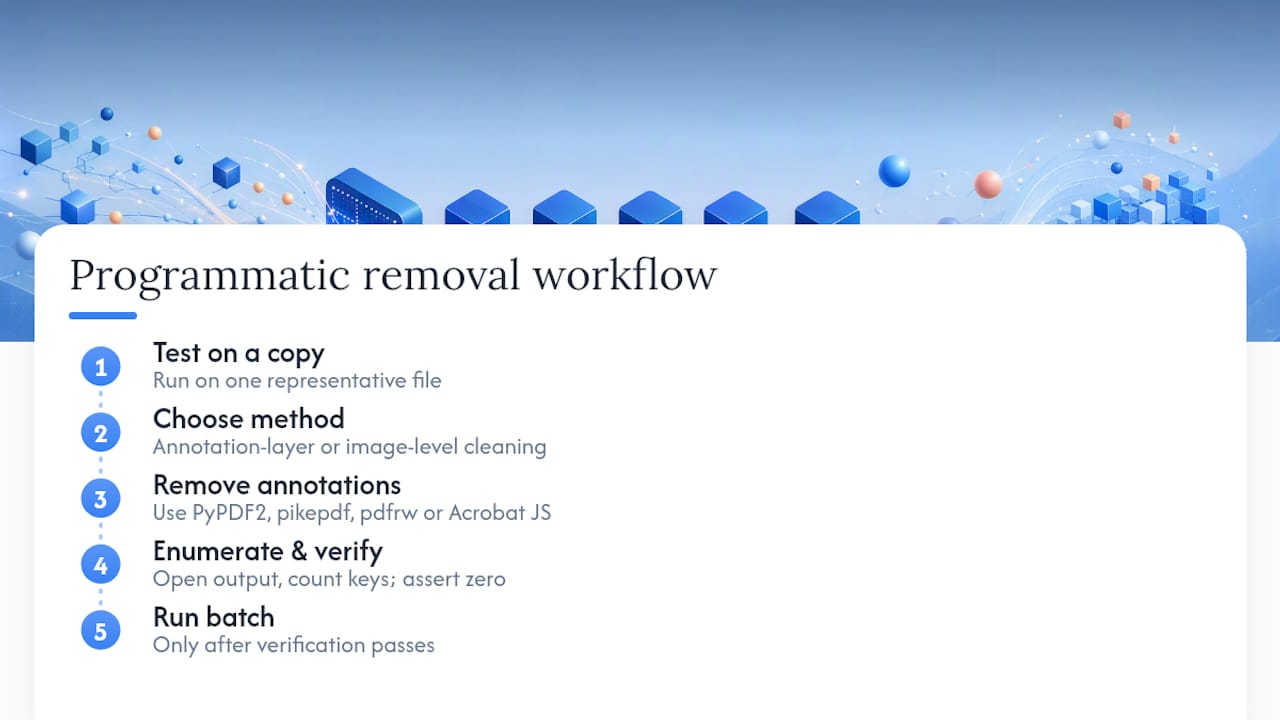
At scale, manual deletion is not practical. Two categories of programmatic removal exist: annotation-layer removal (safe, non-destructive to page content) and image-level cleaning for scanned ink.
Annotation-layer removal targets the PDF's annotation objects directly. Libraries like PyPDF2, pikepdf, and pdfrw in Python can enumerate and strip annotation dictionaries from each page. The typical flow:
# Generic pattern (pikepdf example)
import pikepdf
with pikepdf.open("input.pdf") as pdf:
    for page in pdf.pages:
        if "/Annots" in page:
            del page["/Annots"]
    pdf.save("output_clean.pdf")
Key insight for batch workflows: always run an annotation-count check after programmatic removal. Open the output file, enumerate
/Annotskeys across all pages, and assert the count is zero before treating the file as clean. Skipping verification at scale means silent failures go undetected. Open-source PDF tool repositories document remove-annotations and flatten-annotations as explicit features you can study for scripting reference.
For Acrobat-based automation, Acrobat's JavaScript method this.flattenPages() flattens comments, markups, and text boxes when executed in Acrobat's JavaScript console or as part of an Action. This is useful for teams already running Acrobat-based batch actions. Community PDF editor projects like pdfsmarteditor also list flatten and remove-annotations among their editing operations, making them useful references for offline workflows.
Pro Tip: Test your script on a copy of one representative file before running it across a folder. PDF structure varies enough between generators that a script tuned for one source application may miss annotations from another.
A privacy-first browser option: clean annotations without uploading your file
If your document contains sensitive information, uploading it to a server-based tool carries real risk. Client-side tools process everything locally using WebAssembly or in-browser JavaScript, so your file never leaves your device.
The workflow is straightforward:
- Open the tool in your browser.
- Drop or select your PDF locally.
- The tool lists detected overlay annotations in a preview.
- Choose which annotations to remove (all, or by type).
- Download the cleaned copy directly to your device.
Benefits of client-side processing:
- Files never touch a remote server.
- No account or signup required.
- Processing starts immediately, no queue.
- The original file stays untouched until you explicitly download the cleaned version.
Limitations to know: very large files (hundreds of pages with heavy embedded assets) may process more slowly in-browser than a local desktop application. Scanned ink removal still requires offline tools like unmark rather than browser-based annotation strippers.
For privacy-conscious users who also need to edit documents without compromising privacy, keeping the entire workflow client-side is the most consistent approach.
Pro Tip: Use client-side tools for routine annotation cleanup on sensitive files. Keep the annotated original offline as your master copy until you're certain the cleaned version is correct.
Checklist: what to do before and after removing annotations
A few minutes of preparation prevents irreversible mistakes.
Before you start:
- Save a timestamped backup copy of the annotated original.
- Export an annotation summary if you may need the reviewer notes later.
- Check document permissions; locked files may silently fail to delete annotations.
- Confirm whether marks are overlay annotations or scanned ink before choosing a method.
After removal:
- Reopen the Comments panel and confirm the list is empty.
- Scroll through every page visually for any remaining marks.
- If you flattened, check that form fields rendered correctly and are no longer interactive.
- Verify signatures: flattening or re-exporting can invalidate existing digital signatures. Use Tabtasker's signed PDF verification guide to check integrity, and re-sign the document locally if needed.
- Store the cleaned file and the original master in separate, clearly labeled locations.
Pro Tip: Search the Comments panel for common annotation keywords ("TODO," "REVIEW," "DRAFT") after bulk deletion. Some editors leave orphaned annotation data that doesn't render visually but still appears in the panel.
The method you choose says something about your workflow
Most guides stop at "open the Comments panel and press Delete." That's fine for a quick cleanup on a file you own and control. But the more interesting question is what happens when you can't delete an annotation, when the document came from a scanner, or when you need to clean a hundred files overnight.
The flatten-vs-export distinction matters more than most users realize. Flattening via Preflight is surgical: it targets annotation and form-field objects specifically, strips metadata, and produces a smaller, cleaner file. Printing to PDF is blunter. It re-renders the whole page, which can subtly change text rendering, embed fonts differently, and leave non-printable annotations in the file structure even though they don't appear on screen.
The privacy angle deserves more attention than it usually gets. Uploading a contract or a medical record to a server-based annotation stripper to "clean" it is a strange trade. You're removing one layer of exposure (the visible comments) while adding another (the file itself on someone else's server). Client-side processing closes that gap entirely. Your file stays on your machine, and the cleaned copy downloads directly to your device.
Tabtasker processes your PDF locally, no upload required
You've seen the methods. The one consistent risk across all of them is uploading a sensitive file to a service you don't control. Tabtasker removes that risk entirely. Every operation runs in your browser using local processing, so your PDF never reaches a server.

The annotation removal flow is direct: open Tabtasker, drop your file, preview the detected annotations locally, choose what to remove, and download the cleaned copy. No account. No queue. No file leaving your device. For users who also need to share the cleaned file securely, Tabtasker's browser-to-browser file share keeps that step local too.
What you get:
- Local processing with no uploads
- Selective or full annotation removal
- Original file untouched until you download the cleaned version
- Free, with no signup
Try it now at Tabtasker and clean your first PDF in under a minute.