 TabTasker
You can rotate one page or an entire PDF permanently, right inside your browser, with no software install and no account. Pick a rotation angle in 90-degree increments, download the corrected file, and it opens right side up in any PDF viewer. If the document contains anything sensitive, choose a tool that processes files locally so nothing leaves your device.
TL;DR:
- Most browser-based tools for rotating PDFs apply permanent changes by editing metadata, ensuring the rotation remains intact across different software and printing.
- Using client-side rotation tools preserves privacy by processing files locally, avoiding uploads to external servers, which is vital for sensitive documents like legal or medical files.
- Rotation can fail if the PDF is password-protected, the file is too large, or the rotation only applies as a view setting rather than a permanent edit, requiring troubleshooting or offline apps.
- Confirming rotation after download is essential because the file might look correct in the preview but revert when opened elsewhere, especially with view-only adjustments.
- Keyboard shortcuts and multi-page selection can significantly speed up rotation tasks, particularly for lengthy documents with many sideways pages.
Table of Contents
- Step-by-Step: How to Rotate PDF Pages Fast
- Rotate All vs. Rotate Individual Pages: What "Permanent" Really Means
- Client-Side Processing vs. Server Uploads: Why It Matters Here
- Why Rotation Fails and How to Fix It
- Quick Habits That Prevent Rotation Mistakes
- Does Rotating a PDF Affect Annotations or Form Fields?
- Rotating Scanned PDFs vs. Digitally Created PDFs
- Rotating Pages Faster With Keyboard Shortcuts
- Why a Privacy-First Rotator Actually Matters
- Rotate PDFs Privately With TabTasker, No Signup Required
- Sources
Step-by-Step: How to Rotate PDF Pages Fast
Rotating a sideways scan or an upside-down contract does not require Adobe Acrobat, a desktop install, or even an email signup. The process takes under a minute once you know the sequence.
- Open the rotator tool and drag your PDF into the browser window, or click to select it from your files.
- Choose your mode: "rotate all pages" flips the entire document at once, while "rotate individual pages" lets you fix just the pages that came in sideways.
- Click the rotate left or rotate right icon on the page or pages you selected. Each click moves the page 90 degrees.
- Click again for 180° or 270° — there is no separate button for those angles on most tools, just repeated clicks in the direction you need.
- Check the thumbnail preview before committing. Most tools show a live preview, and it is the fastest way to catch a page you rotated the wrong way.
- Download the file, then open the first two or three pages in a separate PDF viewer to confirm the rotation actually saved.
That last step matters more than people expect. A file can look correctly rotated in the tool's own preview pane and still revert when opened elsewhere, which is a sign you only applied a view rotation rather than a permanent one.
Pro Tip: Rename the downloaded file before you do anything else with it, something like "contract_rotated.pdf." If you accidentally overwrite the original with a bad rotation, you will be glad you kept the source file under its original name somewhere else.
Rotate All vs. Rotate Individual Pages: What "Permanent" Really Means
A PDF reader lets you spin a page sideways just to read it comfortably, but that adjustment lives in the viewer's memory, not the file. Close the document and reopen it, and the page snaps back to however it was saved. That is view rotation, and it fixes nothing for the next person who opens your file.
Permanent rotation is different. It changes the page rotation value stored in the PDF's own metadata, so the new orientation travels with the file everywhere it goes, including when someone else opens it in a completely different application. Browser-based rotators typically apply this change without re-encoding the page content, which is why the file size barely moves and the rotation holds up when printed.
Choosing between modes comes down to what the document looks like:
- Rotate all pages when a scanner fed the whole document in sideways, a common problem with multi-page contracts and older scanned records.
- Rotate individual pages when only a few pages came in wrong, such as a landscape spreadsheet dropped into an otherwise portrait report.
- Repeated 90° clicks get you to 180° or 270° since most tools skip a dedicated button for those angles.
Because the rotation is permanent, it prints correctly and stays consistent when the file passes through other PDF software later.
Client-Side Processing vs. Server Uploads: Why It Matters Here
Rotating a PDF sounds harmless until you remember what is actually inside the document. Medical records, signed contracts, tax forms, identity scans. The moment a file leaves your device and lands on someone else's server, you are trusting that server's security practices, retention policy, and staff, whether or not you ever read the fine print.
Client-side processing skips that trust exercise entirely. The rotation happens using code that runs directly in your browser, often through libraries like pdf-lib that rewrite the page rotation metadata locally without ever transmitting the file to a remote server. Nothing to upload means nothing to leak.
If a tool never asks you to wait through an upload progress bar, that is often your first clue it is processing the file where it already sits: on your machine.
A few signals separate a genuinely local tool from one that just says "secure" in its marketing copy: an explicit statement that files are processed in the browser, no requirement to create an account, and a privacy policy that actually says what happens to your data rather than dodging the question. Server-side tools from established vendors with short retention windows can be fine for a low-stakes file, but for anything you would not want screenshotted and forwarded, skip the upload entirely. TabTasker rotates PDFs client-side, shows a page gallery preview before you commit, and never asks for a signup.
Pro Tip: Search the tool's help page for the word "upload." If you cannot find a sentence explaining where your file actually goes, assume it is going somewhere you cannot verify.
Why Rotation Fails and How to Fix It
Most rotation problems trace back to one of four causes, and each has a quick fix.
- Rotation controls are grayed out or disabled. The PDF is likely password-protected. Encryption is one of the most common blockers help pages report, so unlock the file first, then rotate it.
- The tool hangs or times out on a large file. Very large PDFs can overwhelm browser-based processing. Split the document into smaller sections or compress it before attempting to rotate.
- The rotation looks fine in the tool but reverts after download. Reopen the downloaded file in a different PDF viewer to check. If it reverts there too, the tool only applied a view rotation rather than a permanent one.
- The tool behaves oddly, freezes, or won't load the file. Clear your browser cache or try a different browser. Old cached scripts occasionally interfere with in-browser tools more than people expect.
If none of that resolves it, a desktop app such as Drawboard PDF or open-source PDFsam can handle rotation offline, which is worth keeping in your back pocket for oversized or unusually stubborn files.
Quick Habits That Prevent Rotation Mistakes
A few small habits save you from redoing the work later.
- Keep a backup of the original before applying any permanent rotation, especially if the file matters for legal or financial reasons.
- Rename the rotated file clearly, appending something like "_rotated" so you never confuse it with the original.
- Open the first few pages after downloading to confirm the rotation actually saved and applied to the pages you meant to fix.
- Compress the file afterward if you need to email or upload it somewhere with a size limit, since rotation itself barely changes file size but the original document might already be large.
- Rotate before you print, not after. A sideways page sent to a printer wastes paper and often crops content unpredictably.
Does Rotating a PDF Affect Annotations or Form Fields?
Rotating a page changes its orientation, not the objects placed on it, but those objects have to move with the page or the document stops making visual sense. A properly built rotation tool repositions annotations, comments, highlights, and form fields so they land in the same relative spot once the page orientation changes. A signature box that sat in the bottom right corner before rotation should still sit in the bottom right corner of the rotated page.
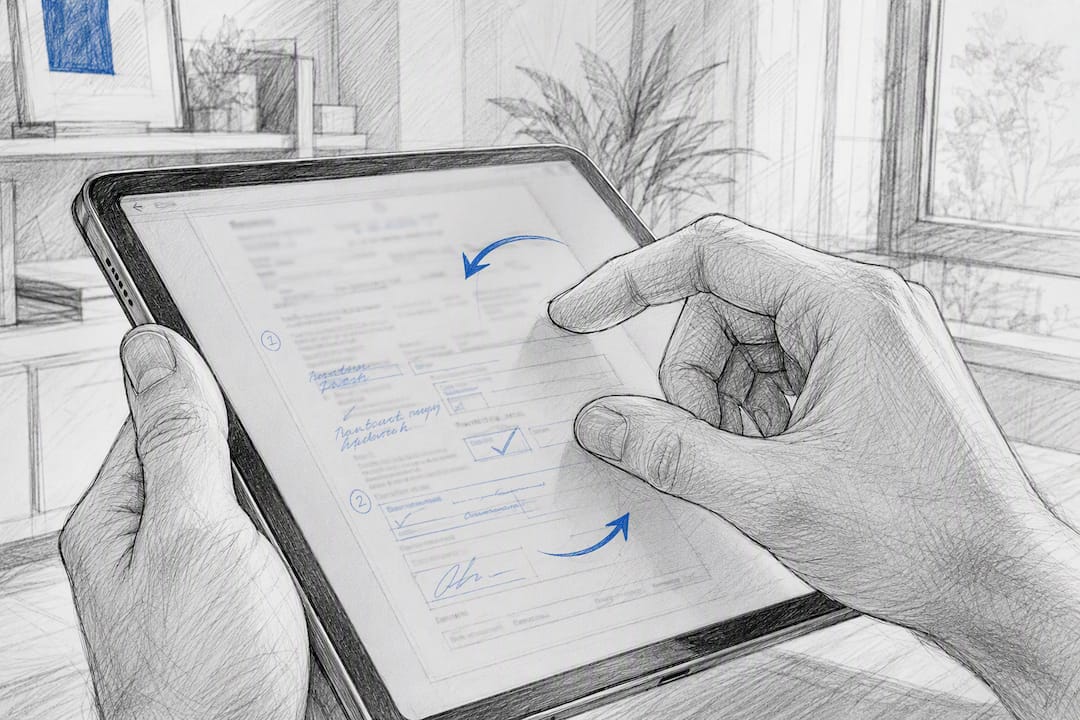
Problems show up when a tool only rotates the visual page content and ignores the coordinate data attached to interactive elements. That mismatch leaves a fillable field floating in the wrong location, sometimes off the visible page entirely, which is a frustrating discovery when someone later tries to fill out the form. Older or lower-quality rotation tools are more prone to this than modern ones, since properly updating field coordinates takes more careful handling than simply spinning the page image.
The safest practice is to rotate a form-heavy PDF, then immediately open it and click through every field to confirm each one still lines up and still accepts input. This takes thirty seconds and catches an issue that is far more annoying to fix after the document has already been sent out for signatures. If a form field breaks after rotation, re-rotating from the original unedited file usually resolves it faster than trying to manually reposition a broken field.
Rotating Scanned PDFs vs. Digitally Created PDFs
A PDF exported from Word or Google Docs and a PDF produced by scanning a paper document behave differently once you try to rotate them, even though the rotation button works the same way on both.
A digitally created PDF has text, layout, and formatting stored as structured data. Rotating it changes the page's stored orientation value, and the text and any form fields shift cleanly with the new orientation. It is a metadata edit, quick and predictable.
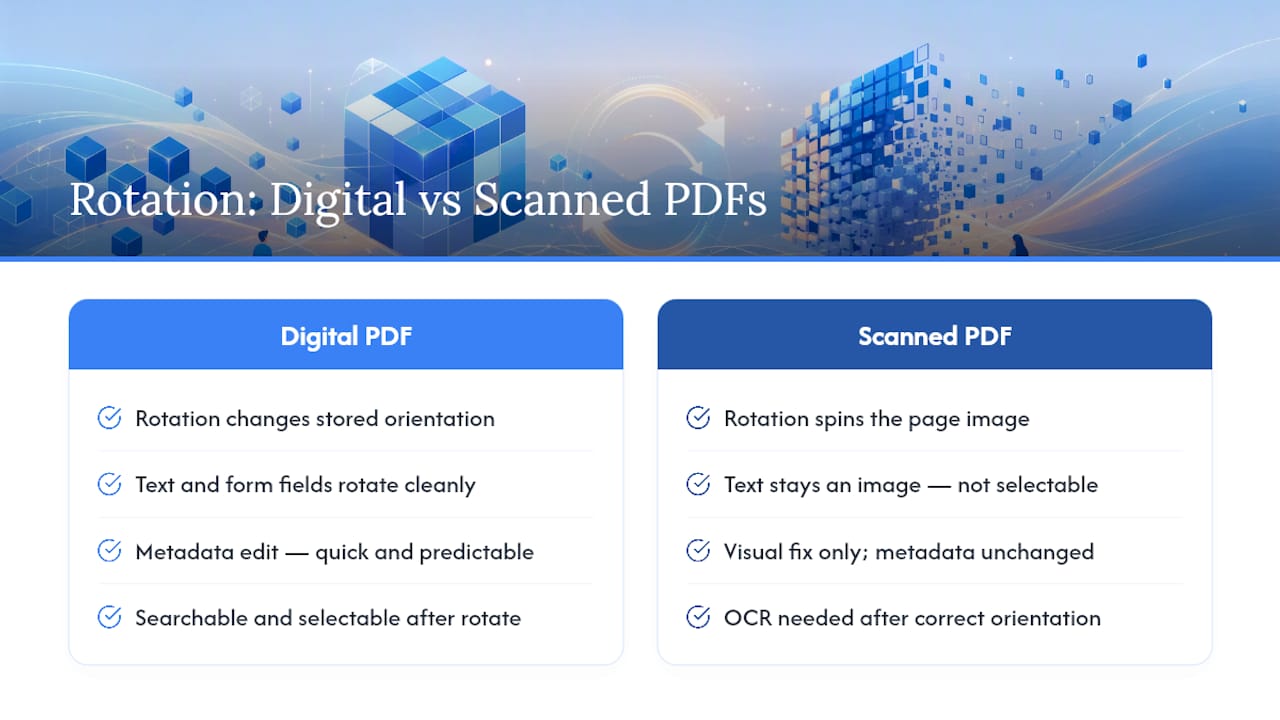
A scanned PDF is usually just an image of a page, or a stack of images, one per page. Rotating it spins the whole image, which works fine visually but does nothing for text recognition. If the scan needs to be searchable or copy-pasteable, rotation alone will not add that capability. You would need optical character recognition run on the corrected, right-side-up image afterward, since OCR accuracy drops sharply on sideways or upside-down text.
Scanned documents are also more likely to arrive with pages in mixed orientations, since a stack fed through a scanner sideways produces uniformly rotated pages, but a mixed stack produces a mixed result. That is exactly the case where "rotate individual pages" mode earns its keep over a blanket "rotate all" pass.
Rotating Pages Faster With Keyboard Shortcuts
Clicking a rotate icon repeatedly works fine for a five-page document, but it gets tedious fast on anything longer. Many browser-based PDF tools support keyboard shortcuts that speed up the repetitive parts of the job, typically something like the left and right bracket keys, or dedicated rotate-left and rotate-right key combinations, once you have a page or a range of pages selected.
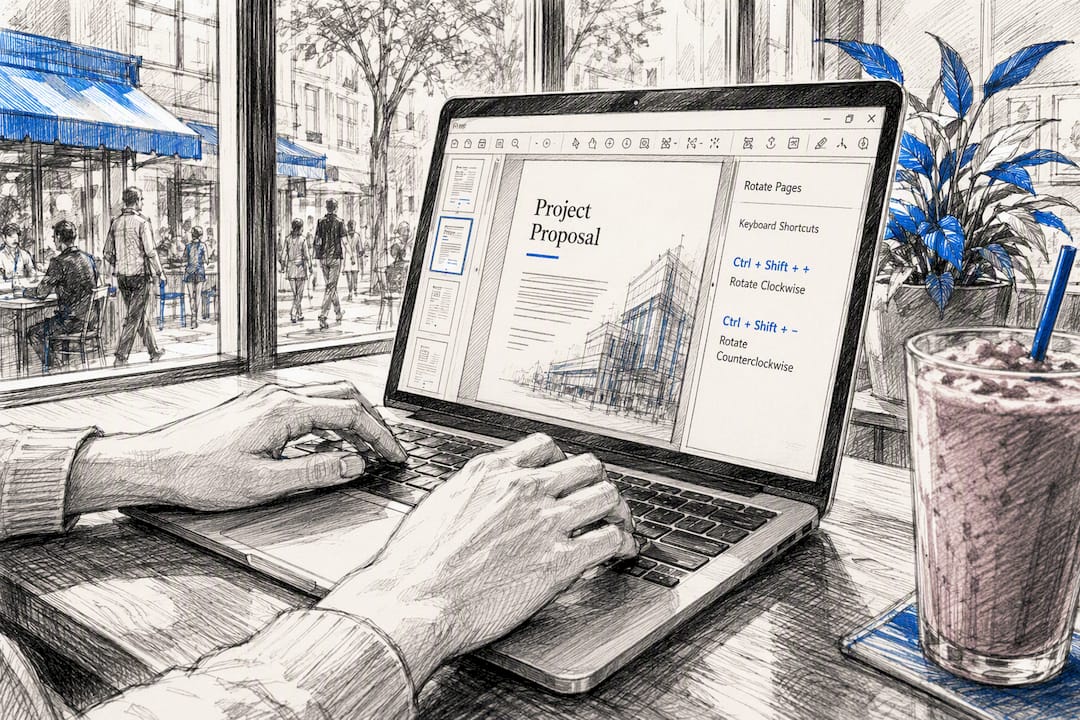
The exact keys vary by tool, since there is no universal standard the way there is for copy and paste. The practical approach: select the pages you want to rotate, then check the tool's help menu or hover tooltips for its specific shortcut before you commit to clicking through fifty pages one at a time. On tools that support multi-select, you can often highlight several pages at once and rotate them all with a single keypress, which is the real time saver for scanned documents that came in with dozens of sideways pages in a row.
If a tool has no documented shortcuts, mouse clicks on the rotate icons remain reliable, just slower for large batches.
Why a Privacy-First Rotator Actually Matters
Most people treat PDF rotation as a trivial task, and for a birthday invitation, it is. But the files that actually need rotating in real life skew toward the sensitive end: signed legal contracts, medical intake forms, passport scans, tax returns. These are exactly the documents you do not want sitting on an unfamiliar server, even briefly, even from a company that promises to delete it later.
The gap between "we delete uploads after 24 hours" and "your file never left your device" is not a small distinction. One depends on a policy being followed correctly. The other removes the risk from the equation entirely. For a rotated PDF headed to a lawyer, a doctor's office, or a government portal, that difference is worth choosing deliberately rather than defaulting to whichever tool ranks first in a search result.
— Vehicularis
Rotate PDFs Privately With TabTasker, No Signup Required
TabTasker rotates PDF pages entirely in your browser, so a signed lease or a scanned passport never touches a remote server, no account required and no upload progress bar to wait through. Every rotation shows up in a preview before you commit, backed by the same PDF Page Gallery that other TabTasker PDF workflows use, and once you are done, the same client-side toolkit handles compressing the file if it needs to shrink for email, or password-protecting it before you send it anywhere. Drop your file in, pick your rotation angle, and download a permanently corrected PDF in seconds. If you would rather explore the full range of private, offline tools first, from PDF editing to background removal, start at Tabtasker and see what runs locally before you commit a sensitive file to anyone else's server.