 TabTasker
TL;DR:
- Browser audio tools that run entirely in the user's browser can perform tasks like trimming, merging, converting, and transcribing audio without uploading files or creating accounts. They process files locally using WebAssembly and WebCodecs, ensuring that audio remains on the device and enhances user privacy. These tools benefit content creators handling sensitive recordings, social media clips, or transcripts, offering fast, private, and cost-free editing directly on the machine.
Browser audio tools running entirely in your browser can trim, merge, convert, encode, normalize, apply fades and crossfades, reduce noise, transcribe speech, edit metadata, batch-process files, visualize waveforms, undo edits, record live audio, and apply EQ, reverb, and compression — all without uploading a single file or creating an account. That's the full catalog of types of browser audio processing features available today, and the best of them run on your device using WebAssembly and WebCodecs so your audio never touches a remote server.
What "local-only" actually means: your browser downloads the processing engine once, then runs it entirely on your CPU. No upload progress bar. No cloud queue. No sign-in prompt.
Who benefits most:
- Podcasters who handle interview recordings with sensitive content
- Content creators clipping social media audio from longer sessions
- Journalists and researchers transcribing interviews they cannot share with third parties
- Privacy-conscious users who've noticed that "free" tools often come with a data cost
Table of Contents
- What do the main in-browser audio processing features actually do?
- How does client-side audio processing actually work?
- What are the real performance limits of in-browser audio tools?
- How do you choose a privacy-first browser audio tool?
- Which creator tasks map to which browser audio features?
- Tabtasker gives you private audio editing with no uploads and no account
- Key Takeaways
- The case for keeping audio local
- Try Tabtasker's private audio tools now
- Useful sources
What do the main in-browser audio processing features actually do?
The features below cover the full range of audio processing capabilities you'll find in capable browser tools. Each one runs client-side when the tool is built correctly.
Trim and cut lets you select a segment of audio and remove or keep it. Use it to cut dead air from podcast intros, clip a highlight from a long recording, or remove a cough mid-sentence. Tabtasker's audio trim tool handles this locally with no upload required.
Merge and concatenate joins two or more clips into a single file. Useful for assembling a multi-segment podcast episode or stitching together voice memos recorded across different sessions.
Format conversion and encoding exports your audio as MP3, WAV, AAC, OGG, or FLAC. The choice matters: MP3 at 128 kbps is fine for voice podcasts; WAV or FLAC preserves lossless quality for archival masters. FFmpeg.wasm — a WebAssembly port of FFmpeg — runs this conversion entirely inside the browser, handling format switching without any server-side code. Tabtasker's audio converter uses this approach.
Bitrate and sample-rate controls let you compress a file for distribution (128–192 kbps for podcasts, 44.1 kHz standard) or keep a high-quality master at 320 kbps and 48 kHz. Dropping sample rate from 48 kHz to 22 kHz roughly halves file size, which matters for social uploads.
Normalization and loudness adjustment brings your audio to a consistent volume. Peak normalization sets the loudest sample to a target level; LUFS-based normalization targets perceived loudness, which is what Spotify, Apple Podcasts, and YouTube actually measure. For podcasting, the industry standard sits around -16 LUFS for stereo.
Fades and crossfades ramp volume up or down at clip edges. A short fade-out eliminates the abrupt click you get when a recording ends mid-breath. Crossfades blend two clips together so the transition sounds intentional rather than spliced.
Basic noise reduction and click/pop removal attenuates steady background hum (HVAC, room tone) and removes isolated pops from mic handling. "Basic" is the honest word here: browser-based noise reduction can clean up a reasonably quiet recording, but it won't rescue audio recorded in a loud environment the way dedicated desktop software can.
Speech-to-text (local transcription) converts spoken audio to text inside the browser. Accuracy depends on the engine and the recording quality; local options are improving but still trail cloud-based ASR services for accented speech or noisy recordings. The trade-off is complete privacy: your audio never leaves the device.
Metadata editing and local export lets you write ID3 tags (title, artist, album, cover art) directly to the file before downloading it. No upload needed; the file stays on your machine throughout. This matters for podcast RSS feeds that read embedded tags.
Batch processing handles multiple files in sequence. Browser tools typically process files one at a time using Web Workers to keep the UI responsive, rather than running true parallel jobs. For small batches this is fine; for dozens of large files, expect to wait.
Real-time visualizations and spectrum analysis show you waveform amplitude and frequency content while you edit. A spectrum analyzer helps you spot a low-frequency rumble or a harsh resonance before you export.
Undo/redo and project history let you step backward through edits. Well-built browser tools persist project state in IndexedDB so your edit history survives a page refresh.
Live recording and external mic integration captures audio directly from a connected microphone via the browser's MediaDevices API. You'll need to grant microphone permission once; after that, the recording stays local.
EQ, reverb, and dynamic range compression are the advanced audio effects available in capable browser tools. EQ shapes the frequency balance of a voice; reverb adds space; compression evens out volume dynamics. These are CPU-intensive, so expect slower performance on older devices.
Pro Tip: When a tool offers both quality presets and manual bitrate/sample-rate controls, use the presets for quick exports and manual controls only when you have a specific distribution requirement — most listeners won't hear the difference between 192 kbps and 320 kbps MP3.
How does client-side audio processing actually work?
Local processing runs in your browser using your device's own CPU — your files never leave the machine. Here's how the pieces fit together without getting into developer territory.
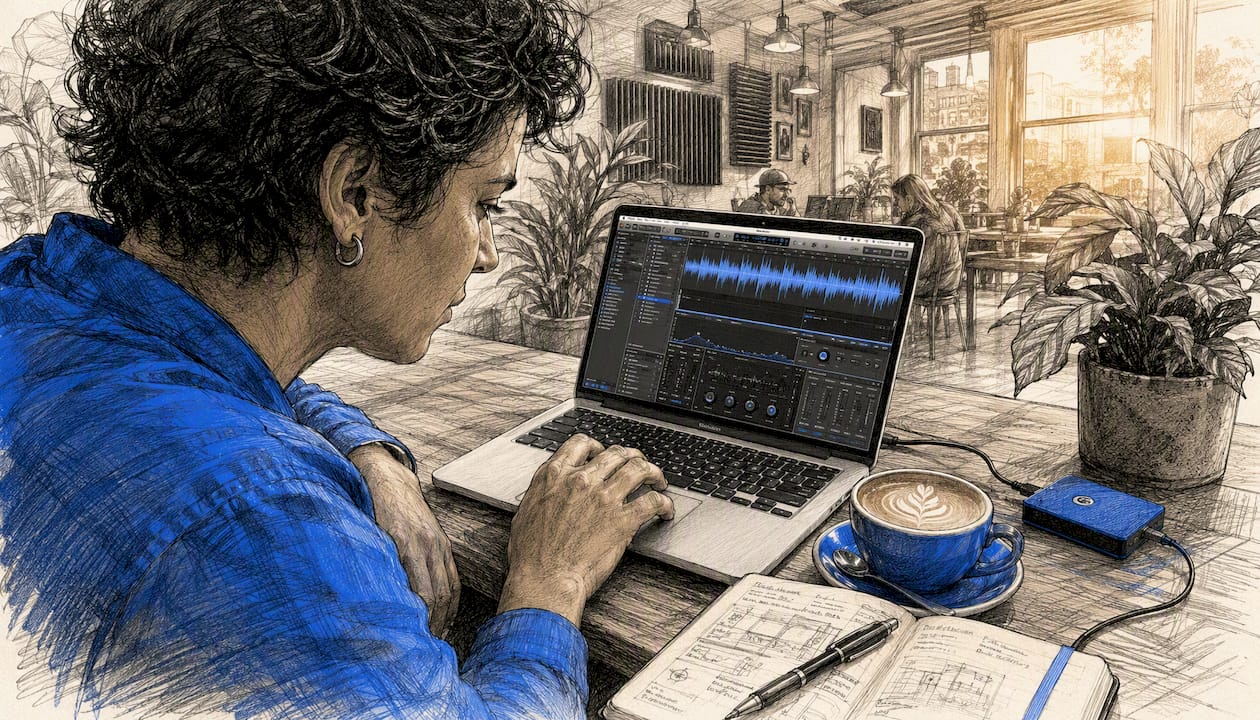
FFmpeg.wasm compiles the full FFmpeg codec library to WebAssembly, which browsers can execute at near-native speed. This handles format conversion, trimming, and encoding for formats the browser's native APIs don't cover.
WebCodecs provides hardware-accelerated audio encoding in Chromium-based browsers and Firefox, which speeds up local encodes considerably when supported. The Web Audio API's decodeAudioData handles FLAC, WAV, OGG, MP3, AAC, and WebM in modern browsers, returning raw audio samples for processing.
Web Workers run the heavy computation in a background thread so the page stays responsive while a large file encodes. The Streams API and AudioDecoder process audio in chunks rather than loading an entire file into memory at once.
How do you know a tool is genuinely local? Two reliable signals: it works after you disconnect from the internet (once the page has loaded), and it shows no network upload activity when you open your browser's developer tools and watch the Network tab during a file operation.
Pro Tip: Load the tool, disconnect your Wi-Fi, then process a small test file. If it works offline, the processing is genuinely local. If it fails or shows an error about connecting to a server, your file was going somewhere.
What are the real performance limits of in-browser audio tools?
Local tools trade network latency for CPU and memory limits. Small edits — trimming a clip, adjusting volume, exporting a short file — feel nearly instant. Large re-encodes are a different story.
- Files approaching ~500 MB of decoded PCM can push browsers past their memory limits and cause crashes on devices with limited RAM.
- Re-encoding large files can take 10–30 seconds on modern laptops, longer on low-power devices.
- Multi-threading requires SharedArrayBuffer, which needs specific COOP/COEP security headers. Without them, WASM-based tools can run up to 10x slower by falling back to single-threaded mode.
- Safari's WebCodecs audio encoding support remains incomplete; FFmpeg.wasm is the practical fallback for Safari users, though it runs slower without hardware acceleration.
Mobile warning: On phones and tablets with limited RAM and throttled CPUs, browser audio processing is noticeably slower and more prone to crashes on files longer than 30–45 minutes. Break large jobs into shorter segments before processing on mobile, and keep your browser tab count low to free up available memory.
For very large batch jobs — dozens of hour-long files — a server-based solution may be the pragmatic choice. That's a real trade-off, not a failure of the local-first approach.
How do you choose a privacy-first browser audio tool?
Run through this checklist before trusting any web audio tool with sensitive recordings.
- Does the tool process files without uploading them to a server?
- Does it work without creating an account or logging in?
- Does the tool's privacy statement or help documentation mention WASM, FFmpeg.wasm, or WebCodecs?
- Are export formats, bitrate options, and sample-rate controls clearly labeled?
- Is a privacy policy or open-source repository available for inspection?
Red flags to watch for:
- A visible upload progress bar that counts toward a remote server
- Mandatory sign-in before you can open a file
- Language like "cloud processing," "our servers," or "secure upload"
- A vague or missing privacy policy
- File-size limits that only make sense if a server is involved (e.g., "max 50 MB free")
Developer guidance is direct on this point: any "free" audio tool that requires uploads may be collecting data or performing remote compute. When in doubt, ask the tool's support team whether processing happens on their servers or in your browser — a confident, specific answer is a good sign.
Quick test: open the browser's Network tab (F12 → Network), load a small audio file into the tool, and watch for outbound requests carrying your file data. A genuinely local tool shows nothing but static asset loads.
Which creator tasks map to which browser audio features?
Podcast episode
- Trim silence from the start and end of each recorded segment.
- Merge all segments into one continuous file.
- Normalize to -16 LUFS for podcast platform compatibility.
- Add ID3 metadata (title, episode number, cover art).
- Export as MP3 at 128–192 kbps.
Social media clip
- Trim to 60 seconds or less.
- Apply a short fade-in and fade-out.
- Reduce bitrate to 96–128 kbps to keep file size small for upload.
Interview transcript
- Run speech-to-text on the local file.
- Export the result as a plain-text or SRT file for captions.
Archival master
- Convert to FLAC (lossless) at 48 kHz.
- Add full metadata before local export.
For large projects, break recordings into 20–30 minute chunks before processing. This keeps memory usage below the ~500 MB PCM threshold and prevents browser crashes. Tabtasker's audio compression tool handles bitrate and sample-rate reduction for distribution-ready exports.
Micro-workflow example — trimmed, normalized MP3 for a podcast host: Open your WAV recording → trim the first 8 seconds of room noise → normalize to -16 LUFS → export as MP3 at 128 kbps → download directly to your device. Total time for a 30-minute file on a modern laptop: under two minutes.
Tabtasker gives you private audio editing with no uploads and no account
Tabtasker's audio workspace covers the full editing workflow — trim, merge, normalize, apply fades, edit metadata, and export — without sending your file anywhere. The audio converter supports MP3, WAV, OGG, FLAC, and AAC with explicit bitrate and sample-rate controls. Both tools run on FFmpeg.wasm and process files entirely on your device.

Getting started takes four steps:
- Open the Tabtasker audio workspace in your browser — no account required.
- Drop in your audio file; it loads locally and never leaves your device.
- Trim, normalize, and adjust settings using the on-screen controls.
- Export your finished file directly to your downloads folder.
Pro Tip: After the page loads, disconnect your internet connection and try processing a small test file. Tabtasker's tools continue working offline — that's the clearest proof that your audio stays local.
Tabtasker's offline-first workflow suite extends the same privacy-first approach across PDF editing, image tools, and developer utilities, all free and all processed on your device.
Key Takeaways
Browser audio tools that run locally on your device give you the full editing feature set — trim, merge, convert, normalize, and more — without the privacy risks that come with uploading files to a remote server.
| Point | Details |
|---|---|
| Full feature set, no uploads | Trim, merge, convert, normalize, fade, denoise, transcribe, and export all run client-side via WASM. |
| Memory limit to watch | Files near ~500 MB decoded PCM can crash low-RAM browsers; process in chunks to stay safe. |
| Encode time expectation | Large re-encodes take 10–30 seconds on modern laptops; mobile devices run slower. |
| Verify local processing | Disconnect Wi-Fi after page load and process a small file — if it works, the tool is genuinely local. |
| Tabtasker for private editing | Tabtasker's audio workspace and converter handle the full workflow locally, free, with no account needed. |
The case for keeping audio local
The privacy argument for local-first browser audio tools is straightforward, but it's worth saying plainly: when you upload an audio file to a web service, you've already lost control of it. The privacy policy might be benign, the company might be trustworthy — but the file has left your device, and what happens next is outside your hands.
What strikes me most about the current state of browser audio processing is how capable these tools have become without most users realizing it. The gap between "upload to a cloud service" and "process locally in your browser" has narrowed to the point where, for the vast majority of creator tasks, local tools are the better choice on every axis: speed for small files, privacy always, and cost (free, with no subscription required).
The one honest caveat: if you're regularly processing dozens of hour-long recordings in batch, local tools will test your patience. That's a real limit, not a marketing disclaimer. But for the podcast editor trimming a weekly episode, the journalist transcribing a sensitive interview, or the creator clipping social content from a longer session, local processing isn't a compromise. It's the smarter default.
Try Tabtasker's private audio tools now
Tabtasker processes your audio entirely in your browser — no uploads, no account, no data leaving your device. Open the audio workspace and drop in a file to see local processing in action.
Start with a small file, watch the Network tab stay quiet, and export your result in seconds. That's what private audio editing looks like.
Useful sources
- How I Built a Client-Side Audio Toolkit (No Server Uploads) — DEV Community — Covers FFmpeg.wasm implementation, memory limits, chunked processing, and IndexedDB project persistence.
- Why Cloud Audio Converters Are a Scalability Trap: Going Local-First with WebAssembly — DEV Community — Explains COOP/COEP headers, SharedArrayBuffer multi-threading, and the cost/latency case for local-first architecture.
- I Built a 100% Private, Browser-Based Audio Editing Suite (No Servers, No Sign-Up) — DEV Community — Practical guidance on detecting upload-based tools and verifying genuine local execution.
- I Replaced a $200/Month Audio Processing Server with 40 Lines of Browser JavaScript — DEV Community — Demonstrates
decodeAudioDatahandling FLAC, WAV, OGG, MP3, AAC, and WebM for server-free processing. - Web Audio API — MDN Web Docs — Authoritative reference for browser audio decoding, routing, and real-time processing capabilities.
- Tips for Optimizing Gaming Audio Setup — Tech Review Nerds — Practical guidance on hardware and audio setup relevant to users integrating external microphones with browser recording tools.