 TabTasker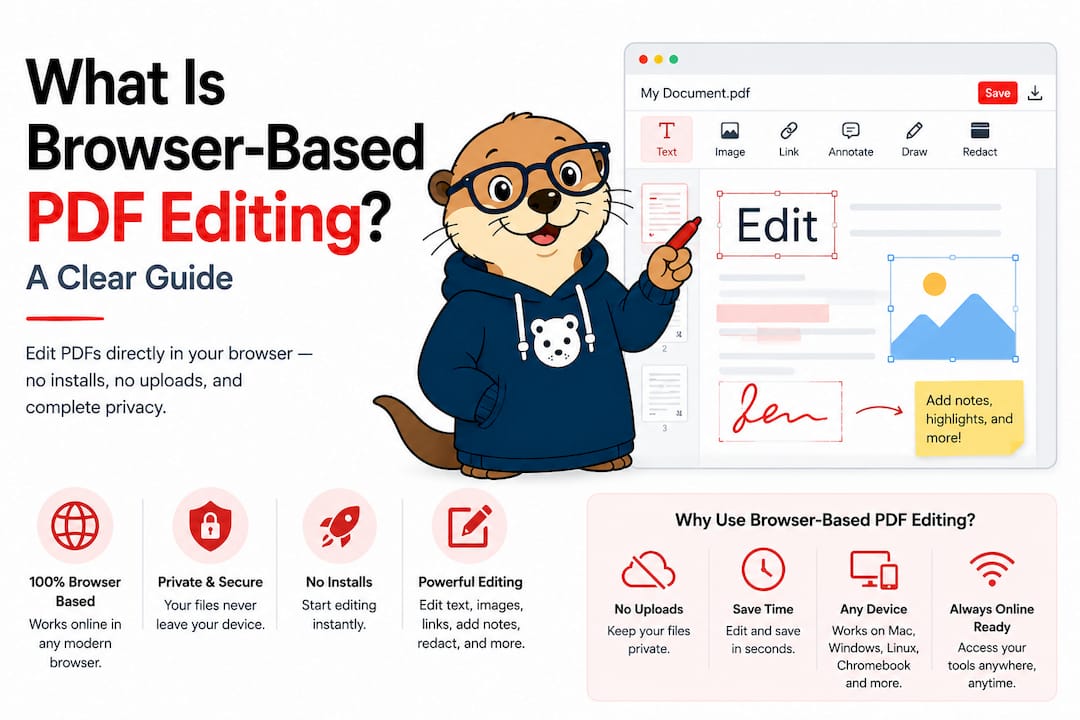
TL;DR:
- Browser-based PDF editing uses client-side tools within your browser to modify files without uploading them, ensuring privacy. It offers features like annotations, signatures, and page management, but overlays text instead of editing internal content. This method is most secure when tools process files entirely locally and offline, making it ideal for sensitive documents.
Browser-based PDF editing is defined as the process of modifying PDF files entirely within a web browser using client-side technologies, with no software installation or file uploads required. The browser handles every operation locally, which means your document never leaves your device. Libraries like PDF.js and pdf-lib power this approach, processing files directly in browser memory. This method gives you full control over sensitive documents while keeping the workflow fast and accessible from any device. If you’ve ever wondered whether “free” online PDF tools are truly free, understanding how client-side PDF editing works is the first step toward making a smarter choice.
What is browser-based PDF editing, exactly?
Browser-based PDF editing, also called in-browser PDF editing or client-side PDF editing, is the standard industry term for modifying PDFs using JavaScript libraries that run entirely within your browser tab. No data travels to a remote server. All operations run within the user’s browser using client-side code, often enabling offline use after the initial page load. That distinction matters because it removes the biggest risk of most “online PDF editor” services: your file being stored, scanned, or monetized on someone else’s server.
The technology behind this approach relies on open-source libraries. PDF.js renders PDF pages as visual canvases inside the browser. pdf-lib reads and writes PDF file structures in memory. Together, they let a browser do what once required a full desktop application. The result is a web-based PDF editing experience that works on Windows, macOS, Linux, Chromebooks, iOS, and Android without installing a single program.
This is meaningfully different from cloud PDF editing, where your file uploads to a remote server for processing. With client-side tools, the browser is the processor. That shift in architecture is what makes privacy guarantees credible rather than just marketing language.
How does browser-based PDF editing work technically?
The standard workflow follows three steps: load the PDF into browser memory, edit via interactive overlays or canvas layers, then download the modified file locally without any data leaving your device. Each step happens entirely within your browser tab.
Step 1: Loading the file. When you drop or select a PDF, the browser’s File API reads it from your local storage into RAM. Native browser APIs like File API and URL.createObjectURL create a local object URL that points to the file in memory. This prevents CORS issues and eliminates any upload pathway entirely.

Step 2: Editing on a canvas. PDF.js renders each page as an HTML5 canvas element. Editing tools then place interactive layers on top of that canvas. You see the PDF visually, and your annotations, text additions, or signature fields sit as overlay elements above the rendered image.
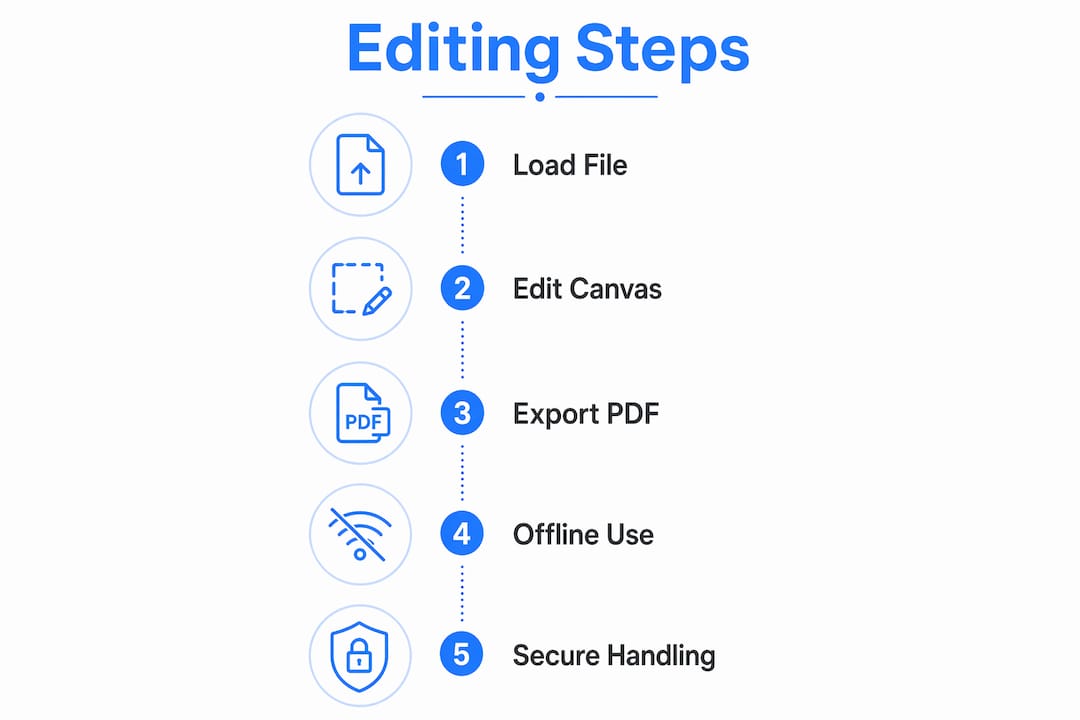
Step 3: Exporting locally. When you click download, libraries like pdf-lib or jsPDF write your changes into a new PDF file structure and trigger the browser’s native download dialog. The file saves directly to your device. No server receives a copy at any point.
React-PDF is another library used in more complex browser PDF editors to manage page rendering and state within JavaScript frameworks. These tools have matured significantly, making the browser a genuinely capable PDF editing environment for most everyday tasks.
Pro Tip: After loading a browser PDF editor for the first time, try switching your device to airplane mode. If the tool still works, it processes files 100% client-side. If it breaks, your files are likely traveling to a server.
What features are available in browser PDF editors?
Browser-based PDF editors commonly offer a solid range of editing capabilities that cover the majority of everyday document tasks. You should expect the following from a reputable browser PDF tool:
-
Text addition: Add new text boxes anywhere on the page, with font and size controls.
-
Annotations: Highlight text, draw freehand shapes, add sticky comments, and insert arrows or rectangles.
-
Page operations: Rotate pages, reorder them by drag-and-drop, merge multiple PDFs into one, split a PDF into separate files, and delete unwanted pages.
-
Form filling: Complete interactive PDF forms directly in the browser without printing.
-
Electronic signatures: Draw, type, or upload a signature image and place it on any page. Tabtasker offers a free e-signature tool that works entirely offline.
-
File export: Download the finished PDF with no watermarks and no account signup required.
Cross-platform compatibility is a genuine strength here. Browser PDF tools work across Windows, macOS, Linux, Chromebooks, iOS, and Android. A freelancer on a Chromebook and a lawyer on an iPhone can use the same tool with identical results. That accessibility is something desktop applications have never matched.
What are the limitations of editing PDFs in browsers?
The most important limitation to understand is how text editing actually works. Browser PDF editors layer transparent, contenteditable elements over rendered PDF canvases to allow best-effort text editing without changing the PDF’s internal structure. You are not rewriting the original text. You are placing a new text box on top of it.
“Text is treated as overlays instead of native PDF text replacement, which causes limitations in complex formatting. If the original text uses an embedded font your browser cannot replicate, the replacement text will look different. In multi-column layouts or documents with tightly kerned typography, overlay edits can shift visually or misalign with surrounding content.”
This distinction separates browser PDF editing from desktop applications that perform true native text replacement. A desktop tool reads the PDF’s internal object structure and rewrites it directly. A browser tool, in most cases, paints over what is already there.
Complex graphics, layered vector artwork, and documents with heavy interactive elements can also behave unpredictably. Rendering engines in browsers interpret PDF specifications slightly differently, which occasionally causes visual artifacts on pages with intricate design work.
The practical implication is clear: browser PDF editing is the right choice for adding content, annotating, signing, and reorganizing pages. It is not the right choice for rewriting entire paragraphs of existing body text in a professionally typeset document. Knowing that boundary upfront saves frustration. Understanding what happens when you upload a PDF online makes the tradeoff feel worthwhile.
How does browser-based PDF editing compare to other methods?
Compared to traditional desktop apps, browser PDF editors offer no-install convenience and stronger privacy by avoiding cloud processing, but they may lack advanced editing features. The table below maps out the key differences across three approaches.
| Feature | Browser-based (client-side) | Desktop application | Cloud-based service |
|---|---|---|---|
| Installation required | No | Yes | No |
| File leaves your device | Never | Never | Yes |
| Native text replacement | No (overlay) | Yes | Varies |
| Works offline | Yes (after load) | Yes | No |
| Cost | Typically free | Often paid | Freemium or paid |
| Cross-platform | All devices | OS-specific | All devices |
| Advanced editing | Limited | Full | Moderate |
Cloud-based services sit in an uncomfortable middle ground. They require no installation, like browser tools, but they upload your file to a remote server, like desktop tools used to require a network license. That combination gives you the least of both worlds if privacy matters to you.
Desktop applications remain the right choice for legal professionals who need certified PDF/A compliance, publishers doing precise typographic edits, or anyone rebuilding a document’s internal structure. For everyone else, browser tools handle the job without the overhead.
How can you use browser PDF editors securely?
The first rule is to verify that a tool processes files 100% client-side before trusting it with sensitive documents. A tool that claims to be “browser-based” but still uploads files for processing is a cloud service with better marketing. Selecting reputable browser editors that perform 100% client-side operations, avoid uploads, and optionally encrypt PDFs is the most effective security practice available.
Password encryption adds a second layer of protection. Even if a file is accidentally shared or stored somewhere accessible, encryption prevents unauthorized access. Tabtasker’s guide on encrypting a PDF covers this in under 30 seconds using browser-based tools.
Offline use is another underused security feature. After loading a client-side PDF editor, you can disconnect from the internet and continue editing. The tool runs entirely from cached browser code. This approach is particularly useful when working with confidential contracts, medical records, or financial statements.
Avoid browser extensions that claim to add PDF editing to every site. Many of these request broad permissions and can read file contents across tabs. A dedicated browser PDF tool with a clear privacy policy is a safer choice than a general-purpose extension with vague data practices.
Pro Tip: Before editing any sensitive document, check the browser’s network tab in developer tools. A legitimate client-side PDF editor shows zero outbound network requests after the page loads. Any POST requests during editing indicate file uploads.
Key Takeaways
Browser-based PDF editing is the most privacy-preserving way to edit PDFs, because files never leave your device and no account is required.
| Point | Details |
|---|---|
| Client-side processing | All editing happens in browser memory using libraries like PDF.js and pdf-lib. |
| Text edits are overlays | Browser tools add text on top of rendered pages, not inside the PDF’s internal structure. |
| Strong feature set | Annotations, signatures, page operations, and form filling are all available without installs. |
| Privacy advantage | Files never upload to a server, eliminating data leak risks common with cloud PDF services. |
| Know the limits | Use browser tools for adding and annotating; use desktop apps for deep structural text edits. |
The privacy tradeoff most people miss
The conversation around browser PDF editing usually focuses on convenience. No installation, works everywhere, free to use. Those benefits are real. But the more interesting question is what you give up when you use a cloud-based PDF service instead, and whether most people have thought carefully about that exchange.
When you upload a document to a cloud PDF editor, you are trusting that company’s privacy policy, their server security, their employee access controls, and their business model. If the service is free, the document you uploaded is the asset that funds the operation. That is not a conspiracy theory. It is a business reality. The phrase “if you’re not paying for the product, you might be the product” applies with particular force to document editing services that handle contracts, tax forms, and medical records.
Client-side PDF editing removes that equation entirely. The browser processes the file. The file never moves. There is no server to breach, no employee who can access your document, and no terms-of-service clause about data retention.
The tradeoff is real, though. Browser tools cannot yet replicate the full power of a mature desktop application. Native text replacement, advanced redaction, certified digital signatures, and PDF/A archival compliance all require more than a browser can currently deliver. That gap is narrowing as JavaScript engines and browser APIs improve, but it has not closed.
My honest recommendation: use client-side browser tools for 80% of your PDF tasks. Reserve desktop applications for the 20% that require structural precision. And read the privacy policy of any “free” online PDF editor before you upload a single page. You may find the cost is higher than you expected.
— Vehicularis
Tabtasker’s free, private browser PDF tools
Tabtasker is built on the same client-side principle this article describes. Every tool on the platform processes files directly in your browser, with no uploads, no account creation, and no paywalls.

The full suite of offline tools covers PDF editing, e-signatures, image processing, audio editing, and more. All of it runs locally. Tabtasker also offers secure browser-to-browser file sharing for when you need to send a finished document without routing it through a cloud server. If you’ve been looking for a browser PDF editing workflow that takes privacy seriously without sacrificing usability, Tabtasker is worth bookmarking.
FAQ
What is browser-based PDF editing?
Browser-based PDF editing is the process of modifying PDF files entirely within a web browser using client-side JavaScript libraries like PDF.js and pdf-lib, with no file uploads or software installation required.
Is browser-based PDF editing safe for sensitive documents?
Yes, when the tool processes files 100% client-side. Files stay in your browser’s memory and never travel to a remote server, which eliminates the data exposure risks associated with cloud PDF services.
Can I edit text in a browser PDF editor?
Browser PDF editors add text as overlays on top of rendered pages rather than replacing the PDF’s internal text. This works well for adding new content but is not suited for rewriting existing body text in complex formatted documents.
Do browser PDF editors work offline?
Most client-side PDF editors work offline after the initial page load, because all processing code runs from cached browser resources with no server dependency during editing.
What is the difference between browser-based and cloud-based PDF editing?
Browser-based editing processes files locally in your browser with zero uploads. Cloud-based editing uploads your file to a remote server for processing, which introduces privacy and security risks that client-side tools avoid entirely.