 TabTasker
Batch image conversion saves time by applying one set of rules, once, to every file in a folder instead of forcing you to open, adjust, and export each image by hand. Once a preset is built, converting 50 product photos or resizing 500 event shots takes roughly the same number of clicks as converting one. A well-documented case study on switching from manual editing to batch processing found time savings of 75 to 95 percent across varying batch sizes, and the gap widens as the batch grows. If you have never tried it, don't start with your full archive. Pull 5 to 10 representative images, run them through your intended settings, and check the results before committing hours of processing time to a folder you haven't tested.
Key Takeaways
Batch image conversion saves time because it replaces repeated manual export steps with a single rule applied automatically across an entire folder of images.
| Point | Details |
|---|---|
| Test before scaling | Run 5 to 10 representative images through your preset before committing a full batch. |
| Time savings compound with volume | Batching shows the largest savings once batch size grows past a few dozen images. |
| Never overwrite originals | Always export to a separate output folder so a bad preset costs minutes, not your source files. |
| Combine steps into one pass | Chaining resize, compression, and format conversion together avoids repeated quality loss. |
| Try TabTasker's client-side tools | TabTasker's Image Converter and Photo Cleanup workflow process batches in-browser with no uploads or accounts required. |
Table of Contents
- Why Batch Image Conversion Saves Time on Repetitive Work
- Common Batch Workflows and the Tools That Handle Them
- How to Set Up a Batch Job That Actually Saves Time
- Best Practices That Keep Batching From Backfiring
- A Client-Side Workflow That Cuts the Extra Steps
- When Batch Conversion Actually Earns Its Setup Time
- Try TabTasker for Private, Browser-Based Batch Conversion
- Authoritative Docs and Practical Guides to Read Next
- Frequently Asked Questions
- Sources
Why Batch Image Conversion Saves Time on Repetitive Work
The time savings come from removing you, the human, from a loop that doesn't need you. Every manual edit involves the same sequence: open the file, apply a resize or format change, name it, export it, and move to the next one. That sequence has a fixed cost in attention and clicking, and it doesn't shrink no matter how fast you get. Batch tools replace that loop with a rule you define once. The software then repeats it against every file in the folder while you do something else.

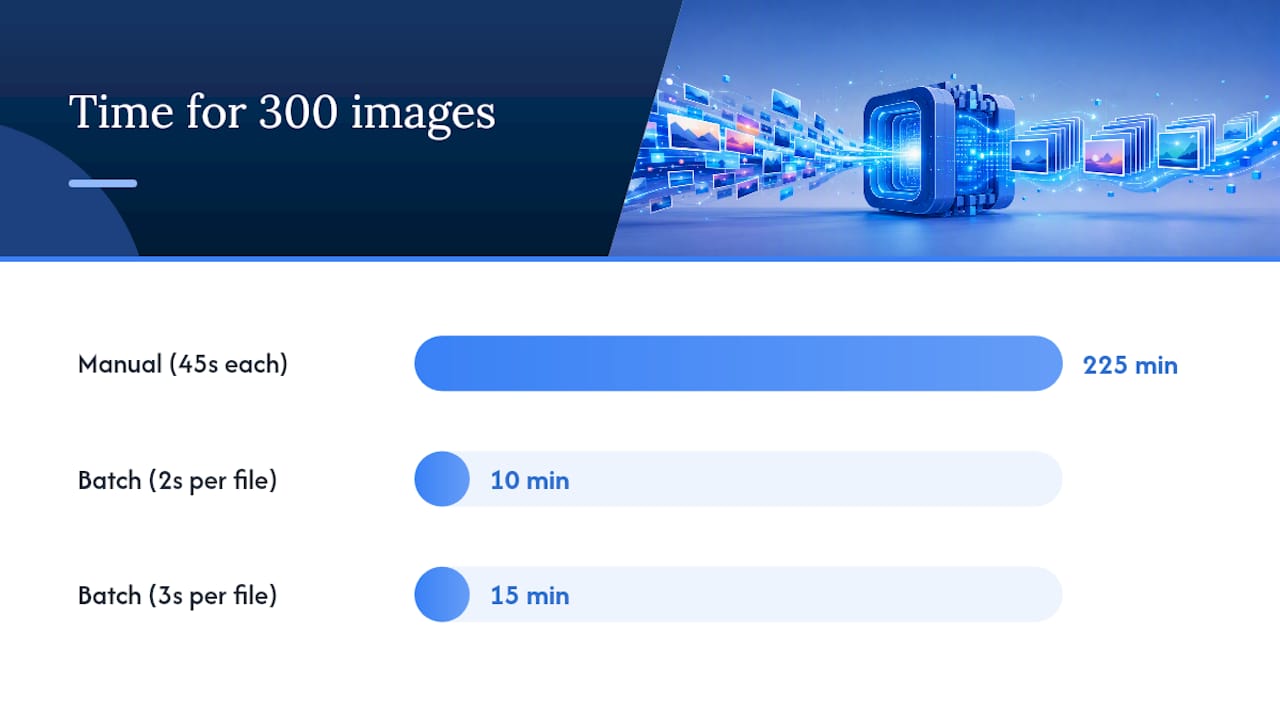
That difference matters because human action time and machine throughput are not the same resource. You might take 45 seconds to manually resize, rename, and export a single JPEG. A batch processor working through the same operation might take two or three seconds of actual computation per file, limited mostly by disk read and write speed rather than decision making. Multiply the human number by 300 images and you're looking at nearly four hours of repetitive clicking. Multiply the machine number by 300 and you're looking at 10 to 15 minutes, most of it unattended.
Adobe's own Image Processor documentation describes exactly this pattern: point the tool at a folder, set your output format and size once, and let it run against every file without repeating the setup step. That's the mechanical heart of why batch conversion saves time. It isn't magic. It's the elimination of redundant human decisions.
A few conditions determine whether the payoff is worth chasing:
- Batch size matters. Converting three images rarely justifies the setup time for presets; converting 50 or more almost always does.
- Consistency matters more than customization. If every image needs the same treatment, batching wins. If each image needs a unique crop or retouch, batching won't help much.
- I/O speed becomes the bottleneck, not creativity. Once you're not making artistic decisions per image, the limiting factor is how fast files move, not how fast you think.
- Heavy bespoke edits break the model. A composite requiring layer masks and manual dodge and burn work doesn't belong in a batch job. Save batching for repeatable, rule-based tasks.
Here's a rough break-even illustration: if building a preset takes you 10 minutes, and manual editing costs 40 seconds per image, you break even around 15 images. Past that point, every additional image is close to pure savings. Under that point, you may spend more time configuring the tool than you would have spent just doing the work by hand. Batch processing tends to make the most sense for content libraries and scheduled publishing pipelines where the same output rules apply to dozens or hundreds of assets. A single hero image for tomorrow's landing page usually isn't one of them.
Common Batch Workflows and the Tools That Handle Them
Different jobs call for different batch approaches, and matching the workflow to the task is what actually determines whether you save time or just create a new bottleneck.
- Web optimization for a content library. The goal is usually a specific format (WebP or JPEG), a target file size under a certain threshold, and consistent dimensions across dozens or hundreds of blog images. Naming conventions matter here too, since a disorganized output folder creates its own cleanup task later.
- Product photo export for e-commerce. Retailers typically need square crops, a white or transparent background, and a fixed export size across an entire catalog. Background removal often gets folded into this step so the whole export happens in one pass instead of two separate rounds of editing.
- Archive conversion for older formats. Photographers and archivists converting TIFF or legacy formats into modern equivalents care less about speed and more about preserving quality and metadata during the switch.
The tool category you pick should follow from the job, not the other way around. Built-in application processors, like Photoshop's Image Processor, suit people already working inside that software who want format conversion bundled with resizing and metadata handling. Desktop batch converters work well for very large local libraries where you want dedicated processing power and don't mind installing software. Browser-based, client-side converters fit anyone who wants speed without an install or an account, and tools that process files locally in the browser avoid the privacy exposure of uploading files to a remote server. CLI and scripted pipelines make sense for developers who need batch conversion triggered automatically as part of a larger publishing or deployment process.
Choose based on batch size, how sensitive the files are, whether you need automation hooks into a content management system, and how often you'll repeat the job. A one-time archive conversion doesn't need the same tool as a weekly product photo export.
How to Set Up a Batch Job That Actually Saves Time
Skipping preparation is the single most common way people turn a time-saving process into a time-wasting one. Follow this order and you'll avoid the two mistakes that cost the most rework: overwriting originals and skipping the sample test.
- Back up your originals and set a separate output folder. Never let a batch tool write over your source files. If a setting is wrong, you want the ability to start over instead of discovering your only copies are gone.
- Test your settings on 5 to 10 representative images first. Choose a sample that includes your trickiest cases: an image with transparency, one with fine text, and one with a gradient background. Practical batch processing guides consistently point to this step as the one that prevents the most costly rework, since compression artifacts and transparency issues often only show up under scrutiny.
- Check the sample output carefully before scaling up. Zoom into edges, check that transparency held where you needed it, and confirm text didn't blur under compression.
- Run larger sets in sub-batches rather than one giant job. Processing 200 images in four batches of 50 is easier on memory and gives you natural checkpoints to catch a problem before it spreads through the whole set.
- Monitor CPU and memory usage during the run, especially in browser-based tools, where a very large batch can strain available memory more than a desktop application would.
- Verify the final outputs and keep your originals until you're fully satisfied with the results across the whole batch, not just the sample.
Pro Tip: Run your sample test with the single worst-case image you own, not your best one. If a preset holds up on a low-contrast photo with fine white text on a light background, it will hold up on almost everything else in the folder.
Best Practices That Keep Batching From Backfiring
The rules that protect your time are mostly about avoiding rework, not about mastering advanced settings.
- Preserve your originals in a separate location. Once source files are gone, a bad preset becomes a permanent loss instead of a five-minute fix.
- Combine every operation into a single pass rather than running resize, then compress, then convert as three separate jobs. Repeated lossy saves on the same image stack compression artifacts on top of each other, degrading quality with each round.
- Test edge-case images before trusting the whole batch, particularly ones with transparency, unusual aspect ratios, or embedded metadata you need to keep, like EXIF data for photographers who track camera settings.
- Split very large batches into smaller sub-batches. Guidance on bulk processing best practices recommends this specifically to avoid memory issues, since client-side and browser-based tools have less headroom than a dedicated desktop application.
- Use tools built on Web Workers when processing in-browser. This keeps the interface responsive instead of freezing while hundreds of images process in the background.
- Move to desktop or scripted server processing once your regular batch size crosses into the thousands. Browser tools are excellent for hundreds of files; very large recurring jobs benefit from dedicated local or scripted infrastructure.
A Client-Side Workflow That Cuts the Extra Steps
A useful example of this in practice is TabTasker's Image Converter, which handles format conversion entirely inside your browser, and its companion Photo Cleanup workflow, which chains background removal, upscaling, and PNG conversion into a single pass instead of three separate exports.
The privacy angle matters more than it might first appear. Because processing happens client-side, files never leave your device, so there's no upload queue, no account to create, and no copy of your images sitting on someone else's server while you wait. For anyone handling client work, unreleased product photography, or anything under an NDA, that distinction changes which tool is even acceptable to use.
The time savings stack on top of the privacy benefit rather than trading off against it:
- No uploads means no waiting on network speed, which is often the actual bottleneck in server-based converters.
- No sign-up removes a step between deciding to convert a batch and actually doing it.
- Combining background removal, upscaling, and conversion into one workflow avoids the repeated export cycles that degrade quality and cost extra time.
These presets and instant offline tools are built around the same principle covered throughout this article: automate the repeatable steps, keep a human eye only on quality control.
When Batch Conversion Actually Earns Its Setup Time
I'd roll batch conversion into your process the moment you notice yourself repeating the same export settings more than a handful of times a month. Consistent asset types and fixed output rules are the real signal, not raw image count. Start small: build one preset, point it at one folder, and time how long the batch takes versus your usual manual pace. Track that number for a month. If manual errors drop and the time saved holds up across different projects, expand the preset library from there.
Try TabTasker for Private, Browser-Based Batch Conversion
If everything above sounds worth doing but you don't want to install desktop software or hand your files to an unfamiliar upload service, TabTasker's Image Converter gives you a no-account, no-upload way to test it today. Point it at your image folder, set your target format, and process a batch directly in your browser, with nothing leaving your device.

A client-side tool is the right call whenever privacy matters, your batch sizes sit in the dozens-to-low-hundreds range, and you want to skip the friction of installing dedicated software for an occasional task. Desktop batch processors still make sense for people running thousands of images a week; scripted pipelines still make sense for developers automating a publishing workflow, and a partner resource on automating content publishing is worth a look if you're feeding converted images straight into a content management system. For most creators and small teams, though, the browser is fast enough and private enough to be the default.
For a bundled version of the same idea, try the Photo Cleanup workflow, which removes backgrounds, upscales, and converts to PNG in one pass. Run your first batch of 5 to 10 images today, check the output, then scale up once you trust the preset.
Authoritative Docs and Practical Guides to Read Next
- Adobe's Image Processor documentation for official batch conversion steps.
Frequently Asked Questions
Why does batch image conversion save time compared to editing images one by one? Batch conversion saves time because it removes the repeated manual steps of opening, adjusting, and exporting each file individually. Once you configure a preset, the software applies it to every image in the folder without you repeating the setup, which is why the documented time savings run as high as 75 to 95 percent compared to manual editing.
How many images do I need before batch conversion is worth the setup time? There's no fixed number, but the break-even point typically falls somewhere between 10 and 20 images, depending on how long your preset takes to configure. Below that range, manual editing may actually be faster; above it, batching usually wins by a wide margin.
Can batch conversion handle transparency, text, and gradients without quality loss? It can, but only if you test those specific elements first. Run your sample batch with at least one image containing transparency, one with fine text, and one with a gradient, then inspect the results closely before processing the full set.
Is browser-based batch conversion as fast as desktop software? For small to medium batches, browser-based client-side tools often match desktop convenience while keeping files off any remote server. Very large batches, in the thousands, tend to run more smoothly on dedicated desktop or scripted tools due to memory limits in the browser.
What's the biggest mistake people make when batch converting images? Skipping the sample test and running the full batch directly is the most common and costly mistake. A wrong setting applied to 500 images at once means redoing 500 images, instead of catching the problem on a 5 to 10 image test first.
Sources
- Convert files with the Image Processor
- Batch Processing 500 Images: What I Learned the Hard Way | Google Production Toolkit Blog
- Bulk Image Converter — Convert HEIC, PNG & WebP Free Online | PixBulk
- Batch Image Conversion: Best Practices for Bulk Processing — Peasy Safe