 TabTasker
Use client-side, local browser tools for anything sensitive. They keep your files off servers entirely, they run faster because there is no upload or download wait, and they let you strip metadata before anything leaves your hands. If a tool advertises "no account required" and "works offline," it likely fits the bill. Tabtasker is one production example built on this model.
Before trusting any tool with a client contract, an ID scan, or a rough-cut voiceover, verify it processes locally, then build it into your workflow. Look for:
- No account or sign-up required
- Explicit "works offline" functionality
- Client-side processing (files never touch a server)
Key Takeaways
Client-side browser tools eliminate server-side breach risk while cutting the time freelancers spend uploading, waiting, and managing accounts for routine file tasks.
| Point | Details |
|---|---|
| Verify before you trust | Run the Network tab and offline tests before using any tool with client files. |
| Uploads create hidden risk | Server copies, logs, and backups all expand your breach exposure beyond what you can see. |
| Metadata matters | Strip EXIF and other metadata before sharing images or scans with clients. |
| Local doesn't skip backups | Use the 3-2-1 backup method and version your files since there's no automatic cloud copy. |
| Tabtasker fits the model | Tabtasker processes PDFs, images, and audio locally with no account required, matching the workflows described above. |
Table of Contents
- Why Freelancers Need Private Tools Instead of Cloud Uploads
- How Client-Side Browser Tools Actually Work
- The Practical Benefits Freelancers Actually Feel
- How To Verify a Tool Is Actually Local
- Quick Private Workflows You Can Use Today
- Risks That Local Tools Don't Solve on Their Own
- Where Tabtasker Fits Into This Local-First Approach
- Legal and Compliance Considerations for Handling Client Files Locally
- Local Tools vs. Cloud Services: What You Actually Trade
- Securing and Backing Up Files When You Go Local
- Cost Considerations: Free Local Tools vs. Cloud Subscriptions
- What This Playbook Gets Right That Most Advice Misses
- A Local-First Toolbox Built for How Freelancers Actually Work
- Frequently Asked Questions
- Sources
Why Freelancers Need Private Tools Instead of Cloud Uploads
Every time you upload a file to a cloud converter or "free" editor, that file typically lands somewhere you don't control: a server, a log file, a backup snapshot, maybe a cache tied to an ad network. You didn't sign a data processing agreement with that backup system, but your client's contract might be exposed there anyway.
Contracts, ID scans, tax documents, and photos all carry risk that goes beyond the visible content. A JPEG from a client site visit often carries EXIF data, GPS coordinates, device model, timestamp, buried in metadata most people never think to check. A scanned ID uploaded to a "convert to PDF" tool becomes a server-side copy the instant it's processed.
The professional fallout is what makes this worth taking seriously. A leaked contract or an exposed client list doesn't just embarrass you. It can trigger a breach disclosure obligation, void a confidentiality clause, or end a client relationship outright. As one technical breakdown puts it, when files never leave the device, there's no third-party server copy that can be breached. That single architectural choice removes an entire category of risk before it starts.
How Client-Side Browser Tools Actually Work
The technical pattern is simpler than it sounds. A file gets read into memory through the browser's FileReader API, gets processed with JavaScript or WebAssembly, and comes back out as a Blob you download directly. At no point does that file travel to a server.
This works because modern browsers ship with real processing power built in:
- WebAssembly runs compiled code (often the same libraries used server-side) at near-native speed inside the browser tab.
- Web Workers handle heavy lifting on a background thread, so a large PDF merge doesn't freeze your interface.
- The Canvas and File APIs give JavaScript direct access to image pixels and raw file bytes without a round-trip anywhere.
Developer guides describe this FileReader-to-Blob pattern as the standard architecture behind privacy-first tools, and they flag WebAssembly and Web Workers specifically as the pieces that make it fast enough to compete with server-based alternatives.
Network access still shows up in a few honest edge cases: peer-to-peer file transfers need a signaling connection to find the other device, and some AI features (real-time transcription with a massive model, for instance) still call a remote server because the model is too large to ship to your browser. A trustworthy tool tells you exactly when that happens instead of burying it.
Pro Tip: If a tool needs network access for one specific feature, like AI transcription, it should say so plainly on that feature's page, not bury it in a global privacy policy you'll never read.
The Practical Benefits Freelancers Actually Feel
The privacy architecture matters, but the day-to-day payoff is what keeps you coming back. Speed is the first thing you notice: no upload progress bar, no waiting for a server queue, no download link that expires in an hour. You resize an image or split a PDF and it's done before you'd have finished typing the file name into a cloud dashboard.

Offline reliability matters just as much when you're working from a train, a co-working space with spotty Wi-Fi, or a client site with locked-down guest networks. A tool that already loaded once keeps working with zero connection.
A few other things freelancers notice fast:
- No account to create, remember, or eventually get locked out of
- No subscription creeping onto a card you forgot about
- Full control over metadata before a file ever reaches a client's inbox
- Faster invoicing and handoff because there's no "waiting on the export" step holding up delivery
Redact-sign-share sequences and EXIF stripping that used to require three different cloud accounts now run as a single local pass.
How To Verify a Tool Is Actually Local
Marketing copy says "private." The browser tells you the truth. Here's how to check in under two minutes:
- Open your browser's developer tools and click the Network tab.
- Perform the file operation, say, resizing an image or merging two PDFs.
- Watch the request list. If you see no outbound upload of your actual file, the tool is processing locally.
- Disconnect your Wi-Fi entirely, reload the page once while it's cached, then try the same operation again. If it still works, that confirms offline capability.
This Network tab and offline test is the method developers themselves recommend, precisely because it doesn't rely on trusting a privacy policy at all.
Beyond the technical check, read the privacy claims themselves. Vague language like "we take your privacy seriously" tells you nothing. Specific language, "files are processed in your browser and never transmitted," backed by a technical explainer or blog post, tells you the team actually built it that way.
Pro Tip: Bookmark the Network tab test. Run it on any new tool before the first real client file, not after.
Quick Private Workflows You Can Use Today
None of this requires new software philosophy. It requires four small habits.
- PDF edit and sign: Open the contract locally, redact the sensitive clause, add your signature, and save it as a new versioned file rather than overwriting the original.
- Image delivery: Strip EXIF data first, resize to the dimensions your client actually needs, then export. Doing it in that order means nothing ever gets shared before it's clean.
- Audio draft: Trim the rough edges, normalize the levels, and export a small MP3 for client review, all without touching a server.
- Private handoff: Generate a checksum of the final file, then send it directly device-to-device rather than through a shared drive link that lingers indefinitely.
A few tools make each step painless:
- Signing a PDF locally keeps the contract on your machine start to finish.
- Converting images to PDF in-browser skips the export-then-reupload cycle entirely.
- A browser-to-browser file share sends the final file peer-to-peer instead of parking it on a third-party server, using the same WebRTC-based transfer approach some open-source toolsets have adopted.
Risks That Local Tools Don't Solve on Their Own
Local processing removes server risk, not every risk. Your device is still the weak point if it's compromised, so full-disk encryption, current OS updates, and a real password (not your dog's name) still matter.
Cloud sync is the sneaky one. If your "local" working folder auto-syncs to a cloud drive in the background, you've quietly recreated the exposure you were trying to avoid. Check your sync settings before you start, not after.
For very large files or AI-heavy tasks, stick to tools that are upfront about what stays local versus what doesn't, and tell the client if a specific step needs a remote model. A few habits close most of the remaining gap:
- Turn off auto-sync on any folder holding client files
- Save versioned copies instead of overwriting originals
- Use ephemeral, non-identifying filenames for drafts in transit
- Generate a checksum before handoff to confirm integrity
Pro Tip: A locally processed file on an unencrypted laptop is still a locally processed file at risk. Fix the device before you fix the workflow.
Where Tabtasker Fits Into This Local-First Approach
Tabtasker was built around the exact architecture described above: files load into the browser, get processed there, and never touch a server. The platform states plainly that no account is required and that tools continue working offline once loaded.
The toolset lines up directly with the workflows freelancers actually run:
- PDF editing and e-signing for contracts and client deliverables
- EXIF stripping and background removal for image handoffs
- Audio trimming for voiceover or podcast drafts
- Browser-to-browser file share for direct, server-free handoff
The strongest privacy claim any tool can make isn't about encryption policies or data retention windows. It's the simple architectural fact that the file never left your device in the first place.
That's the standard technical explainers on client-side design point to, and it's the standard a tool's own blog posts and documentation should hold up against, not just its marketing page.
Legal and Compliance Considerations for Handling Client Files Locally
Most independent contractor agreements include a confidentiality clause, and plenty now specify how client data must be stored and transmitted. Uploading a client's contract to a random cloud converter can violate that clause even if nothing ever leaks, simply because you created an unauthorized copy on a third party's infrastructure.
Some client relationships, legal, healthcare-adjacent, or financial work especially, come with formal data handling requirements baked into the engagement letter. Processing files locally doesn't automatically satisfy every regulatory framework a specific industry might require, but it does eliminate the most common failure point: an unaccounted-for server copy sitting outside your control.
Keep a simple internal record of which tools you use for client work and confirm, using the network tab test described earlier, that they don't transmit files. If a client ever asks how you handle their data, "processed locally in the browser, never uploaded" is a concrete, verifiable answer, far stronger than "we use a reputable service."
Retention matters too. If your contract specifies that files get deleted after project completion, a local tool makes that trivial: delete the file from your device and there's no lingering cloud copy to track down separately. That alone can simplify an audit or a client's own compliance checklist.
Local Tools vs. Cloud Services: What You Actually Trade
Cloud-based editors and converters aren't without merit. They handle collaborative real-time editing well, and they can process files larger than a browser tab might comfortably handle. But that convenience comes with a server copy of everything you send through it, plus whatever logging and backup policies sit behind the scenes.
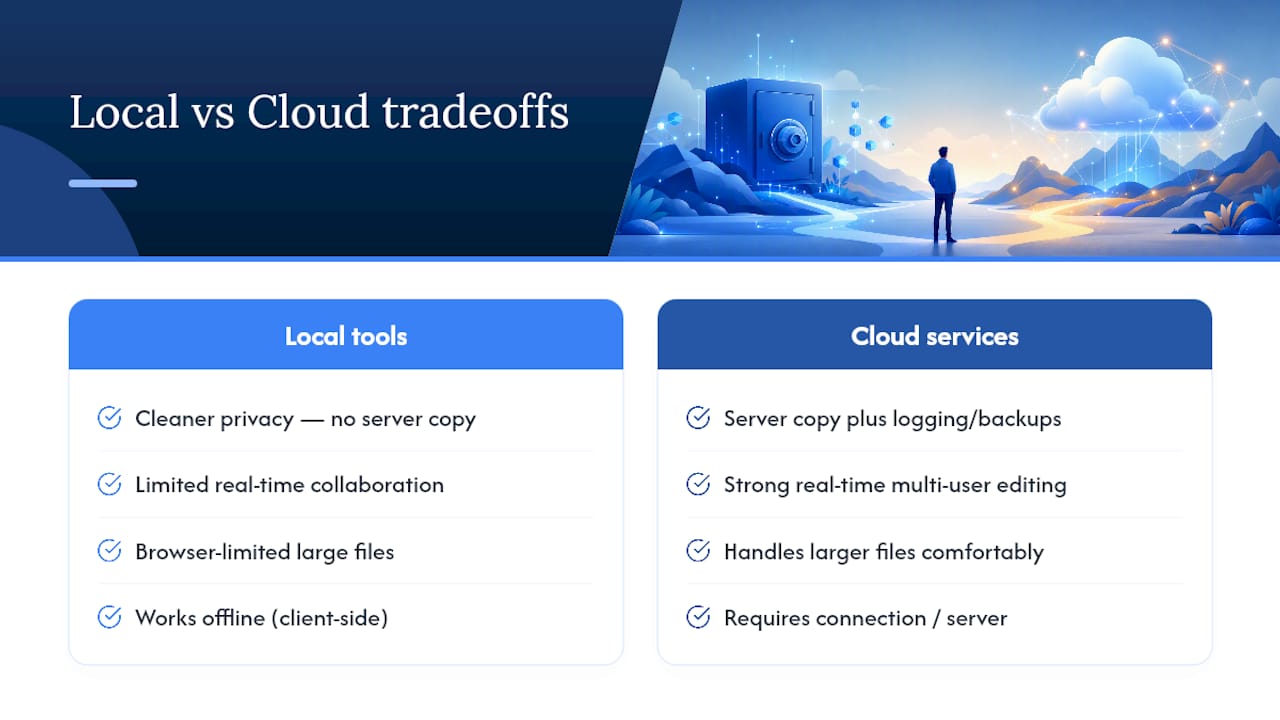
Local browser tools trade some of that collaborative convenience for a cleaner privacy story. There's no version-conflict merge across five people editing simultaneously, but there's also no question of where your client's tax document ended up being cached. For solo freelancer work, that tradeoff usually favors local tools, since most freelance file tasks (editing a single PDF, converting an image, trimming an audio clip) never actually needed multi-user collaboration in the first place.
Functionality gaps have narrowed considerably. Tasks that once required a server, OCR, background removal, format conversion, now run client-side using WebAssembly-compiled libraries, as detailed in developer breakdowns of the client-side architecture. The remaining gap is mostly at the extremes: massive files, heavy real-time AI models, and true multi-editor collaboration still lean on servers. For everything in between, which covers most of what a freelancer touches day to day, local tools now hold their own.
Securing and Backing Up Files When You Go Local
Going local shifts responsibility for backups onto you instead of a cloud provider's redundant server farm, and that's worth taking seriously rather than treating as an afterthought.
Start with device-level security: full-disk encryption (built into most modern operating systems), a strong unique password, and prompt OS updates close the most common entry points. From there, back up deliberately rather than by accident. A simple 3-2-1 approach works well for independent professionals: one working copy on your device, one backup on an external drive, and one encrypted copy in cloud storage you control and trust, used only for backup, not as your working environment.
Version your files as you go. Save "Contract_v1," "Contract_v2_redacted," and "Contract_v3_signed" separately rather than overwriting the same file repeatedly. If something goes wrong mid-edit, you haven't lost the clean original.
Before sending a finished file to a client, generate a checksum to confirm the copy they receive matches exactly what you sent, particularly useful for contracts or anything where a single altered byte matters. Combine that with a direct handoff method rather than a public link, and you've closed most of the gap that made cloud services feel "safer" by default.
Cost Considerations: Free Local Tools vs. Cloud Subscriptions
Cloud-based PDF and image tools often look free at first glance, then reveal a paywall once you hit five conversions a day or need a feature buried behind a subscription tier. Multiply that across the PDF editor, the image converter, and the audio tool you're juggling, and a freelancer can end up paying for three or four separate subscriptions just to handle routine file tasks.
Local browser tools sidestep that math entirely. Because processing happens on your own device instead of a company's server infrastructure, the cost structure shifts away from heavy server expenses, which is part of why so many of them stay free to use without a subscription wall.
The real ROI isn't just the subscription fee you avoid. It's the time you don't spend creating accounts, waiting on uploads, or hunting for the export button buried behind a paywall prompt. For a freelancer billing by the hour or the project, ten minutes saved per file task adds up fast across a busy week, and it never shows up as a line item, it just shows up as more billable time left in your day.
What This Playbook Gets Right That Most Advice Misses
Most privacy advice aimed at freelancers stops at "use a reputable service" or "read the privacy policy," which is close to useless. Privacy policies get rewritten quietly, and "reputable" is a marketing word, not a technical one. What actually protects you is a two-minute Network tab check you can run yourself, on any tool, before a single client file touches it.
The conventional wisdom also treats offline capability as a nice-to-have rather than a diagnostic. If a tool breaks the moment you disconnect Wi-Fi, that's not an inconvenience, it's proof the tool was talking to a server the whole time, whatever its marketing page claims.
If you take one thing from this, prioritize the verification habit over any single tool recommendation. Tools change, get acquired, or quietly add a server dependency in an update. A freelancer who knows how to check for local processing protects themselves regardless of which tool they're using next year. That skill outlasts any specific product, including this one.
A Local-First Toolbox Built for How Freelancers Actually Work
Cloud converters make you create an account, sit through an upload bar, then hope the export link doesn't expire before your client opens it. Tabtasker skips all three steps: your file loads into the browser, gets processed on your own device, and downloads straight back, no server round-trip, no sign-up wall, no subscription creeping onto your card.

That matters most on the files you can't afford to mishandle: a signed contract, a client's ID scan, a photo shoot still carrying GPS data in its EXIF. Tabtasker's PDF signing tool, background remover, and audio workspace all run the same way, locally, offline-capable after the first load, with no account required. If you need to hand a finished file directly to a client without parking it on a shared drive, the browser-to-browser file share sends it device-to-device instead.
Open Tabtasker, pick the tool that matches today's task, and run the Network tab test yourself on your first file before you trust it with the next one.
Frequently Asked Questions
Why do freelancers need private tools instead of free cloud converters? Cloud converters typically create a server-side copy of your file, along with logs and backups you don't control. Private, client-side tools process the file on your own device, which removes that server copy from the equation entirely.
Is a browser-based tool actually safer than a desktop app? It can be, provided the tool processes files locally rather than sending them to a server. The safety comes from where processing happens, not from whether it's a browser tab or an installed application.
Can I use client-side tools without an internet connection? Yes, once the page has loaded at least once, most true client-side tools continue working offline, since the processing code already lives in your browser and doesn't need a live connection to function.
What's the fastest way to check if a tool is really local? Open your browser's developer tools, click the Network tab, and perform the operation. If no file upload appears in the request list, and the tool still works after you disconnect Wi-Fi, it's processing locally.
Do private browser tools still carry any risk? Yes. Device compromise, unencrypted drives, or a working folder that quietly syncs to the cloud can undo the benefit of local processing, so pair the tool with basic device security and sync awareness.