 TabTasker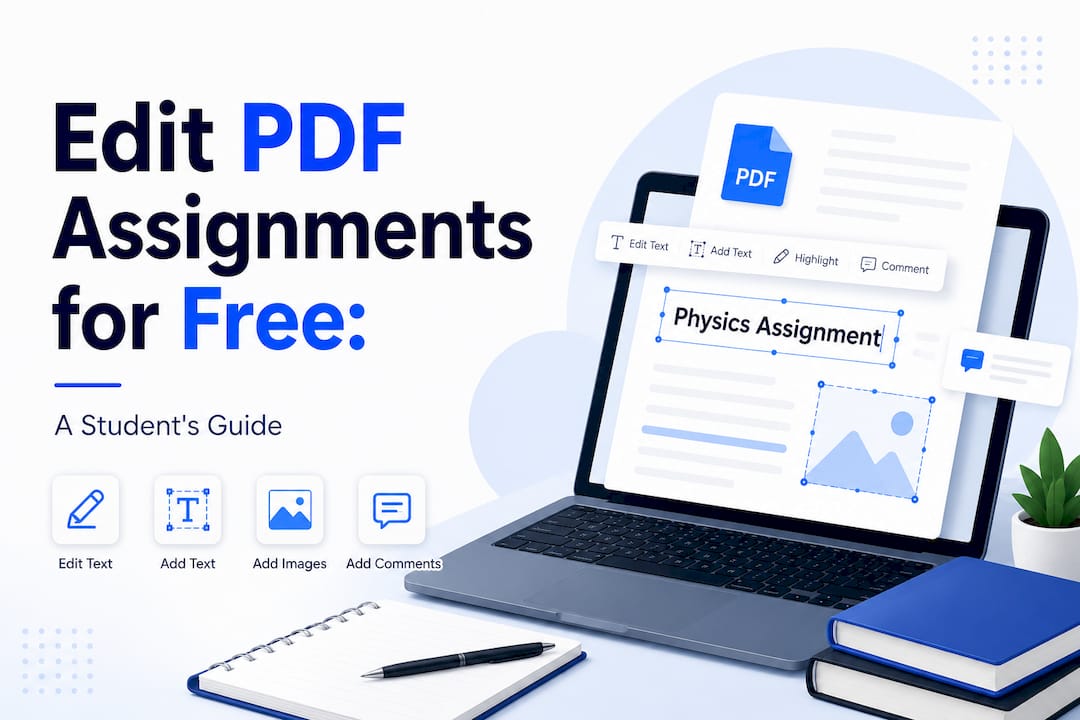
Free PDF editing tools let you add text, annotate, fill forms, and sign documents without paying a dollar or installing software. Tools like Xodo, Foxit PDF Editor, PQ PDF, and Online Calcy make it possible to edit PDF assignments for free directly in your browser, with no account required. The catch worth knowing upfront: not all “free” tools treat your files the same way. Some keep your document on your device. Others upload it to a server. Understanding that difference before you start editing is the smartest move you can make.
What can you do with free PDF editors for assignments?
Free PDF editors cover more ground than most students expect. The core features available at no cost include text editing, annotation, form filling, and signing. That covers the majority of what you need for academic and professional document work.
Here is what you can typically do without spending anything:
-
Add or edit text: Tools like Foxit PDF Editor let you type anywhere on a PDF using an Add Text tool, or modify existing text with formatting controls for font, size, and color.
-
Annotate and highlight: Add sticky notes, highlight passages, underline key sections, or draw freehand. These features are standard across Xodo, PQ PDF, and most browser-based editors.
-
Fill forms and sign: Interactive PDF forms, such as assignment submission sheets or professional contracts, can be filled and signed without converting the file.
-
Merge, crop, and redact: Some free tiers include basic file management tools, though these are often capped or require a free trial to unlock.
-
Annotate with 20 tools: PQ PDF offers 20 annotation tools plus an interactive form builder, all without a watermark or sign-up.
The honest limitation is that free tiers impose caps. Xodo, for example, limits free editing to one PDF per day, with a free trial required for additional files. That is workable for occasional assignments but frustrating during exam season when you are editing multiple documents daily.
Pro Tip: Keep two or three free PDF editors bookmarked. When you hit a daily limit on one tool, switch to another rather than waiting 24 hours.
How do privacy and security differ among free PDF editing tools?
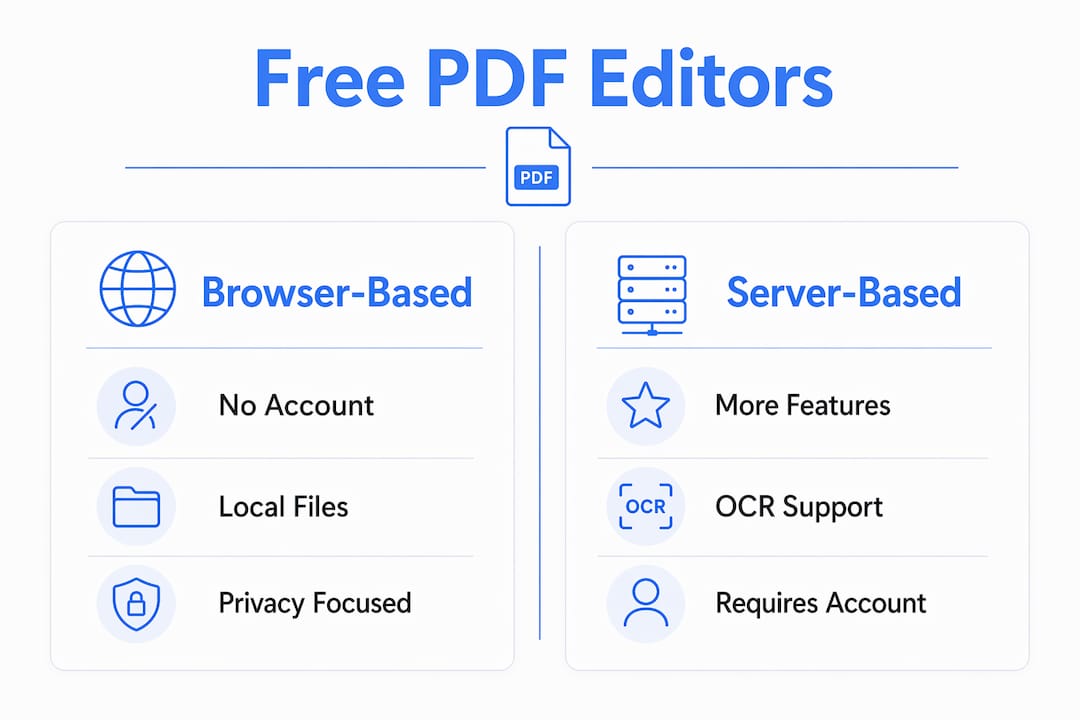
Privacy is the question most students skip, and it is the one that matters most when your assignment contains personal information, research data, or proprietary content. The biggest privacy differentiator between free PDF editors is whether your file stays in your browser or gets uploaded to an external server.
Browser-only tools process everything locally on your device. Your file never leaves your computer. Online Calcy is one clear example: it processes all files inside your browser with no server upload, no installation, and no account. That model is as private as it gets for a web-based tool.
Server-side tools work differently. They upload your file, apply edits on their servers, then return the modified document. PQ PDF uses this model but handles it responsibly: the server deletes your file the moment your download streams, retaining nothing afterward. Xodo takes a middle path. Most of its tools run in-browser, but for non-browser tools, files are temporarily uploaded and deleted after approximately one hour.
“If you’re not paying for the product, you might be the product.” That phrase exists for a reason. Before uploading a sensitive assignment, check the privacy policy of any free tool. Look specifically for language about data retention, third-party sharing, and whether processing is local or server-based.
Practical steps to protect yourself:
-
Read the privacy policy before uploading any document with personal or academic data.
-
Choose browser-only tools for assignments containing sensitive research or identification details.
-
Avoid tools that require account creation just to edit a single file.
-
After editing, understand what happens when a PDF is uploaded online so you can assess risk accurately.
How to edit a PDF assignment for free, step by step
The workflow below works across most free online PDF editors and takes under five minutes once you know the steps.
-
Choose your tool based on the task. For a simple text edit or annotation, a browser-only tool like Online Calcy or Tabtasker is the safest choice. For complex form building or permanent edits without watermarks, PQ PDF is a strong option.
-
Open the editor without signing up. Most free tools let you drag and drop your PDF directly onto the page. No account, no email confirmation.
-
Add or edit text. Use the text tool to click anywhere on the document and type. For existing text, look for an “Edit Text” option. Foxit’s Add Text and Edit Text tools give you full formatting control, including font family, size, and alignment.
-
Annotate as needed. Highlight key sections, add comments, or draw shapes to mark up the document for feedback or review.
-
Fill forms and sign. Click into form fields directly. For signatures, most tools offer a draw, type, or upload option.
-
Download the edited file. Click Save or Download. Your edited PDF is returned to your device. With browser-only tools, nothing was ever sent anywhere else.
Pro Tip: If your PDF is a scanned image rather than a text-based document, you will not be able to edit it directly. You need OCR first. Check out PDF OCR explained to understand how to convert scanned pages into editable text before editing.
| Scenario | Recommended approach |
|---|---|
| Text-based PDF assignment | Browser-only editor like Online Calcy or Tabtasker |
| Scanned or image-based PDF | Run OCR first, then edit text |
| Form filling and signing | Xodo or PQ PDF for interactive form support |
| Sensitive personal documents | Browser-only tool with no server upload |
| Multiple files in one session | Use a tool with no daily limit, or rotate between editors |
Comparing top free online PDF editors for assignments
Choosing the right tool depends on what you need to do and how much you care about privacy. Here is how the leading free options compare.
| Tool | Text editing | Annotation | OCR support | Privacy model | Daily limit | Account required |
|---|---|---|---|---|---|---|
| Xodo | Yes | Yes | No | Browser + temp server | 1 PDF/day | No |
| Foxit PDF Editor | Yes | Yes | Yes | Server-based | Limited free tier | Optional |
| PQ PDF | Yes | Yes (20 tools) | No | Server, zero retention | None stated | No |
| Online Calcy | Yes | Yes | No | Browser-only | None stated | No |
| Tabtasker | Yes | Yes | Yes | Browser-only, offline | None | No |
A few details worth noting beyond the table. Xodo is polished and well-supported, but the one-PDF-per-day free limit becomes a real constraint during high-volume periods. PQ PDF stands out for its permanent edits with no watermark and no retained data, making it a practical choice when you need server-side rendering without the privacy risk. Online Calcy is the simplest entry point for students who just need to annotate or fill a form quickly. Foxit carries more weight as a professional tool, with OCR support that converts image-based PDFs into editable text, which is a feature that separates it from basic editors.
The tradeoff across all of them is the same: more features often means more server involvement. Browser-only tools are faster to use and safer for sensitive files, but they sometimes lack advanced capabilities like OCR or complex form building.
Common challenges when editing PDFs for free
Even with the right tool, you will run into friction. Knowing what to expect prevents wasted time.
-
Scanned PDFs that resist editing. A PDF created from a scanned page is essentially a photograph. Without OCR, text editing is disabled entirely. The fix is to run the file through an OCR tool first, then edit. Tabtasker’s private OCR tool handles this without uploading your file to any external server.
-
Hitting daily limits mid-project. Xodo’s one-PDF-per-day cap is the most common frustration for students working through multiple assignments. Rotating between two or three tools solves this without paying for anything.
-
Formatting breaks on complex PDFs. Multi-column layouts, embedded fonts, and tables often shift when you edit text in a free tool. The workaround is to add a text box over the existing content rather than trying to edit the original text layer directly.
-
Accidental data exposure. Uploading a file containing your student ID, medical information, or unpublished research to a server-based tool carries real risk. Always check the privacy implications before choosing a tool for sensitive documents.
-
No backup before editing. Free tools do not auto-save. If your browser crashes mid-edit, your work is gone. Save a copy of the original before you start and download the edited version immediately after finishing.
Key takeaways
The most effective way to edit PDF assignments for free is to match your tool to the task: browser-only editors for privacy, server-side tools for complex edits, and OCR-capable editors for scanned documents.
| Point | Details |
|---|---|
| Browser-only tools are safest | Tools like Online Calcy and Tabtasker process files locally, keeping your data off external servers. |
| Free tiers have real limits | Xodo caps free editing at one PDF per day, so rotating between tools prevents workflow interruptions. |
| OCR unlocks scanned PDFs | Without optical character recognition, image-based PDFs cannot be edited as text. |
| PQ PDF balances features and privacy | Server-side rendering with zero data retention makes it a strong choice for complex edits. |
| Always back up before editing | Free tools do not auto-save. Save the original and download the edited file immediately. |
Why I think most students pick the wrong free PDF editor
The default choice for most students is whatever appears first in a search result. That usually means a tool with a polished interface, a generous feature list on the homepage, and a privacy policy nobody reads. I have seen this pattern repeatedly, and the result is predictable: students upload assignments containing personal data to servers they know nothing about, then wonder why they receive targeted ads or, in worse cases, why their institution flags a data handling concern.
The smarter approach is to start with the privacy model, not the feature list. If your assignment contains anything you would not post publicly, a browser-only tool is the only sensible choice. The feature set of browser-only editors has caught up significantly. You can annotate, fill forms, add text, and sign documents without your file ever leaving your device.
OCR is the one area where browser-only tools still lag. If you are working with scanned lecture notes or a digitized textbook chapter, you will likely need a server-side tool or a dedicated OCR solution. In that case, check the data retention policy explicitly. “We delete your file after processing” and “we delete your file after one hour” are meaningfully different statements.
My honest recommendation: use Tabtasker for everyday editing and annotation, keep PQ PDF available for complex jobs that need permanent edits, and run scanned files through a private OCR tool before editing anything. That combination covers 95% of what students and professionals actually need, at zero cost, with minimal privacy exposure.
— Teshub
Edit PDFs privately and for free with Tabtasker
If the privacy trade-offs of server-based tools concern you, Tabtasker is built specifically to remove them. Every tool on the platform runs directly in your browser, with no uploads, no account creation, and no file retention. Your PDF stays on your device from start to finish.
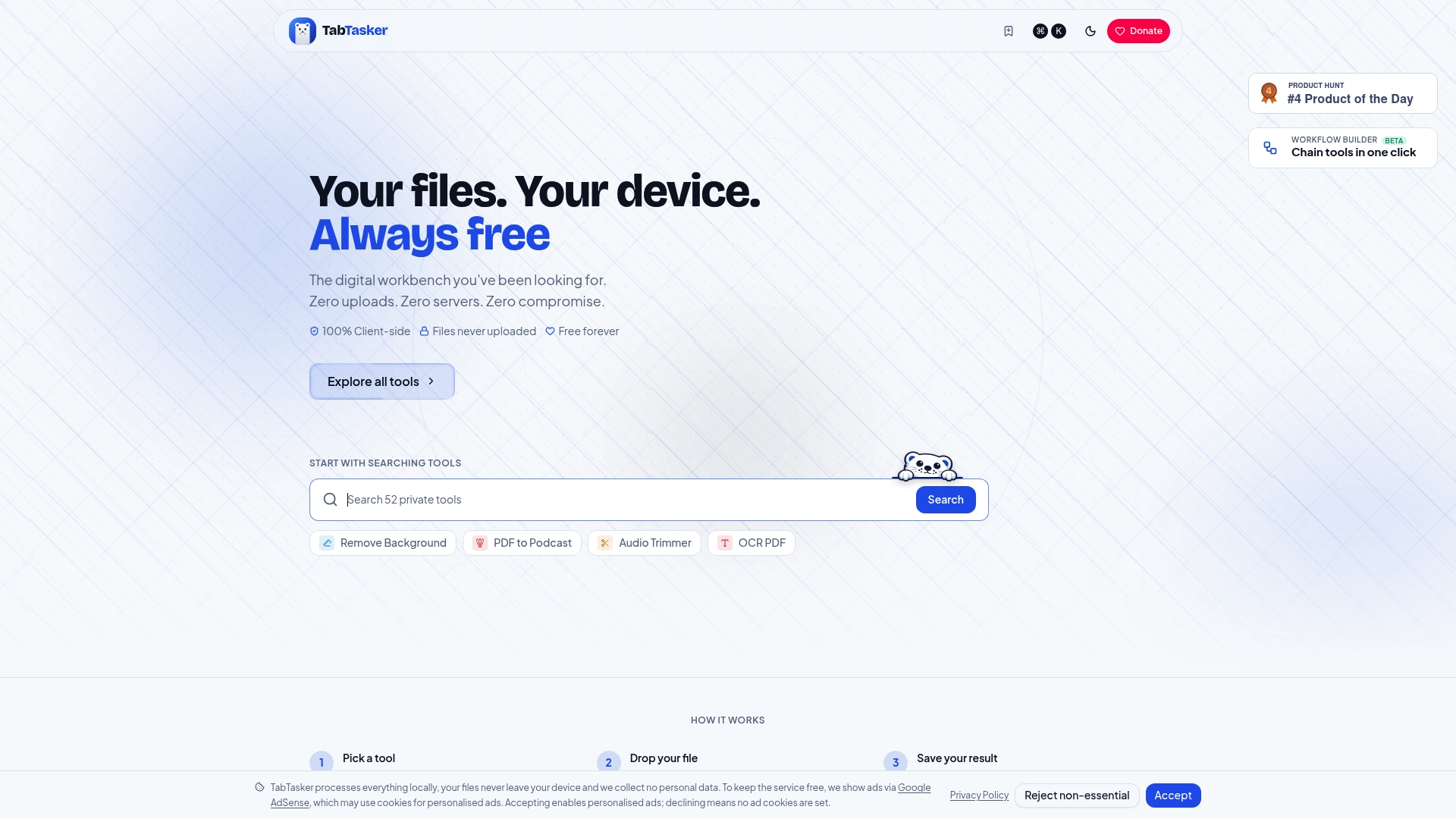
Tabtasker’s free offline PDF tools cover text editing, annotation, form filling, and OCR for scanned documents, all without installation. The platform works across devices and browsers, making it practical whether you are on a campus computer or your own laptop. For students and professionals who handle sensitive assignments regularly, that combination of zero cost and genuine privacy is rare. Explore the full toolbox at Tabtasker and see how much you can accomplish without giving your files to anyone.
FAQ
Can I edit a PDF assignment for free without creating an account?
Yes. Tools like PQ PDF, Online Calcy, and Tabtasker require no account or sign-up. You open the editor, upload or drag in your file, make edits, and download the result.
What is the difference between browser-only and server-based PDF editing?
Browser-only editing processes your file locally on your device with no data sent to external servers. Server-based editing uploads your file temporarily. The key privacy distinction is whether your file ever leaves your device.
How do I edit a scanned PDF assignment for free?
Scanned PDFs are image-based and require OCR before text editing is possible. Run the file through an OCR tool first, which converts the image into selectable, editable text, then open the result in your preferred PDF editor.
Are there daily limits on free PDF editing tools?
Some tools impose caps. Xodo limits free users to one PDF edit per day. PQ PDF and Online Calcy do not state a daily limit. Rotating between tools is the practical workaround when you need to edit multiple files in a single session.
Is it safe to upload an assignment to a free online PDF editor?
It depends on the tool’s privacy model. Server-based tools carry some risk, even when they claim to delete files promptly. For assignments with sensitive content, choose a browser-only editor that never uploads your file in the first place.