 TabTasker
TL;DR:
- Offline AI image editing runs entirely on local hardware, with models loaded and processed without internet access. It offers privacy, control, and predictable costs, but requires compatible GPU hardware and manual updates. In-browser tools like Tabtasker enable private editing without downloads or installations.
Yes, AI image editing can run 100% offline by executing model inference locally on your device — no uploads, no cloud calls, no per-image credits. Once the model weights are downloaded, your images never leave your machine.
Here's what you need to get started:
- Check your device: A GPU with sufficient VRAM is the practical minimum for interactive edits; CPU-only is possible but slow.
- Download model weights: Stable Diffusion checkpoints vary in size, with typical models requiring several gigabytes of storage and must be fetched while you're still online.
- Pick a runtime: ONNX Runtime, Core ML (Apple Silicon), or PyTorch for desktop; for zero-install editing, Tabtasker runs client-side AI tools directly in your browser.
The core principle is straightforward: local inference means the model weights and the runtime both live on your hardware, so generation and edits happen without any network connection after setup.
Table of Contents
- Why running AI image edits offline actually matters
- How offline AI image editing actually works under the hood
- What you can actually do with offline AI editing
- Where offline AI runs: desktop, mobile, and in-browser options
- Hardware requirements and performance tips
- How to run an offline AI image edit: two practical paths
- Limitations, licensing, and when cloud still wins
- Tabtasker's in-browser approach: a practical offline example
- Key Takeaways
- The case for offline editing is stronger than most guides admit
- Tabtasker makes private image editing available right now
- Useful sources and further reading
Why running AI image edits offline actually matters
The phrase "free AI photo editor" usually comes with a hidden cost. If you're not paying for the product, your images might be the product — used for model retraining, stored on third-party servers, or subject to telemetry you never agreed to. That's the practical case for offline-first AI editing, and it goes beyond privacy paranoia.
Privacy, control, and cost — the three real drivers:
- No uploads, no exposure: Local processing means your prompts, reference images, and metadata never reach an external server. Offline inference prevents providers from claiming rights to use your uploaded images for model training.
- Permanence and control: Local model files stay under your control. No subscription quotas, no provider rate limits, no sudden API deprecations that break your workflow overnight.
- Predictable cost: After the initial download, each edit costs electricity and local compute — not per-image credits that add up fast on a professional workload.
- Air-gapped capability: Sensitive client work, restricted environments, or simply unreliable rural internet all become non-issues when the entire pipeline runs on your hardware.
The trade-off is real, though. You're exchanging convenience for sovereignty.
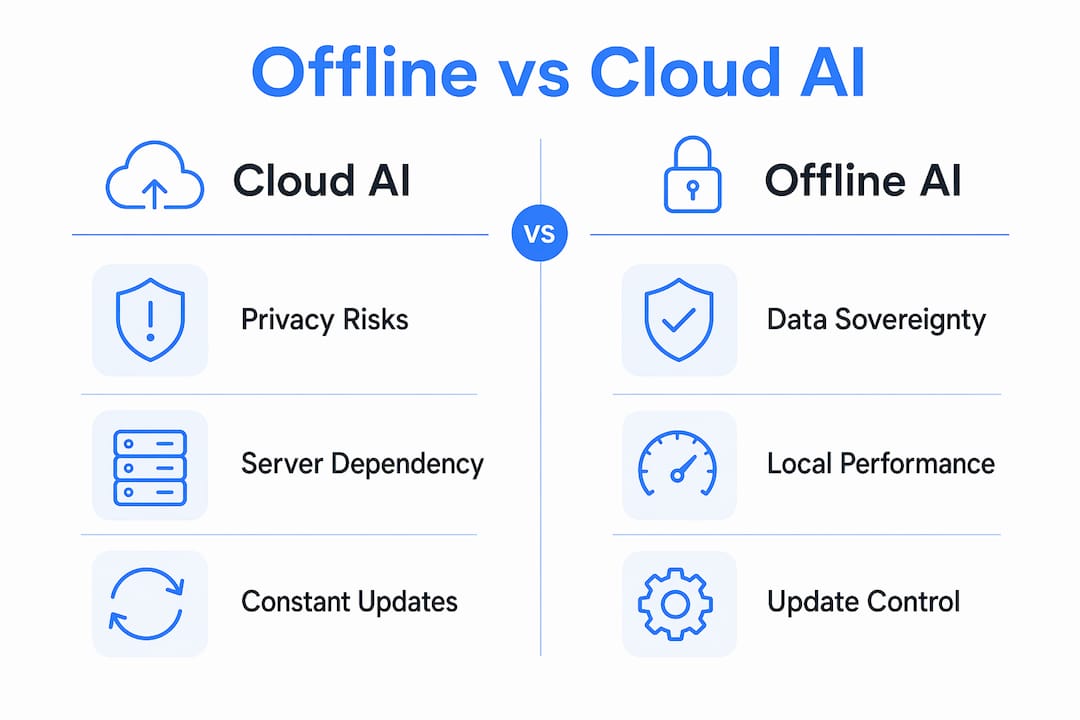
| Factor | Cloud AI editing | Offline AI editing |
|---|---|---|
| Privacy | Images uploaded to provider servers | Images stay on your device |
| Cost model | Per-image credits or subscription | One-time download; compute only |
| Hardware needed | Any browser-capable device | 6–8 GB VRAM GPU recommended |
| Model updates | Automatic, provider-controlled | Manual; you control the schedule |
| Setup friction | Near zero | Moderate (downloads, runtime install) |
| Availability | Requires internet | Works fully air-gapped after setup |
Pro Tip: Before committing to a local setup, read the terms of service on any cloud editor you currently use. Many explicitly claim a license to use uploaded images for model improvement — a clause that disappears entirely when you process locally.
Understanding client-side AI is worth a few minutes of reading if you want to see how this applies to browser-based tools as well as desktop setups.
How offline AI image editing actually works under the hood
The mechanics aren't magic, but they do require a few moving parts working together. Understanding them helps you diagnose failures and make smarter hardware choices.
Model anatomy: A Stable Diffusion checkpoint is typically a single .safetensors or .ckpt file containing the U-Net weights, text encoder, and tokenizer. Separate assets — a VAE (variational autoencoder), LoRA adapters, and ControlNet weights — live in their own files and get loaded alongside the main checkpoint.
The inference path, step by step:
- Your input image is encoded by the VAE into a compressed latent representation.
- The model adds controlled noise to that latent, then iteratively denoises it guided by your text prompt (or mask, for inpainting).
- The denoised latent is decoded back to pixel space by the VAE decoder.
- Optional postprocessing — upscalers like Real-ESRGAN, sharpening, or color correction — runs as a separate pass.
- The final image is written to your local disk. Nothing touches a network socket.
Runtimes and why they matter:
- PyTorch is the most flexible and widely supported desktop runtime; most Stable Diffusion UIs run on it.
- ONNX Runtime enables cross-platform deployment and is the standard for mobile and some browser pipelines.
- TensorFlow Lite (TFLite) targets Android and embedded devices with smaller, quantized models.
- Core ML is Apple's native inference framework, accelerated by the Neural Engine on M1/M2 chips via the Metal backend.
- WebGPU / WebNN brings GPU-accelerated inference into the browser without any install, which is the foundation for in-browser tools like Tabtasker.
Quantization and memory tricks: Large models can be quantized to 8-bit or 4-bit precision, cutting VRAM requirements significantly with modest quality trade-offs. Tiled inference processes the image in overlapping patches, making it possible to run high-resolution edits on cards that couldn't handle the full image in one pass.
Pro Tip: For inpainting, always use the same model checkpoint that generated the original image. Switching checkpoints mid-workflow breaks visual continuity — skin tones, textures, and lighting styles shift noticeably between different model families.
Tools like RedLnx take a different angle: they train local style profiles from your existing Lightroom XMP edits and write output sidecars locally, integrating AI into a professional post-production pipeline without any cloud dependency.
What you can actually do with offline AI editing
Local AI isn't limited to text-to-image generation. The most useful offline editing tasks are the ones that save you time on repetitive work.
Common tasks and minimal workflows:
- Inpainting / object removal: Mask the unwanted area, set denoise strength to 0.7–1.0, and let the model fill it contextually. Works best with the same checkpoint used for the original image.
- Background removal: Segmentation models (U2-Net, RMBG) run entirely locally and produce clean alpha mattes in seconds on a mid-range GPU.
- Upscaling / super-resolution: Real-ESRGAN and similar models run as standalone scripts or inside ComfyUI; a 512×512 image can be upscaled 4× with detail enhancement in under a minute on a modern GPU.
- Colorization / restoration: Dedicated models like DeOldify process grayscale or damaged images locally; quality is competitive with cloud services for most portrait and landscape work.
- Denoising / cleanup: Models fine-tuned for noise reduction and JPEG artifact removal run fast even on CPU, making them practical for batch processing.
- Style transfer / image-to-image: I2I pipelines add noise to your source image and denoise with a new prompt; a denoise strength of 0.1–0.3 preserves the original structure while a setting of 0.7–1.0 regenerates the composition almost entirely.
For final color grading, combining an AI cleanup pass with a traditional editor like Lightroom or Darktable gives you the best of both worlds — AI handles the heavy lifting, and you retain fine control over the output.
| Task | Typical model / runtime | VRAM needed | Approx. time (mid-range GPU) |
|---|---|---|---|
| Inpainting | SD 1.5 / SDXL + PyTorch | Moderate VRAM required | Typical processing time varies |
| Background removal | U2-Net / RMBG + ONNX | Modest VRAM required | Typical processing time varies |
| Upscaling (4×) | Real-ESRGAN + PyTorch | Moderate VRAM required | Processing time varies depending on hardware |
| Colorization | DeOldify + PyTorch | Moderate VRAM required | Processing time varies depending on hardware |
| Denoising / cleanup | NAFNet + ONNX | Modest VRAM required | Processing time varies depending on hardware |
| Image-to-image | SDXL + PyTorch | Higher VRAM recommended | Processing time varies depending on hardware |
Where offline AI runs: desktop, mobile, and in-browser options
Not every offline setup requires a powerful workstation. The right category depends on what you're editing, how much you care about model control, and whether you want to install anything at all.
Desktop self-hosted UIs give you the most power. ComfyUI, for example, uses a node-based graph interface that lets you chain models, LoRAs, upscalers, and postprocessors in a single workflow. Portable builds that bundle Python and UI dependencies are particularly useful because they eliminate startup checks that phone home to remote servers. InvokeAI offers a cleaner interface with built-in model management, inpainting, and outpainting — all running locally with no telemetry. Refloow Photo Studio is a free, open-source desktop option with instant background removal, layer compositing, and no accounts or data collection.
Mobile apps use optimized runtimes to fit inference onto constrained hardware. ONNX and TFLite are the standard cross-platform choices; Core ML handles iOS acceleration via Apple's Neural Engine. Some Android projects target real-time performance using Rust and ONNX, though model quality is necessarily lower than desktop equivalents. On-device AI for mobile is maturing quickly, with lightweight inference strategies making more capable models practical on recent flagship hardware.
In-browser client-side tools require no installation at all. WebGPU and WebAssembly bring GPU-accelerated inference into the browser tab itself, so the model runs on your local hardware without any server round-trip. Tabtasker uses this approach for background removal, photo cleanup, and image editing — your file never leaves the browser, and there's no account required.
Which category fits your situation:
- Privacy-first + light edits, no install → in-browser client-side (Tabtasker)
- Full generation, heavy I2I, or custom model workflows → desktop GPU setup (ComfyUI, InvokeAI)
- On-the-go edits on a phone or tablet → mobile app with Core ML or TFLite runtime
- Professional post-production integration → local pipeline tool (RedLnx + Lightroom XMP workflow)
Hardware requirements and performance tips
The shift to local AI changes the limiting factor from subscription quotas to your own hardware. That's liberating — but only if your hardware is up to the task.
Concrete device examples:
- Apple Silicon (M1/M2/M3): Core ML and Metal acceleration make these chips genuinely capable for offline editing. An M2 with 16 GB unified memory handles SD 1.5 and SDXL comfortably; Flux-style models push the limits of 16 GB but run on 24 GB+ configurations.
- NVIDIA GTX/RTX midrange (6–12 GB VRAM): CUDA acceleration makes these the most straightforward desktop choice. An RTX 3060 (12 GB) runs SDXL well; a GTX 1060 (6 GB) handles SD 1.5 with quantized checkpoints.
- CPU-only laptops: Inference is possible but slow — expect minutes per image rather than seconds. Quantized ONNX models and smaller architectures (SD 1.5 at 512×512) are the practical ceiling.
Model sizes and storage reality: SD 1.5 checkpoints are roughly 4 GB; SDXL sits at 6–7 GB; Flux-style and newer large models run 10–12 GB or more. Add VAEs, LoRAs, upscalers, and a UI bundle, and a multi-model setup can total 30–100 GB on disk. An NVMe SSD is strongly preferred; an external USB 3.0+ drive works as a fallback.
Performance tips that actually move the needle:
- Use quantized checkpoints (8-bit or 4-bit) when VRAM is tight — quality loss is minor for most editing tasks.
- Enable Only-Masked mode for inpainting; it processes just the masked region rather than the full image, reducing VRAM consumption and allowing higher detail on limited cards.
- Tune prompts at 512×512 first, then upscale — you'll iterate much faster and only pay the full resolution cost once.
- Keep model files on fast local storage; loading a 7 GB checkpoint from a spinning HDD adds noticeable latency before each session.
A dedicated GPU with moderate VRAM is generally recommended for interactive offline editing. Below that threshold, you're in CPU territory — functional for batch overnight jobs, but not the instant-edit experience most users expect.
How to run an offline AI image edit: two practical paths
There are two ways to get started, and neither requires you to be a developer. Pick the one that matches your hardware and how much you want to install.
Path A: In-browser client-side (Tabtasker, zero install)
- Open Tabtasker's image editor in any modern browser (Chrome or Edge with WebGPU support recommended).
- Drag your image into the workspace — the file loads locally; nothing is uploaded.
- Select the edit you want: background removal, cleanup, resize, or upscale.
- The model runs in your browser tab using WebGPU or WebAssembly acceleration on your local hardware.
- Export the result directly to your device.
Safety checklist for in-browser use:
- Confirm the tool's privacy policy states client-side processing with no uploads.
- Check that the page loads and functions after you disconnect your network (a reliable test of true client-side operation).
- Avoid browser extensions that intercept canvas or file APIs when handling sensitive images.
Path B: Desktop self-hosted (ComfyUI / InvokeAI)
- While online, download the portable UI bundle (ComfyUI Portable or InvokeAI installer) from the official repository.
- Download your model checkpoints (
.safetensors) from a trusted source such as Hugging Face or CivitAI and place them in themodels/checkpointsfolder. - Download any additional assets needed: VAE, LoRA files, upscaler models.
- Install the runtime (PyTorch with CUDA for NVIDIA, or the MPS build for Apple Silicon) — pre-download all Python wheels while online to avoid missing dependencies offline.
- Launch the UI. For ComfyUI, the
--skip-installflag prevents startup checks from contacting remote servers; similar flags exist in other popular UIs. - Disconnect your network and run a test generation. If the UI crashes or requests a network resource, a dependency is still phoning home — identify and pre-cache it before going fully air-gapped.
Security checklist for desktop model downloads:
- Download model files only from repositories with verified checksums (SHA256 hashes).
- Avoid
.ckptfiles from unknown sources — they can contain arbitrary Python code executed at load time; prefer.safetensorsformat, which is safer by design. - Disable networking after setup and confirm basic operations work before handling sensitive material.
- Keep a local log of which model versions you're running for professional audit purposes.
Limitations, licensing, and when cloud still wins
Offline AI editing is powerful, but it's not the right tool for every situation. Knowing where it falls short saves you from a frustrating setup.
Quality and update gaps: Cloud services run larger models on server-grade hardware and update them continuously. Your local setup requires manual model downloads for every significant improvement, and some of the newest architectures demand hardware that most users don't own yet.
Licensing risks: Model licenses vary widely. Some checkpoints are research-only and prohibit commercial use; others carry specific content restrictions. Always read the license on any model you download — "open weights" does not automatically mean "use for anything."
Poisoned weights and integrity: Public model hubs occasionally host manipulated checkpoints. A model that produces subtly degraded outputs or, worse, executes malicious code at load time is a real risk when downloading from unverified sources. Stick to .safetensors format and verify SHA256 hashes against the repository's published values.
Operational friction:
- CPU-only inference is too slow for interactive editing on most tasks.
- Some UI frameworks include dependency checks that attempt to contact remote servers at startup, even when you've configured everything locally.
- New features (ControlNet updates, new sampler types, IP-Adapter variants) arrive in cloud tools first; local users wait for community ports.
Legal and ethical note: Avoid processing third-party copyrighted images through local models for commercial output without appropriate rights. Keeping a local audit trail of source images and model versions is good practice for any professional workflow. This article is general technical information, not legal advice — confirm current licensing terms with the relevant rights holders or a qualified attorney for your specific situation.
Tabtasker's in-browser approach: a practical offline example
If the desktop setup feels like too much friction for your current needs, Tabtasker offers a ready path to test offline AI image editing without downloading a single model checkpoint.
Every tool on Tabtasker processes files client-side in your browser. There are no uploads, no accounts, and no data collection. The AI models run on your local hardware via WebGPU or WebAssembly, which means the privacy guarantee is structural, not just a policy claim.
What you can do right now:
- Background removal: Drag in a photo, and the segmentation model removes the background locally in seconds.
- Photo cleanup and upscaling: The photo cleanup workflow chains background removal and upscaling in a single client-side pass.
- Image editing workspace: The in-browser editor handles cropping, adjustments, and compositing without leaving the tab.
- Image tagging with CLIP: Local CLIP-based tagging lets you generate semantic metadata from images without sending them anywhere.
Mini workflow to verify client-side operation:
- Open Tabtasker's background remover in Chrome or Edge.
- Drag a test photo into the tool.
- Disconnect your Wi-Fi or ethernet.
- Apply the background removal.
- If the result exports cleanly, you've confirmed the model ran entirely on your hardware.
Pro Tip: Use this disconnection test on any tool that claims to be "private" or "offline." If it fails without a network connection, the processing isn't truly client-side — regardless of what the marketing says.
Key Takeaways
Offline AI image editing is fully achievable on consumer hardware once you match the right runtime and model size to your device's actual capabilities.
| Point | Details |
|---|---|
| Local inference = true privacy | Model weights and runtimes run on your hardware; images and prompts never reach a server. |
| Hardware minimum matters | A GPU with moderate VRAM is recommended for interactive edits; CPU-only setups can handle batch jobs but are slower. |
| Model storage adds up fast | A multi-model desktop setup typically requires 30–100 GB of storage; plan for NVMe or fast external SSD. |
| Runtime choice depends on platform | PyTorch for desktop NVIDIA/AMD, Core ML for Apple Silicon, ONNX/TFLite for mobile, WebGPU for in-browser. |
| Tabtasker for zero-install editing | Tabtasker's client-side tools (background removal, cleanup, upscale) run in-browser with no uploads or accounts. |
The case for offline editing is stronger than most guides admit
The conventional framing treats local AI as a compromise — something you accept when you can't afford a cloud subscription or when you're unusually paranoid about privacy. That framing gets it backwards.
Cloud AI editing is the compromise. You're trading control, permanence, and data sovereignty for convenience. The moment a provider changes its terms, deprecates a model, or raises prices, your workflow breaks. With a local setup, none of that applies. The model you downloaded today still works in three years, on a machine with no internet connection, at the same cost per edit.
What people underestimate is the maintenance burden, though. Local AI isn't "set it and forget it." Model ecosystems move fast, and staying current requires periodic manual updates, dependency checks, and the occasional runtime reinstall when a new GPU driver breaks something. That's a real cost, and it's worth being honest about before you invest a weekend in setup.
The hybrid approach tends to work best in practice: use in-browser client-side tools like Tabtasker for quick, privacy-sensitive edits that don't require heavy compute, and reserve the desktop GPU setup for generation-heavy work where model control and output quality justify the overhead. Neither path is universally superior. The right choice depends on what you're editing, who owns the images, and how much you trust the alternative.
One more thing worth noting: the security risk of downloading model weights from public hubs is underreported. A .ckpt file from an unverified source is an executable, not just a data file. Treat model downloads with the same scrutiny you'd apply to any software install.
Tabtasker makes private image editing available right now
Most of the tools discussed in this guide require a GPU, a multi-gigabyte download, and a willingness to debug Python environments. Tabtasker is the alternative for readers who want the privacy guarantee without the setup cost.

Tabtasker's free offline image tools run entirely in your browser. Background removal, photo cleanup, upscaling, and image editing all execute client-side on your hardware — no account, no upload, no subscription. The privacy protection isn't a policy; it's built into the architecture. Your files never leave your device because there's no server to send them to.
The fastest way to verify it: open the background remover, drop in a photo, disconnect your network, and run the edit. If it works, you've just confirmed a genuinely private, offline AI edit in under a minute. No model download required.
Useful sources and further reading
- How to Run a Local AI Image Studio on Your Desktop: Step-by-step walkthrough for setting up SDXL and Z-Image locally on a desktop, including portable UI configuration and offline verification.
- How to Run AI Without Internet (Full Offline Setup): Covers pre-download checklists, storage requirements, VRAM guidance, and the network-disconnect test for confirming a true air-gapped install.
- Local Inpainting Best Practices: Detailed guidance on checkpoint matching, Only-Masked processing modes, and VRAM optimization for inpainting workflows.
- Image-to-Image with Local AI: Explains denoise strength parameters, I2I pipeline automation, and what to expect visually from different strength settings.
- RedLnx: Local AI Photo Post-Production: Shows how AI can integrate with existing Lightroom workflows by training local style profiles and writing XMP sidecars entirely on-device.
- NeoSketch (Tcode-Motion): Example of a mobile-first offline AI project using Rust and ONNX, demonstrating what's possible on constrained Android hardware.
- GreenCube: On-Device AI: A partner resource focused on user-controlled, on-device AI models and the broader case for model sovereignty.