 TabTasker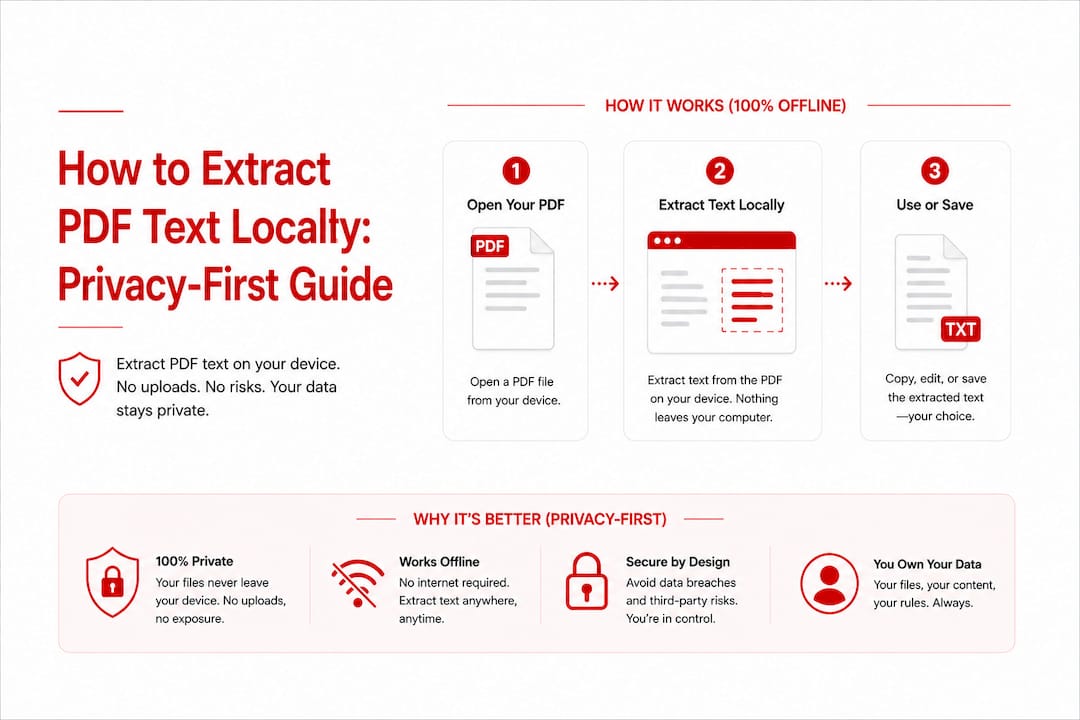
TL;DR:
Local PDF text extraction processes files only on your device, ensuring maximum privacy and offline use.
Tools like LiteParse, PDF.js, and Tesseract.js enable accurate extraction, with OCR needed for scanned PDFs.
Local PDF text extraction is defined as converting PDF content into readable text entirely on your device, without sending any file to an external server. This approach protects sensitive documents from cloud exposure and works fully offline. Tools like LiteParse, PDF.js, and Tesseract.js make this possible for both text-based and scanned PDFs. Whether you work with contracts, research papers, or internal reports, keeping your files local is the only way to guarantee they stay private. This guide covers the methods, tools, and practical steps you need.
What types of PDFs require different extraction methods?
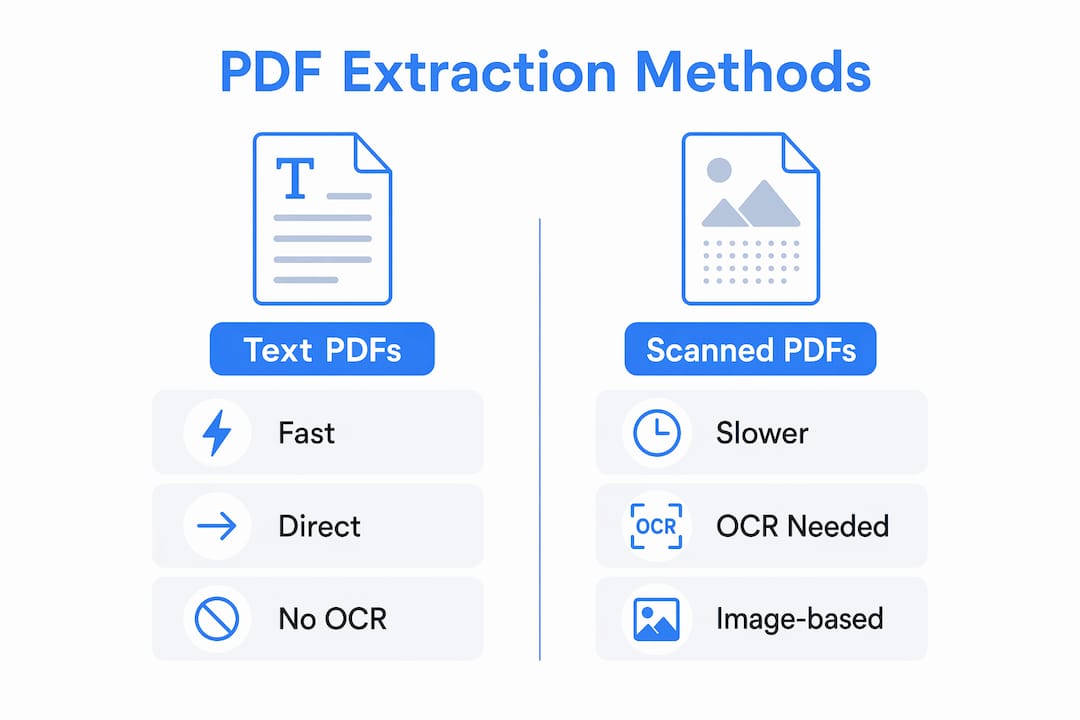
Not every PDF is the same under the hood, and that distinction determines which extraction method you need. PDFs fall into two categories: those with a native text layer and those that are purely image-based.
Text-based PDFs contain selectable, machine-readable text embedded directly in the file. You can click and drag to highlight words in a PDF reader. These files respond well to native extraction tools, which pull the text layer directly without any image processing. The result is fast, accurate, and requires minimal computing power.
Image-based or scanned PDFs contain no readable text layer at all. Every page is essentially a photograph. Native-only extractors yield empty or garbled output on these files, which is why OCR (optical character recognition) is required as a fallback. OCR reads the visual content of each page and converts it into text, but it takes significantly longer than native extraction.
A third, trickier category exists: PDFs with invisible embedded text from a prior OCR pass. Many scanned PDFs carry a hidden text layer from an earlier conversion, so always check the text layer content before running a full OCR job. Running OCR on a file that already has usable embedded text wastes time and processing power.
-
Text-based PDFs: use native extraction (fast, no OCR needed)
-
Scanned or image-only PDFs: require OCR fallback
-
Mixed PDFs: check text layer first, then decide per page
Pro Tip: Use pdf-inspector to classify your PDF before choosing a method. Classification takes as little as 10–50ms and routes high-confidence text PDFs directly to native extraction, skipping OCR entirely.
Which local tools can you use to extract PDF text offline?
Several well-established tools handle local PDF text extraction, each suited to a different environment and skill level.

| Tool | Environment | OCR Support | Privacy Level |
|---|---|---|---|
| LiteParse | CLI | Yes (optional) | Fully local |
| PDF.js | Browser | No (text layer only) | Fully local |
| Tesseract.js | Browser / Node | Yes | Fully local |
| clawpdf | CLI / App | Yes (auto fallback) | Fully local |
| pdf-inspector | CLI / Node | No (classifier only) | Fully local |
LiteParse is a command-line tool from the LlamaIndex team. LiteParse supports fast local text extraction with an optional --no-ocr flag, letting you skip OCR on text-based PDFs for speed. It also supports page targeting, so you can extract specific pages rather than entire documents.
PDF.js is Mozilla’s open-source PDF rendering library. PDF.js-based tools extract text entirely in-browser without uploading files to any external server. It reads the native text layer and returns page count and content as structured data. It does not perform OCR, so it only works on text-based PDFs.
Tesseract.js is the browser and Node.js port of Google’s Tesseract OCR engine. It runs entirely client-side, meaning your PDF pages never leave your machine. Combined with PDF.js for page rendering, it forms a complete offline OCR pipeline for scanned documents.
clawpdf takes a hybrid approach. clawpdf’s text-first mode automatically falls back to image rendering when the extracted text falls below a configurable minTextChars threshold. This auto mode is practical for batch processing mixed document sets where you cannot classify each file manually.
-
LiteParse: best for CLI users who want speed and OCR control
-
PDF.js: best for browser-based apps handling text-layer PDFs
-
Tesseract.js: best for scanned PDFs processed entirely in-browser
-
clawpdf: best for automated pipelines with mixed PDF types
-
pdf-inspector: best as a pre-processing classifier, not a standalone extractor
Pro Tip: Pair pdf-inspector with LiteParse in a shell script. Classify first, then pass text PDFs to LiteParse with --no-ocr and scanned PDFs to LiteParse with OCR enabled. You get speed where it counts and accuracy where it matters.
How to extract PDF text locally: a step-by-step workflow
The right workflow depends on your environment: command line or browser. Both paths keep your files entirely on your device.
CLI workflow with LiteParse
-
Install LiteParse via pip:
pip install liteparse. Confirm Python 3.8 or higher is installed first. -
Classify your PDF using pdf-inspector to determine if OCR is needed. This step takes under 100ms and saves significant processing time on large files.
-
Run extraction with the appropriate flag. For text-based PDFs:
liteparse extract document.pdf --no-ocr. For scanned PDFs, drop the flag to enable OCR automatically. -
Target specific pages using the
--pagesargument if you only need a section of a large document. This reduces memory usage and speeds up output. -
Handle encrypted PDFs by supplying the password as a parameter. LiteParse requires user-provided credentials for password-protected files. No password means no extraction, which is the correct behavior for security.
-
Choose your output format before running. LiteParse supports plain text and structured JSON output, which preserves reading order for downstream use in search or indexing workflows.
Browser workflow with PDF.js and Tesseract.js
The browser pipeline is the right choice when you want zero installation and complete client-side processing.
| Step | Tool | Action |
|---|---|---|
| Load PDF | PDF.js | Read file object locally, no upload |
| Check text layer | PDF.js | Extract text; if empty, proceed to OCR |
| Render pages to canvas | PDF.js | Scale canvas 2× or 3× for OCR accuracy |
| Run OCR | Tesseract.js | Process canvas image client-side |
| Concatenate output | JavaScript | Combine page results into final text |
The full pipeline runs PDF.js for rendering and Tesseract.js for OCR, with all processing happening in the browser tab. No data leaves the device at any point. For a deeper look at how OCR works in this context, Tabtasker’s guide on PDF OCR methods covers the technical tradeoffs in plain language.
Pro Tip: Rendering at 2× or 3× scale before running Tesseract.js significantly improves OCR accuracy on low-resolution scans. The larger canvas gives the OCR engine more pixel data to work with.
Common issues and how to fix local PDF text extraction problems
Even well-configured local extraction pipelines run into problems. Knowing the common failure points saves hours of debugging.
-
Empty or garbled output: The PDF is almost certainly image-based. Switch to the OCR pipeline. If output is still garbled, check whether the file has an invisible embedded text layer from a prior OCR pass that is corrupted or misencoded.
-
Slow OCR on large documents: Cap the maximum pages processed per session and limit concurrent OCR workers. Running too many parallel workers on a low-memory device causes crashes, not speed gains.
-
Broken reading order: Raw OCR output often scrambles column layouts and multi-column text. Structured output preserves reading order and improves usability for search indexing or downstream text analysis.
-
Encrypted PDF errors: Supply the correct password before extraction. If you do not have the password, no local tool can bypass encryption without it. That is a feature, not a bug.
-
UI freezing during browser OCR: Use Tesseract.js worker concurrency settings to run OCR off the main thread. This keeps the browser interface responsive while processing runs in the background.
Privacy reminder: Local extraction eliminates upload risk entirely. Local-first tools prevent server-side storage or transfer beyond the initial app load. If a tool asks to upload your file for “better results,” that is a red flag worth questioning.
Local extraction vs. online PDF converters: which is safer?
The core difference between local and online PDF text conversion is where your data goes. Online converters send your file to a third-party server for processing. That server may log, store, or analyze your document, depending on the service’s terms. For contracts, medical records, or financial statements, that risk is not theoretical.
Local-first extraction eliminates upload risk by processing files solely on your machine. The file never touches a network after you open it in your tool. Tabtasker’s breakdown of what happens when you upload a PDF online makes the specific risks concrete and worth reading before you use any cloud-based converter.
Accuracy is where online services sometimes have an edge. Server-side OCR engines often run on more powerful hardware, which can produce better results on very low-quality scans. However, for standard scanned documents, Tesseract.js at 2× or 3× canvas scale produces results that are comparable to most online tools.
-
Local tools: full privacy, offline capability, no file size limits from server quotas
-
Online converters: potentially better OCR on degraded scans, but file exposure is real
-
Best practice: use local tools by default; reserve online converters only for non-sensitive files with very poor scan quality
Key Takeaways
Local PDF text extraction keeps your files private by processing them entirely on your device, making it the only method that eliminates upload risk by design.
| Point | Details |
|---|---|
| Classify before extracting | Use pdf-inspector to detect PDF type in under 100ms and skip unnecessary OCR. |
| Match tool to environment | Use LiteParse for CLI workflows and PDF.js with Tesseract.js for browser-based extraction. |
| Scale canvas for OCR accuracy | Render pages at 2× or 3× before running Tesseract.js to improve results on scanned PDFs. |
| Cap pages and workers | Limit concurrent OCR workers and max pages to prevent memory crashes on large documents. |
| Local always beats cloud for privacy | Local-first tools prevent server-side storage; online converters carry real data exposure risk. |
Why I trust local-first pipelines over cloud converters
The first time I ran a contract through an online PDF converter, I did not think twice about it. The file was processed, the text came back, and I moved on. Then I read the service’s terms of use. The platform retained uploaded files for up to 30 days for “service improvement.” That contract had client names, figures, and signatures in it.
Since then, I have used local-first pipelines exclusively for anything sensitive. The classify-first approach, using pdf-inspector before deciding whether to invoke OCR, is the single biggest efficiency gain I have found. Most business PDFs are text-based. Running OCR on all of them by default wastes time and, if you are using a cloud OCR API, exposes data unnecessarily.
The honest tradeoff is performance. Tesseract.js in the browser is slower than a server-side OCR engine on a degraded scan. For a 50-page scanned document, you will notice the difference. But for documents that matter, that wait is worth it. Open-source tools like LiteParse and clawpdf give you full visibility into what the software actually does with your file. That transparency is something no cloud service can match.
My recommendation: build your default workflow around local tools, and treat online converters as a last resort for non-sensitive files only. If you are not paying for the product, you might be the product.
— Teshub
Tabtasker’s free offline tools for private file processing
Tabtasker offers a set of browser-based tools that process files entirely on your device, with no uploads and no account required. The same privacy-first principle that applies to local PDF text extraction applies across the platform.

For readers working with scanned PDF pages as images, Tabtasker’s free image editor lets you adjust, crop, and prepare images offline before feeding them into an OCR pipeline. The background remover handles image cleanup without sending anything to a server. For sharing processed files without cloud storage, Tabtasker’s browser-to-browser file share transfers files directly between devices. Every tool on the Tabtasker platform runs client-side, keeping your data exactly where it belongs.
FAQ
What does it mean to extract PDF text locally?
Local PDF text extraction means converting PDF content into text entirely on your device, without uploading the file to any external server. All processing happens in your browser or on your machine using tools like LiteParse, PDF.js, or Tesseract.js.
When do I need OCR to extract text from a PDF?
OCR is required when a PDF contains no native text layer, meaning the pages are scanned images rather than machine-readable text. Tools like pdf-inspector can classify your PDF in under 100ms to tell you which method to use.
Is local PDF text extraction accurate for scanned documents?
Local OCR with Tesseract.js produces reliable results for most scanned PDFs, especially when pages are rendered at 2× or 3× scale before processing. Very degraded or low-resolution scans may yield lower accuracy than server-side OCR engines.
How do I handle password-protected PDFs during local extraction?
You must supply the correct password as a parameter before extraction begins. LiteParse and most local tools require user-provided credentials for encrypted files. No local tool can bypass encryption without the correct password.
Are online PDF text converters safe to use?
Online converters send your file to a third-party server, which may store or log it depending on the service’s terms. For sensitive documents, local extraction is the only method that eliminates that risk entirely.