 TabTasker
Chrome, Edge, and Brave let you install a progressive web app on desktop with two clicks, and Safari on macOS 17 or later offers a similar "Add to Dock" option. Firefox skips native installation entirely. The fastest path: open the site, click the install icon in the address bar (or dig one menu deep), then confirm the prompt.
The whole process usually takes less than five seconds. You are not downloading a separate program. You are asking your browser to wrap the site in its own window and keep the browser's privacy sandbox intact, so nothing about how the site accesses your files or camera changes just because it now has an icon on your desktop.
- Chromium browsers (Chrome, Edge, Brave): full native install support on Windows, macOS, Linux, and Chromebooks.
- Safari (macOS Sonoma, Safari 17+): "Add to Dock" gets you close, even without a full manifest.
- Firefox desktop: no install button. Switch browsers or build a manual shortcut instead.
Key Takeaways
Installing a PWA on desktop takes seconds in Chrome or Edge, works with limitations in Safari, and requires a workaround in Firefox, without changing what permissions the site can access.
| Point | Details |
|---|---|
| Chromium leads on support | Chrome, Edge, and Brave offer native install icons and full OS integration on Windows, macOS, and Linux. |
| Safari needs macOS 17+ | Add to Dock works with or without a manifest, but only on Safari 17 and later. |
| Firefox has no install button | Use a Chromium browser or build a manual shortcut for desktop Firefox. |
| Installing changes UI, not permissions | The app stays sandboxed; camera, location, and file access follow the same prompts as a browser tab. |
| Fix missing icons with the menu | If the address-bar icon is absent, "Install this site as an app" from the browser menu usually still works. |
Table of Contents
- How Do You Install a PWA on Desktop in Each Browser?
- What Does the Chrome and Edge Install Process Look Like Step by Step?
- What About Safari and Firefox?
- How Do You Manage, Pin, or Remove an Installed PWA?
- Why Isn't the Install Option Showing Up?
- What Actually Happens to Your Privacy When You Install a PWA?
- Turn Your Favorite Browser Tools Into Installed Apps
- What the Conventional Advice Gets Wrong About PWA Installation
- Sources
How Do You Install a PWA on Desktop in Each Browser?
Here's the condensed version, so you can act now and read the details after.
- Chrome: Look for the install icon (a small monitor with a down arrow) at the right edge of the address bar. If it's missing, open the three-dot menu, go to Settings > More Tools > Install [site name].
- Edge: Watch for the install badge in the address bar, or open Settings and More > Apps > Install this site as an app. Manage everything later at
edge://apps. - Safari (macOS 17+): Click File > Add to Dock, or use the Share menu and select "Add to Dock." This works even on sites without a manifest.
- Firefox: There's no native install flow on desktop. Your options are to open the site in a Chromium browser for the real PWA experience, or manually create a desktop shortcut through your operating system.
This covers add website as app requests across every major desktop browser, but Chrome and Edge deserve a closer look since they handle the bulk of desktop PWA installation guide traffic.
What Does the Chrome and Edge Install Process Look Like Step by Step?
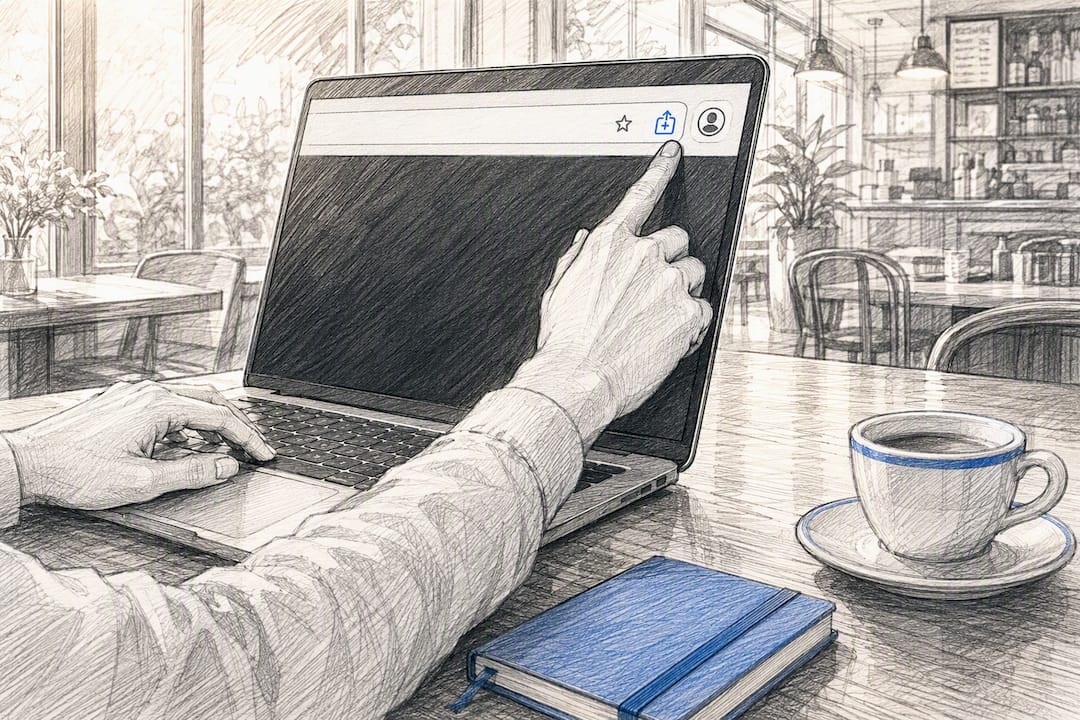
The install icon in Chrome looks like a small computer screen with a downward arrow, sitting just left of your profile picture in the address bar. When a site qualifies, that icon appears automatically. Click it, and a small dialog pops up asking you to confirm the app name and icon before installing. If you don't see the icon, open the three-dot menu in the top right, then navigate to Save and Share > Install page as app, or More Tools > Install [site name]. Both paths lead to the same result.
Edge works almost identically, though Microsoft buries the option one click deeper by default. Open Settings and more (the three dots), then Apps > Install this site as an app. Edge will show a preview of the app icon and name before you confirm. According to Microsoft's own documentation, once installed, the app also becomes manageable from edge://apps, where you can pin it, rename it, or remove it entirely.
Once you confirm installation in either browser, three things happen immediately:
- The site opens in its own standalone window, stripped of tabs, bookmarks bar, and address bar clutter.
- Your operating system registers it like a real application: it shows up in the Windows Start menu, the macOS Dock or Launchpad, or your Linux distribution's app launcher.
- You get the option to pin it to your taskbar or dock for one-click access going forward.
Chromium browsers on Linux, Windows, macOS, and even Chromebooks all support this flow, and installed apps integrate into your OS's native app search and switcher, according to Web. To see everything you've installed at a glance, type chrome://apps into Chrome's address bar or edge://apps into Edge's.
Pro Tip: If you use multiple browser profiles for work and personal accounts, install the same PWA separately in each profile you actually use daily. Otherwise you'll find yourself hunting for the app window in the wrong profile later.
What About Safari and Firefox?
Safari's approach is more forgiving than you might expect. On macOS Sonoma and later, running Safari 17 or newer, you don't need the site to have a proper manifest file at all. Open the site, click File > Add to Dock, and Safari creates a Dock icon that opens the page in a dedicated window, according to Apple's own support page.
A quick clarification, since this trips people up constantly: adding a site to your Home Screen on an iPhone or iPad is a completely different feature from Add to Dock on Mac. iOS and iPadOS installation follows its own rules and doesn't a desktop install at all.
Firefox is the outlier here. Desktop Firefox has never shipped a native "install this site as an app" button, manifest or not. If you're committed to Firefox for browsing, your best move is to either:
- Open the specific site in a Chromium-based browser just for that app, or
- Build a manual desktop shortcut using your OS's own tools, which won't get you offline support but will get you a clickable icon.
How Do You Manage, Pin, or Remove an Installed PWA?
Every installed app lives in a central list you can revisit anytime. In Edge, that's edge://apps. In Chrome, it's chrome://apps. On macOS and Windows, installed PWAs also show up in your regular application list, right alongside native software.
- Pinning: Right-click the app's icon in your taskbar or Dock and select "Pin" for one-click access without opening the browser first.
- Startup behavior: Edge offers a specific toggle, "Start app when you sign in," inside the app's own settings menu, so you can decide whether it launches automatically with your computer.
- Uninstalling: Right-click the app icon and choose "Uninstall," or remove it from the
edge://appsorchrome://appslist directly. - Resetting: If an installed app is behaving strangely, clearing its site data (via the app's own settings, or the browser's site settings for that domain) usually solves it without a full reinstall.
Why Isn't the Install Option Showing Up?
If the install icon never appears, the fix is usually faster than you'd think.
- Check for HTTPS and a manifest. Installability generally depends on a valid manifest file and a secure connection, according to MDN's installability guide. Sites served over plain HTTP, or missing manifest fields like name, icons, or start_url, often won't trigger the icon.
- Look for "Open" instead of "Install." If the site is already installed in that browser profile, the icon simply won't reappear. You'll see an "Open" option instead. Check a different profile if you need a separate instance.
- Try a fresh window or profile. Incognito and private windows frequently block install prompts outright. A regular window, or a brand-new browser profile, often resolves it instantly.
- Disable extensions temporarily. Ad blockers and privacy extensions occasionally interfere with the install prompt's script.
- Fall back to the menu. Even without the address-bar icon, Chrome's "Install [site]" option and Edge's "Apps > Install this site as an app" path usually still work. Chromium browsers will let you install nearly any website as a standalone app, manifest or not, according to MDN.
What Actually Happens to Your Privacy When You Install a PWA?
Installing a PWA doesn't quietly unlock new permissions behind your back. It creates a shortcut and a standalone window, nothing more. Camera access, location, notifications: all of that still runs through the same permission prompts you'd see in a regular browser tab. The app remains sandboxed inside your browser's security model, and data stays tied to your browser profile rather than escaping to some new location on disk.
Installing a site as an app is mostly a UI decision, not a permissions decision. The browser sandbox that protected you in a tab keeps protecting you in a window.
That distinction matters most for tools you use constantly and want isolated from your regular tab clutter, especially ones that already process everything locally. Tabtasker's file, PDF, image, and audio tools run entirely client-side, so nothing you edit ever leaves your device, whether you access them through a tab or an installed shortcut. If you want the deeper reasoning behind that design choice, Tabtasker's piece on privacy-first web apps walks through what to look for before trusting any tool with sensitive files.
Pro Tip: Reserve installation for tools you open daily. A PWA you use once a month adds icon clutter without saving you real time.
Turn Your Favorite Browser Tools Into Installed Apps
Once you know how to add a PWA to your desktop, it's worth being selective about which sites earn a permanent spot in your Dock or Start menu. Privacy-conscious tools that skip uploads and account sign-ups make especially good candidates, since you're not just saving a click, you're keeping sensitive files off someone else's server entirely.
Tabtasker's browser-based file share tool, Markdown editor, and audio workspace all process files locally in your browser, which makes them a natural fit for installation if you use them regularly. Visit Tabtasker's homepage to browse the full toolbox, and if privacy across your other devices matters to you too, NordSecure's guide to privacy phones is a solid next read on locking down the rest of your setup.
What the Conventional Advice Gets Wrong About PWA Installation
Most guides treat installation as a technical milestone, something that only "real" PWAs with a perfect manifest deserve. That framing misses the point for most desktop users. Chromium browsers will let you install almost any website as a windowed app regardless of whether it hits every manifest requirement, and that pragmatic fallback matters more to everyday readers than manifest purity ever will.
The bigger blind spot is privacy. Coverage of PWA installation rarely mentions that the process changes nothing about a site's access to your data. People assume installing something makes it more "app-like" in a way that also means more invasive, when the opposite is usually true. You're just changing the window dressing.
If there's one thing worth prioritizing, it's installing tools that already process data locally, before worrying about whether a site technically qualifies as a true PWA. A privacy-respecting tool in a plain browser tab beats a manifest-perfect app that phones home with your files every time you open it.
— Vehicularis
Sources
- Web
- Install, manage, or uninstall apps in Microsoft Edge
- Apple support: Add a website to your Dock on Mac