 TabTasker
Yes: fully offline receipt OCR is practical on any modern phone or browser. Two routes work well. In-browser tools running WebAssembly, like Tesseract.js, process images locally once the engine loads. Native on-device models, including TensorFlow Lite, run inside mobile apps without a network call. Both keep your receipt images and the text extracted from them on your device. Expect trouble with handwriting and faded thermal prints.
TL;DR:
- Offline OCR performs best with well-lit, flat, and straight images, with preprocessing steps such as cropping, deskewing, and contrast stretching improving accuracy significantly.
- Recognized limitations include difficulties with faded thermal paper and handwritten notes, where manual correction or retaking images is often necessary.
- Native mobile models like TensorFlow Lite and browser-based tools such as Tesseract.js offer different setups; native apps provide faster, more integrated workflows, while browser tools are suitable for quick, private scanning.
- Regularly exporting parsed data as CSV or JSON prevents data loss due to browser cache clearance and helps maintain an organized expense record.
- Using tools like TabTasker's Image To Text platform allows fully offline, private OCR processing without uploading images or creating accounts, ideal for sensitive documents.
Table of Contents
- What Offline Receipt OCR Actually Means (and When to Use It)
- The Four-Step Pipeline Behind Every Offline Receipt Scan
- Setting Up Offline Receipt OCR on Mobile or in the Browser
- Preprocessing and Parsing: What Actually Moves the Accuracy Needle
- Where Offline OCR Struggles, and How to Work Around It
- TabTasker's Image To Text Tool: Built for This Exact Job
- What I'd Actually Recommend
- Try TabTasker's Image To Text Tool for Free, Private OCR
- Sources
What Offline Receipt OCR Actually Means (and When to Use It)
Cloud OCR services send your receipt photo to a server, extract the text, and send it back. That round trip is fast and usually accurate, but it also means a copy of your grocery bill, your pharmacy purchase, or your client invoice sits on someone else's infrastructure. Offline OCR, sometimes called on-device OCR, keeps every step (the image, the text extraction, the parsing) on your phone or in your browser's sandbox. Nothing gets uploaded.
That distinction matters more in specific situations than others:
- Tracking personal or business expenses you'd rather not route through a third-party server
- Scanning receipts while traveling somewhere with unreliable or nonexistent connectivity
- Digitizing sensitive documents, like medical receipts or legal expense records
- Working in a professional context where client confidentiality rules out cloud tools
The trade-off is compute. On-device recognition asks more of your processor and battery than a quick API call, and the underlying models need periodic updates to keep pace with new receipt formats and print styles.
The Four-Step Pipeline Behind Every Offline Receipt Scan
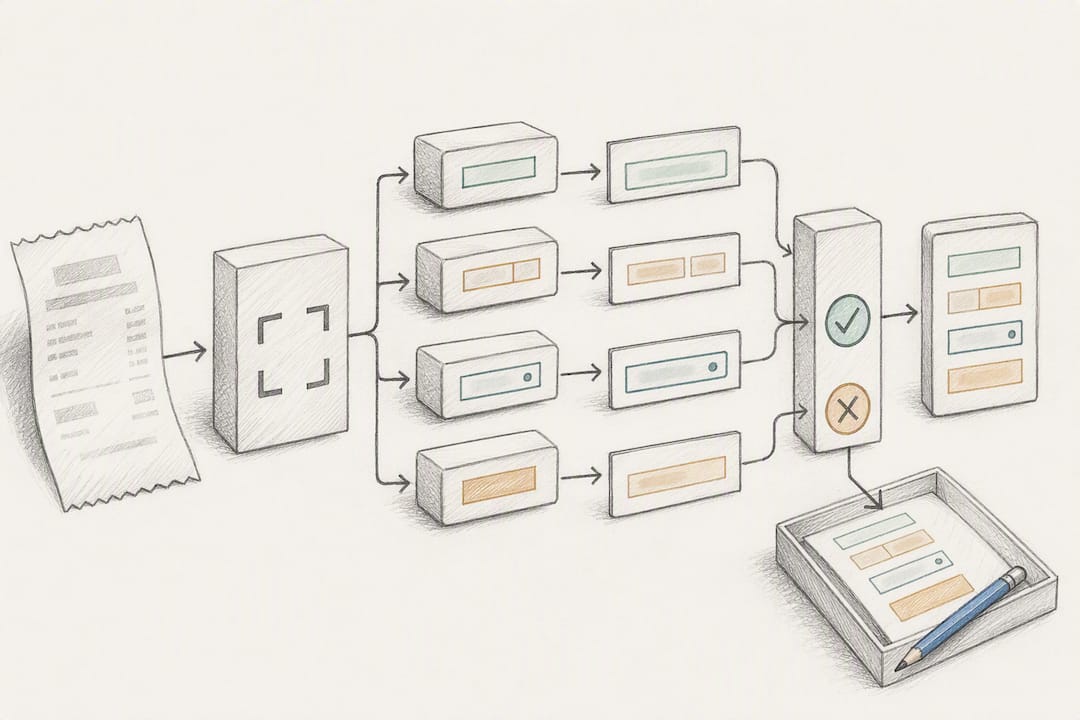
Every offline OCR tool, regardless of platform, runs the same basic sequence. Understanding each stage helps you diagnose bad results.
- Capture. A well-lit, flat, straight-on photo beats a rushed one every time. Fill the frame with the receipt, avoid glare, and hold the camera parallel to the paper to minimize distortion.
- Preprocess. Before any text recognition happens, the image gets converted to grayscale, contrast-adjusted, cropped to the receipt's edges, and deskewed if it was shot at an angle. This step does more to improve accuracy than any setting inside the OCR engine itself.
- OCR. The actual character recognition happens here, using either a WASM-based engine like Tesseract.js running inside the browser, or a native model such as TensorFlow Lite embedded in a mobile app. Browser WASM tools tend to fit quick, occasional scans; native TFLite models fit apps built around continuous, integrated scanning.
- Parse and store. Raw OCR text is messy. Post-processing extracts structured fields (merchant, date, total, tax) using pattern matching, then saves the result locally, often in IndexedDB for browser tools or SQLite for mobile apps. The RCPT project demonstrates this full sequence on Android, running PaddleOCR/TFLite recognition and rule-based parsing entirely offline.
Setting Up Offline Receipt OCR on Mobile or in the Browser
The setup you choose depends on whether you want a quick tool or an integrated workflow.
For a browser-based approach, integrate Tesseract.js or a similar WASM library directly into a web page. The first time it runs, it downloads the recognition engine and language data, typically a few megabytes, then caches that package locally. Every scan after that runs with no network connection at all. One caveat: browsers can reclaim IndexedDB storage under low-disk conditions, so don't treat cached data as permanent.
For mobile, native pipelines package a TensorFlow Lite model (or similar, like MLKit's on-device text recognition) directly inside the app bundle, along with language packs. This avoids any runtime download and gives you tighter control over memory and performance, at the cost of a larger app size.
Whichever route you pick, build in export early:
- Export parsed data as CSV or JSON so you have a portable backup outside browser storage
- Resize oversized images before OCR to cut processing time, using something like TabTasker's Resize Image tool
- Request only the camera and storage permissions you actually need
- Test on a handful of real receipts before trusting a batch job
Pro Tip: Run your first ten scans manually and check the output line by line before automating anything. Receipt layouts vary enough between merchants that a parsing rule tuned on grocery receipts will often mangle a restaurant tab.
Preprocessing and Parsing: What Actually Moves the Accuracy Needle
Community write-ups on offline OCR projects consistently point to one lesson: preprocessing matters more than which engine you pick. A clean, well-cropped, high-contrast image fed into a mediocre OCR engine usually outperforms a raw, shadowed photo fed into a great one.
The fixes that make the biggest difference:
- Deskew the image so text lines run horizontal, not at an angle
- Crop tightly to the receipt's edges to remove background clutter that confuses the engine
- Strip shadows cast by your phone or hand during capture
- Stretch contrast so faint print separates cleanly from the background
Clean, well-lit printed receipts processed with a WASM engine like Tesseract.js can reach 85 to 95 percent confidence scores, according to the project's own benchmarks. That range drops fast on thermal paper that's started to fade or curl.
For parsing, anchor-based regex works better than trying to guess field positions. Look for currency symbols and a decimal pattern near the bottom of the receipt to isolate the total, scan the first few lines for the merchant name, and search for common date formats anywhere in the body. Set a confidence threshold, and when the OCR engine's own score falls below it, flag the field for manual correction instead of guessing.
Where Offline OCR Struggles, and How to Work Around It
No OCR engine, cloud or offline, handles everything well. Handwriting defeats most engines outright, since they're trained on printed characters, not cursive or block lettering. Faded thermal receipts are the second-biggest culprit: the printing process fades within months, and by the time you scan it, contrast may be too low to recover cleanly.
A few practical adjustments help:
- Photograph faded receipts under strong, even light and let contrast stretching do the rest before OCR runs
- Skip automated parsing on handwritten fields; type those manually instead, since it's usually faster than correcting a bad guess
- Watch battery and thermal load if you're batch-scanning dozens of receipts in one sitting, since on-device recognition is CPU-intensive
- Export your parsed data to CSV or JSON right after each scanning session rather than trusting long-term browser storage to hold it
When an engine gives you a low-confidence result, the fastest fix is often just retyping the total by hand rather than fighting the algorithm.
TabTasker's Image To Text Tool: Built for This Exact Job
TabTasker offers a browser toolbox that runs file operations, including OCR, directly on your device with no uploads and no account required. That client-side processing means your receipt images never leave your browser's sandbox, closing the privacy gap that cloud OCR services can't.
The Image To Text tool specifically handles offline OCR extraction: free, private, and processed entirely in-browser. It sits alongside other tools like background removal and audio editing in the same free, offline platform.
...
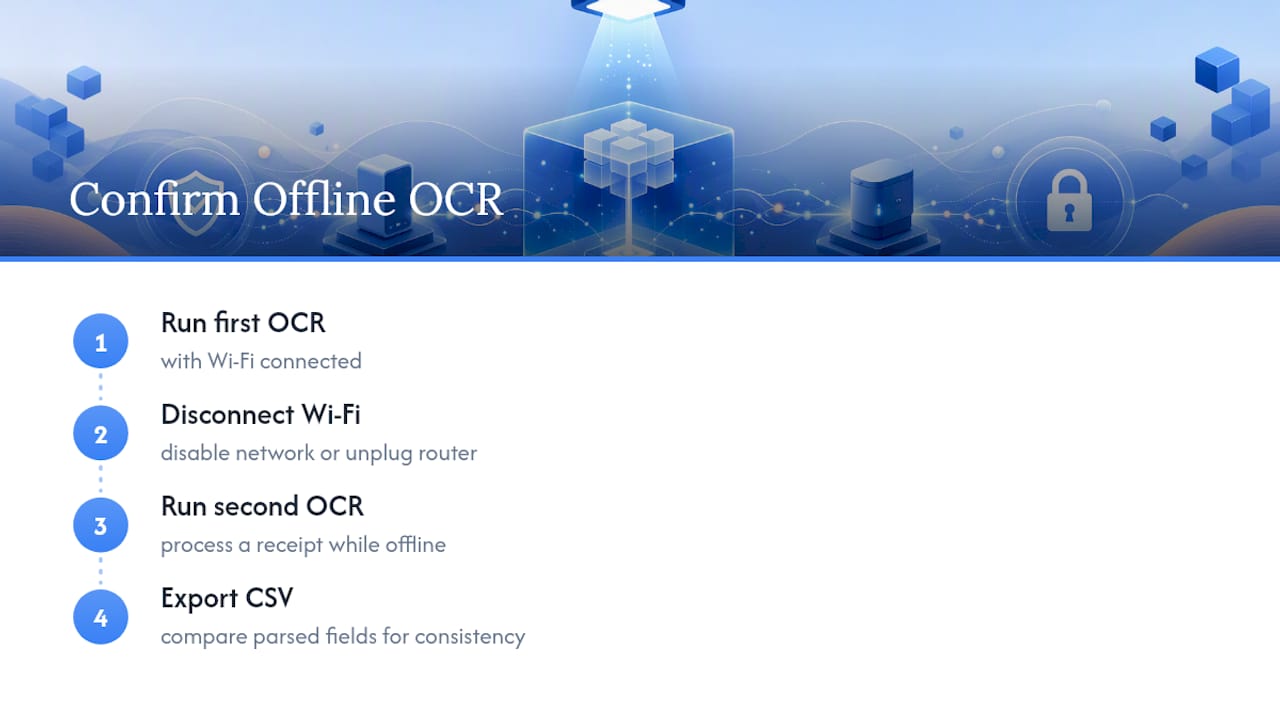
If you want to confirm the offline behavior yourself, run one receipt through the tool, disconnect from Wi-Fi, and run a second. Export the result as CSV to see how the parsed fields hold up.
What I'd Actually Recommend
For quick, private scans without installing anything, browser WASM tools like Tesseract.js are the pragmatic first choice. If you're building an app around continuous receipt capture, native TensorFlow Lite models fit better into that workflow. Either way, export your parsed data regularly. Browser storage isn't permanent, and losing months of expense records to a cache clear is avoidable. Start small: run a handful of receipts, tune your preprocessing, then scale to batches once the results hold up.
— Vehicularis
Try TabTasker's Image To Text Tool for Free, Private OCR
If you've been scanning receipts through a cloud app and wondering where those images actually end up, TabTasker gives you a direct alternative: OCR that runs entirely in your browser, with no upload step and no account to create.

The Image To Text tool handles printed receipts, invoices, and documents, extracting text locally and letting you export the results. Pair it with the CSV Editor to clean up parsed fields before dropping them into your expense tracker. Both tools, along with the rest of TabTasker's suite, are free and require nothing beyond opening the page. Give one receipt a try and see the extracted text appear without a single upload.