 TabTasker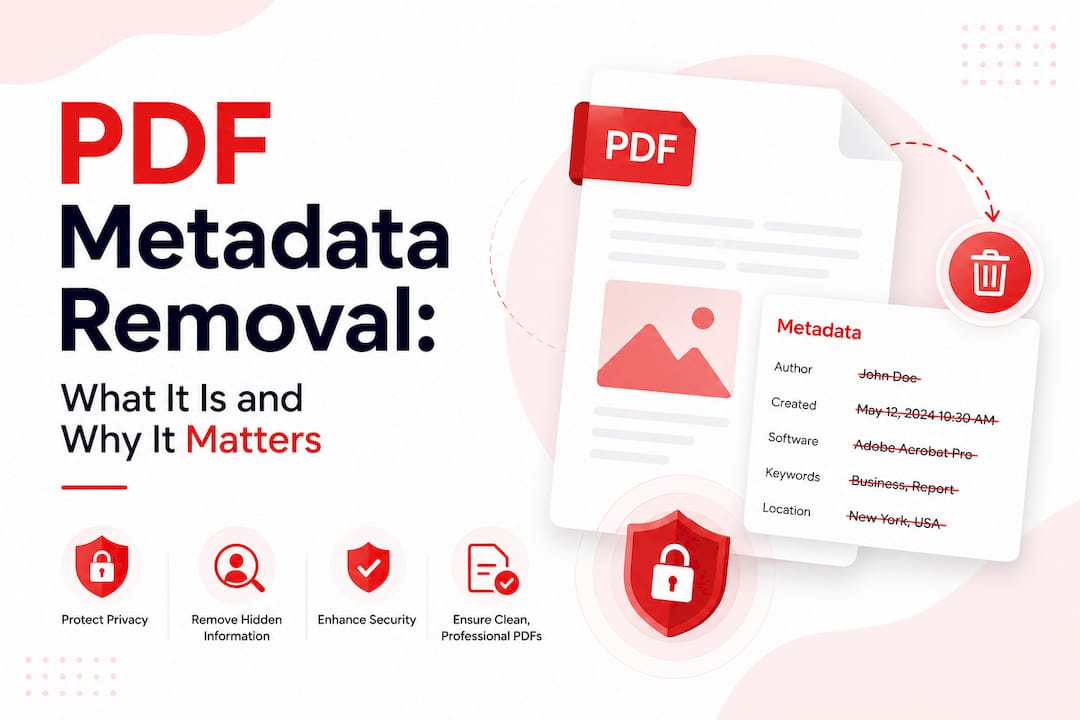
Metadata removal in PDFs is the process of deleting hidden, embedded information stored within a PDF file without altering any visible content. Every PDF you create or receive carries invisible data fields like Author, CreationDate, Creator, and Producer, all of which can expose your identity, software stack, and document history to anyone who knows where to look. This process protects your privacy, reduces security exposure, and produces cleaner files for sharing. Tools ranging from Adobe Acrobat to browser-based solutions and command-line utilities like ExifTool make PDF metadata deletion accessible to both casual users and IT professionals.
What is metadata removal in PDFs?
Metadata removal in PDFs is defined as the targeted deletion of non-visible data properties embedded in a PDF file, leaving the readable document content completely intact. The industry term for a more thorough version of this process is document sanitization, which goes further by also stripping annotations, hidden text, and embedded scripts. Understanding the difference between the two matters before you choose a tool.
PDF files store metadata in two distinct locations. The first is the Info dictionary, a key-value structure that holds fields like Author, Title, Subject, Keywords, CreationDate, and ModificationDate. The second is the XMP stream, an XML-based format that duplicates many of those fields in a more extensible structure. Many basic tools strip the Info dictionary but leave the XMP stream untouched, which means your personal data is still sitting in the file. That gap is where most privacy failures happen.

Beyond those two storage locations, PDFs can also carry additional embedded data: form field values, annotations, hidden text layers from OCR processing, JavaScript, and even embedded files. A document that looks clean on screen can still carry a surprising amount of information beneath the surface. This is why understanding what metadata actually is matters before you decide which removal method to use.
What metadata fields reveal about you
| Metadata Field | What It Can Expose |
|---|---|
| Author | Your full name or username from your operating system account |
| Creator | The application used to create the original file (e.g., Microsoft Word, LibreOffice) |
| Producer | The PDF conversion software, revealing your software version and vendor |
| CreationDate | The exact date and time the document was first created |
| ModificationDate | When the file was last edited, potentially revealing revision history |
| Keywords | Internal tags or categories assigned during document management |
Each of these fields tells a story. A document with a Creator field showing an older version of Microsoft Word and a Producer field showing a specific PDF printer can help a bad actor fingerprint your software environment. For journalists, lawyers, or anyone sharing sensitive documents, that level of exposure is unacceptable.
How to remove PDF metadata: tools and methods compared
The right removal method depends on how thorough you need to be and how much you trust the tool handling your file.
Adobe Acrobat remains the industry standard for professional metadata removal. Its Sanitize Document feature removes metadata, annotations, form data, hidden text, JavaScript, and embedded files in a single pass. This is the tool of choice for legal teams, compliance officers, and anyone working with sensitive documents. The tradeoff is cost: Adobe Acrobat Pro requires a subscription, which puts it out of reach for casual users.
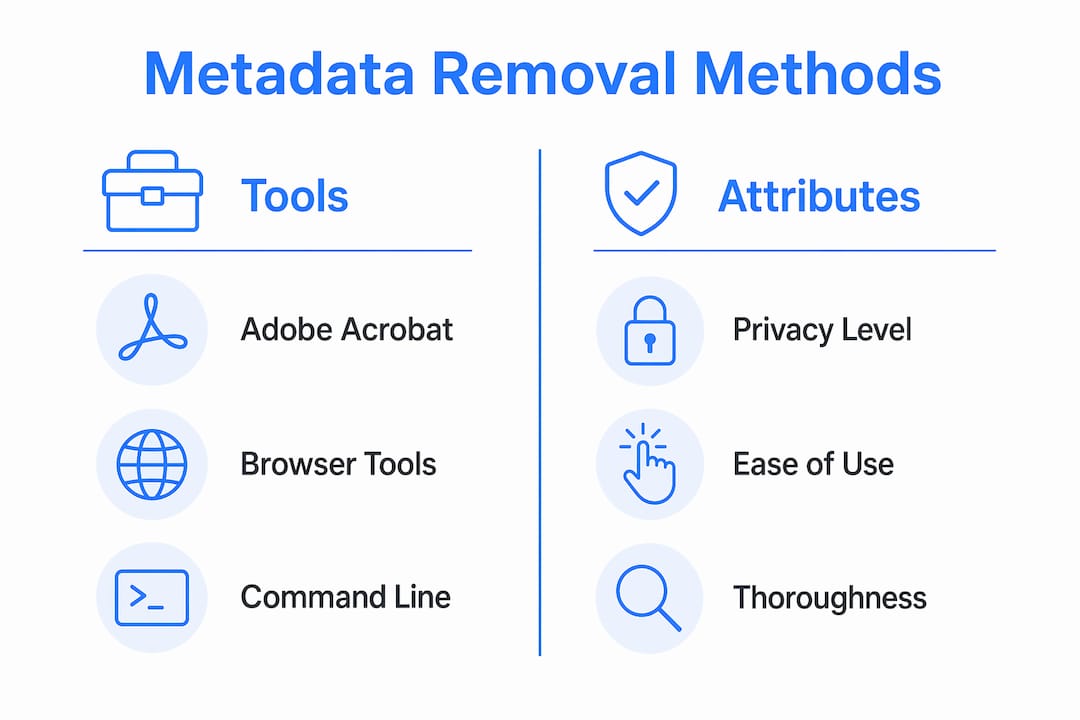
Printing to PDF is the quickest method available without any additional software. It re-renders the document as a new PDF, which flattens metadata but can destroy interactivity, removing form fields, bookmarks, and hyperlinks in the process. It also tends to degrade image quality slightly. Use this method only when you need a fast, one-time clean copy of a simple document and do not need any interactive elements preserved.
Browser-based local tools offer a strong middle ground for privacy-conscious users. These tools perform cleaning locally using browser APIs like FileReader and Uint8Array, meaning your file never leaves your device. No upload, no server, no third-party access. This approach is particularly relevant given what can happen when you upload a PDF online to a service you do not fully trust.
Command-line tools like ExifTool and qpdf are built for advanced users and automation workflows. ExifTool can read and write metadata across hundreds of file formats, while qpdf handles PDF structure manipulation at a low level. Both require comfort with the terminal but offer precise, scriptable control over exactly which metadata fields are removed.
| Method | Privacy Level | Ease of Use | Thoroughness | Preserves Interactivity |
|---|---|---|---|---|
| Adobe Acrobat Sanitize | High | Moderate | Very High | No (strips scripts/forms) |
| Print to PDF | Moderate | Very Easy | Low | No |
| Browser-based local tool | Very High | Easy | Moderate to High | Depends on tool |
| ExifTool / qpdf | Very High | Low (technical) | High | Yes |
Pro Tip: Before choosing a tool, check whether it clears both the Info dictionary and the XMP stream. A tool that only strips one location leaves your metadata partially intact, which is worse than you might expect because it creates a false sense of security.
How do you verify that metadata has been removed?
Removing metadata and confirming it is gone are two separate steps, and skipping the second one is a common mistake. Verifying removal using tools like ExifTool or rechecking document properties is the only reliable way to confirm the job is done.
Here is a straightforward verification process you can follow after any removal method:
-
Open file properties in your PDF viewer. In Adobe Acrobat Reader, go to File > Properties > Description. In most PDF viewers, a similar dialog exists. Check that Author, Title, Subject, Keywords, Creator, and Producer fields are blank or show no identifying information.
-
Run ExifTool from the command line. The command "exiftool yourfile.pdf` outputs every metadata field the tool can detect, including XMP data. If any personal fields still appear, your removal was incomplete.
-
Check for hidden text and annotations. Use the Find/Search function to search for text that should not be visible. Some OCR tools embed hidden text layers that are not immediately obvious.
-
Inspect for embedded files. In Adobe Acrobat, go to View > Show/Hide > Navigation Panes > Attachments to see if any embedded files remain.
-
Re-open the cleaned file in a different viewer. Different PDF readers surface metadata differently. Checking in two viewers reduces the chance of a false negative.
Verification is as important as removal itself. Sharing a document you believe is clean but is not carries the same risk as never cleaning it at all. Combining metadata removal with PDF compression is also worth considering, since a sanitized, compressed file is both private and optimized for sharing.
Pro Tip: If you regularly share documents externally, build verification into your workflow as a final checklist step rather than an occasional afterthought. Treat it the same way you would spell-check before sending.
Common misconceptions about PDF metadata removal
Several persistent misunderstandings lead users to believe their documents are clean when they are not.
-
“Removing metadata changes the document.” It does not. Metadata removal only clears hidden properties; the visible content, layout, fonts, and images remain exactly as they were. This is one of the most important facts to understand before you hesitate to clean a finalized document.
-
“Printing to PDF is thorough enough.” Printing to PDF re-renders the file and removes most basic metadata, but it does not perform a deep sanitization. It misses embedded scripts, hidden annotations, and may not clear XMP data depending on the PDF printer driver used.
-
“Metadata removal and document sanitization are the same thing.” They are not. Metadata removal focuses on document properties, while sanitization is more comprehensive, removing annotations, hidden text, embedded files, and scripts. For legal or journalistic work, sanitization is the appropriate standard.
-
“Free online tools are safe to use for sensitive files.” This depends entirely on the tool’s architecture. If a tool requires you to upload your file to a server, your document leaves your device. If you’re not paying for the product, you might be the product. Local, offline tools eliminate this risk entirely.
-
“Metadata removal is always the right call.” Not always. Lawyers, in particular, must balance privacy with ethical obligations to preserve material metadata during discovery. Removing metadata that is legally relevant can create serious professional and legal consequences. Context determines whether removal is appropriate.
Privacy regulations like GDPR and POPI add another layer of consideration. Organizations subject to data privacy compliance requirements may have specific obligations around how document metadata is managed, retained, or deleted. Metadata removal is often a privacy best practice, but it should be implemented within a broader compliance framework rather than in isolation.
Key takeaways
Effective PDF metadata removal requires clearing both the Info dictionary and the XMP stream, then verifying the result with a tool like ExifTool before sharing any document.
| Point | Details |
|---|---|
| Two storage locations | PDFs store metadata in both the Info dictionary and the XMP stream; both must be cleared. |
| Tool choice matters | Adobe Acrobat Sanitize is the most thorough option; browser-based local tools offer the best privacy for casual users. |
| Verify after removal | Use ExifTool or document properties to confirm all identifying fields are blank before sharing. |
| Removal vs. sanitization | Metadata removal clears properties only; sanitization also removes scripts, annotations, and embedded files. |
| Context is everything | In legal contexts, removing metadata can be an ethical violation; always assess whether removal is appropriate. |
Why I think most people underestimate what their PDFs are carrying
I’ve reviewed a lot of documents over the years that were shared publicly or sent to clients, and the metadata situation is consistently worse than people expect. A press release drafted in Microsoft Word, converted to PDF, and emailed out can carry the author’s full name, the company’s internal template path, the exact version of Word used, and the precise timestamp of every revision. None of that is visible in the document. All of it is readable by anyone who checks.
The mistake I see most often is relying on the print-to-PDF method as a complete solution. It feels thorough because it creates a new file, but it is a surface-level fix. The XMP stream issue is the one that catches people off guard. You can clear the Info dictionary manually, feel confident the job is done, and still have your name and software details sitting in an XML block that any metadata viewer will surface in seconds.
My honest recommendation is to treat metadata removal the way you treat password-encrypting a PDF: not as an occasional precaution but as a standard step before any document leaves your control. The tools to do it properly are free and fast. The cost of skipping it can be much harder to quantify. And if you work in a field where documents carry legal weight, understanding the line between metadata removal and full sanitization is not optional. It is the difference between a clean file and a liability.
— Teshub
Remove PDF metadata privately with Tabtasker
Tabtasker’s free offline tools handle PDF metadata removal directly in your browser, with no file uploads and no account required. Your document stays on your device throughout the entire process, which means there is no server receiving your file and no third party with access to its contents. This matters most when the document contains sensitive information that should never leave your control. Tabtasker also offers EXIF data removal for images and a full suite of private offline tools for PDF editing, compression, and more. If you want to edit documents without exposing your data, Tabtasker is built for exactly that.
FAQ
What does metadata removal in PDFs actually do?
Metadata removal deletes hidden data fields like Author, CreationDate, Creator, and Producer from a PDF without changing any visible content. The document looks and reads identically after removal.
Why is it risky to use online tools for PDF metadata deletion?
Online tools require you to upload your file to a remote server, which means your document leaves your device. Browser-based local tools that use APIs like FileReader process the file entirely on your machine, eliminating that exposure.
Does removing metadata affect PDF quality or functionality?
Standard metadata removal does not affect quality or layout. However, aggressive sanitization using Adobe Acrobat’s Sanitize Document feature can remove interactive elements like form fields, bookmarks, and JavaScript, so choose the method based on what the document needs to retain.
How do you know if metadata removal worked?
Run the file through ExifTool or open document properties in your PDF viewer and check that all identifying fields are blank. Experts recommend checking both the Info dictionary and XMP stream to confirm complete removal.
Is it always legal and ethical to remove PDF metadata?
Not always. Lawyers must consider whether metadata is materially relevant to a legal matter before removing it, since deleting relevant metadata during discovery can violate professional ethics rules. Always assess the legal and regulatory context before removing metadata from sensitive documents.