 TabTasker
For massive files, use the Unix split command for speed and low memory use; on Windows, PowerShell streaming scripts or 7-Zip's split-to-volume feature are your most reliable options; and for private, no-upload splits in a browser, a client-side tool like Tabtasker handles the job without sending your data anywhere.
Pick your method now:
- Unix / Linux / macOS:
split -b 500M bigfile.iso part_splits any file into 500 MB chunks with no memory spike. - Windows: A short PowerShell streaming script (see below) or 7-Zip's "Split to volume" dialog avoids loading the whole file into RAM.
- Browser (private): Tabtasker's local-in-browser splitter uses your device's own memory, no upload required.
Pro Tip: *Before you pick a chunk size, check your destination filesystem. FAT32 has a hard 4 GB per-file limit, so any chunk at or above 4 GB will fail to copy. Keep chunks below the FAT32 file size limit when targeting such drives or older USB media.
Key Takeaways
The fastest and safest way to split large files is to match your method to your platform and file type, then verify every reassembled file with a checksum before deleting the parts.
| Point | Details |
|---|---|
Unix split for speed | Use -b, -l, or -n flags; streams data with no memory spike; reassemble with cat. |
| Windows: PowerShell or 7-Zip | PowerShell streaming avoids RAM overload; 7-Zip is easiest for non-technical recipients. |
| FAT32 chunk size limit | Keep chunks below the FAT32 file size limit when targeting such drives or older USB media. |
| Always verify with checksums | Run sha256sum, shasum, or certutil on the original and the reassembled file. |
| Tabtasker for browser splits | Client-side processing, no upload, no account; practical cap is roughly 2 GB on low-RAM devices. |
Table of Contents
- How to split large files on Unix, Linux, and macOS
- Windows options: PowerShell and 7-Zip for splitting files
- Cross-platform Python scripts for splitting and joining files
- Browser and online splitters: privacy, limits, and when to avoid uploads
- How to reassemble pieces and verify integrity
- How to choose a splitting strategy and troubleshoot problems
- Tabtasker's local-in-browser splitting: a step-by-step look
- The part most guides skip: privacy is an architecture choice
- Tabtasker handles this without the tradeoffs
- Sources
How to split large files on Unix, Linux, and macOS
The GNU/POSIX split utility is the fastest and most memory-efficient way to divide large files on Unix-based systems. It streams input into pieces rather than loading the whole file, which means a 50 GB archive and a 500 MB log file cost roughly the same amount of RAM to process.
Core split commands
- By bytes:
split -b 100M bigfile.tar.gz part_createspart_aa,part_ab, etc., each 100 MB. - By lines:
split -l 10000 data.csv chunk_writes 10,000 lines per output file, preserving line boundaries. - By number of chunks:
split -n 5 bigfile.iso segment_divides the file into exactly 5 equal parts. - Numeric suffixes: Add
--numeric-suffixesto getpart_00,part_01instead ofpart_aa,part_ab, which sorts more predictably in scripts.
The default behavior, per the POSIX split specification, is 1,000 lines per output file with the prefix x. That default is fine for small text files but rarely what you want for binary data or very large inputs.
Suffix length and the 676-file limit
By default, split uses two-letter suffixes, which caps you at 676 output files. The GNU coreutils manual documents the -a flag specifically to solve this: -a 4 gives four-letter suffixes and supports up to 456,976 parts. If split runs out of suffix combinations before finishing, it fails rather than overwriting files.
Reassembly on Unix:
cat part_* > restored_bigfile.tar.gz
For binary files, cat is exact and lossless. For text files split with -l, the same command works, but confirm there are no trailing newline differences if the original lacked a final newline.
Pro Tip: Use split -n l/5 (lowercase L) to split into 5 chunks without cutting any line in half. This is the right mode for CSV or log files you plan to process in parallel.
Windows options: PowerShell and 7-Zip for splitting files
Windows users have two practical paths: a PowerShell streaming script for raw byte splits, and 7-Zip's archive-volume feature for a GUI-driven workflow. How-To Geek's Windows guide also covers Git Bash as a third route if you have WSL or Git installed.

PowerShell streaming split
$file = "C:\bigfile.iso"
$chunkSize = 500MB
$reader = [System.IO.File]::OpenRead($file)
$buffer = New-Object byte[] $chunkSize
$part = 0
while (($bytesRead = $reader.Read($buffer, 0, $buffer.Length)) -gt 0) {
    $outFile = "{0}.part{1:D3}" -f $file, $part
    $writer = [System.IO.File]::OpenWrite($outFile)
    $writer.Write($buffer, 0, $bytesRead)
    $writer.Close()
    $part++
}
$reader.Close()
This reads the file in fixed 500 MB buffers, so memory use stays flat regardless of total file size. Avoid Get-Content for binary files; it interprets byte sequences as text and corrupts data.
Reassembly in PowerShell:
$parts = Get-ChildItem "C:\bigfile.iso.part*" | Sort-Object Name
$out = [System.IO.File]::OpenWrite("C:\restored.iso")
foreach ($p in $parts) {
    $bytes = [System.IO.File]::ReadAllBytes($p.FullName)
    $out.Write($bytes, 0, $bytes.Length)
}
$out.Close()
7-Zip archive-volume approach
Open 7-Zip, right-click your file, choose "Add to archive," and fill in the "Split to volume, bytes" field with your target chunk size (e.g., 500m). 7-Zip creates numbered .7z.001, .7z.002 volumes. To reassemble, open .7z.001 in 7-Zip and extract normally; it pulls the remaining volumes automatically.
The tradeoff: archive splitting adds compression and wraps parts in the 7-Zip container format, so you need 7-Zip on the receiving end. Raw PowerShell splits are just bytes and need no special tool to join.
Pro Tip: On FAT32 drives or older USB sticks, set your chunk size to 3,900 MB or less. A 4 GB chunk will fail to copy because FAT32 cannot store files at or above 4 GB.
Cross-platform Python scripts for splitting and joining files
Python is the most portable option when you need to split large files on any OS without installing extra tools. The key is opening files in binary mode ('rb' / 'wb') and reading in fixed-size chunks so you never load the whole file into memory.
Minimal split script
import os

def split_file(path, chunk_size_mb=500):
    chunk_size = chunk_size_mb * 1024 * 1024
    part = 0
    with open(path, 'rb') as f:
        while True:
            data = f.read(chunk_size)
            if not data:
                break
            out_name = f"{path}.part{part:03d}"
            with open(out_name, 'wb') as out:
                out.write(data)
            part += 1
    print(f"Split into {part} parts.")

split_file("bigfile.iso")
Minimal join script
import glob

def join_file(pattern, output_path):
    parts = sorted(glob.glob(pattern))
    with open(output_path, 'wb') as out:
        for p in parts:
            with open(p, 'rb') as f:
                out.write(f.read())
    print("Joined successfully.")

join_file("bigfile.iso.part*", "restored_bigfile.iso")
For very large individual parts, replace f.read() in the join script with a buffered loop (read 8 MB at a time) to keep memory use low during reassembly too.
- Always open files in binary mode; text mode on Windows adds
\rconversions that corrupt non-text data. - Use zero-padded part numbers (
part{part:03d}) so alphabetical and numerical sort order match. - Add a
hashlib.sha256digest per part as you write it; store digests in a sidecar file for later verification.
Pro Tip: shutil.copyfileobj(src, dst, length=8*1024*1024) is a one-liner that streams one file object into another in 8 MB buffers. Use it inside your join loop instead of a manual while True read cycle when you want cleaner code with no performance penalty.
Browser and online splitters: privacy, limits, and when to avoid uploads
Browser-based splitters that run entirely client-side are genuinely private. They use the browser's File API and Blob.slice to cut your file into byte ranges inside the tab, with no data leaving your device. The practical ceiling is roughly 2 GB on low-RAM devices; above that, the browser tab may crash before finishing.
The risk comes from a different category: third-party services that require you to upload the file to their servers. If you're splitting a contract, a medical record, or any sensitive dataset, uploading it to an unknown server trades convenience for real exposure. The old saying applies here: if you're not paying for the product, you might be the product.
| Approach | Privacy | Max practical size | Ease | Speed |
|---|---|---|---|---|
| Client-side browser (e.g., Tabtasker) | High (no upload) | ~2 GB on low-RAM devices | High | Moderate |
| Desktop app / command-line | High (local) | Limited only by disk space | Medium | Fast |
| Upload-based online service | Low (server upload) | Varies by service | High | Slow (upload time) |
- Download each chunk as a ZIP when the browser offers it; this preserves the original filename and adds a layer of corruption protection.
- Name parts with zero-padded numbers before downloading so reassembly order is unambiguous.
- For files above 2 GB, prefer the command-line or desktop approach even if you value the GUI.
Pro Tip: If a browser splitter lets you set a custom chunk name prefix, use one that includes the original filename. Receiving report_2025.pdf.part001 is far less confusing than chunk001 when you're reassembling weeks later.
How to reassemble pieces and verify integrity
Reassembly is where most failures happen, usually because parts are joined in the wrong order or a chunk was silently corrupted during transfer. The fix is straightforward: sort by name, join in order, then compare checksums.
Platform reassembly commands:
# Unix / Linux / macOS
cat part_* > restored.iso

# Windows CMD
copy /b part_001+part_002+part_003 restored.iso

# PowerShell (see script in Windows section above)
Checksum verification:
# Generate on Unix before splitting
sha256sum original.iso > original.sha256

# Verify after reassembly
sha256sum -c original.sha256

# macOS
shasum -a 256 restored.iso

# Windows CMD
certutil -hashfile restored.iso SHA256
| Platform | Reassembly command | Checksum command |
|---|---|---|
| Linux / macOS | cat part_* > output | sha256sum -c file.sha256 |
| Windows CMD | copy /b part_* output | certutil -hashfile output SHA256 |
| PowerShell | Binary write loop (see above) | Get-FileHash output -Algorithm SHA256 |
| Python | join_file() script (see above) | hashlib.sha256 in script |
Pro Tip: Verify file size and checksum before deleting the source parts. Disk space is cheap; re-downloading or re-splitting a 100 GB file is not.
How to choose a splitting strategy and troubleshoot problems
The right strategy depends on four variables: where the chunks are going, how large that destination allows, whether your file is binary or text, and whether you need to preserve line boundaries.
Decision checklist:
- Destination filesystem: FAT32 caps at just under 4 GB per file. exFAT and NTFS handle much larger chunks.
- File type: Binary files (ISO, video, archive) must be split by bytes. Text files (CSV, log) can be split by lines to keep records intact.
- Line boundary preservation: Use
split -lorsplit -n l/Non Unix, or the Python script with line-aware reads, when downstream tools expect complete lines. - Verification needs: Always generate a checksum per part and one for the original. This lets you pinpoint a damaged chunk without re-transferring everything.
- Platform of recipient: If they're on Windows with no Unix tools, send raw byte parts with a simple join script, not a
.7zarchive.
Troubleshooting checklist:
- Parts won't join cleanly: Check sort order.
part_9sorts afterpart_10alphabetically; use zero-padded names. - Reassembled file is corrupt: Compare per-part checksums to isolate the bad chunk.
- Split failed partway through: Check available disk space on the output drive;
splitstops if it runs out. - Suffix collision error: Increase
-avalue (e.g.,-a 4) to allow more output filenames.
For very large files, increase your buffer size (8 MB or 16 MB per read) and consider splitting into parts that can be processed in parallel. If you're sharding a dataset for parallel computation, split -n r/N distributes lines round-robin across N files, which balances load better than sequential chunking.
Pro Tip: Store a per-part checksum in a sidecar .sha256 file alongside each chunk. When a transfer fails, you can verify each part individually and re-request only the damaged one.
Tabtasker's local-in-browser splitting: a step-by-step look
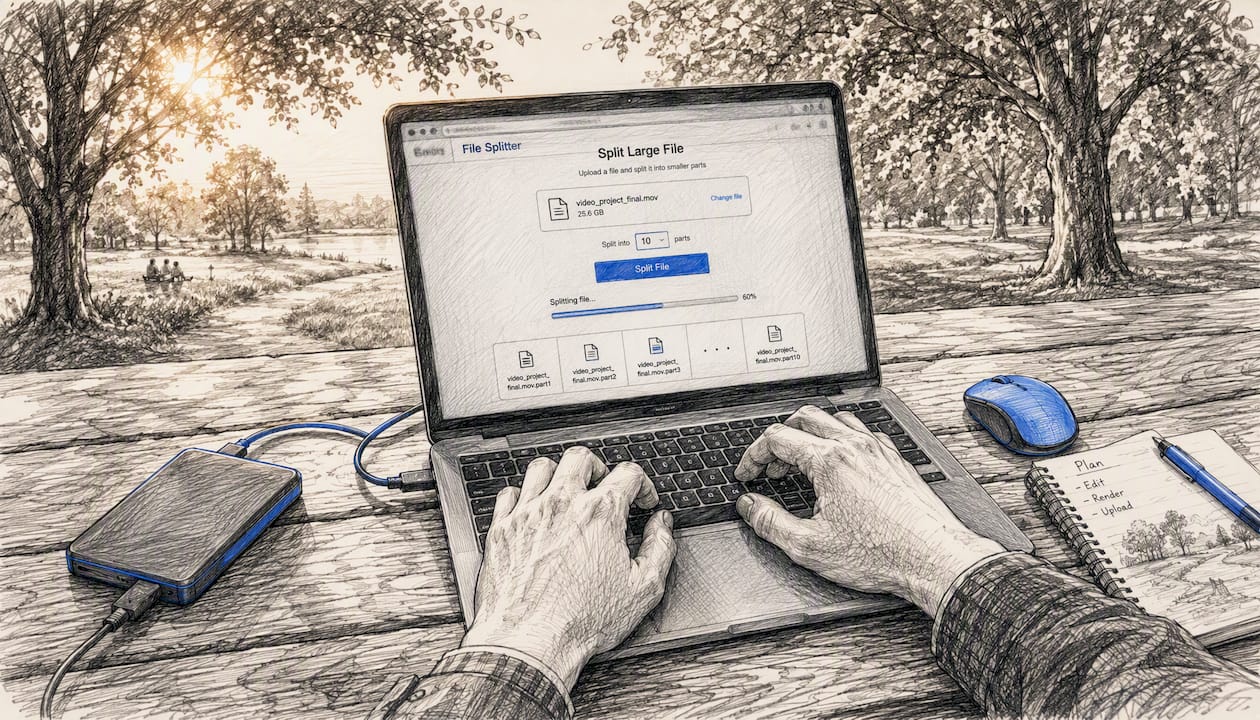
Tabtasker implements file splitting entirely inside your browser tab. No file leaves your device, no account is required, and the tool works offline once the page has loaded. That makes it the closest a browser-based tool gets to a desktop application in terms of privacy.
How to split a file with Tabtasker:
- Open the Tabtasker file splitter in your browser.
- Drag your file onto the tool or click to select it from your filesystem.
- Set your chunk size (in MB) or choose a number of parts.
- Click "Split." The tool uses
Blob.sliceto cut the file client-side. - Download each part. Tabtasker can package them as individual downloads or as a ZIP.
Feature callouts:
- Processing happens on your device; Tabtasker never sees your file contents.
- No sign-up, no file size tier, no watermark.
- Checksum and reassembly tools are available in the same browser session.
- Works offline after the initial page load, which matters if you're on a restricted network.
Keep device RAM in mind. On machines with 4 GB or less of RAM, stay below 1.5 GB per file to avoid tab crashes. For larger files, the command-line methods above are safer.
Pro Tip: After splitting with Tabtasker, use its browser-to-browser file share feature to send parts directly to a recipient without routing through a central server. Pair that with peer-to-peer file sharing for a fully private transfer workflow.
The part most guides skip: privacy is an architecture choice
Most how-to articles treat file splitting as a purely technical problem: pick a command, run it, done. What they underplay is that the method you choose also decides who else can see your file, even briefly.
Upload-based online splitters are genuinely convenient, and most of them probably delete your file after processing. "Probably" is doing a lot of work in that sentence. When you're splitting a legal document, a financial record, or a client's raw footage, "probably deleted" is not a risk worth taking for the sake of a drag-and-drop interface.
The conventional advice is to use the command line for large files and an online tool for convenience. That framing sets up a false tradeoff. Client-side browser tools like Tabtasker give you the GUI without the upload. The file never leaves your tab. That's not a marketing claim; it's how Blob.slice works at the browser level.
The other thing guides consistently underweight is verification. Splitting a file is easy. Knowing the reassembled file is byte-for-byte identical to the original requires one extra command, and almost nobody runs it. A corrupted video or a truncated database backup discovered weeks after the transfer is a much worse problem than the 10 seconds it takes to run sha256sum.
Pick the method that fits your platform. Run the checksum. And think twice before uploading anything sensitive to a server you don't control.
Tabtasker handles this without the tradeoffs
Most of the tools covered here require either a terminal, a third-party install, or a leap of faith about where your file goes. Tabtasker is built for the reader who wants none of those compromises.

Every file operation in Tabtasker runs locally in your browser. No upload, no account, no file size tiers that unlock only after you pay. The free offline tool suite covers splitting, PDF editing, image processing, audio conversion, and more, all processed on your device. If you work with sensitive files regularly, whether contracts, datasets, or client media, that architecture matters more than any feature list.
Open Tabtasker, drop your file in, and split it. Your file stays yours.
Sources
- split(1) - Linux manual page
- split invocation - GNU coreutils manual
- 7-Zip download
- How to Split Large Files Into Multiple Smaller Files on Windows 11