 TabTasker
Types of browser-based dev utilities fall into a handful of clear buckets: PDF editors, image processors, audio tools, text and data formatters, crypto and hashing helpers, and small developer utilities like regex testers or timestamp converters. All of them share one trait that matters more than any feature list: the processing happens on your device, not on someone else's server. If your task is quick and the file isn't massive, a client-side tool is almost always the right call. Save server-side services for heavy lifting, like batch OCR on thousands of scanned pages.
- Client-side tools rely on browser APIs such as the Web Crypto API for hashing and encryption without a server round trip.
- Any tool that handles logins should follow OAuth 2.0 guidance for browser apps rather than storing tokens loosely.
- File-accepting tools should reflect OWASP's file-upload guidance, even when "upload" just means dragging a file into your own browser tab.
Pro Tip: If a tool's marketing copy never says the words "client-side" or "no upload," assume it phones home until you've checked the Network tab yourself.
Key Takeaways
Client-side browser utilities process files entirely on your device, eliminating the server-side breach and logging risk that comes with traditional upload-based tools.
| Point | Details |
|---|---|
| Main categories | Text/data formatters, hashers, image tools, PDF tools, audio tools, and developer helpers all run locally in the browser. |
| Privacy comes from architecture | No server upload means no server database to breach or logs to subpoena. |
| Verify before you trust | Use DevTools Network and Sources tabs, plus offline mode, to confirm zero data upload. |
| Know the limits | Very large files, bulk OCR, and heavy AI inference still need server-side processing. |
| Tabtasker covers the core categories | Its markdown editor, CSV editor, background remover, and audio tools all run client-side with no account required. |
Table of Contents
- Types of Browser-Based Dev Utilities Worth Knowing
- Why Client-Side Processing Actually Protects Your Privacy
- How Do You Confirm a Tool Processes Files Locally?
- When Should You Avoid Client-Side Utilities?
- How Do You Choose a Trustworthy Browser Utility?
- Why I Trust Local Browser Tools for Quick, Private Work
- Try Tabtasker's Client-Side Tools Without the Upload Step
- Frequently Asked Questions
- Sources
Types of Browser-Based Dev Utilities Worth Knowing
Every category below runs entirely in your browser tab. None of them require you to hand a file to a stranger's server just to get a small job done.
Text and data formatters handle JSON validation, CSV cleanup, Base64 encoding, and URL encoding. A developer debugging an API response pastes raw JSON in and gets a readable tree back, instantly, with no round trip.
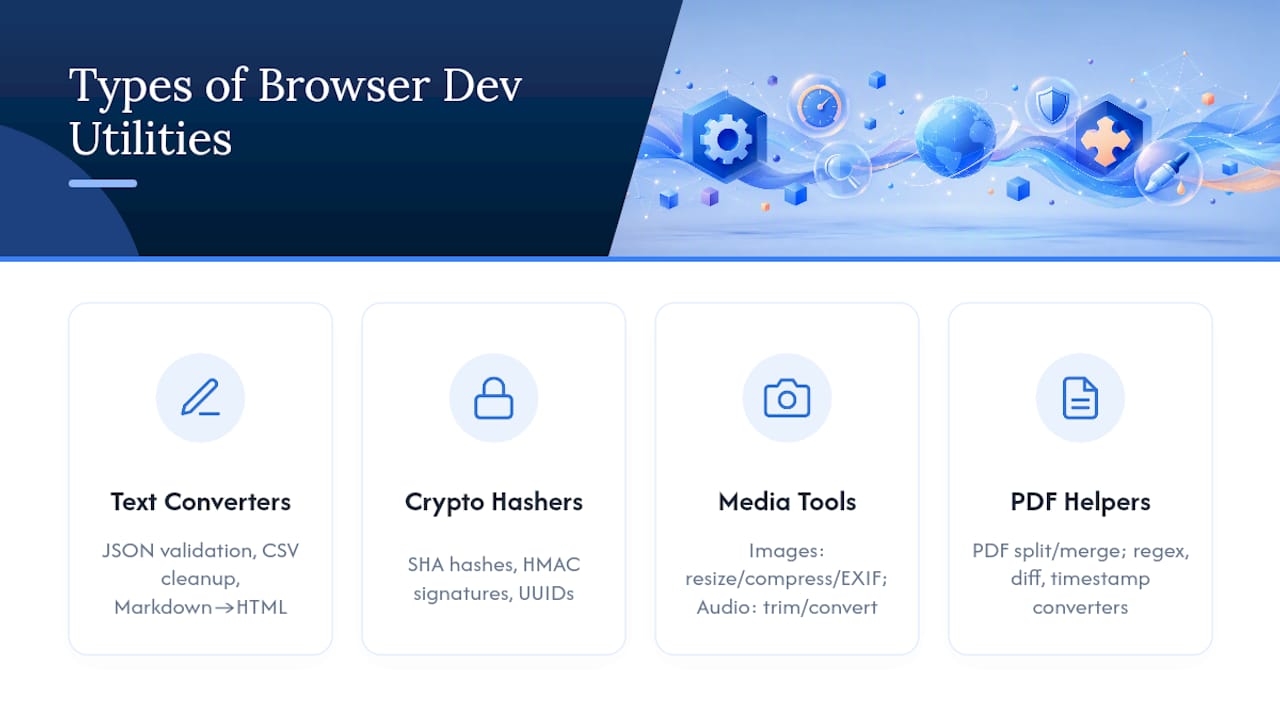
Hashers and crypto helpers generate SHA hashes, HMAC signatures, and UUIDs. These lean on the Web Crypto API, which means a password generator or checksum tool can run with near-native performance and never touch a network request.
Image tools cover resizing, compression, background removal, and EXIF metadata stripping. A freelance designer preparing client mockups can strip a phone's embedded GPS coordinates from a photo before sending it, a step that matters more than most people realize.

PDF tools split, merge, annotate, and extract pages from documents. A freelance contractor combining three signed pages into one file doesn't need to upload a client contract anywhere to do it.
Audio tools trim, convert, and compress recordings. A podcaster cutting dead air from an interview file can do it in a browser tab between other tasks.
Developer helpers include regex testers, diff checkers, and timestamp converters. These are the small, unglamorous utilities that save a debugging session ten minutes at a time.
Small converters move data between formats. Markdown to HTML, CSV to JSON, and back again, all without a server in the loop.
Privacy-first developer tools work this way because, for deterministic tasks like these, there's genuinely no technical reason to send anything to a server. Tabtasker builds its entire suite around this principle, covering most of the categories above in one place rather than scattering them across a dozen single-purpose sites.
Why Client-Side Processing Actually Protects Your Privacy
The core security benefit is simple: if your file never leaves your device, there's no server to breach and no log file to subpoena. Client-side security removes the entire server-side attack surface that traditional upload-based tools carry by default.
The math is blunt: no server-side storage means no server-side breach. A tool that never receives your file can't leak it, can't be compelled to hand it over, and can't suffer a misconfigured database exposing it to the open internet.
Because the code runs in your browser, you can audit it yourself in DevTools to confirm a tool is actually doing what it claims. That auditability is a real, checkable signal, unlike a privacy policy you have to take on faith.
Single-page applications carry their own risks worth knowing about. Because an SPA's entire bundle is public, cross-site scripting can be catastrophic if secrets are stored in JavaScript. The safer pattern keeps tokens in HttpOnly cookies, often through a backend-for-frontend, rather than in the browser's local storage. If a tool involves login at all, it should follow the PKCE-based Authorization Code flow rather than older implicit-flow patterns.
Pro Tip: A strict Content Security Policy is the single highest-leverage precaution a browser tool can ship. It blocks most injected-script attacks before they can touch anything.
How Do You Confirm a Tool Processes Files Locally?
Open your browser's DevTools Network panel first. Use the tool as intended and watch for outbound requests. If nothing fires while you upload or edit a file, that's your first strong signal.
- Watch the Network tab. Zero outbound traffic during actual file processing means your data stayed put.
- Check the Sources tab. You can view the JavaScript bundle directly and often spot the actual processing functions, especially calls to Canvas or Web Crypto APIs.
- Toggle offline mode. Disconnect and retry the core operation. If it still works, the tool isn't quietly depending on a server.
- Look for service workers and IndexedDB. Their presence usually confirms the tool was built for offline-first use, not just marketed that way.
One caveat: a single GET request when the page first loads, usually fetching a WebAssembly module or font, is normal and not a red flag. The distinction that matters is whether your data ever gets sent out, not whether the page fetched its own code once.
Pro Tip: Search the visible source for "fetch" or "XMLHttpRequest" calls pointing at external domains. If you only find references to local Canvas, FileReader, or Web Crypto calls, you're looking at a genuinely local tool.
When Should You Avoid Client-Side Utilities?
Client-side tools are built for small-to-medium files and predictable, deterministic tasks. They're the wrong choice for enormous video renders, bulk OCR on thousands of pages, or anything needing heavy server-side AI inference.
- Browser memory and CPU limits cap how large a file you can realistically process without the tab freezing.
- Very large scanned documents often need server-grade OCR accuracy that a browser engine can't match yet.
- Going upload-free means no automatic cloud backup. If you lose the local file, it's gone.
- Enterprise integrations, like syncing directly to a shared server database, need a server component by definition.
The workaround for most size limits is chunking: split a large file into pieces, process each locally, then merge the results. Tools built on WebAssembly handle heavier workloads noticeably better than plain JavaScript, so a WASM-based converter is worth seeking out for borderline cases.
Pro Tip: If a single file is too large to handle in one pass, split it first and merge afterward, rather than assuming the tool simply can't do the job.
How Do You Choose a Trustworthy Browser Utility?
Prefer tools that explicitly state "client-side" or "no upload" and that let you export your results locally without creating an account.
- Confirm local processing yourself using DevTools, rather than trusting a claim on the homepage.
- Check whether the privacy policy is specific, and look for open-source code you or someone else can inspect.
- Verify which file formats it supports and what export options are actually available.
- Test offline mode or watch for a one-time asset load versus ongoing network chatter.
- Run a first test with non-sensitive dummy data before feeding it anything real.
- Check stated performance and file-size limits so you're not surprised mid-task.
- Confirm accessibility features and that exported files retain full fidelity.
- Trust signals to look for: documented Web Crypto or Canvas usage, visible WebAssembly modules, clear no-upload language, and a source repository you can browse.
- Most client-side utilities, including markdown editors and CSV editors, are free or freemium, while heavier server-side services tend to charge for storage and processing power.
Why I Trust Local Browser Tools for Quick, Private Work
For fast edits and small dev tasks, a local browser utility usually beats a cloud service on the two things that actually matter: speed and privacy. You can audit the code yourself and confirm nothing left your machine, which closes off an entire category of breach risk before it starts. Tabtasker's approach, building multiple utilities into one client-side suite, reflects that same logic rather than fighting it; see how it compares with other options in this best AI frontend tool comparison.
Try Tabtasker's Client-Side Tools Without the Upload Step
Tabtasker gives you a full set of client-side, no-upload, no-account tools for PDF, image, audio, text, and developer tasks, all running in the tab you already have open. That's the practical difference: no waiting on a server queue, no account wall, no wondering where your file went after you hit submit.

You can try the markdown editor for quick private note-taking, the CSV editor for cleaning up spreadsheet exports, or the background remover for prepping client images in seconds. If none of those match your task, the full tool library covers everything from audio trimming to hashing and UUID generation. Tabtasker stays free through privacy-respecting ads and optional donations, not by selling access to your files. Open the tool that matches your task and see the result before you've finished your coffee.
Frequently Asked Questions
What are browser-based utilities, exactly? They're tools that run entirely inside your browser tab using JavaScript, WebAssembly, and browser APIs like Web Crypto or Canvas, processing your files without sending them to a server.
Are browser development plugins the same thing as client-side dev utilities? No. Browser extensions add features to your browser itself, while client-side dev utilities are standalone web pages or apps that do a specific job, like formatting JSON or trimming audio, without needing an install.
Do these online coding tools work without an internet connection? Many do, once the page has loaded. Tools built with service workers and offline caching keep working even in airplane mode, which is one of the clearest signs a tool is genuinely local.
Is a free browser tool always safer than a paid server-side service? Not automatically. Safety depends on whether processing actually happens locally, not on price. A free tool that secretly uploads your file is worse than a transparent paid service that discloses exactly what it stores.
When does a web app development utility need a server at all? Mainly for authentication, large-scale storage, heavy AI inference, or enterprise integrations, cases where a backend-for-frontend or token-mediating server genuinely improves security over a browser-only setup.
Sources
- What is client-side security? | Human Security
- Building privacy-first web tools: Why we process everything client-side | Icynets
- OAuth 2.0 for Browser-Based Applications (IETF draft)