 TabTasker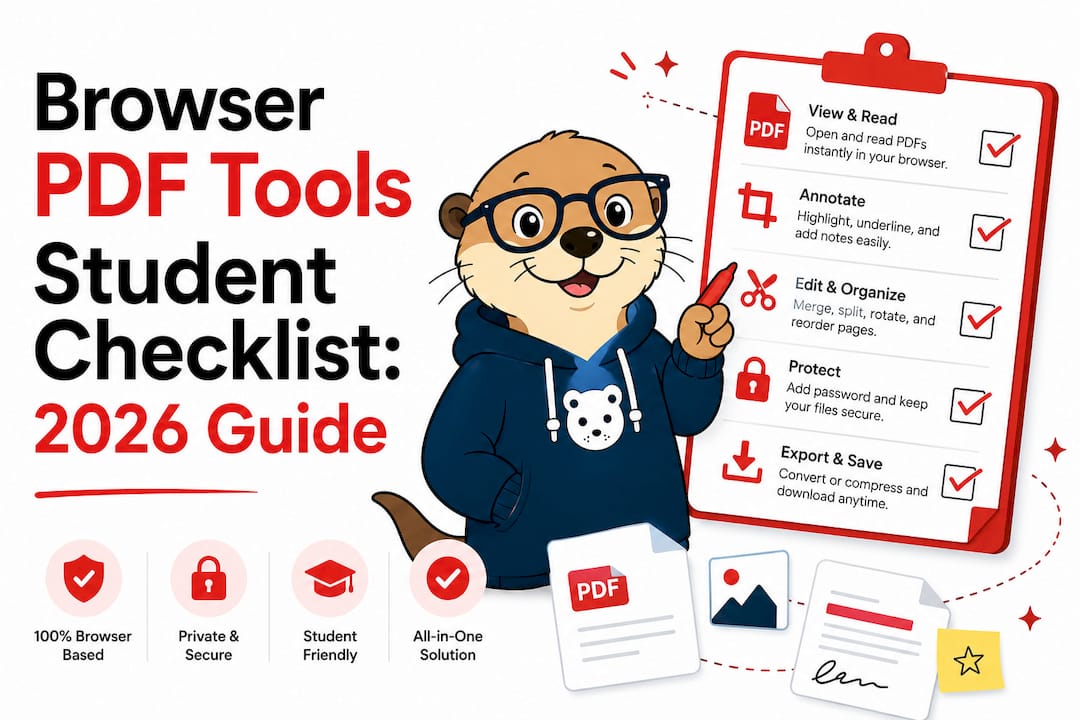
TL;DR:
- Browser-based PDF tools for students run entirely on the client side, ensuring files never leave your device. They support interactive checkboxes, text fields, and various editing features without requiring accounts, uploads, or Watermarks, offering privacy and convenience. These tools allow students to quickly create, customize, and test checklists and forms for academic workflows while maintaining compatibility across multiple PDF viewers.
Browser-based PDF tools for students are browser-hosted applications that handle PDF editing, annotation, and checklist creation entirely on the client side, meaning your files never leave your device. The best of these tools support 49 to 90+ professional utilities in a single interface, with no account creation or file uploads required. That range matters because most students need more than basic highlighting. You need to merge lecture slides, fill out forms, sign documents, and build interactive checklists, all without paying a subscription or handing your files to a server you know nothing about. This guide gives you a practical browser PDF tools student checklist to evaluate, choose, and use the right tools for your academic workflow.
What makes a good browser PDF tools student checklist?
The right browser-based PDF checklist tool does more than let you tick boxes. It gives you full control over your document without requiring a single upload. Here is what to look for when building your own evaluation checklist.
Core features every student needs:
-
Interactive checkbox support. The tool must let you place real form checkboxes, not just drawn symbols, directly onto existing PDFs.
-
Text field creation. You need editable text fields for assignment details, dates, and notes alongside your checkboxes.
-
Offline, client-side operation. Files processed locally through WebAssembly never touch a remote server. That is the only way to guarantee privacy.
-
Cross-reader compatibility. Your checklist must work in Adobe Acrobat Reader, browser PDF viewers, and mobile apps without breaking.
-
No usage caps. Many free tools cap daily exports or add watermarks. A genuinely free tool imposes neither limit.
-
Minimal setup. You should be editing within seconds, not after a five-step account registration.
Pro Tip: Always assign unique, descriptive names to each form field you create. Generic names like “Checkbox1” cause data conflicts when multiple students share the same template. Unique field names preserve each person’s entries.
The phrase “browser-based PDF checklist” is the informal way students describe what the PDF industry calls interactive PDF forms. Both terms refer to the same thing: a PDF with embedded form elements that users can fill out without printing. Knowing the standard term helps you search documentation and troubleshoot compatibility issues faster.

Top free browser PDF tools for editing student assignments
The strongest student PDF tools online operate fully offline using WebAssembly, a technology that runs near-native application performance directly inside your browser. WebAssembly-based tools keep your files on your device while delivering the speed of desktop software. That combination is rare, and it is exactly what students handling sensitive academic files need.
What the best tools offer:
-
Text editing, including font changes and paragraph reformatting
-
Merging and splitting multi-chapter documents
-
Annotation tools: highlights, sticky notes, freehand drawing
-
Interactive form creation with checkboxes and text fields
-
Digital signature support without cloud upload
-
Page reordering, cropping, and compression
When evaluating any free browser PDF editor, apply this quick test: Does it ask you to create an account before editing? Does it add a watermark to your exported file? Does it upload your file to process it? If the answer to any of those is yes, the tool is not truly free or private for academic use.
Many free PDF editors impose usage limits or watermarks, so students should prioritize tools that are fully client-side and without premium paywalls. That is not a minor inconvenience. A watermarked assignment submission looks unprofessional and can affect your grade.
Feature comparison by tool category:
| Feature | Basic browser annotation tools | Full client-side PDF suites |
|---|---|---|
| Interactive form creation | No | Yes |
| Offline processing | Partial | Yes |
| File upload required | Yes | No |
| Watermark on export | Sometimes | No |
| Merge and split PDFs | No | Yes |
| Digital signatures | No | Yes |
Tabtasker falls into the full client-side suite category. It processes everything locally, charges nothing, and requires no account. That positions it as one of the most practical best PDF tools for education available in 2026.
How to create interactive PDF checklists for your academic workflow
Students can set up interactive PDF checklists in an average of 82 seconds using established browser tools. That speed comes from a straightforward process that works on any existing document.
Step-by-step checklist creation:
-
Open your PDF in a client-side editor. No upload. The file loads directly in your browser tab.
-
Select the form or checkbox tool. Look for “Add Checkbox” or “Form Fields” in the toolbar.
-
Place checkboxes next to each task item. Click the spot on the page where you want the checkbox to appear.
-
Name each field uniquely. Use descriptive names like “Week3_ReadingDone” instead of “cb1.” Unique field names prevent data overwriting when you share templates with classmates.
-
Add text fields for notes. Place a text input box next to complex tasks where you need to record progress details.
-
Save the file locally. Download the updated PDF to your device. Never rely on auto-save to a cloud location.
-
Test in a second PDF reader. Open the file in a different viewer to confirm checkboxes work correctly across platforms.
Testing across 127 diverse documents confirms that properly created interactive checklists maintain their function across all major PDF readers. That compatibility matters when your professor uses a different viewer than you do.
Practical checklist use cases for students:
-
Tracking each step of a research paper: source gathering, outline, draft, citations, final review
-
Managing reading progress across multiple textbook chapters
-
Assignment submission checklists: file format check, name in header, word count verified, rubric reviewed
-
Lab report completion tracking: hypothesis, method, results, discussion, references
Pro Tip: Save your completed checklist layout as a blank template before filling it in. That way you reuse the same structure for every assignment without rebuilding it from scratch each time.
Practical considerations: data privacy and workflow efficiency
The privacy risk of cloud-based PDF tools is real, and students often underestimate it. When you upload an assignment to a web service for editing, that file sits on a server you do not control. Client-side PDF editing avoids that entirely. Your file is processed in your browser’s memory and stays on your device.
“If you’re not paying for the product, you might be the product.” That principle applies directly to free PDF tools that require file uploads. Your documents, which may contain personal information, research data, or institutional content, fund the service through data collection or advertising.
How to protect your workflow:
-
Choose tools that process files locally, not on remote servers.
-
Avoid services that require email registration before you can export a file.
-
Check whether the tool adds metadata or tracking tags to exported PDFs.
-
Use PDF encryption on sensitive files before sharing them with anyone.
Effective digital study tools integrate PDF viewing, annotating, and note-taking into a single workspace to reduce tab switching and cognitive load. Switching between five browser tabs to annotate, highlight, take notes, and check a rubric is a real productivity drain. A single tool that handles all of those tasks keeps your focus on the work, not the software.
Windows 11 lacks a built-in free PDF editor. Most browsers offer only basic annotation tools suitable for quick comments. For anything beyond highlighting, you need a dedicated client-side suite. That gap is exactly why browser-based PDF suites have become the preferred choice for students handling academic files in 2026.
The main challenge with free PDF editors is navigating freemium usage limits that cap daily imports or exports. Client-side tools with no server costs have no reason to impose those limits. When a tool is genuinely free to operate, it can afford to be genuinely free for you.
Key Takeaways
The most effective approach to managing PDFs as a student is to use client-side, browser-based tools that combine offline processing, interactive form creation, and annotation without usage caps or file uploads.
| Point | Details |
|---|---|
| Client-side processing is non-negotiable | Tools using WebAssembly keep your files on your device and eliminate data leak risk. |
| Unique field names protect your data | Name every checkbox and text field descriptively to prevent conflicts when sharing templates. |
| Interactive checklists take under 2 minutes | Most students can build a functional PDF checklist in 82 seconds with the right tool. |
| Freemium limits hurt heavy academic users | Prioritize tools with no daily caps, no watermarks, and no account requirements. |
| One tool should handle multiple tasks | Combining annotation, form creation, and note-taking in one workspace reduces tab switching and cognitive load. |
My honest take on browser PDF tools for students
I have watched students waste hours on tools that promise everything and deliver frustration. The pattern is consistent: a tool looks free, works for one or two edits, then hits you with a paywall or a watermark right before you need to submit. That is not a coincidence. It is a business model.
The tools worth your time are the ones that process everything locally. Not because privacy is an abstract principle, but because it is practical. You do not want your thesis draft, your exam notes, or your financial aid documents sitting on a server you cannot audit. Client-side tools remove that risk entirely, and the best ones do it without sacrificing features.
My advice for selecting tools is simple. Match the tool to your assignment volume. If you edit PDFs once a week, a lightweight browser annotation tool is fine. If you are managing research papers, lab reports, and group project documents simultaneously, you need a full client-side suite that handles merging, form creation, signing, and annotation in one place.
Build reusable checklist templates early in the semester. A well-named, well-structured template for your standard assignment workflow saves you time every single week. The 82-second setup cost pays back quickly. And always test your checklist in a second PDF reader before submitting. Compatibility issues are invisible until someone else opens your file.
— Vehicularis
Tabtasker’s free offline tools for your PDF workflow
Students who want a genuinely private, no-install toolkit for academic work will find Tabtasker worth bookmarking. Every tool on the platform runs locally in your browser, with no account required and no file uploads.

Tabtasker’s free offline tool suite covers PDF editing, image processing, and audio tools, all processed client-side. For students drafting notes alongside their PDF assignments, the Markdown editor keeps your writing private and accessible without a subscription. When you need to share files with a classmate without exposing them to a third-party server, Tabtasker’s peer-to-peer file sharing handles that securely. No cloud. No middleman. Just the tools you need, working the way they should.
FAQ
What are browser-based PDF tools for students?
Browser-based PDF tools are web applications that edit, annotate, and manage PDF files directly in your browser without uploading files to a server. The best options use WebAssembly to process documents locally, keeping your academic files private.
How do I create an interactive checklist in a PDF?
Open your PDF in a client-side editor, use the form or checkbox tool to place interactive checkboxes next to each task, name each field uniquely, and save the file locally. The process takes under two minutes for most documents.
Are free browser PDF editors really free?
Many free PDF editors impose daily usage limits or add watermarks to exported files. Truly free tools are client-side, require no account, and place no restrictions on how many files you edit or export.
Why should students avoid uploading PDFs to cloud editors?
Uploading academic files to cloud services means your documents are stored on servers you do not control, creating privacy and data security risks. Client-side tools process files in your browser’s memory, so your files never leave your device.
Do interactive PDF checklists work across different PDF readers?
Yes. Properly created interactive checklists with uniquely named form fields maintain their functionality across all major PDF readers, including Adobe Acrobat Reader and browser-based viewers.