 TabTasker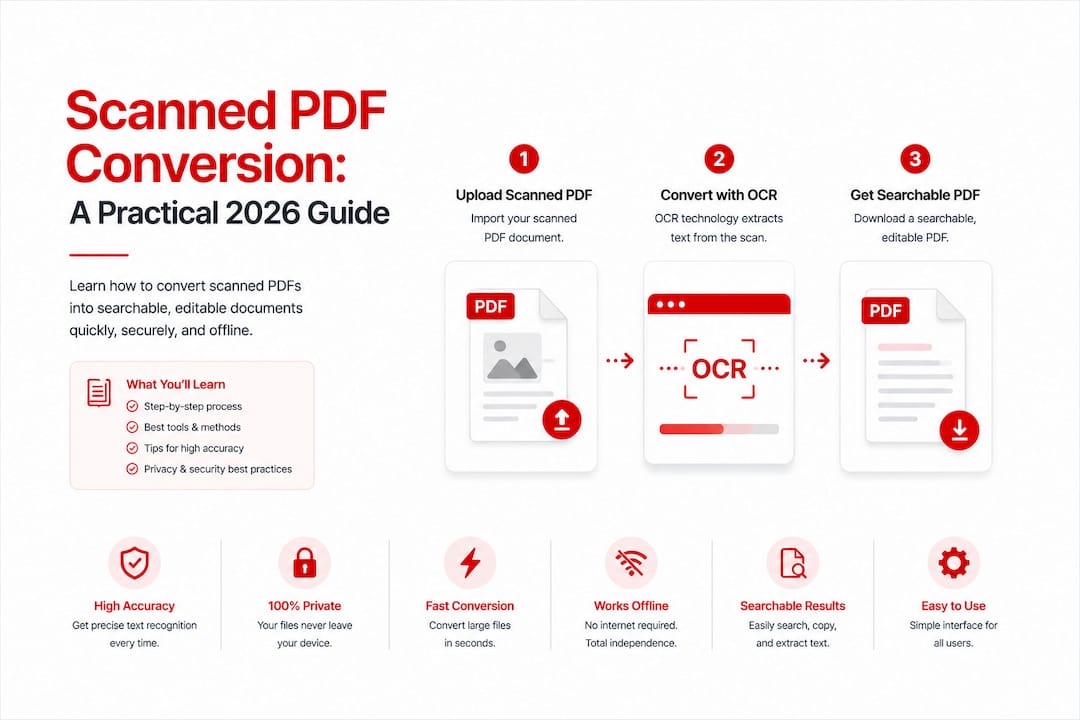
TL;DR:
- Scanned PDF conversion transforms image-based documents into searchable or editable formats using OCR technology. Selecting the right tool and output format depends on the intended use, privacy concerns, and processing capabilities. Converting improves searchability, editability, and accessibility but requires careful manual work for full compliance.
Scanned PDF conversion is the process of transforming an image-based PDF document into a searchable or editable format using Optical Character Recognition, commonly called OCR. A scanned PDF contains no selectable text, only a flat image of a physical page, which means you cannot search, copy, or edit its content without first applying OCR. Tools like Adobe Acrobat, pdfFiller, and Tabtasker’s browser-based OCR utilities each approach this problem differently, and choosing the wrong one costs you time. This guide breaks down exactly what is scanned PDF conversion, how it works technically, which tools fit which workflows, and where most people go wrong.
What is scanned PDF conversion and how does OCR work?
OCR, or Optical Character Recognition, is the core technology behind every scanned PDF conversion. It analyzes the pixel patterns in a scanned image and maps them to characters, words, and sentences a computer can read and store. Without OCR, your scanned document is no more editable than a photograph.
The technical process follows a clear sequence:
-
Scan at the right resolution. 300 DPI is the standard scanning resolution for OCR accuracy. Lower resolution produces blurry character edges that confuse recognition engines.
-
Pre-process the image. OCR software corrects skew, removes noise, and adjusts contrast before recognition begins. This step alone can lift accuracy by several percentage points.
-
Run character recognition. The engine compares image segments against character models and assigns the most probable text match to each region.
-
Create a text layer. The software places a transparent text layer over the original image. The image stays visible; the text becomes selectable and searchable underneath.
-
Export to your target format. You choose between a searchable PDF, which keeps the original appearance, or an editable format like a Word document, which strips the image and gives you raw text.
OCR accuracy ranges from 85% to 99%, depending on font legibility, scan quality, and the complexity of the page layout. A clean, typed document scanned at 300 DPI will hit the high end. A faded handwritten form will land much lower.
Pro Tip: Before running OCR, use a tool like Tabtasker’s image editor to straighten and sharpen your scan. A cleaner input image directly raises your recognition accuracy.

What software is available for scanned PDF conversion?
The market for scanned document conversion software splits into three clear categories: desktop applications, cloud platforms, and browser-based tools. Each carries different tradeoffs on cost, privacy, and processing power.
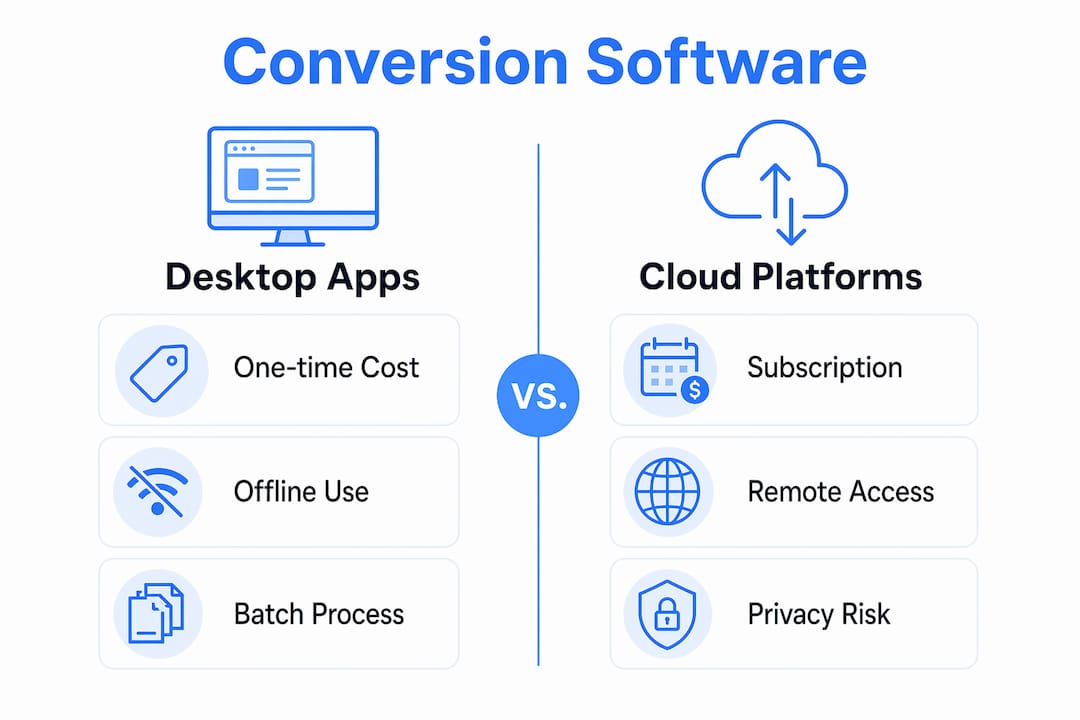
Popular tools include Adobe Acrobat for OCR, pdfFiller for editing, and free OCR converters with varying feature sets. Here is how they compare:
| Tool type | Cost range | Batch processing | Privacy level | Best for |
|---|---|---|---|---|
| Adobe Acrobat Pro | $19.99/month | Yes, 100+ pages | Cloud upload required | Enterprise and legal workflows |
| pdfFiller | $8–$20/month | Limited | Cloud storage | Form editing and signing |
| Free online OCR tools | Free | Rarely | Low, files uploaded to servers | Occasional single-page use |
| Browser-based tools (e.g., Tabtasker) | Free | Moderate | High, files stay local | Privacy-conscious users |
| Enterprise cloud platforms | $10–$30/month | Yes, 50–100+ pages | Varies by vendor | High-volume document teams |
Desktop software ranges from free to $150 as a one-time purchase, while enterprise cloud platforms charge $10–$30 per month for advanced batch features. That price gap reflects a real capability gap: batch processing, which converts 50–100 or more pages simultaneously, is the feature that separates professional tools from casual ones.
The privacy question deserves more attention than most guides give it. When you upload a sensitive contract or medical record to a free online converter, that file travels to a third-party server. If you’re not paying for the product, you might be the product. Browser-based tools that process files locally, like those offered by Tabtasker, eliminate that risk entirely.
-
Adobe Acrobat Pro: Best accuracy and layout preservation, but expensive for individuals.
-
pdfFiller: Strong for form-heavy documents, weaker for complex layouts.
-
Free online converters: Acceptable for non-sensitive, single-page documents only.
-
Tabtasker: No upload required, no account needed, and completely free.
Pro Tip: For sensitive documents, always choose a tool that processes files locally in your browser. Cloud-based free tools often retain uploaded files for model training or service improvement.
What are the benefits of converting scanned PDFs?
Converting a scanned PDF to an editable format delivers concrete productivity gains across legal, education, business, and archiving workflows. The benefits of scanned PDF conversion go well beyond simple convenience.
The most immediate benefit is searchability. A converted document lets you use Ctrl+F to find any term instantly, which matters enormously when you are reviewing a 200-page contract or a stack of historical records. The second benefit is editability: you can copy text, update figures, and reformat content without retyping everything from scratch.
Accessibility compliance is a less obvious but legally significant benefit. Section 508 of the Rehabilitation Act requires federal agencies and their contractors to make electronic documents accessible to people with disabilities. Assistive technologies like screen readers cannot interpret image-based PDFs. Converting to a searchable format is the first step toward compliance, though not the last.
Here is where a critical limitation appears. Making a document searchable alone is insufficient for true accessibility. Proper tagging, reading order, and structural markup are also required. OCR gives you the text; accessibility compliance requires additional manual work on top of that.
Common use cases where conversion pays off most:
-
Legal: Searching case files, contracts, and court records without manual page-by-page review.
-
Education: Converting scanned textbooks or research papers into citable, editable sources.
-
Business: Digitizing invoices, purchase orders, and HR records for database entry.
-
Archiving: Making historical documents searchable without altering their visual appearance.
The distinction between a searchable PDF and an editable format matters here. A searchable PDF preserves the original layout and is ideal for archiving and compliance. An editable Word document strips the formatting but lets you modify content freely. Choosing the wrong output type creates unnecessary cleanup work, a mistake more common than most users expect.
How to convert a scanned PDF to an editable format
Converting a scanned PDF to an editable format follows a repeatable workflow regardless of which tool you use. The steps below apply to most OCR-capable applications, including Adobe Acrobat, pdfFiller, and Tabtasker’s image to text tool.
-
Open the scanned PDF in your chosen application. If you are using a browser-based tool, drag and drop the file directly. No upload to a remote server occurs.
-
Select the OCR or text recognition feature. In Adobe Acrobat, this is labeled “Recognize Text.” In other tools, look for “Enhance Scan” or “Extract Text.” Run this on all pages if converting a multi-page document.
-
Review the recognition output. Scan the converted text for errors, particularly in numbers, proper nouns, and any section with unusual fonts. OCR errors cluster in predictable places.
-
Correct recognition mistakes manually. Most tools let you click on a word and edit it directly. For high-stakes documents like legal filings, a full proofread is non-negotiable.
-
Choose your export format. Select searchable PDF if you want to preserve the original appearance. Select Word, Excel, or plain text if you need to edit or repurpose the content.
-
Run a final quality check. Open the exported file and verify that formatting, tables, and columns transferred correctly. Complex layouts often need minor manual adjustments.
Batch processing and cloud integration increasingly define professional conversion workflows. If you are converting dozens of documents regularly, look for tools that support folder-level batch jobs and automated output routing. That single feature can cut hours of manual work each week.
Pro Tip: When converting tables or multi-column layouts, export to Excel or a structured Word format first. Plain text exports collapse column structure and require significant reformatting.
Key takeaways
Scanned PDF conversion requires OCR technology to transform image-based documents into searchable or editable text, and choosing the right output format and tool determines whether the result saves or costs you time.
| Point | Details |
|---|---|
| OCR is the core technology | Without OCR, a scanned PDF remains a flat image with no selectable or searchable text. |
| Output format choice matters | Searchable PDFs suit archiving; editable formats like Word suit content modification. |
| Privacy varies by tool type | Browser-based tools keep files local; cloud tools upload your documents to remote servers. |
| Accessibility needs more than OCR | Section 508 compliance requires tagging and structural markup beyond basic text recognition. |
| Batch processing defines professional use | Tools supporting 50–100+ page batch jobs are necessary for high-volume document workflows. |
Why I think most people pick the wrong conversion tool
Most guides on scanned PDF conversion treat tool selection as a simple feature checklist. In practice, the decision hinges on two questions most users never ask: where does my file go, and what do I actually need the output to do?
I have seen professionals upload sensitive client contracts to free online converters because the interface looked clean and the price was right. The file left their control the moment they clicked “convert.” That is a real risk, not a theoretical one, and it is almost never discussed in the same breath as accuracy rates and format options.
The second mistake I see constantly is choosing the wrong output format. Someone needs to archive a signed agreement, so they convert it to Word, then spend an hour reformatting because the columns collapsed. Someone else needs to edit a report, so they create a searchable PDF and wonders why they still cannot change the text. The output format distinction between searchable and editable is the single most clarifying concept in this entire topic, and most tools bury it in a dropdown menu.
My honest recommendation: start with the end use case, not the tool. If you are archiving, go searchable PDF. If you are editing, go Word or plain text. If your document contains sensitive information, go local and offline. Accuracy matters, but a 99% accurate file on someone else’s server is not a win.
— Teshub
How Tabtasker supports your PDF conversion workflow
Tabtasker gives you a free, private, and offline toolbox for handling scanned documents without the risks that come with uploading files to unknown servers. Every tool runs directly in your browser, which means your files never leave your device.
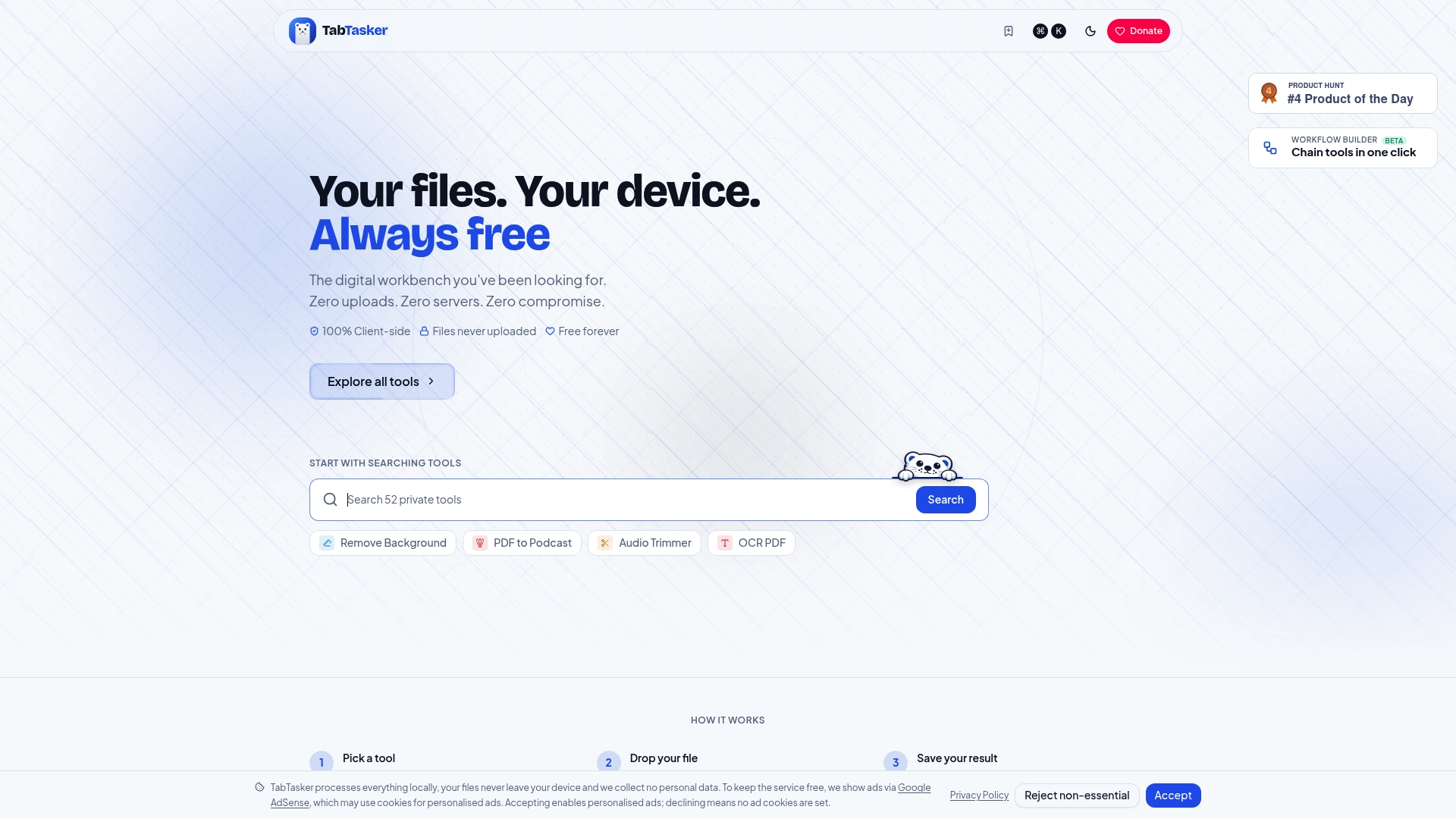
For scanned PDF work specifically, Tabtasker’s OCR and PDF tools let you extract text from images, process documents locally, and move files through your workflow without creating an account or paying a subscription. When you are done, the browser-based file sharing feature lets you send converted documents to colleagues instantly, again without a third-party server in the middle. If you have been frustrated by upload limits, privacy concerns, or paywalled features on other platforms, Tabtasker is worth a serious look.
FAQ
What is a scanned PDF exactly?
A scanned PDF is a digital document made up of an image of a physical page, with no selectable or searchable text. You cannot edit or search its content without first applying OCR technology.
How accurate is OCR when converting scanned PDFs?
OCR accuracy ranges from 85% to 99%, depending on scan resolution, font clarity, and page complexity. A clean document scanned at 300 DPI typically achieves the highest accuracy.
What is the difference between a searchable PDF and an editable format?
A searchable PDF adds a text layer over the original image so you can search and copy text, but the layout stays fixed. An editable format like a Word document lets you modify the content directly but may lose original formatting.
Is it safe to use free online tools for scanned PDF conversion?
Free online tools typically require you to upload your file to a remote server, which creates a privacy risk for sensitive documents. Browser-based tools that process files locally, like those from Tabtasker, avoid this issue entirely.
Does converting a scanned PDF make it accessible under Section 508?
OCR conversion alone does not meet Section 508 accessibility requirements. True compliance also requires proper document tagging, reading order, and structural markup that assistive technologies can interpret.