 TabTasker
TL;DR:
- Offline browser-based dev tools process files locally inside your browser, ensuring privacy and instant performance. They use WebAssembly and browser APIs to run tasks without uploading data, keeping your files entirely on your device.
Offline browser-based dev tools process your files locally, inside your own browser tab, with no uploads, no accounts, and no server ever touching your data. Technologies like WebAssembly (WASM) and the Web Crypto API make this possible, and platforms like Tabtasker show what it looks like in practice.
The short version:
- Privacy: your files never leave your device, so there is nothing to breach on a remote server
- Speed: no upload latency means small-to-medium file tasks finish in seconds
- Offline access: after the initial page load, most tools keep working without an internet connection
- Lower cost: static, client-side tools are free to use and require no paid cloud compute
Table of Contents
- Why privacy-conscious people and freelancers prefer local tools
- How do offline browser tools actually process files locally?
- What concrete benefits do offline dev tools give you?
- Who actually uses offline browser tools, and for what?
- When offline browser tools aren't the right choice
- How do you choose a trustworthy offline browser tool?
- How Tabtasker illustrates the checklist in practice
- Three offline workflows you can run right now
- Key Takeaways
- The case for building tools that stay quiet
- Tabtasker's offline toolbox is free to try right now
- Useful sources
Why privacy-conscious people and freelancers prefer local tools
When a cloud tool processes your file, it travels across a network, lands on a third-party server, gets logged, and sits in someone else's infrastructure until it is deleted, if it ever is. That is a lot of trust to extend to a free tool whose business model you may not fully understand. If you're not paying for the product, you might be the product.
Local, in-browser processing changes that equation entirely. Client-side tools collapse the exposure surface to zero because the sensitive file is never collected by third-party infrastructure.
The stakes are different depending on who you are:
- Developers — running quick utility tasks, such as hashing a string or formatting JSON, often do it dozens of times a day. Routing each operation through a cloud server is unnecessary risk.
Pro Tip: Before trusting any "free" online tool with a sensitive file, search for its privacy policy and look for the phrase "we may store" or "we may use your content." If you find it, that tool is not local-first.
How do offline browser tools actually process files locally?
The architecture is simpler than it sounds. When you open a browser-based tool, your browser downloads a bundle of static assets: HTML, CSS, JavaScript, and often a WASM binary. That bundle is the entire application. When you drop a file into the tool, the processing runs inside your browser tab or a Web Worker, a background thread that keeps the UI responsive. Nothing is POSTed to a server.

WASM, WebGPU, and pre-compiled model weights let browser tools run high-performance tasks locally, rivaling native apps for many operations. A background-removal model, for instance, can load once as a reasonably sized WASM bundle and then run entirely on your GPU or CPU.
| Browser API | What it enables |
|---|---|
| WebAssembly (WASM) | Near-native compute for compiled C/C++/Rust code |
| Web Workers | Background processing without freezing the UI |
| WebGPU | GPU-accelerated ML inference and image processing |
| SubtleCrypto / Web Crypto API | Secure hashing, encryption, and key generation |
| Service Workers | Offline caching so the app works after the first load |
Most browser-based tools download a compact bundle and can continue working offline after that initial load, making them practical in low-bandwidth or air-gapped environments. A service worker registers in the background and caches the application code so subsequent visits work even when your device is disconnected.
When you run a file operation in a properly built offline tool, the Network tab in your browser DevTools should stay silent. No outgoing request means your data never left. That silence is the proof.
Pro Tip: Open DevTools (F12), click the Network tab, clear the log, then run your operation. If no request carrying your file appears, the tool is genuinely local. This test takes about 30 seconds and is the single most reliable way to verify a privacy claim.
What concrete benefits do offline dev tools give you?
Privacy with a verifiable guarantee. Cloud tools ask you to trust their privacy policy. Local tools let you verify the claim yourself with the DevTools network test above. Browser-based tools require zero user accounts and generate zero server-side logs when processing happens fully client-side.
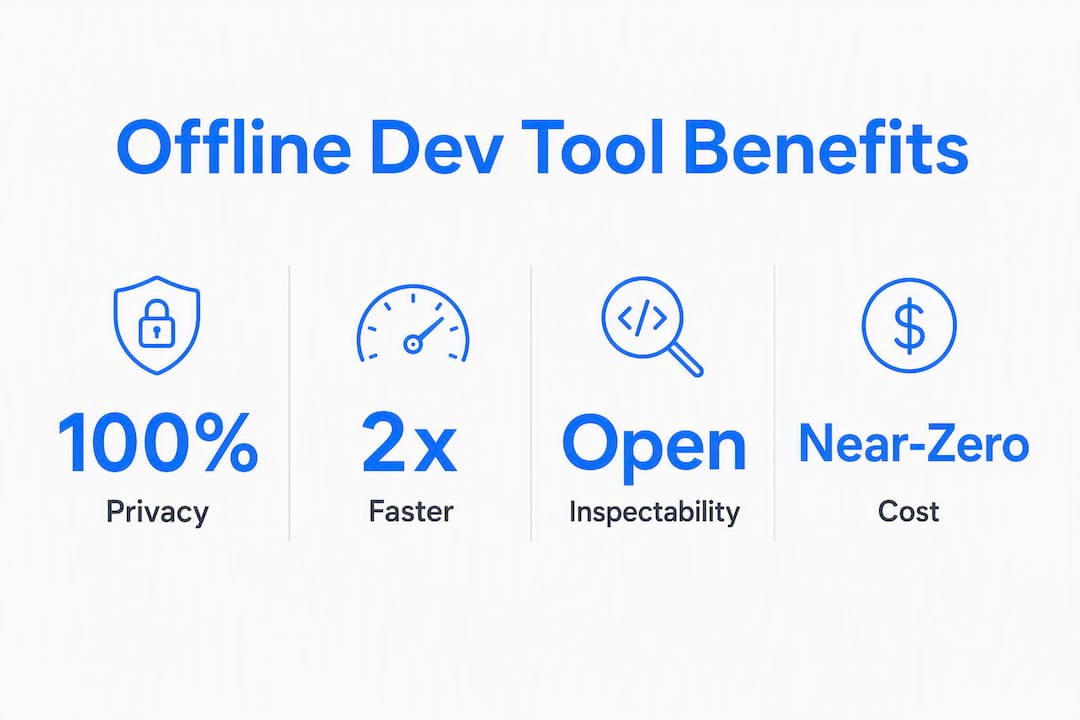
Speed without upload latency. Uploading a typical PDF to a cloud tool, waiting for server processing, and downloading the result can take noticeable time on a typical broadband connection. The same operation in a local browser tool runs much faster because the only bottleneck is your CPU.
Control and inspectability. Open-source or auditable client-side tools let you read the code, confirm what APIs are called, and run the tool in a fully air-gapped environment. That level of control is simply not available with server-side SaaS.
Near-zero cost. Static tools hosted on a CDN cost the provider almost nothing to serve, which is why many are genuinely free. You are not subsidizing server compute every time you process a file.
Operations like JSON formatting, Base64 encoding, hashing, and regex testing run entirely in-browser using JavaScript and standard Web APIs, with no functional difference from their server-side equivalents and considerably less risk.
Who actually uses offline browser tools, and for what?
The use cases cluster around four audiences, each with a distinct reason to keep files local.
Journalists and researchers:
- Strip EXIF metadata from photos before publishing to protect location data
- Redact sensitive PDFs without uploading source documents to a cloud service
- Convert audio recordings of interviews to compressed formats for archiving
Designers:
- Remove image backgrounds from unreleased product shots without sharing assets externally
- Resize and convert images for web delivery in seconds, directly in the browser
- Pick colors and generate palettes from client brand files that cannot leave the studio
Developers:
- Format and validate JSON payloads during local API development
- Generate UUIDs, hash strings with SHA-256, and encode/decode Base64 without a terminal
- Run quick regex tests and character-count checks on code snippets
Freelancers and consultants:
- Trim a client's audio recording to the relevant segment before transcription
- Convert a Word document to PDF for delivery without installing desktop software
- Compress images for a client's website without uploading the originals to a third-party service
- Generate a secure random password for a client account handover, locally
Each of these tasks is bounded, meaning it involves one file, one transformation, and a result in seconds. That is exactly the profile where local browser tools outperform cloud alternatives on every dimension that matters.
When offline browser tools aren't the right choice
Local tools have real limits, and pretending otherwise would be misleading.
- Very large files: multi-gigabyte video renders or high-resolution batch exports can exhaust browser memory. A 4K video that takes 90 minutes to encode server-side may simply crash a browser tab.
- Long-running batch jobs: processing hundreds of files in sequence, or running overnight pipelines, is server territory. Browser-based tools are optimal for bounded tasks; heavy persistent backend processes remain server territory.
- Multi-tenant collaboration: if a team needs shared access to processed outputs in real time, a local tool running in one person's browser cannot serve that workflow.
- Platform-specific browser limits: Safari on iOS imposes tighter memory caps than Chrome on desktop. A WASM bundle that runs smoothly on a MacBook may struggle on an older iPhone.
| Task type | Best approach |
|---|---|
| Single-file convert, compress, or resize | Local browser tool |
| Metadata strip, hash, or encode | Local browser tool |
| Long-running batch jobs | Cloud or local script |
| Multi-GB video render | Server-side pipeline |
| Real-time team collaboration | Cloud with access controls |
Practitioners recommend a hybrid model: use browser-based tools for bounded, sensitive tasks and cloud pipelines for large-scale batch jobs. The practical rule is straightforward: if the task is sensitive and bounded, keep it local. If it is large-scale and not sensitive, cloud compute is the pragmatic choice.
How do you choose a trustworthy offline browser tool?
Not every tool that calls itself "local" or "private" actually is. Here is a checklist to apply before you trust one with a sensitive file.
- Explicit local-processing claim: the tool's page should state clearly that processing happens in your browser, not on a server.
- Works offline after load: disable your internet connection after the page loads and try the tool. If it breaks, it is not truly local.
- No account required: a login screen is a signal that the tool needs a server to function.
- No upload progress bar: if you see a progress indicator when you drop a file, your file is being uploaded.
- Clear data-retention statement: the privacy policy should say explicitly that no file data is stored or transmitted.
- Open-source or auditable code: you can inspect what the JavaScript actually does.
- Service worker present: check the Application tab in DevTools. A registered service worker is a good sign the tool is built for offline use.
- SubtleCrypto for sensitive operations: tools that handle hashing or encryption should use the browser's built-in Web Crypto API, not a third-party library with unknown provenance.
Red flags to watch for:
- Active network requests during file processing (visible in the DevTools Network tab)
- Mandatory sign-up before you can use the core feature
- A vague privacy policy that says "we may process your data to improve our services"
- No mention of WASM, client-side processing, or local execution anywhere on the site
Pro Tip: Check the Application tab in DevTools for a registered service worker. Its presence confirms the tool was built to cache and serve itself offline, which is a strong architectural signal of genuine local-first design.
For enterprise readers, weigh these privacy signals against your team's need for SLAs, audit logs, and collaboration features. A single-user privacy tool is not a drop-in replacement for a managed enterprise platform, but for individual sensitive tasks, securing sensitive data locally is often the more defensible choice.
How Tabtasker illustrates the checklist in practice
Tabtasker is a browser-based toolbox built around the principle that your files should never leave your device. It maps directly to the checklist above.
Tools available and what they do:
- Background remover: strips image backgrounds using in-browser ML, no server involved
- Audio editor: trim, convert, and compress audio files locally
- Markdown editor: write and preview Markdown with no cloud sync
- CSV editor: edit tabular data in the browser without sending it anywhere
- Local AI chat: run AI inference on your device using pre-compiled model weights
- Developer utilities: JSON formatter, UUID generator, hash tool, Base64 encoder
To test it yourself: open the background remover, drop in a sample image, open the Network tab, and watch. No outgoing request. That silence is the proof.
Three offline workflows you can run right now
Workflow 1: Remove a background from a photo
- Open Tabtasker's background remover in your browser.
- Drop your image onto the tool. The ML model loads once (typically under 30MB) and runs locally.
- Download the result as a PNG with a transparent background.
- Verify: open the Network tab before dropping the image. Confirm no outgoing request appears during processing.
Estimated time: under a minute for a standard photo on a modern device.
Pro Tip: For best results, use images where the subject has clear contrast against the background. The in-browser ML model handles portraits and product shots well; complex foliage or hair may need a second pass with the eraser tool.
Workflow 2: Edit PDF pages locally
- Open Tabtasker's PDF editor and drop in your document.
- Select pages to extract, reorder them by dragging, or delete unwanted pages.
- Save the result. The output file stays on your device throughout.
- Verify: watch the Network tab during the entire operation. A properly built browser-based PDF editor generates zero outgoing requests.
Estimated time: under a minute for a standard document.
Workflow 3: Trim and convert audio
- Open Tabtasker's audio editor and load your file.
- Drag the trim handles to select the segment you want to keep.
- Choose your output format (MP3 or OGG for smaller files) and export.
- Verify: the Network tab should show no upload during conversion.
Estimated time: under a minute for typical files. Larger files may take longer on lower-powered devices.
Key Takeaways
Offline browser-based dev tools process your files locally using WASM and standard browser APIs, giving you verifiable privacy, near-instant speed, and offline capability at no cost.
| Point | Details |
|---|---|
| Local processing = verifiable privacy | No upload means no server breach risk; confirm with the DevTools Network tab. |
| WASM enables near-native speed | In-browser tools handle common file tasks in seconds, with no upload latency. |
| Offline after first load | Service worker caching keeps tools functional even without an internet connection. |
| Use hybrid for large jobs | Keep sensitive, bounded tasks local; route multi-GB or batch jobs to cloud pipelines. |
| Tabtasker meets the checklist | No account, no uploads, service worker caching, and silent Network tab during processing. |
The case for building tools that stay quiet
There is a version of "free" that costs you something you cannot easily price: the metadata trail, the server log, the third-party analytics pixel watching you work. Most people accept this without thinking about it because the alternative seems complicated.
It is not complicated. The browser is already a capable runtime. WASM, Web Workers, and the Web Crypto API exist precisely because the people who build the web decided that some things should happen locally, without a round trip to a server. The tools that use these APIs correctly are not a niche curiosity. They are a more honest design choice.
What gets underestimated is the cumulative effect. A journalist who strips EXIF data from one photo protects one location. A journalist who builds that habit into every workflow, using a tool that never phones home, builds a practice that is structurally harder to compromise. The same logic applies to a freelancer handling client contracts or a developer running utility tasks on production data.
Tabtasker was built around this premise: that the right default is local, and that cloud processing should be a deliberate choice, not an invisible assumption baked into every "free" tool you reach for.
Tabtasker's offline toolbox is free to try right now

Tabtasker gives you a full suite of privacy-first, browser-based tools with zero account requirement and no file uploads. The background remover, Markdown editor, and audio editor are ready the moment you open them. Drop a file, run the operation, and check the Network tab. The tools are free to use, supported by privacy-respecting display ads, optional affiliate links, and voluntary donations from users who find them worth keeping around. Start with the full offline toolbox and pick the tool that fits your next task.
Useful sources
- Client-side AI and browser capabilities — Google Chrome's developer documentation on WASM, WebGPU, and in-browser ML inference; the primary technical reference for understanding what modern browsers can run locally.
- Why Browser-Based Tools Are Safer for Your Sensitive Files — DEV Community article on the zero-exposure-surface argument for client-side tools.
- Why developers need privacy-first dev tools — Tabtasker's own breakdown of the design rationale behind building tools that never touch your files server-side.