 TabTasker
TL;DR:
- Tabtasker is a privacy-first browser tool that processes images entirely locally, ensuring files never leave your device. Cloud AI suites provide advanced generative features but require file uploads, trading privacy for creative power. Selecting the right tool depends on your specific needs, sensitivity of content, and whether local processing or cloud features are more important.
For privacy-first, fast browser AI edits, Tabtasker is the recommended starting choice — it processes everything locally using client-side technology, meaning your files never leave your device. If you need advanced generative fill or large-model inpainting, a cloud AI suite is the right trade-off. For layered PSD review in a browser, a PSD-focused editor handles that job. And if you want human-assisted finishing with minimal effort, a marketplace editing service covers that niche.
Quick picks by need:
- Privacy-conscious professionals and anyone handling sensitive client assets: Start with Tabtasker. No uploads, no account, no data risk.
- Social creators who need generative fill, style transfer, or AI-powered retouching: A cloud AI suite (Canva, Fotor, PhotoRoom, Pixlr, or Adobe Photoshop's web app) gives you the most powerful generative features, at the cost of file uploads.
- Designers reviewing or editing layered PSDs in a browser: A PSD-focused browser editor (Photopea is the benchmark here) preserves layer structure without a desktop install.
- One-off or time-sensitive complex edits: Marketplace services like Fiverr or Pickwish combine AI automation with human finishing.
One honest caveat: client-side tools trade generative power for privacy. You won't get Canva's Magic Fill or PhotoRoom's background-swap quality from a fully local editor today. The question is whether that trade-off fits your workflow.
Table of Contents
- What are the top browser AI image editing alternatives?
- How do you pick the right browser AI image editor?
- How we tested these tools
- Client-side vs. cloud-based browser AI editing: what's the real trade-off?
- Which tools should you try first?
- Key Takeaways
- What most people miss when choosing a browser image editor
- Tabtasker handles the edits your other tools shouldn't see
- Sources and further reading
What are the top browser AI image editing alternatives?
The table below covers the main categories and named tools, anchored by Tabtasker as the privacy-first pick. Per-entry notes follow.
| Tool / Category | Best For | Key AI Features | Privacy | Pricing / Free Tier | Ease of Use |
|---|---|---|---|---|---|
| Tabtasker | Privacy-first local editing, EXIF removal, background removal, upscaling | Background removal, upscaling, EXIF strip, resize, compress | Client-side (no uploads) | Free, no account | Very easy |
| Client-side privacy toolkits | Teams handling sensitive assets, quick edits without signup | Background removal, basic retouching, batch processing, WebP/AVIF export | Client-side (verifiable via network inspector) | Typically free | Easy |
| Cloud AI suites (Canva, Fotor, Pixlr, PhotoRoom, Magic Hour, Pixelcut, Microsoft Designer, Lensa, Claid) | Generative fill, style transfer, social content creation | Generative fill/inpainting, background swap, object removal, retouching, upscaling | Cloud (uploads required, accounts needed) | Freemium; paid tiers unlock higher resolution and export limits | Easy to moderate |
| PSD-focused browser editors (Photopea, Adobe Photoshop web) | Layered PSD review, production handoff, design collaboration | Layer-aware edits, masks, filters, some AI retouching | Cloud (uploads required) | Free (Photopea); subscription (Adobe) | Moderate to steep |
| Marketplace / service-based editing (Fiverr, Pickwish, HitPaw, Imagen AI, ON1 Photo RAW Max, Lightroom, Luminar Neo) | Complex or high-volume edits, professional finishing | AI-assisted plus human review, batch retouching, catalog editing | Cloud / managed (uploads required) | Paid; varies by service or subscription | Minimal effort for buyer |
Tabtasker runs its entire image suite locally. Background removal, EXIF stripping, resize, compress, and the Photo Cleanup workflow (remove BG + upscale + export as PNG) all execute in your browser without a server round trip. No account is required, and the free tier has no hidden export caps. For anyone who has ever paused before uploading a client's headshot to a "free" cloud tool and wondered where it goes, Tabtasker removes that question entirely.
Client-side privacy toolkits as a category share Tabtasker's core principle: browser-based image tools that keep files local avoid uploads and are preferred for privacy-sensitive workflows. Tools in this category often use WebAssembly to run codecs like MozJPEG, WebP, and AVIF directly in the browser, giving you live quality-vs-size control with no data leaving your machine.
Cloud AI suites cover a wide spectrum. Canva is the dominant all-in-one for social creators, with a generous free tier and strong template library. Fotor and Pixlr sit in the mid-range, offering AI retouching and background removal with freemium limits on exports. PhotoRoom is purpose-built for product photography background swaps. Magic Hour and the Magic Hour AI Image Editor focus on generative style and creative transformations. Pixelcut targets e-commerce sellers who need fast product cutouts. Microsoft Designer integrates with Microsoft 365 and suits teams already in that ecosystem. Lensa specializes in AI portrait enhancement and avatar generation. Claid is aimed at e-commerce teams needing automated, high-volume image enhancement at scale.
PSD-focused browser editors: Photopea is the most capable free browser PSD editor available, handling layers, masks, and text with fidelity that surprises most first-time users. PSD-aware browser editors can import layered PSDs and preserve editable layers for online review and AI-assisted edits without a desktop handoff. Adobe Photoshop's web app offers a lighter version of the desktop experience, useful for quick reviews and basic generative fill when you're already in the Creative Cloud ecosystem.
Marketplace and service-based options work differently. Fiverr connects you with human editors who use AI tools as part of their workflow, useful when the edit is genuinely complex. Pickwish offers automated AI editing with a clean interface for product images. HitPaw is a desktop-leaning tool with a web component, covering upscaling and background removal. Imagen AI is built specifically for photographers who want consistent, style-matched batch editing. ON1 Photo RAW Max and Lightroom are subscription-based professional suites with web access components, not pure browser tools. Luminar Neo follows a similar model, with AI sky replacement and portrait tools as its headline features.
Pro Tip: Before committing to any cloud AI suite's paid tier, open your browser's network inspector (F12 → Network tab) while using the free version. If you see your image file being sent to an external server, that upload is real, regardless of what the privacy page says.
How do you pick the right browser AI image editor?
Work through these questions in order. Your answers will point to a category before you evaluate individual tools.
- What is your primary use case? Background removal for product shots, generative fill for creative work, PSD layer review for design handoff, or quick compression and format conversion for web publishing each map to a different category.
- What file formats do you work with? If you regularly open PSDs with multiple layers, a PSD-focused editor is non-negotiable. If you work mostly with JPEGs and PNGs for social or web, any category works.
- How sensitive is the content? Client contracts, medical images, legal documents, or unreleased product photography all carry IP or confidentiality risk. Client-side tools are the only category where you can verify no upload occurs.
- Do you need generative fill or inpainting? If yes, a cloud AI suite is currently the only realistic option. Client-side tools can do background removal and upscaling, but large-model generative fill requires server-side inference.
- What are your export requirements? Check whether the tool exports at full resolution on the free tier, and whether it supports the formats you need (WebP, AVIF, PNG, TIFF). Some freemium tools watermark exports or cap resolution unless you upgrade.
- Do you need integrations? Canva connects to social platforms and Dropbox. Adobe Photoshop integrates with Creative Cloud. Lightroom syncs across devices. Tabtasker is standalone and offline-first, which is a feature if you don't want third-party integrations touching your files.
Red flags to watch for:
- Privacy policies that mention "we may use uploaded images to improve our models" without an opt-out.
- No clear statement about whether processing is server-side or client-side.
- Export limits that only appear after you've finished editing (resolution caps, watermarks, format restrictions).
- PSD editors that flatten layers on import without warning.
Three decision scenarios:
- Social post with a product cutout: A cloud AI suite like PhotoRoom or Canva handles this fast with good quality. Privacy is a lower concern for non-sensitive product shots.
- PSD review for a client production handoff: Photopea is the practical choice. It preserves layers and is free, though files do upload to the browser session.
- Retouching a client's confidential headshot or legal document image: Tabtasker's local background remover and EXIF strip run entirely in your browser. Nothing leaves your device.
How we tested these tools
Testing used three standardized image types: a high-detail portrait (for upscaling and retouching quality), a product shot on a complex background (for background removal accuracy), and a screenshot with text (for compression and format conversion fidelity).
Testing protocol:
- Each tool processed the same three source images under identical browser conditions (Chrome, standard hardware, cleared cache).
- Background removal results were compared blind: output images were labeled by number, not tool name, before quality assessment.
- Time-to-edit was recorded from file open to export-ready, including any signup or upload wait time.
- Export checks confirmed actual output resolution, format options, and whether watermarks appeared on free-tier exports.
Privacy checks performed:
- Browser network inspector (Chrome DevTools, Network tab) monitored during each edit to confirm whether image data was transmitted to external servers.
- Privacy policies were reviewed for data retention language, model training clauses, and opt-out mechanisms.
- Client-side tools that avoid uploads are verifiable with the browser network inspector, and Tabtasker passed this check with no outbound image requests detected.
Where meaningful differences showed up: High-detail portraits exposed the gap between cloud AI upscaling (sharper, more detail recovery) and local upscaling (faster, private, but less aggressive enhancement). Complex backgrounds separated the cloud AI tools from local ones most clearly. Screenshots and text-heavy images showed the least variation across tools.
Limitations: Browser performance varies by hardware and available RAM. Cloud AI tools update their models frequently, so output quality can shift between test dates. These results reflect a point-in-time evaluation and should be verified against your own sample images before you commit to a paid tier.
Client-side vs. cloud-based browser AI editing: what's the real trade-off?
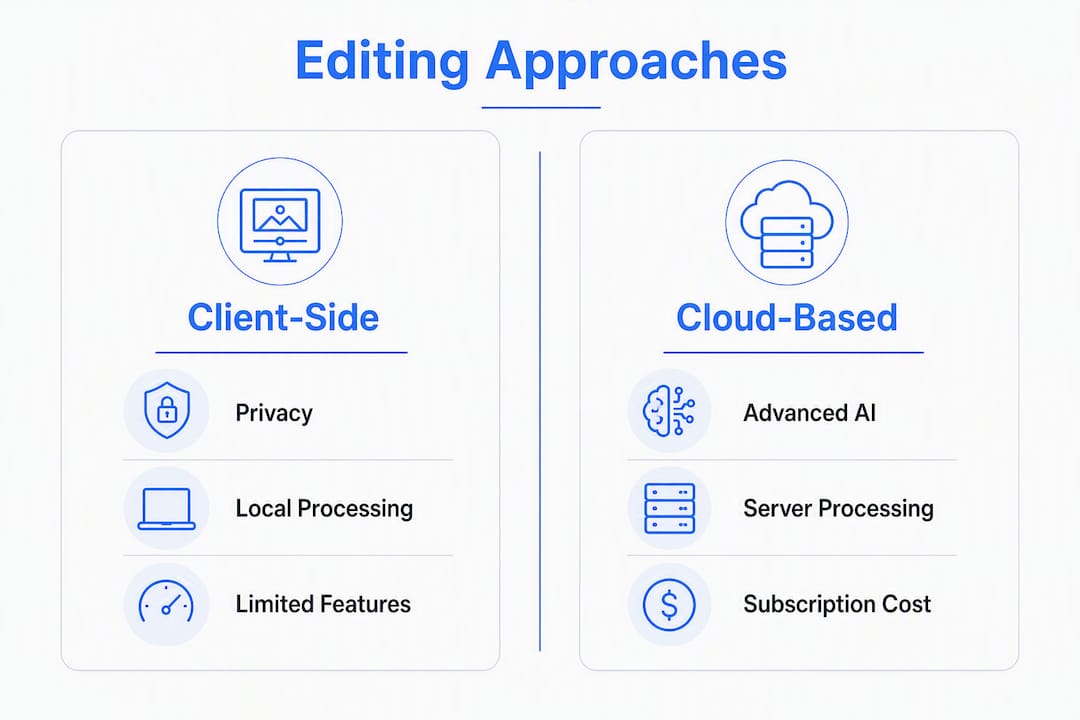
Client-side processing means the edit runs entirely in your browser using technologies like WebAssembly and the Canvas API. Your image file never leaves your device. Cloud AI processing means your file is uploaded to an external server, where a model runs inference and returns the result. Both approaches are legitimate. The choice depends on what you're editing and who it belongs to.
The practical difference is straightforward: cloud AI tools currently offer the most advanced generative features because large diffusion models require GPU clusters that can't run in a browser tab. Client-side tools protect your data because there's nothing to intercept. Technical practitioners describe this as a trade-off between creativity power and data sovereignty: cloud-based AI offers the most advanced generative features, while client-side editors protect IP and private client files.
How to confirm a tool processes locally:
- Open DevTools (F12) and go to the Network tab before loading your image.
- Apply an edit (background removal, resize, or filter).
- Look for any outbound POST or PUT requests carrying image data. A genuinely local tool shows none.
- Check the privacy policy for phrases like "we process your images on our servers" or "uploaded content may be used to improve our AI."
WebAssembly-based codecs like MozJPEG, WebP, and AVIF can run locally in the browser with live quality-vs-size control, which is why client-side compression tools are technically credible, not just marketing claims.
Pro Tip: A hybrid workflow often makes the most sense. Use a client-side tool like Tabtasker for sensitive steps (EXIF removal, initial compression, background removal on confidential assets), then selectively use a cloud AI suite for generative tasks on non-sensitive images where creative quality matters more than data control. Two practical examples: a photographer strips EXIF data locally before uploading a portfolio image to a cloud editor for sky replacement; a designer removes a client logo's background locally before using a cloud tool to generate a lifestyle background for a non-confidential mockup.
Modern browser editors built on modular JS stacks can replicate many professional workflows including layers, masks, and non-destructive edits, making them viable for production and review tasks without server round trips.
Which tools should you try first?
Three starting points cover the most common needs.
- Start with Tabtasker if privacy is your first filter. The image workspace opens immediately with no account, and the Photo Cleanup workflow chains background removal, upscaling, and PNG export in a single local session. Try it on a real client file and watch the network inspector stay quiet.
- Start with a cloud AI suite (Canva, PhotoRoom, or Fotor are the most accessible entry points) if generative fill, background swapping, or AI retouching quality is your priority and the images are not confidential. All three have free tiers that let you evaluate output quality before paying.
- Start with Photopea if you need to open and edit a layered PSD in a browser. It's free, handles complex layer structures well, and requires no subscription.
One practical reminder: always test on your own sample images before upgrading to a paid tier. Output quality varies by image type, and a tool that excels on product shots may disappoint on portraits. The free tier is your proof of concept.
Key Takeaways
The most important decision in choosing a browser AI image editor is whether your content requires local processing or whether you can accept cloud uploads in exchange for more powerful generative features.
| Point | Details |
|---|---|
| Client-side vs. cloud is the core choice | Local tools protect your data; cloud AI tools offer more advanced generative features like inpainting and style transfer. |
| Tabtasker for privacy-first workflows | Tabtasker runs background removal, EXIF strip, upscaling, and compression locally with no uploads or account required. |
| Photopea for PSD browser editing | Photopea preserves layers and is the most capable free browser PSD editor for design review and handoff. |
| Verify local processing yourself | Use the browser network inspector to confirm no image data leaves your device during an edit. |
| Test on your own images first | Free tiers exist for a reason; evaluate output quality on your actual content before committing to a paid plan. |
What most people miss when choosing a browser image editor
The conversation around browser-based AI image editors almost always centers on features: which tool has the best background removal, the sharpest upscaling, the most convincing generative fill. That framing is understandable, but it skips the question that actually matters for a lot of real-world use cases: where does your file go?
Most "free" cloud AI editors are free because your uploads have value. That value might be model training data, behavioral analytics, or simply the leverage to upsell you on a paid plan once you've invested time in the tool's workflow. None of that is necessarily sinister, but it's worth being clear-eyed about. A tool that processes your images on its servers has custody of those images, at least temporarily, and "temporary" in a privacy policy can mean a lot of things.
The case for client-side tools isn't that they're always better. Cloud AI suites genuinely produce more impressive generative results right now, and that gap won't close quickly. The case is that for a specific class of work, including client assets, unreleased creative work, legal or medical images, and anything covered by an NDA, the privacy model of the tool is as important as its feature set. Choosing a cloud tool for that work because it has a slightly better background removal algorithm is a trade-off most people make without realizing they're making it.
The hybrid workflow described in this article isn't a compromise. It's a deliberate choice: use local tools where data sovereignty matters, use cloud tools where creative power matters, and know which category your current task falls into before you open the editor.
Tabtasker handles the edits your other tools shouldn't see
Most browser image editors ask you to upload first and edit second. Tabtasker reverses that: every edit runs locally in your browser, so the question of where your file goes has a simple answer. It stays with you.

The Tabtasker image workspace gives you background removal, resize, compress, EXIF strip, and color picker, all free, all offline-ready, and all without creating an account. The Photo Cleanup workflow chains background removal, upscaling, and PNG export into a single session, which covers the most common quick-edit sequence in one step. There's no watermark on exports, no resolution cap on the free tier, and no signup wall between you and the tool.
If you're working with client files, confidential assets, or anything you'd rather not hand to a third-party server, open the image workspace, drop in your file, and run the edit. The network inspector will stay quiet. That's the proof.
Sources and further reading
The sources below back the claims in this article and offer deeper reading on client-side processing, browser editor capabilities, and privacy-first design.
- Browser-Based Image Tools: The Complete Privacy Guide (2026) — DEV Community: Covers client-side vs. cloud processing, how to verify local execution with the network inspector, and practical tool examples including WebAssembly-based compression.
- The Complete Guide to Browser Image Editors — Tabtasker: Tabtasker's own guide to browser image editing, covering client-side workflows, feature trade-offs, and privacy signals to look for.
- Photo Cleanup: Remove BG + Upscale + PNG — Tabtasker: The Tabtasker workflow template referenced in this article; shows the combined background removal and upscaling pipeline running locally.
- What Is Client-Side AI and Why It Changes Everything — Tabtasker: Explains the technical foundations of client-side AI processing and why it matters for privacy-conscious users.
- The Rise of Privacy-First Web Apps — Tabtasker: Context on privacy-first design patterns and how to evaluate whether a browser app genuinely processes locally.
On testing reproducibility: The methodology in this article used standardized sample images and a consistent browser environment. Results reflect a point-in-time evaluation. Cloud AI tools update their models regularly, so output quality for those tools should be re-verified against your own images. The network inspector privacy check is reproducible by any reader on any tool at any time.