 TabTasker
Yes, you can convert files without uploading them anywhere. In-browser client-side converters and offline desktop apps handle the entire job on your device, and nothing ever touches a remote server. Tools like browser-based converters are built specifically for this, and the steps below show you exactly how to run one in the next five minutes.
TL;DR:
- Client-side converters and offline desktop apps process files entirely on your device, ensuring no data is uploaded to remote servers.
- Browser support for WebAssembly and WebCodecs varies, which can affect the speed and feasibility of in-browser conversion tools.
- Common formats supported locally include MP4, MP3, JPG, PDF, and dozens of others, though proprietary codecs and DRM-protected files may still require server-side handling.
- Verifying a convertor’s privacy claims involves checking for explicit in-browser processing language and testing network activity during conversion.
- For heavy or complex files, desktop apps or command-line tools are preferable, but quick, sensitive conversions are best handled within the browser.
Table of Contents
- What Are Your Options for a No-Upload File Converter?
- Which File Types Can You Convert Without Uploading?
- How Does In-Browser Conversion Actually Work?
- How Do You Verify a Converter Isn't Uploading Your Files?
- How Do You Convert a File Without Uploading It?
- Browser Tools Versus Desktop Apps: Which One Fits Your File?
- Try Tabtasker's Private Conversion Tools Right Now
- Sources
What Are Your Options for a No-Upload File Converter?
Not every "free converter" you find works the way you think. A shocking number quietly send your file to a server, convert it there, then hand it back to you, and you never see the transfer happen. Here's what actually keeps files on your device.
- In-browser client-side converters. These run entirely inside your browser tab using JavaScript and modern web APIs. Best for privacy, quick edits, and files under a few hundred megabytes.
- Offline desktop apps. Software installed on your machine handles the heaviest lifting: massive video files, obscure codecs, or batch jobs involving hundreds of files at once.
- OS built-in export tools. Your operating system's "Save As" or "Export" menu already converts plenty of document and image formats without any third-party tool at all.
- Command-line tools. Programs like ffmpeg run locally and give advanced users total control over codecs, bitrates, and batch scripting, though they demand more technical comfort.
The right pick depends on file size and how much control you need. A one-off image conversion belongs in a browser tab. A 4K video archive belongs on a desktop app or a command line.
Which File Types Can You Convert Without Uploading?
Local converters cover far more ground than most people expect. An open-source project like cove-universal-converter documents support for more than 40 formats across four categories, and its own project notes state plainly that "no files leave your machine."
Common formats you'll find supported client-side include:
- Video: MP4, MKV, WebM, MOV
- Audio: MP3, WAV, FLAC
- Images: JPG, PNG, WebP, HEIC
- Documents: PDF, DOCX, TXT, Markdown
- Subtitles and data: SRT, VTT, CSV, JSON
Batch conversion and ZIP file output show up as standard features on most serious tools now, letting you drop in dozens of files and download one archive. The gap you'll hit eventually: proprietary codecs and DRM-protected media. A movie file locked by streaming DRM, or an obscure broadcast codec, often can't be decoded client-side no matter how good the tool is. That's a licensing wall, not a privacy failure.
How Does In-Browser Conversion Actually Work?
Two technologies make no-upload conversion possible, and understanding them helps you trust the claim instead of just hoping it's true.
WebAssembly lets developers run compiled code, often originally written in C or C++, at near-native speed directly inside your browser tab. That's the engine under the hood of many converters, letting a browser do work that used to require installed software.
The WebCodecs API gives web pages low-level, direct access to your device's audio and video codecs, so encoding and decoding happen locally rather than on someone else's server. Together, WebAssembly and WebCodecs let converters approach native app performance while staying entirely in your browser tab.
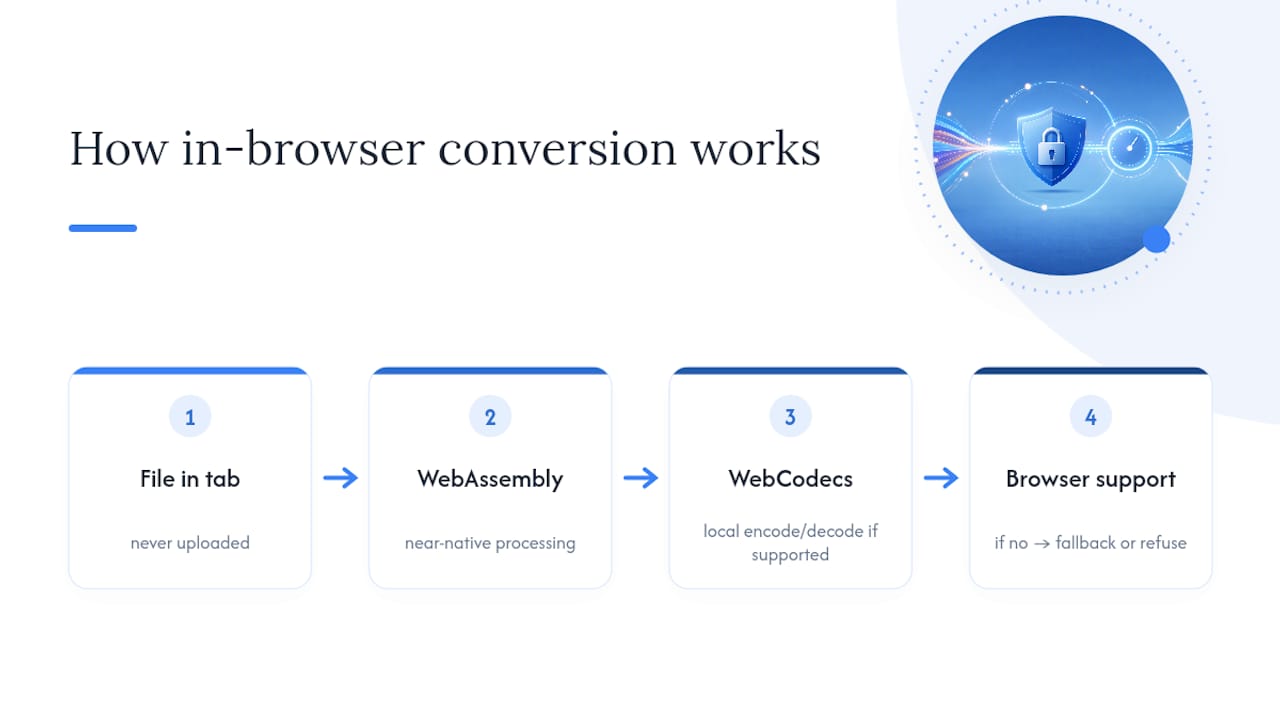
The catch: browser support varies. Older browsers, or some mobile browsers, may not support WebCodecs at all, which forces a converter to either fall back to a slower method or refuse the job outright.
How Do You Verify a Converter Isn't Uploading Your Files?
Verifying it costs about thirty seconds.
- Look for explicit language like "runs entirely in your browser" or "client-side processing," not vaguer phrases like "secure" or "encrypted," which often just mean encrypted in transit to a server.
- Open your browser's developer tools, click the Network tab, then run a conversion. If you see no outgoing request carrying your file's data, it never left your machine. Reporting on browser-based converters has flagged this exact check as the simplest way regular users can confirm a privacy claim themselves.
- Favor tools with a public, open-source repository. An inspectable codebase lets anyone verify there's no hidden server call buried in the code.
- Back up your original files before converting, and strip EXIF metadata from photos first if location or device data concerns you.
- Watch for a converter that spikes your network usage during what should be a purely local job. That's often a tell that some part of the process is happening server-side after all.
Pro Tip: Test with a throwaway file first, not your most sensitive document. If the tool works exactly as advertised on a low-stakes file, you can trust it with the real one.
How Do You Convert a File Without Uploading It?
Running your first local conversion takes less time than reading this paragraph.
- Open a trusted client-side tool. Tabtasker's image converter or audio converter work directly in your browser with no account required.
- Drop in your file or files. Drag and drop usually works, or click to browse. Confirm the tool accepts your file type before proceeding; most display accepted formats up front.
- Choose your output format and settings. Pick the target format, adjust quality or codec if the tool offers it, and set batch options if you're converting several files at once.
- Run the conversion and download the result. Watch the local progress bar, then check the output file opens correctly before deleting your original.
If a conversion fails, try a different output format first. Some codec combinations are simply unsupported. Reducing resolution or file size often resolves memory errors on large videos. If a browser tool keeps struggling, that's your signal to switch to a desktop app built for heavier work, which is a normal and expected handoff, not a failure of the browser method.
Browser Tools Versus Desktop Apps: Which One Fits Your File?
Reach for an in-browser converter first. For quick edits, one-off conversions, and anything touching sensitive documents, a browser tool gets the job done with zero installation and zero risk of a file sitting on someone else's server.
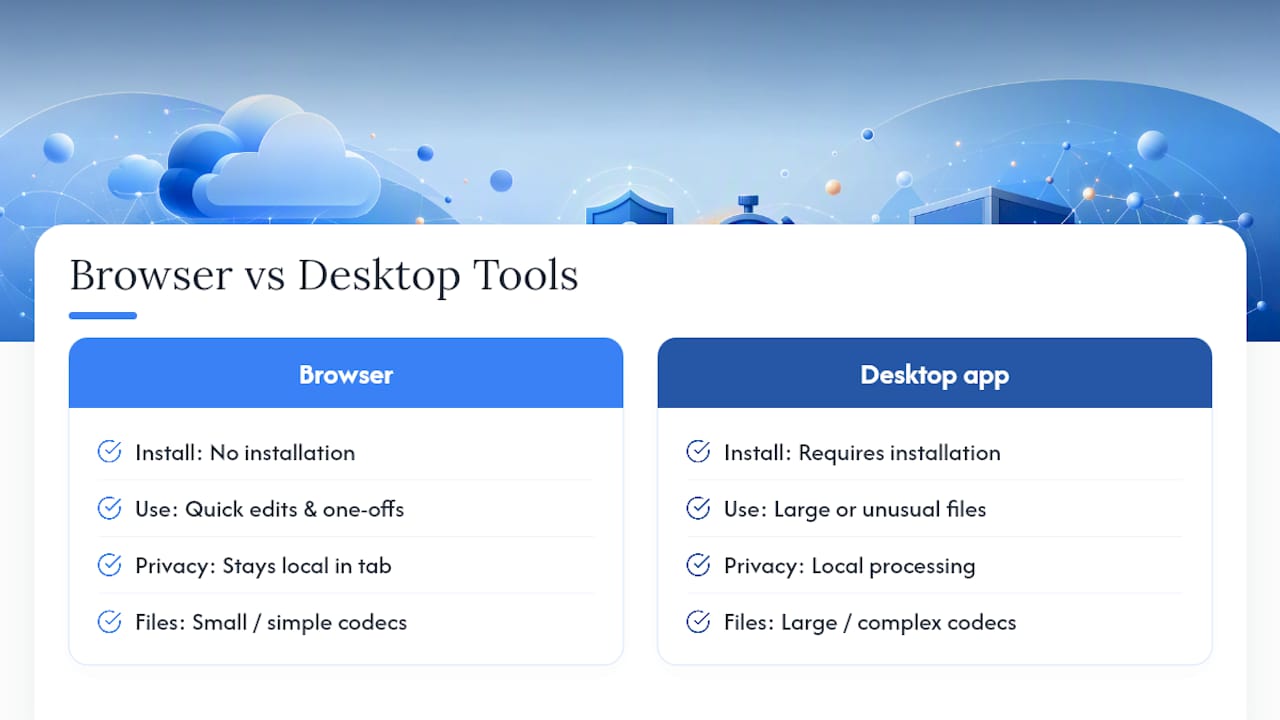
Switch to a desktop app when your file is genuinely large, uses a specialized or unusual codec, or you're running heavy batch jobs day after day. Server offloading becomes more common as file size and codec complexity increase, even on tools that market themselves as browser-based. That's a real trade-off, not a marketing failure, but it's worth knowing before you commit a 20GB video library to a browser tab.
Always test one small sample file before converting an entire folder, and keep your originals until you've confirmed the output opens cleanly.
— Vehicularis
Try Tabtasker's Private Conversion Tools Right Now
Some online converter suites offer an alternative to server-based converters for users who want their files to stay exactly where they are: on their own device. These tools often run client-side, with no sign-up screen standing between you and the conversion you need.

The image converter handles JPG, PNG, WebP, and HEIC conversions in seconds, while the audio converter covers MP3, WAV, and FLAC without ever leaving your browser tab. Tabtasker's own guide to transcribing audio locally walks through the same client-side pattern in more depth, if you want to see it applied to a real workflow. Beyond conversion, the toolbox covers document editing through the Markdown editor and the CSV editor, plus image tasks like the background remover. Open the full tool suite and pick whichever converter matches the file sitting on your desktop right now.